Accessories
Accessories are the items you hand out with a device — chargers, styluses, hard cases, screen protectors, USB-C cables, headphones, carrying straps. They live in their own dedicated module so you can track who has what without bumping against Parts Inventory (which is reserved for internal repair components like screens, motherboards, and keyboards).
The module gives you four things:
- A catalog of accessory types your district issues
- Inventory at each of your existing inventory locations (the same warehouses + tech offices Parts uses)
- A per-user issuance log on every user profile, with accept/decline and lost tracking
- An automatic replacement-threshold warning when a user keeps losing the same accessory
When to use Accessories vs. Parts
| Use Accessories for… | Use Parts for… |
|---|---|
| Items handed to a user with a device | Internal repair components |
| Charger, stylus, case, screen protector | Replacement screen, keyboard, motherboard |
| Accept-or-decline on hand-off matters | Quantity-consumed-during-repair matters |
| You care who lost it three times | You care which incident used it |
The two modules share inventory locations, so a "Central Warehouse" or "High School Tech Office" you define once stores both kinds of things.
Catalog
Catalog management lives in Settings → Accessory Catalog. Each catalog entry is a type of accessory you issue — not a specific physical item with a serial number. Per-unit serial tracking is a separate scope.
For each accessory you define:
- Name — e.g. Charger, Stylus, Hard Case
- SKU — your purchasing reference
- Default cost — used as the suggested fine amount when one goes missing
- Description — a short note for the people doing the issuing
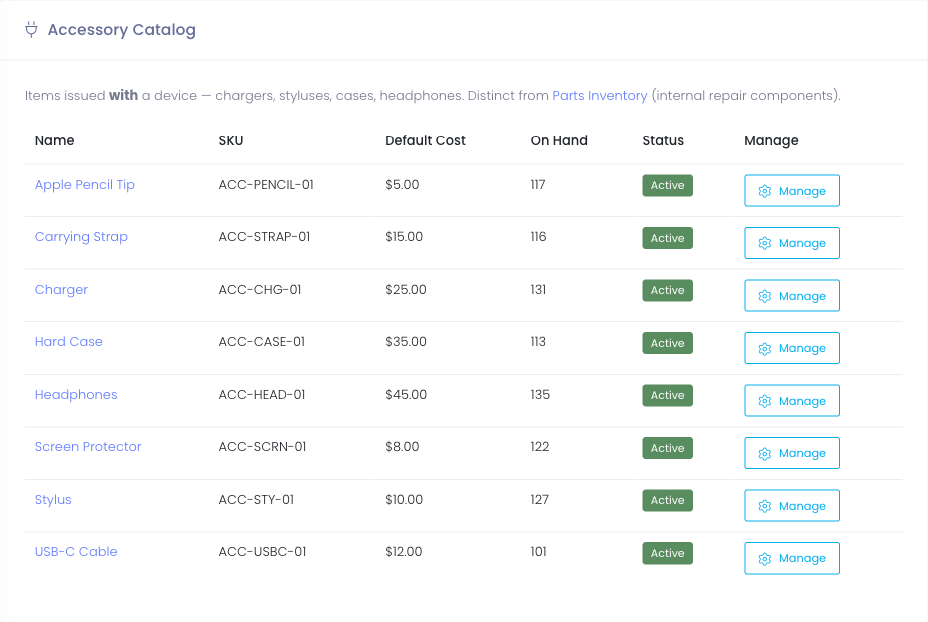
Clicking Manage on any row opens the accessory's detail page, where you can:
- Edit the catalog entry itself (rename, change SKU, deactivate)
- View inventory by location — quantity on hand at every active inventory location
- Adjust stock at a single location (e.g. "+25 received from vendor", "−2 damaged on arrival")
- Transfer stock between two locations with a reason
- See the recent transfer history for the audit trail
When you deactivate an accessory, it disappears from the Issue picker on user profiles but keeps every historical issuance record intact.
Issuing on a User Profile
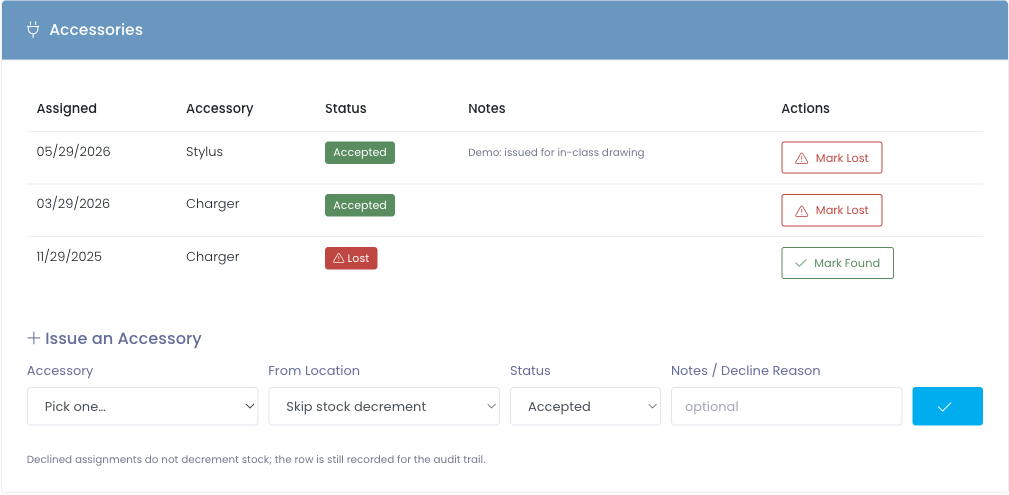
When a tech opens a staff or student profile, an Accessories card sits between Current Checkouts and Current Incidents. Every accessory ever issued to that person shows up here with one of three status badges:
- Accepted — they took it and signed off
- Declined — they refused it (the note field captures why)
- Lost — it was issued and is now gone
Issuing an accessory
The bottom of the card has a single-line Issue an Accessory form. Pick the accessory from the catalog dropdown, choose the location it's coming out of, set the status to Accepted or Declined, and optionally add a note. Submitting it:
- Records the assignment with a timestamp and your name
- Decrements stock at the chosen location by 1 — only if the status was Accepted
If the user is declining the accessory you're offering them, set the status to Declined — the row is still recorded for the audit trail but no stock moves.
Returning an accessory
Each active accessory has an inline Return action. Use it when the user brings the item back — it closes out the assignment, removes it from the user, and adds one unit back to the location it originally came out of. You're asked to confirm first.
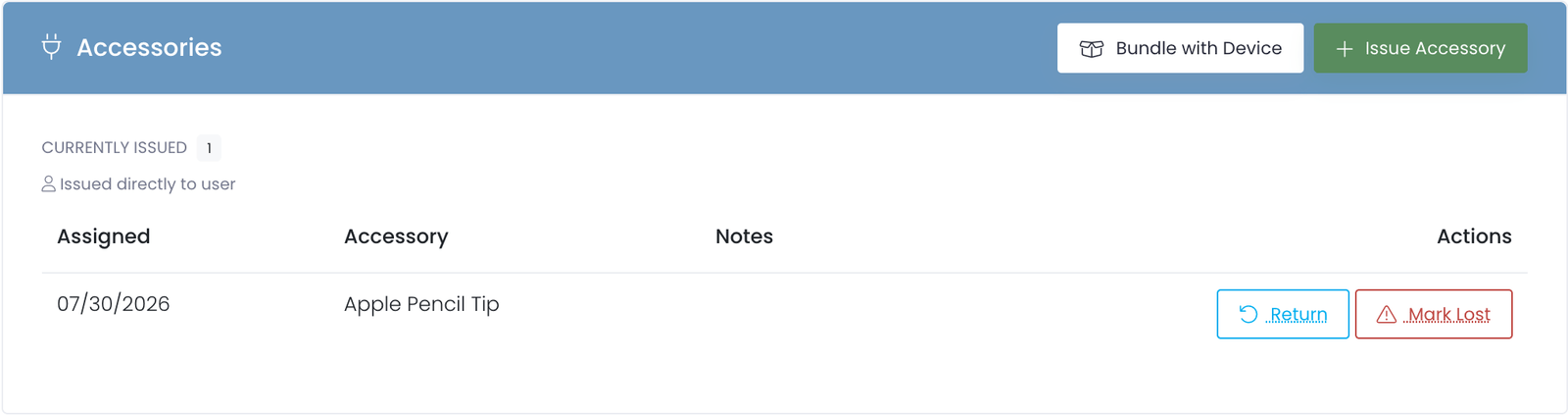
This is the counterpart to the device check-in handoff: an accessory handed straight to a user (with no device) has no check-in to ride along with, so Return is how you clear it. For accessories bundled with a device, you can still process them all together at check-in — but Return is available any time you'd rather do it directly.
Marking lost or found
Each active accessory also has an inline Mark Lost action. Clicking it flips the row's badge to Lost and stamps the loss timestamp. Mark Lost is then replaced by a Mark Found action so you can reverse a mistaken loss report later.
Marking lost does not automatically issue a replacement — that's a separate Issue. The next Issued accessory of the same type counts toward the replacement-threshold warning.
Replacement-Threshold Warning
When a user has been issued the same accessory three times in the trailing twelve months — counting both lost rows and explicit replacements — a yellow banner appears at the top of their Accessories card:

The banner names the accessory and the count, so a tech about to issue them a fourth charger immediately sees that something is off. They can still go ahead — the banner is a signal, not a block — but the conversation tends to shift to "let's figure out why" rather than "here's another one."
Adjusting the threshold
The default threshold is 3 in 12 months. To change it for your district, edit the AccessoryReplacementWarningThreshold setting in Settings → Configure General Settings. Setting it to a higher value makes the banner appear less often; setting it to 0 disables the banner entirely without affecting any of the per-user history.
Bundling Accessories with a Checkout
Bundling attaches accessories to a specific checked-out device, so that when the device comes back you're prompted to hand each one off. There are two ways to start:
- Right after a checkout — the user profile automatically opens the Bundle Accessories modal so the tech can tick every charger, case, cable, etc. that left the desk with the device.
- Any time the device is already out — you don't have to catch it at checkout. On the user's Accessories card, use the Bundle with Device button; or from the device profile of a checked-out device, use Bundle Accessories. Both open the same modal for that active checkout.

That second path is the one to use when someone was handed a charger or case after they already had their device — previously those accessories could only be issued on their own, with no way to hand them off at return. Now they can ride along with the device like any other bundled item.
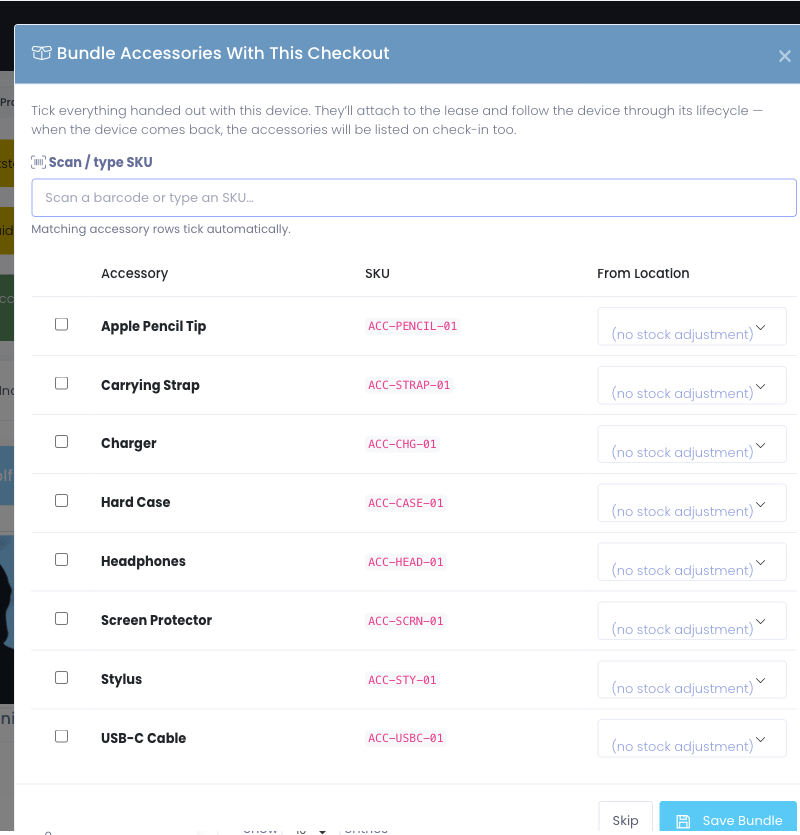
When the user has more than one device out, the modal opens with a Which checked-out device? picker (labeled by asset tag) so you attach to the right one. With a single device out, it's chosen for you.
The modal has two ways to pick items:
- Scan / type SKU — scan an accessory's barcode (or type the SKU) and the matching row ticks itself. The scan input clears so you can keep scanning.
- Tick by hand — for accessories without barcodes, just tick the row and pick a "From Location" if you want the stock decremented.
Hitting Save Bundle writes one row per ticked accessory, all tied to that device's checkout. Skip dismisses the modal without saving — useful if your district doesn't track accessories at the device level.
After check-in: the handoff prompt
When the device comes back, the user profile shows a yellow banner if accessories from that lease are still active. Click Process Handoff to walk through each one:
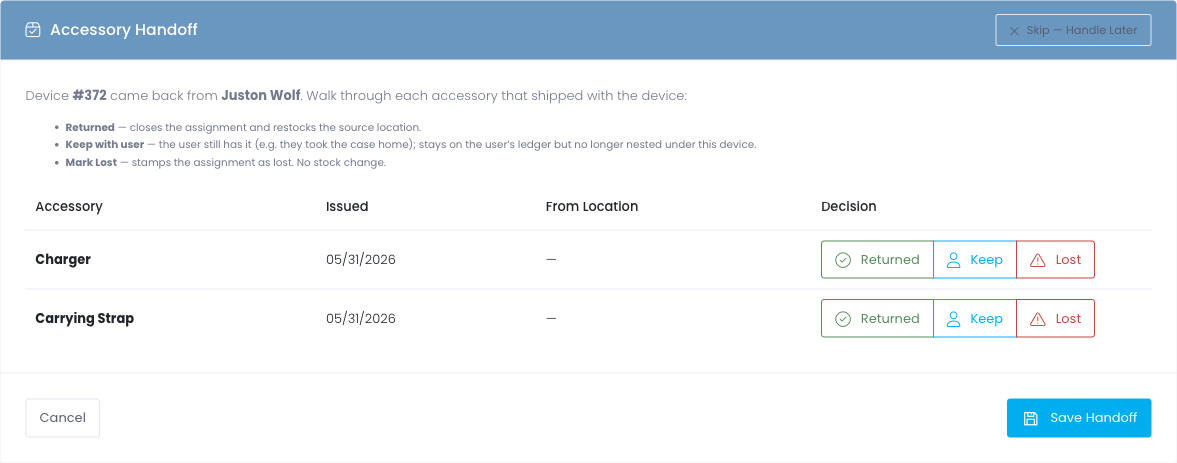
For each accessory pick:
- Returned — closes the assignment cleanly and adds 1 back to the source location's stock.
- Keep with user — the user still has it (e.g. they took the case home for the summer). The row stays on the user's ledger but no longer nests under the now-returned hardware.
- Mark Lost — stamps the assignment as lost. No stock change.
You don't have to process every row at once. Skipping the page leaves the banner in place so you can come back to it on the next visit.
Where bundled accessories show up
On the user profile, the Currently Issued section groups by device — anything bundled with a checkout nests under that device's asset tag, with standalone accessories (handed out without a device) listed first.
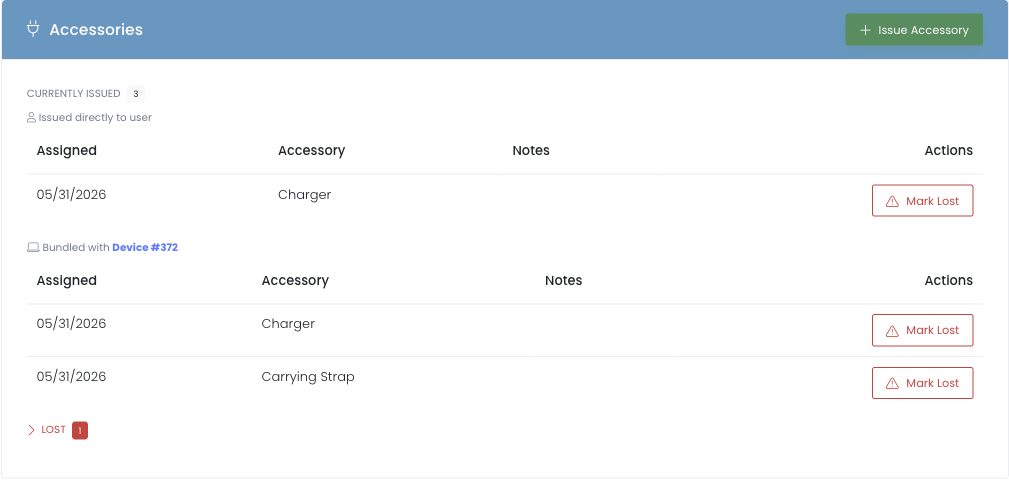
On the device profile, a new "Accessories on This Device" card lists every active accessory currently bundled with that hardware — useful when a tech is looking at the device record and wants to know what else shipped with it.

Default Checkout Bundle
If most devices go out with the same accessories — a charger and a case, say — set them up once as a default checkout bundle and they attach to every device automatically at checkout, with no per-device steps. This is the one to use for a large back-to-school rollout where you're issuing hundreds of devices and don't want to bundle each one by hand.
Set it up
- Open an accessory from the catalog.
- Turn on Include in default checkout bundle.
- Choose the Bundle stock location the accessory is drawn from, or Don't track stock to attach it without changing inventory.
- Select Save Changes. Repeat for each accessory you want in the bundle.
- Go to Settings → Inventory and turn on Auto-Bundle Accessories on Checkout.
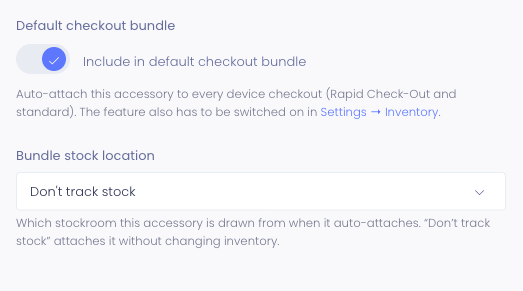
From then on every checkout — Rapid Check-Out and standard — automatically includes the bundle. During Rapid Check-Out the bundled accessories show on each session-log row, and staff can still add more for a specific device with + Accessories. Because the bundled accessories are attached to the checkout, they appear on the device's check-in handoff prompt just like any other bundled item, so you're reminded to collect them.
If a device already has one of the bundle accessories on it, the bundle won't add a duplicate. Turning the master toggle off pauses the behavior without changing which accessories are flagged.
What's not (yet) in this module
These are deliberate scope cuts — file a feature request if any of them block you:
- Default bundles per device type. You can't yet pre-configure "every Chromebook ships with a charger and a case" so the bundle modal pre-fills. For now it starts empty each time.
- Per-unit serial tracking. Each catalog entry is a type of accessory, not a specific physical item. You can't yet track which exact charger went out to which user.
- Bulk import. Catalog entries are created one at a time.
- Per-location reorder alerts. The accessory_inventory rows store a reorder level, but no alert fires when stock dips below it yet. (Parts Inventory has this; the accessory parallel ships in a later release.)