Serialized Accessories
Most accessories are counted by quantity: you have 200 identical chargers, and it does not matter which one a student gets. Some accessories are worth tracking as individual units, each with its own serial, so you can answer "who has charger CHG-2026-001234 right now, and who has held it before?"
Serial tracking is turned on per accessory, so you can serialize the few items that need it (a pricey stylus, an AppleCare-tagged charger) and leave everything else counted by quantity.
Turning on serial tracking
Go to Settings → Accessory Catalog, open the accessory, and switch on Track this accessory as individual serialized units, then Save. It is off by default, and turning it on does not change any accessory you leave alone.
Stocking units
Once an accessory is serialized, a Units tab appears on its catalog page. Pick a location, enter the serials one per line (commas and semicolons work too), and select Add units. Serials already on file for that accessory are skipped, so re-pasting a list will not create duplicates.
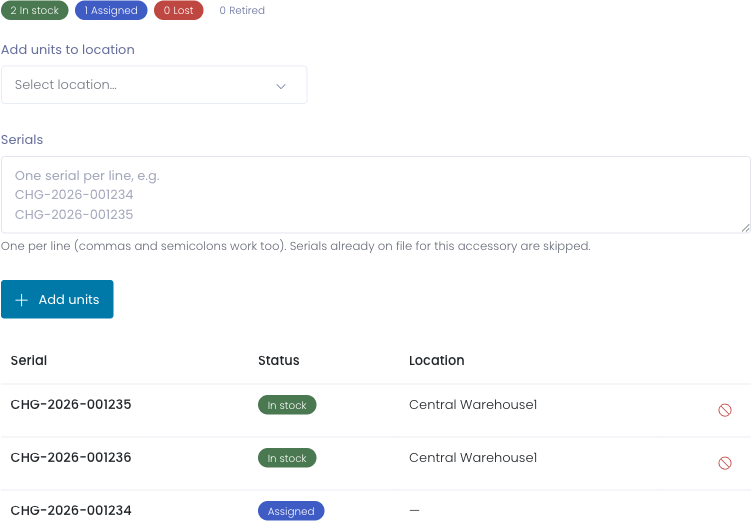
The counts across the top show how many units are in stock, assigned, lost, or retired. To take a damaged or written-off unit out of circulation, select the retire icon on an in-stock row. A retired unit leaves your on-hand stock but keeps its history for the record.
For a serialized accessory, the on-hand quantity you see everywhere else is simply the number of in-stock units at each location, so your existing inventory totals stay accurate as units are stocked, issued, and returned.
Issuing a specific unit
Issue a serialized accessory the same way as any other, from the Accessories card on a user profile. When you pick a serial-tracked accessory and choose a location, a Unit (serial) picker appears listing the units in stock at that location. Choose the exact one you are handing out.
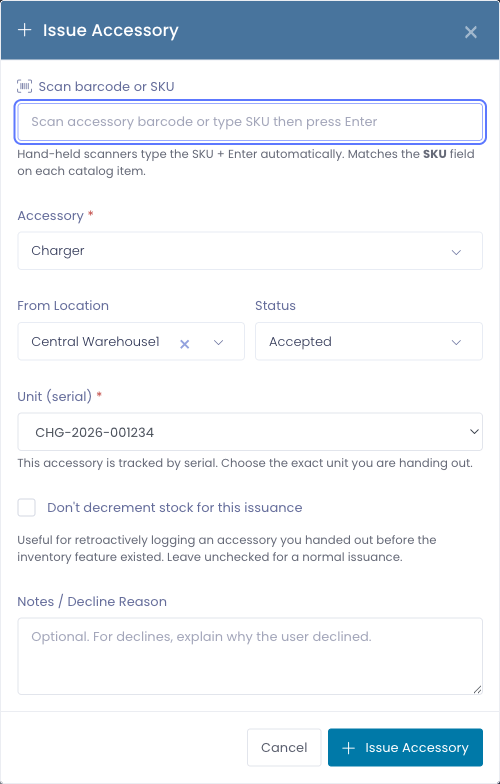
Because a specific physical unit has to be chosen, serial-tracked accessories are not included in the automatic default checkout bundle. Issue them individually so the right unit is recorded against the right person.
Finding a unit
To answer "where is this one right now?", go to Settings → Accessory Catalog and select Find a unit. Enter a full or partial serial and you will see every matching unit, its status, and either its current holder (linked to their profile) or the location it is stocked at.
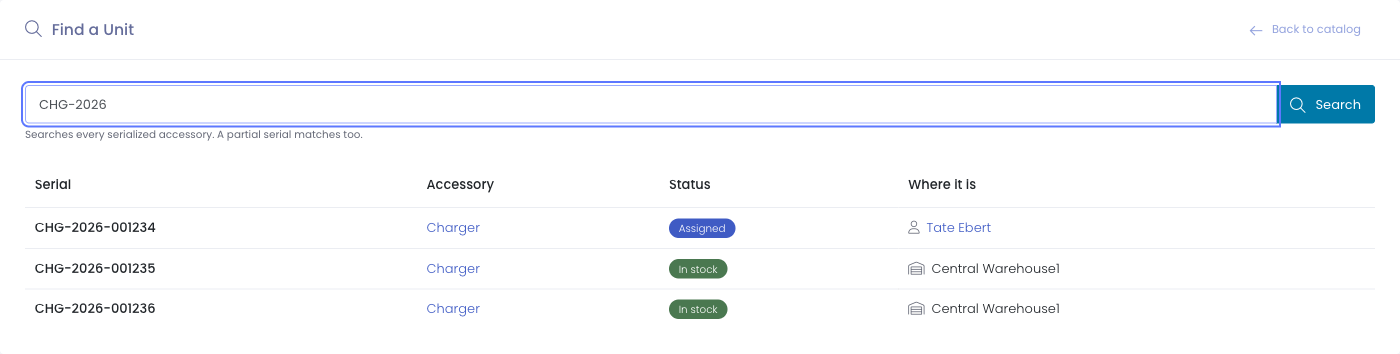
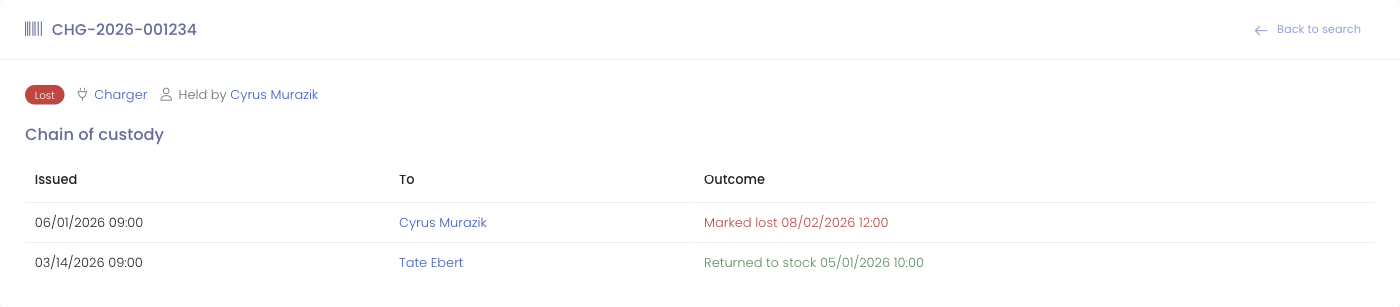
Select any serial in the results (or on the Units tab) to open that unit's full chain of custody: its current status and holder or stock location, followed by every time it was issued, who held it, and how each turn ended (returned, lost, declined, or still held).
Returning, lost, and found
The Return, Mark Lost, and Mark Found actions on the user profile work exactly as they do for any accessory, and the exact unit follows along: returning a unit puts that serial back in stock at its source location, marking it lost flags that serial, and finding it again returns it to the holder. That way the unit's status in Find a unit always reflects where it truly is.