Stale Administrator Cleanup
Stale Administrator Cleanup helps you keep your administrator list tidy by finding accounts that have not signed in for a while, so you can deactivate the ones that are no longer in use.
You can open it from Settings → System Utilities → Users → Stale Administrator Cleanup.
You need the Manage Administrators permission to use this tool, since it acts on administrator accounts.
What This Tool Does
Over time, administrator lists collect accounts that nobody uses anymore: a technician who left, a seasonal helper, a role that was set up and never used. This screen surfaces those accounts in one place and lets you deactivate several at once, instead of opening each profile individually.
Deactivating only removes an administrator's ability to sign in. The account and all of its history are preserved, and you can reactivate it at any time from the administrator's profile. Nothing is deleted here.
A brand-new administrator who simply has not signed in yet will not appear in this list. The tool only surfaces an account once it has existed for longer than the window you choose, so recently created (or recently updated) accounts are left alone until they have genuinely had time to be used.
How to Use It
- Open Stale Administrator Cleanup from System Utilities.
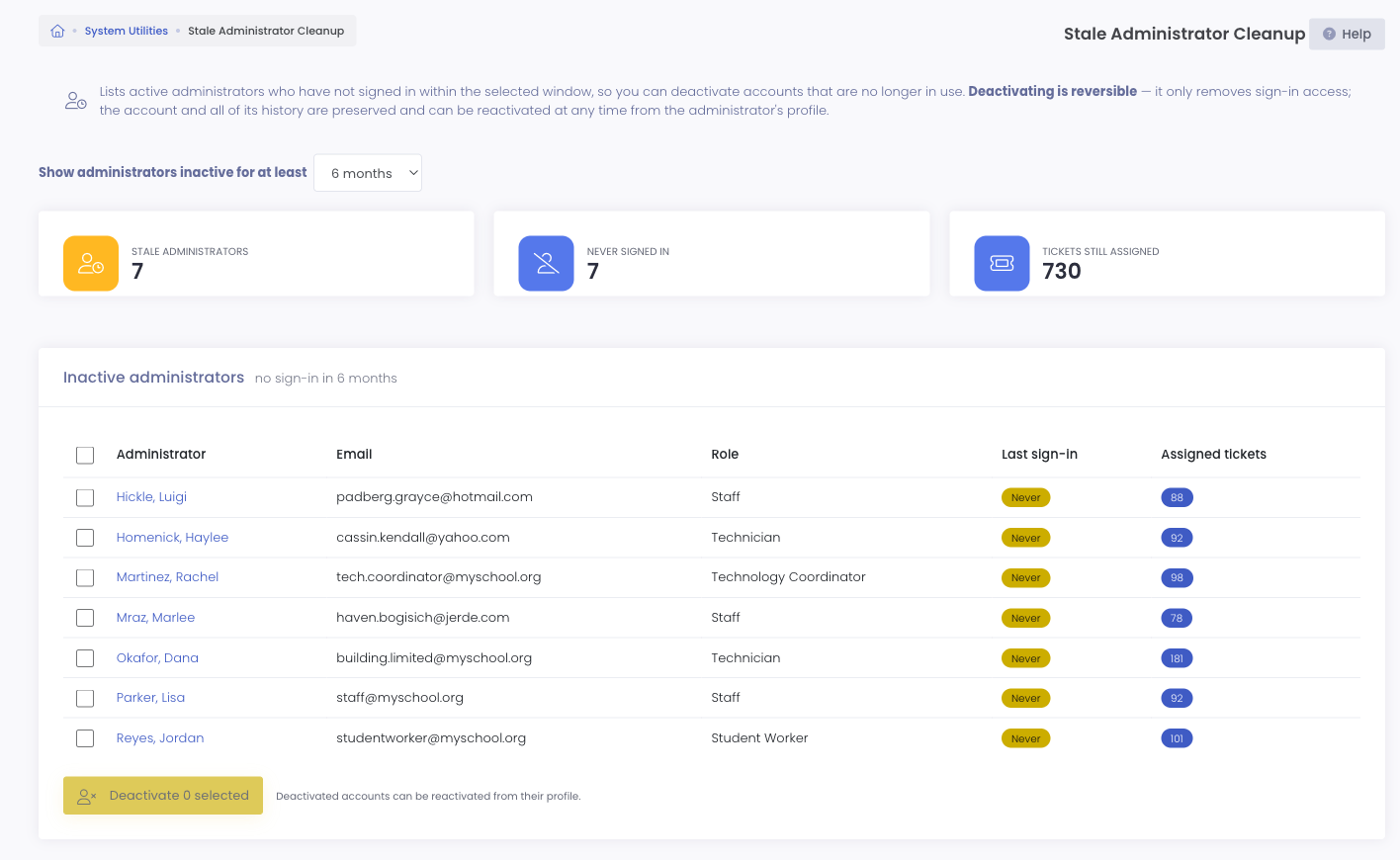
- Choose an inactivity window from Show administrators inactive for at least (3 months, 6 months, 1 year, or 2 years). The list refreshes to show only administrators who have not signed in within that window.
- Review each candidate. For every account you'll see:
- Last sign-in — the date of their most recent sign-in, or Never if they have never signed in.
- Assigned tickets — how many support tickets are still assigned to them, so you know whether their work needs to move before you turn them off.
- Check the box next to each administrator you want to deactivate. Use the header checkbox to select everyone at once.
- Click Deactivate selected and confirm.
The selected administrators can no longer sign in, and they move to the Inactive Administrators list on the View Administrators page.
After Deactivating
Deactivated administrators keep all of their history, and any work still assigned to them stays attached to their name. Because deactivation is reversible:
- To bring someone back, open the View Administrators page, find them in the Inactive Administrators table, edit their profile, and mark them Active again.
- To move their assigned work to someone else before or after deactivating, use the reassignment option on the individual administrator, or the Delete Administrator flow when you want the account gone for good.
Common Questions
Q: Does deactivating delete the administrator? No. It only removes sign-in access. The account, and everything they created or worked on, is preserved. Deleting is a separate, permanent action available on the individual administrator.
Q: What does "Never" mean under Last sign-in? The account has no recorded sign-in. That usually means it was created but never used, which makes it a strong candidate for cleanup.
Q: An administrator shows as stale, but I know they are active. Why? The window is based on sign-in activity tied to the account's current email address. Someone who works entirely through another system, or whose sign-in history predates the account's activity records, can appear here even though they are still around. Always review the list before deactivating, and remember the action is reversible if you change your mind.
Q: Does the inactivity window count activity other than signing in? No. This tool measures how long it has been since the administrator last signed in. The Assigned tickets column is shown only as context, so you can see whether an account still owns open work before you deactivate it; it does not affect whether the account is listed.
Q: Why isn't my own account in the list? The tool never lists the account you are currently signed in as, so you cannot accidentally lock yourself out.
Q: Can I get an administrator back after deactivating them? Yes. Reactivate them from the Inactive Administrators table on the View Administrators page at any time.