Annual Fees
Annual Fees give you a place to define recurring per-student charges — the most common example is a flat annual device fee — and roll them out across a school year in one action. Every enrollment generates a normal invoice your families pay through the Parent Portal exactly the same way they pay for any other invoice today.
This page covers creating a policy, bulk-enrolling eligible students, what families see, and the per-student history you can review on the user profile.
When to use Annual Fees
Reach for Annual Fees when the charge is:
- Tied to a school year rather than a one-off incident.
- The same dollar amount (or a grade-banded amount) for every eligible student.
- Something you want a single audit-friendly record of having rolled out across the district.
Use Add Invoice instead when the charge is for a single student because of damage, a lost device, or a one-off circumstance — those don't need a policy.
Step 1 — Create a fee policy
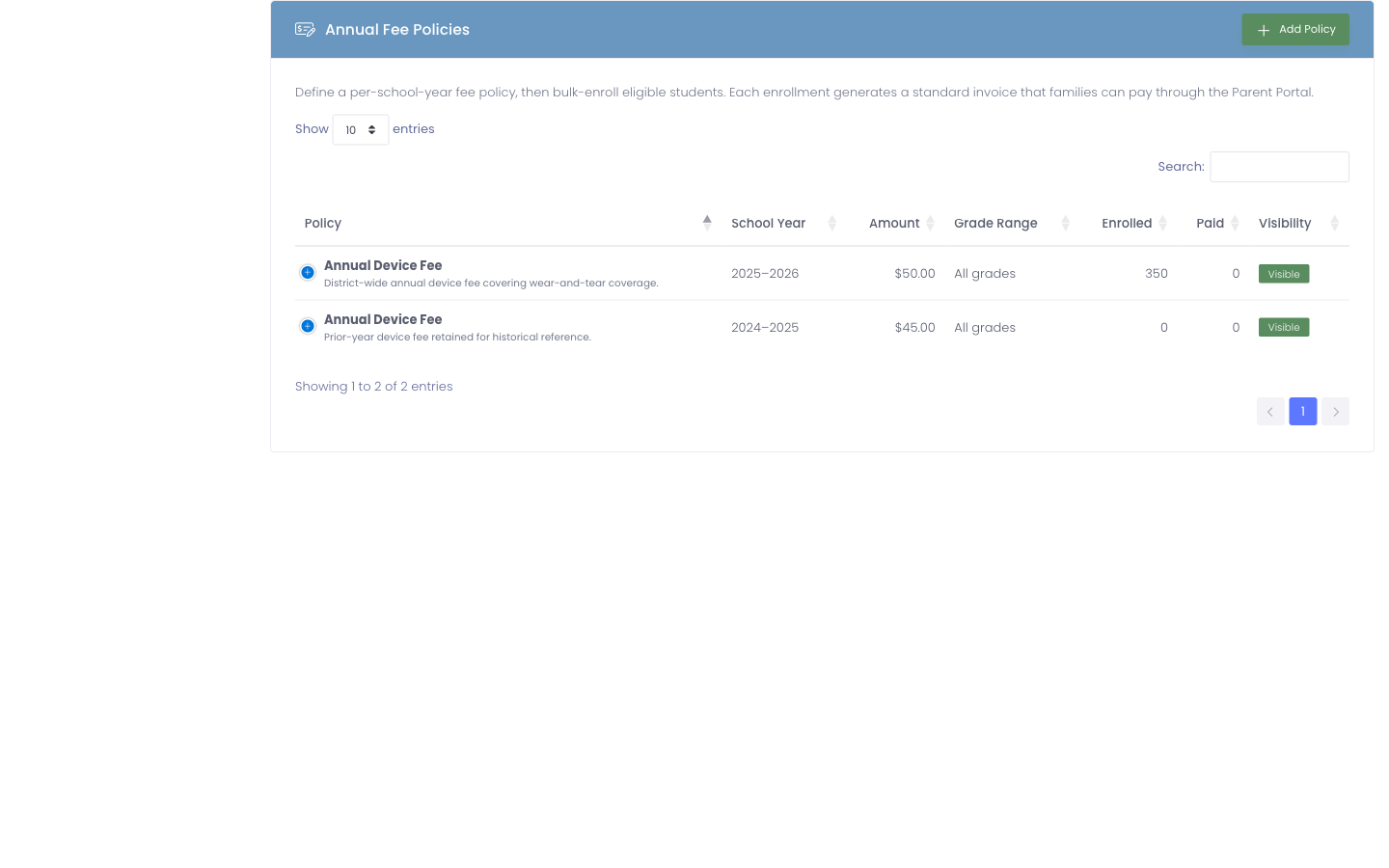
Navigate to Settings → Annual Fees, then click Add Policy.
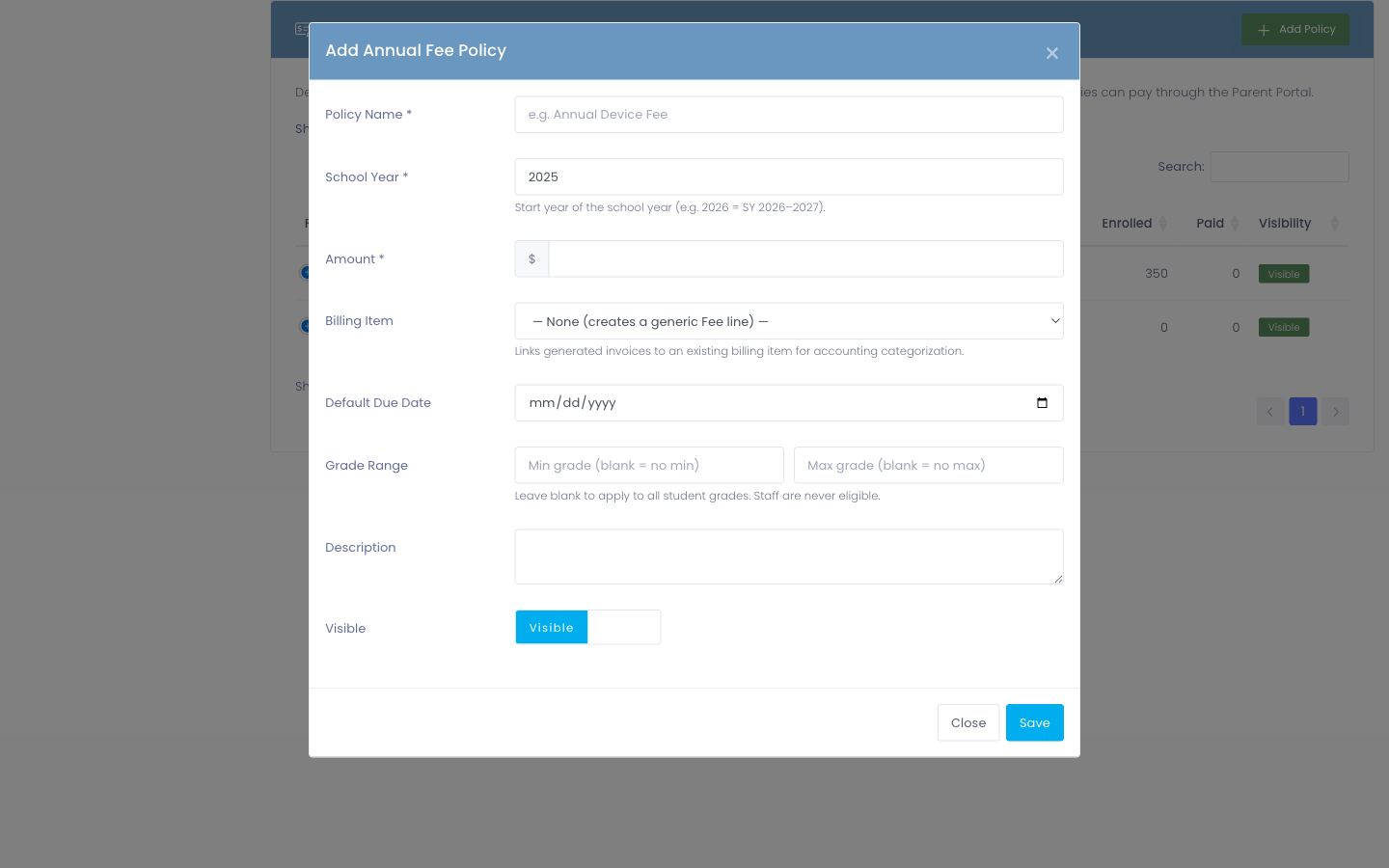
Fill out the form:
| Field | What it does |
|---|---|
| Policy Name | Shown on the policy list and as part of the invoice line description. |
| School Year | The starting year of the school year. 2026 means SY 2026–2027. |
| Amount | Dollar amount each enrolled student is charged. |
| Billing Item | Optional link to an existing billing item for accounting categorization. Leave blank and a generic Fee line is created on first enrollment. |
| Default Due Date | Optional invoice due date applied at enrollment time. |
| Grade Range | Restrict enrollment to a grade band (e.g. Grades 6–12 only). Leave blank to apply to every grade. Staff are never eligible. |
| Description | Optional sub-line shown under the policy name on invoices. |
| Visible | Hide the policy from the active list without deleting it once a school year ends. |
| Mark Device Fee Paid when an enrollment is paid | When a student's enrollment in this policy is paid, automatically set their Device Fee Paid flag so Rapid Check-Out, emails, and reports reflect the payment. Defaults to On. See the Device Fee Paid sync below. |
Click Save. The policy appears in the list with its school year, amount, grade range, and enrollment counts.
Keep last year's policy visible while you roll out the new one. Each enrollment is keyed to its policy and its school year, so a student enrolled in SY 2025–2026 doesn't conflict with a separate enrollment in SY 2026–2027.
Step 2 — Bulk-enroll eligible students
From the policy list, click the Bulk enroll students icon (the green users icon) on the policy you want to roll out.
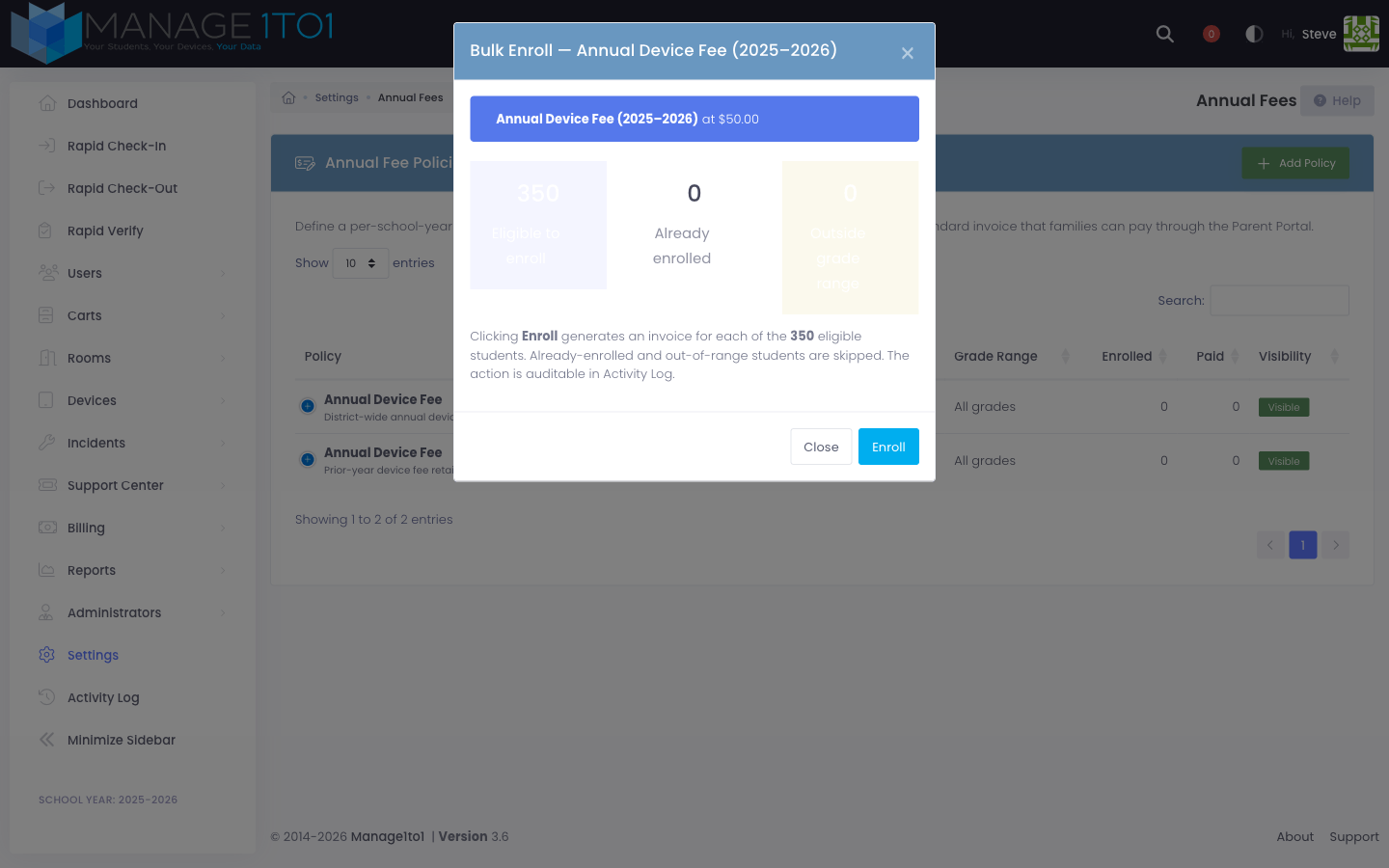
You'll see a preview with three counts:
- Eligible to enroll — students whose grade matches the policy and who aren't yet enrolled for this school year.
- Already enrolled — students who were previously enrolled (re-running the action skips these).
- Outside grade range — students who fall outside the policy's grade band, or are staff.
Click Enroll. Each eligible student receives a generated invoice for the policy amount, and the policy's Enrolled count updates.
If new students arrive mid-year, you can run Bulk enroll again. Already-enrolled students are skipped, so only the new arrivals get an invoice.
If a building scope is configured on your admin account, only students in the buildings you can see are touched. Other buildings' admins can roll out the same policy to their own students.
What families see
Families sign in to the Parent Portal with their email address. Every annual fee enrollment shows up as a normal invoice on their dashboard:
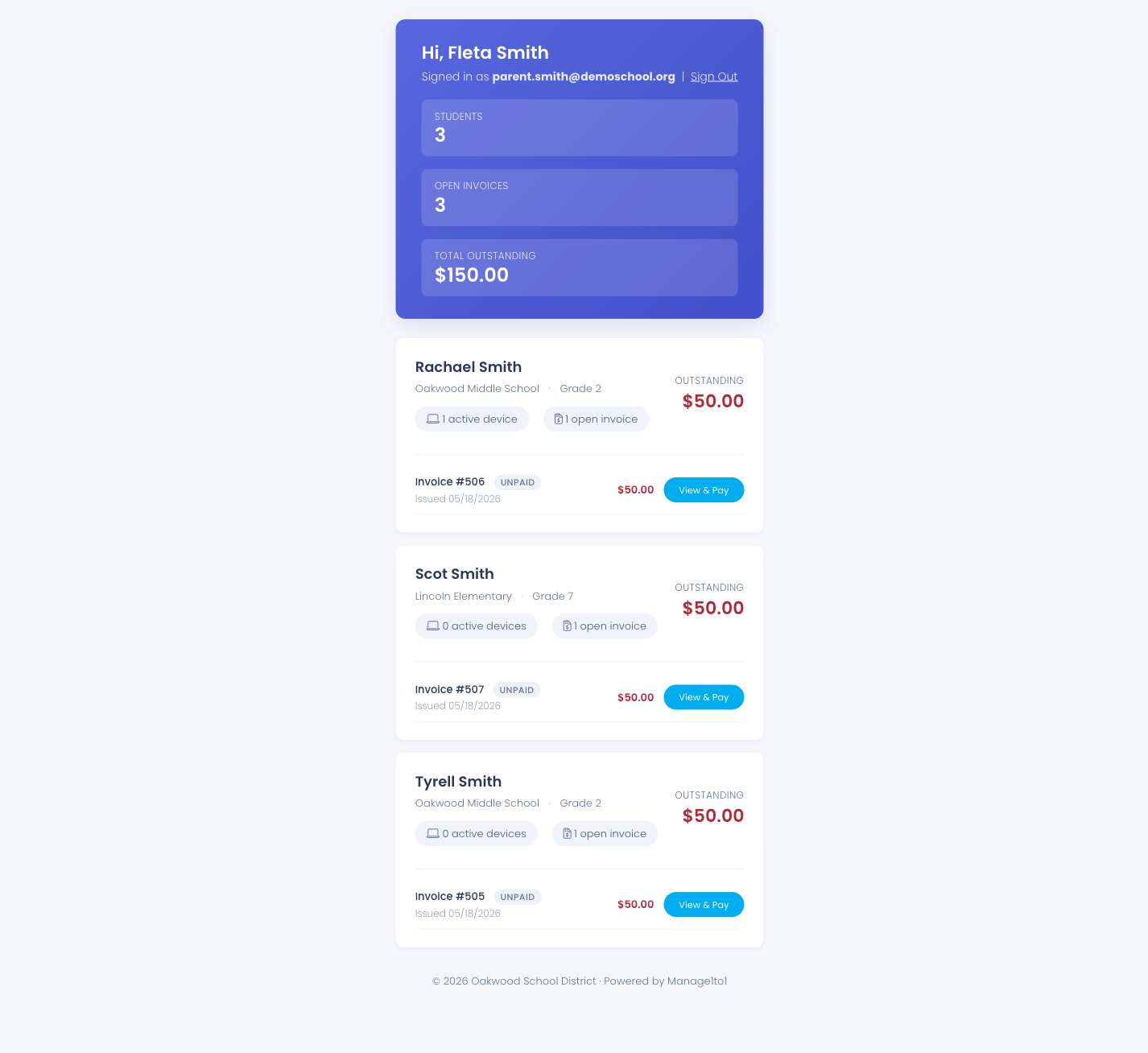
Clicking View & Pay opens the standard invoice page where families can pay using whichever payment method the district has enabled:
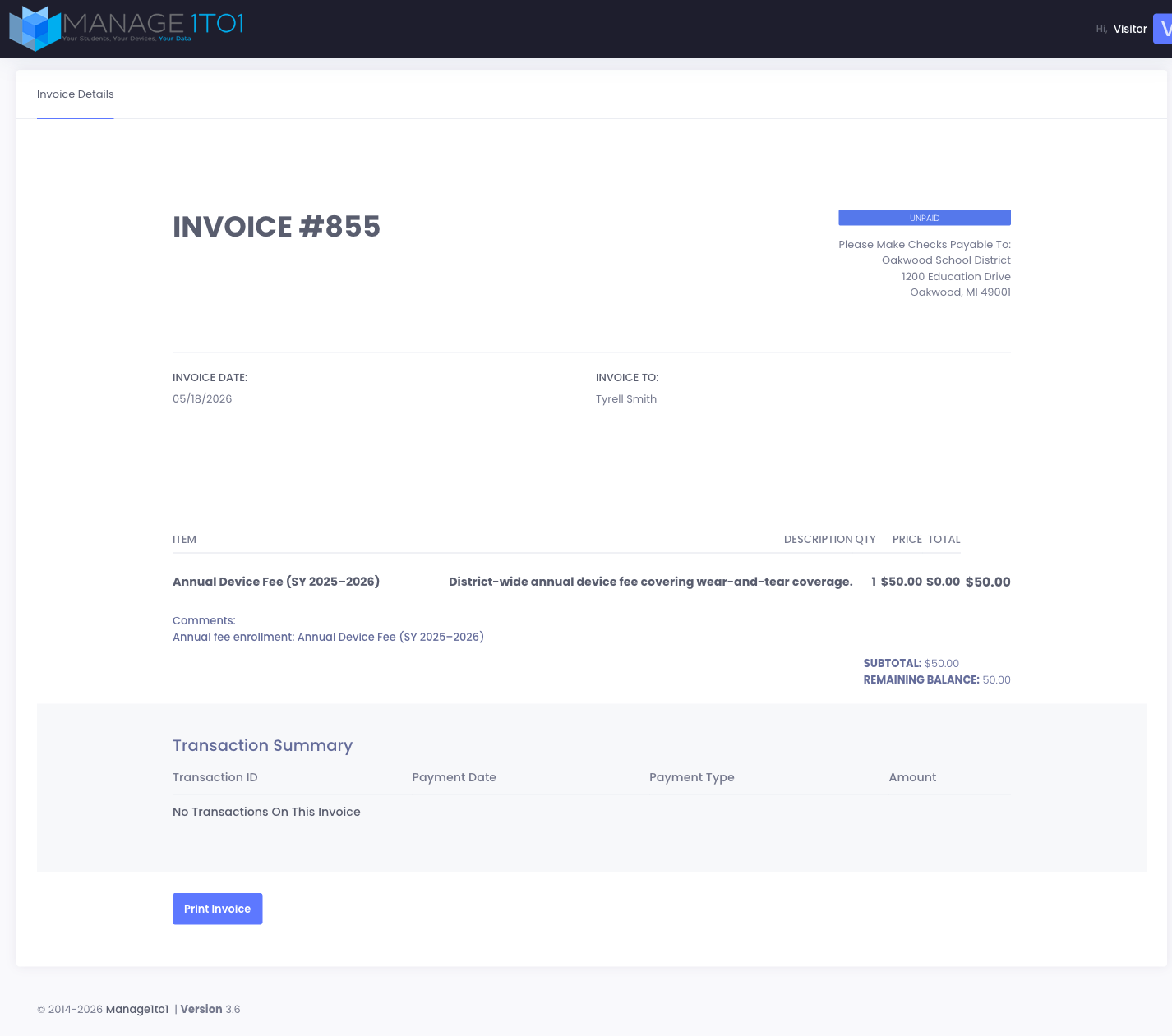
Payments, partial payments, credits, and payment receipts all flow through the same plumbing the district uses for any other invoice — there's no separate "annual fee" payment path for families to learn.
Per-student history on the user profile
Open any student's profile and click the Annual Fees tab. You'll see the student's enrollment history, their current deposit balance, and three deposit actions in the portlet header.
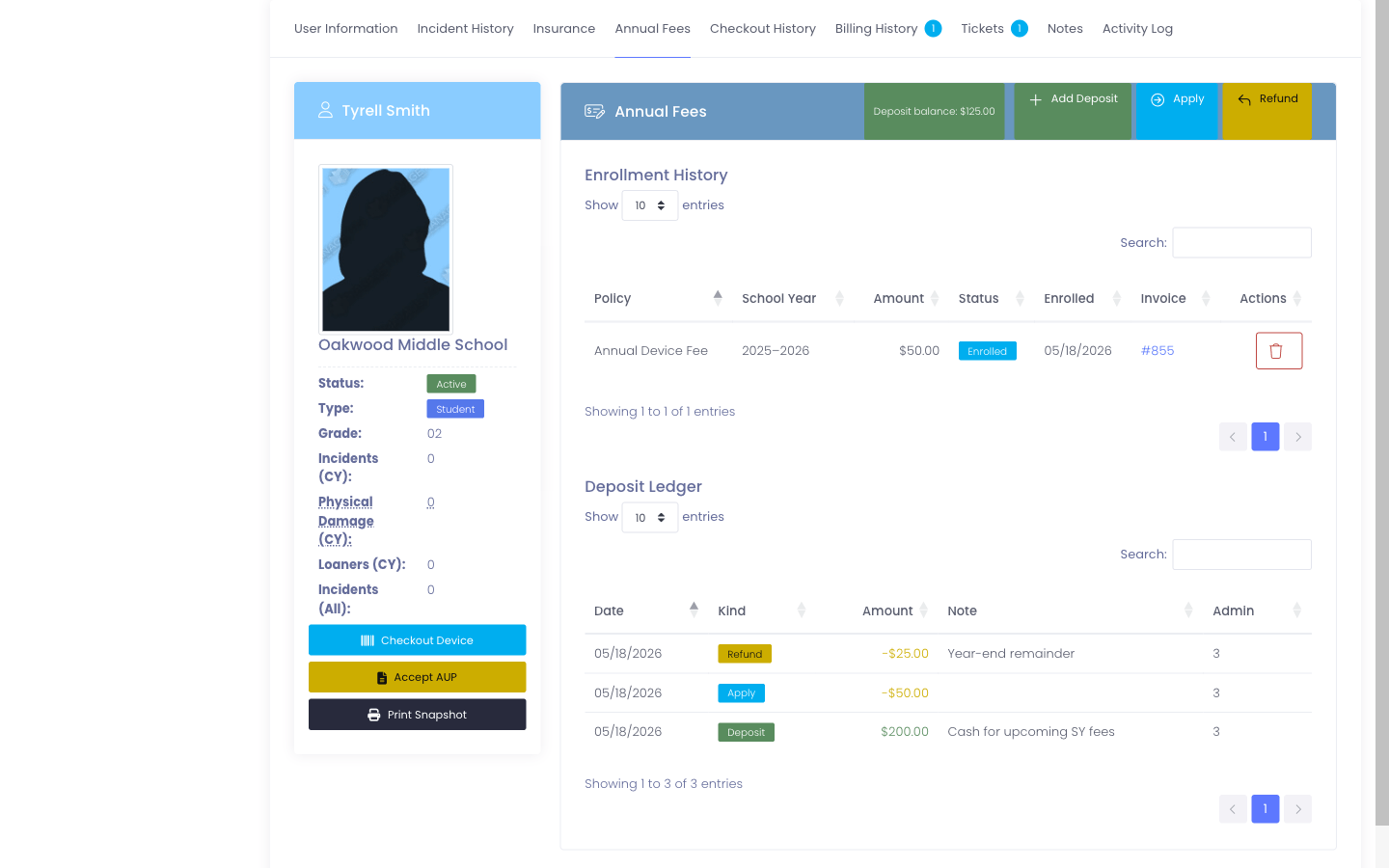
- Enrollment History lists every policy the student has been enrolled in, the school year, amount, current status (Enrolled / Paid / Cancelled), and a link to the backing invoice.
- Deposit Ledger shows the full history of money the district is holding for this family — deposits added, deposits applied toward an invoice, and refunds. Each row is dated, signed (negative for applied / refunded), and stamped with the admin who recorded it.
The Deposit Ledger
Annual fee enrollment generates revenue-side invoices. The deposit ledger is the liability side — money the district holds on behalf of a family until it's been applied to a charge or returned. Common scenarios:
- A parent drops off $200 cash at the front office for upcoming technology fees they know are coming.
- A student transfers mid-year and the family wants the unused portion of their device deposit back.
- The district credits a $25 student-government rebate to every family who completed AUP early.
Every action is one row in the ledger — there's no separate "current balance" field that can drift out of sync. The balance you see in the portlet header is always SUM(amount) of the ledger, by design.
Add Deposit
Click Add Deposit in the portlet header. Enter the amount and an optional note (check number, who handed it over, etc.).
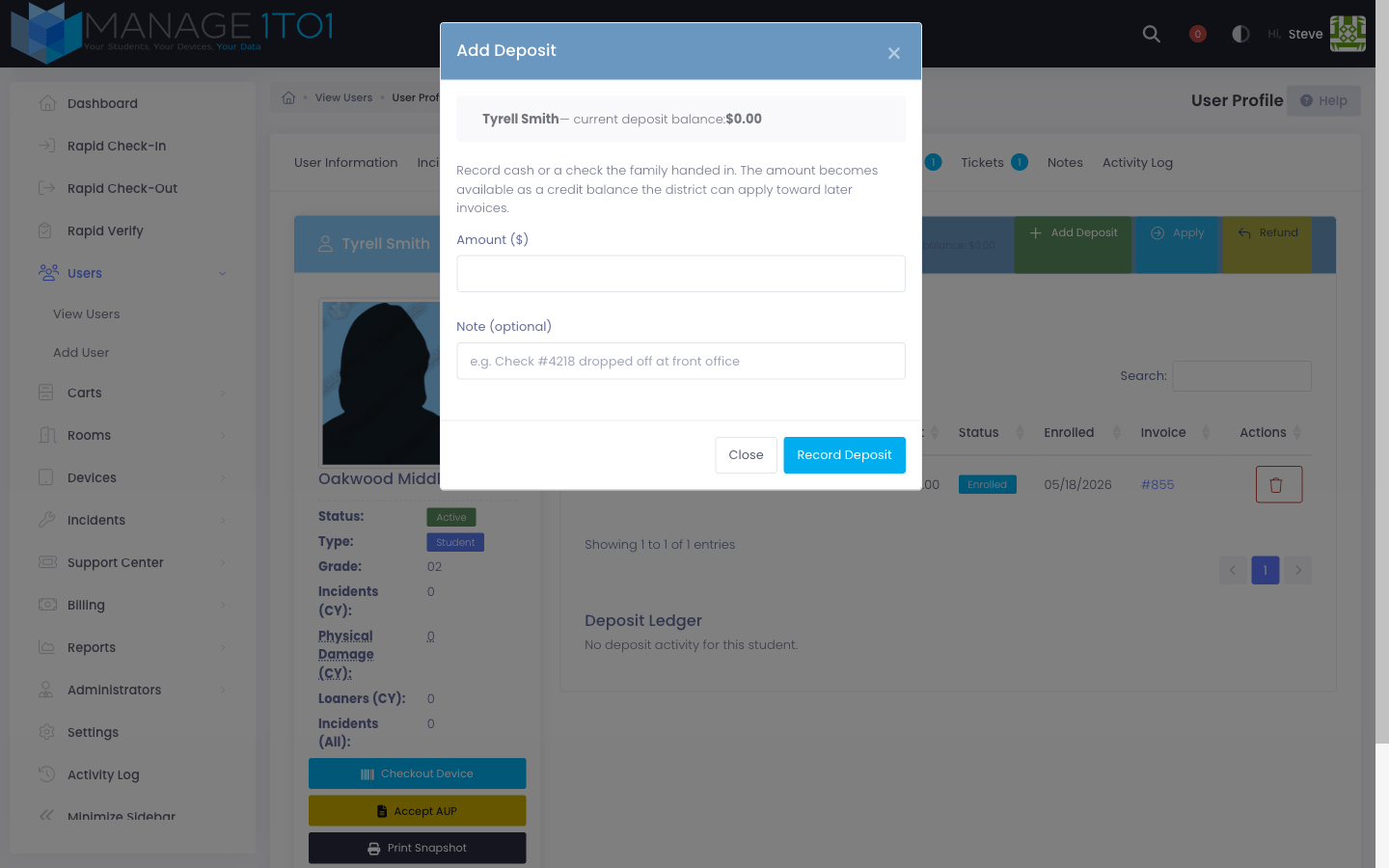
The deposit increases the family's credit balance immediately. Nothing is invoiced yet — the money is just being held.
Apply Deposit to Invoice
Click Apply. Pick one of the student's open invoices and the dollar amount you're applying.
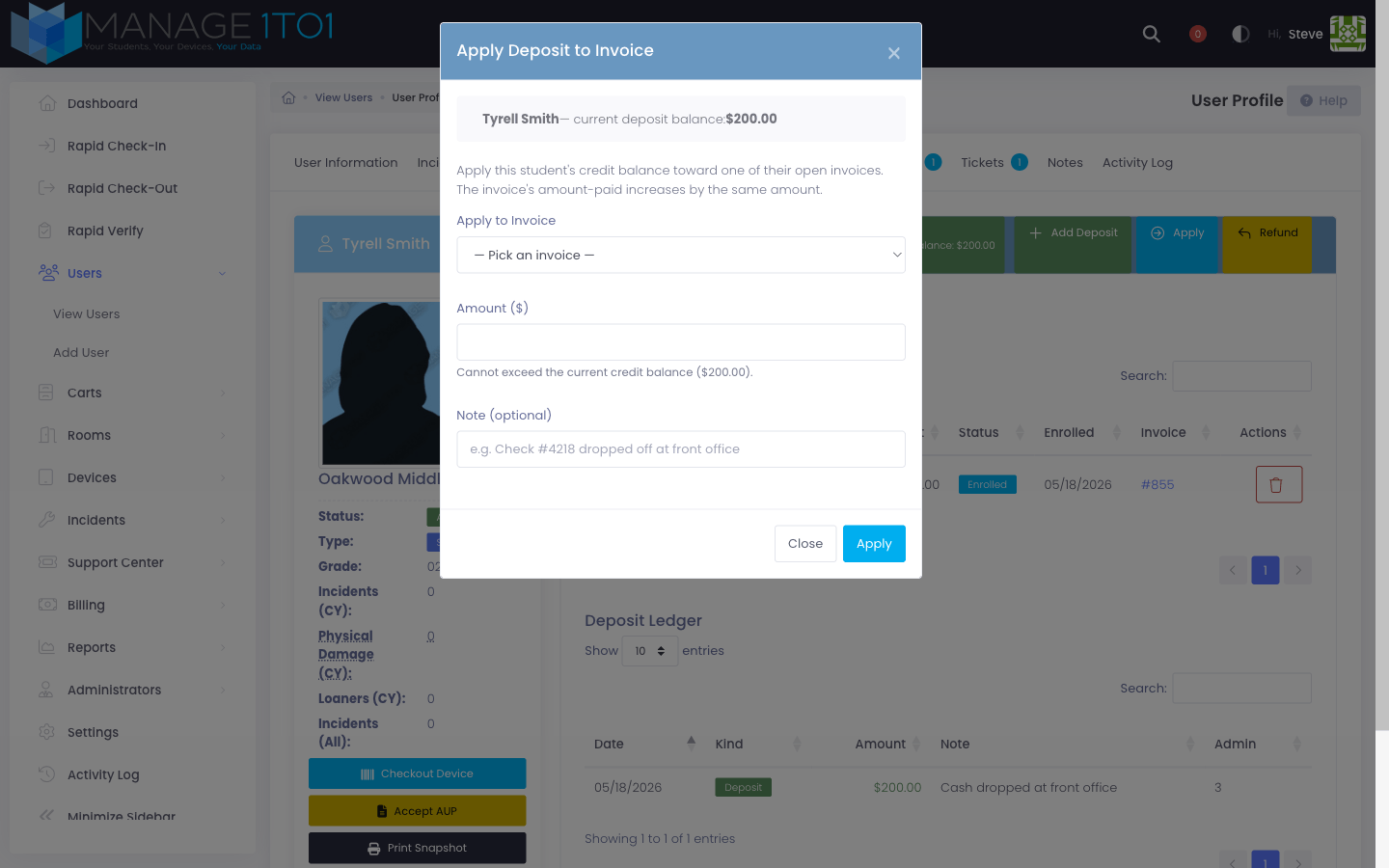
The system:
- Adds a signed
-$amountrow to the ledger so the balance drops. - Records a payment transaction on the invoice (same audit trail as any gateway payment).
- Flips the invoice to Paid automatically if the deposit fully covers what was owed.
You can apply against any open invoice the student has — annual fee enrollments, incident-driven charges, fines — they all go through the same screen. The amount field is capped at whatever the invoice still owes so you can't overpay.
Refund Deposit
Click Refund. Enter the dollar amount and an optional note (e.g. "year-end remainder, mailed check #1042").
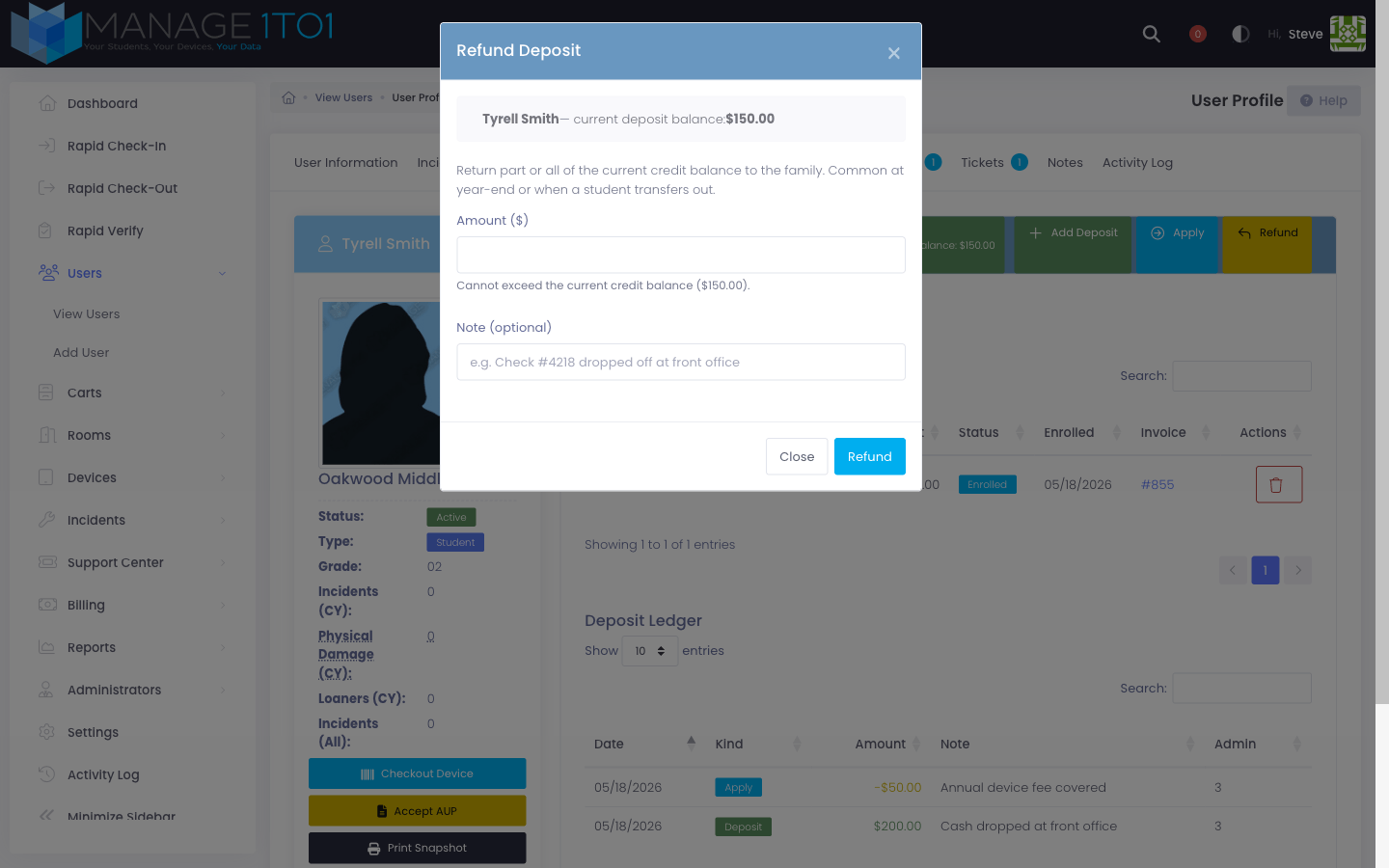
The system caps you at the current credit balance so you can't refund more than is on hand.
The portlet's Apply and Refund buttons are disabled until the student has a positive deposit balance, so there's no way to accidentally over-apply or over-refund.
Device Fee Paid sync
Manage1to1 has a long-standing Device Fee Paid flag on every user profile that the rest of the app reads to decide things like "should Rapid Check-Out warn the staff member that this student hasn't paid?" Historically that flag was tied to a separate one-shot device fee tool, so a district that switches to Annual Fees would see the warning continue to fire even after a family paid their annual fee.
To close that gap, every policy carries a Mark Device Fee Paid when an enrollment is paid toggle, defaulted to On.
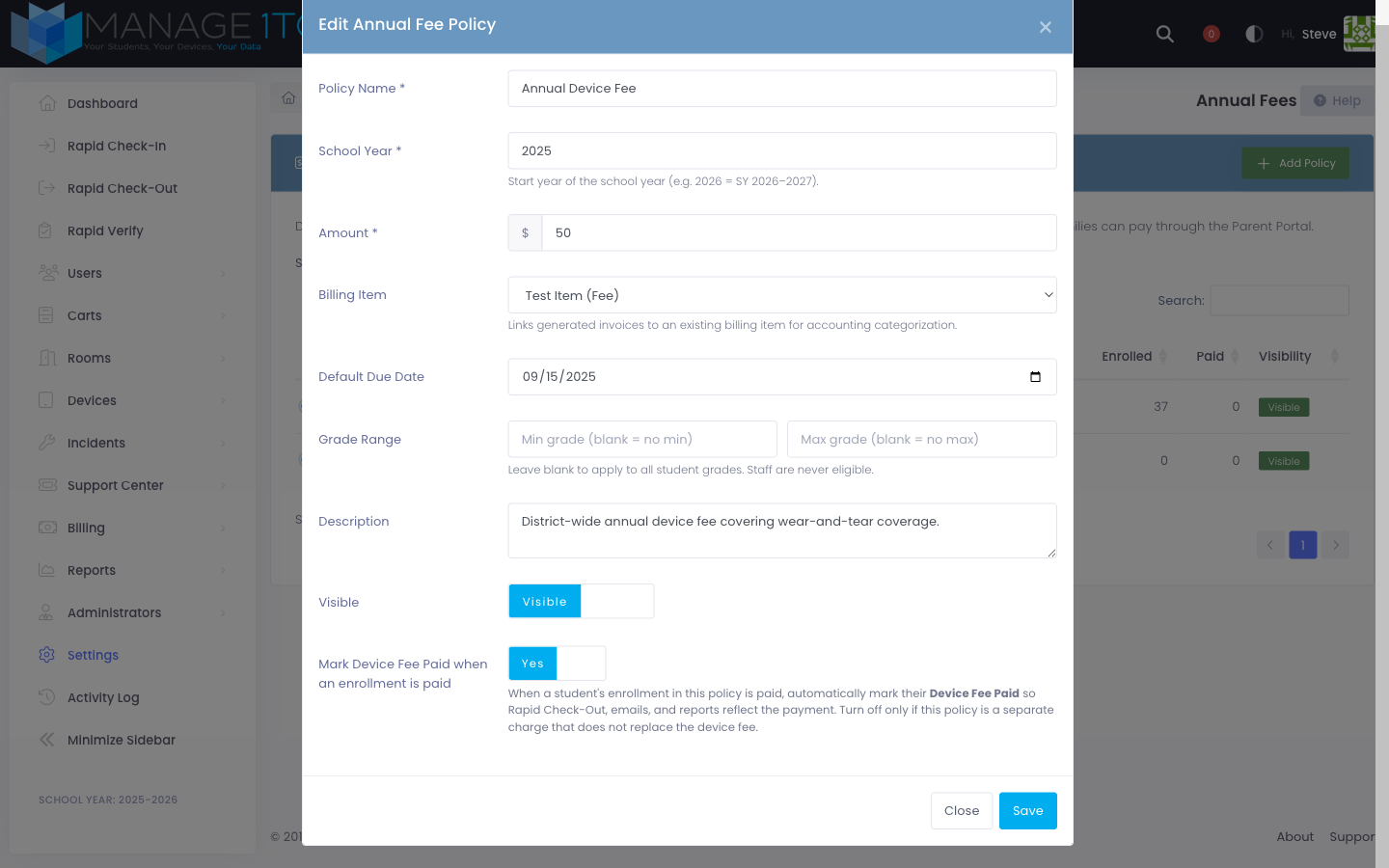
When the toggle is On (the default), the moment an enrollment's backing invoice transitions to Paid:
- The student's Device Fee Paid flag is automatically set to true.
- An activity-log entry is recorded on the student showing which enrollment was responsible (e.g. "Device Fee Paid: synced from Annual Fee enrollment #4 (policy: Annual Device Fee)") so the audit trail is preserved.
- Rapid Check-Out, email merge fields, and reports immediately reflect the payment — no manual edit needed.
When the toggle is Off, paying an enrollment leaves Device Fee Paid alone. Turn this off only if the policy represents a separate charge that does not replace the device fee (for example, a one-time technology activity fee that's billed alongside the existing device fee rather than in place of it).
Cancellation does not reset the flag. If an enrollment is cancelled (individually or via the bulk-cancel-for-inactive-students button), Device Fee Paid is left as-is — the student may have paid the legacy device fee separately, and resetting the flag on cancel would mask that.
Cancelling an enrollment
If a student transfers out, withdraws, or you simply need to back an enrollment out before the family pays, click the trash-can icon in the enrollment row's Actions column. You'll be asked for an optional reason, which is stored alongside the cancellation.
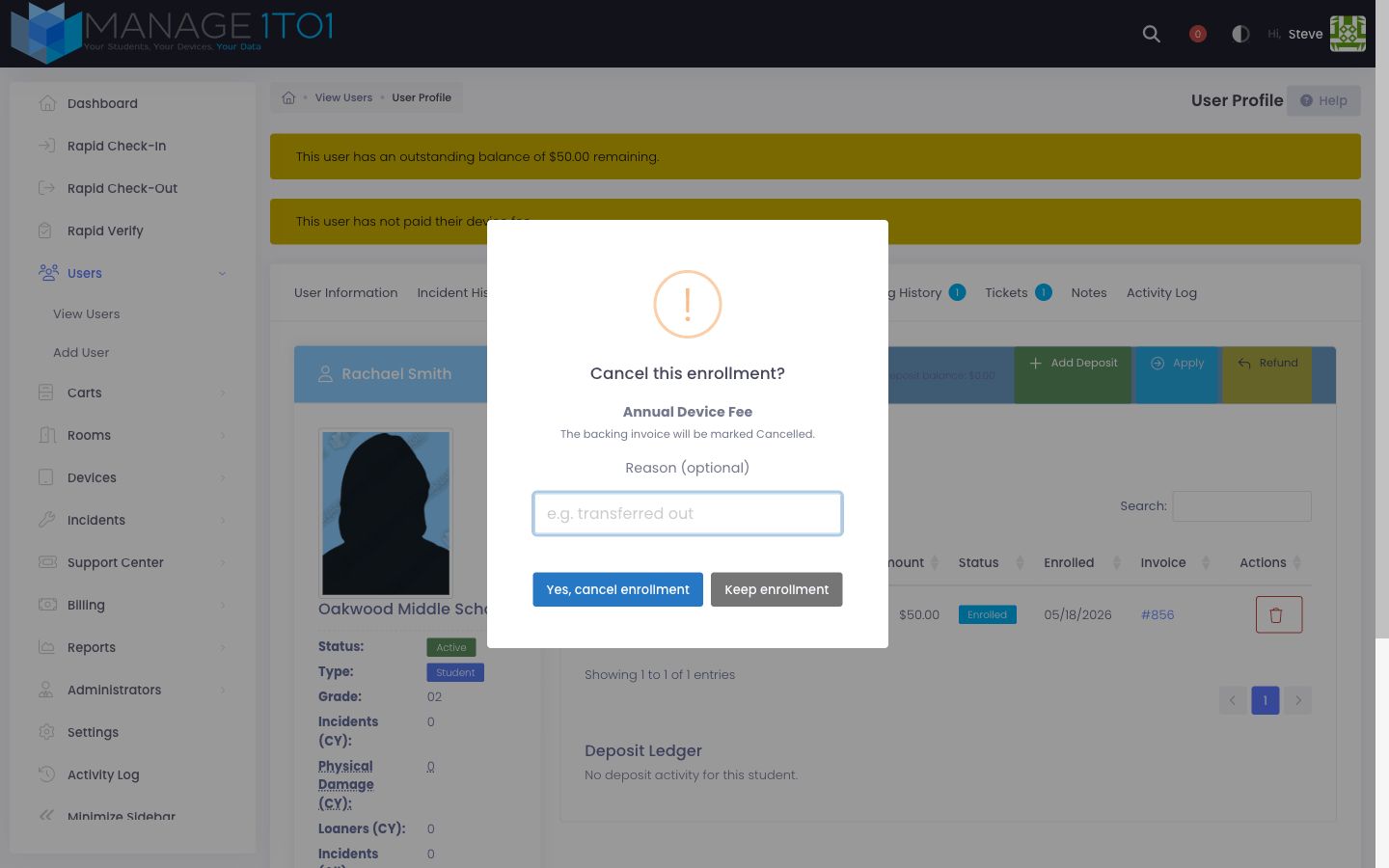
The system then:
- Sets the enrollment's status to Cancelled and stamps the admin who cancelled it.
- Marks the backing invoice as Cancelled so it stops counting toward the family's outstanding balance and stops triggering automated reminders.
The cancellation is reversible only by re-enrolling the student manually — there's no "uncancel" button — so the audit trail is preserved.
Bulk-cancel enrollments for inactive students
End-of-year cleanup case: you enrolled every eligible student at the start of the year, several students never showed up or transferred out and got marked inactive, and now their unpaid annual fee enrollments are still sitting on the books.
Each policy row has a Cancel enrollments for inactive students action button next to the standard edit / bulk-enroll / delete buttons.
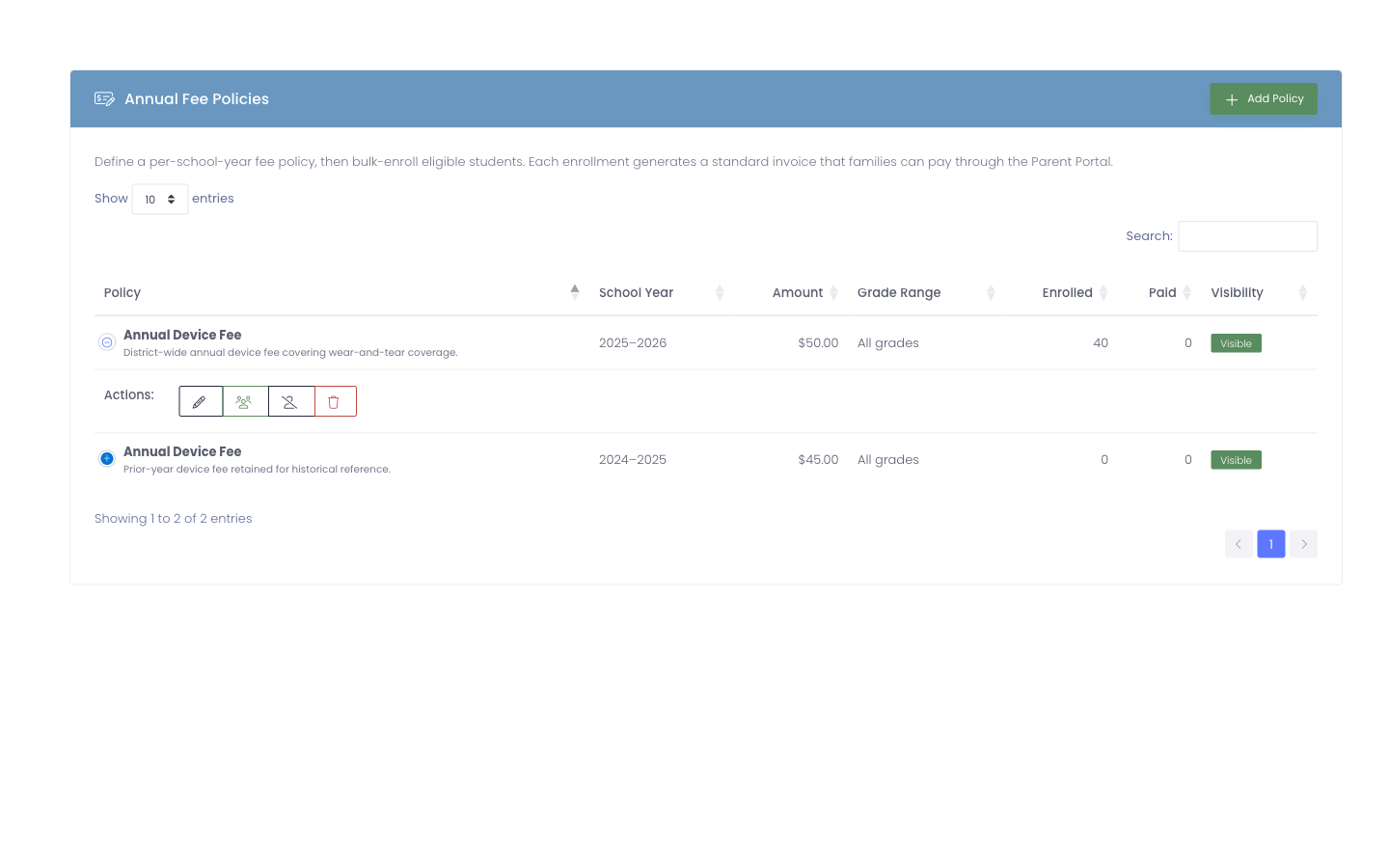
When you click it, the system first counts how many open enrollments belong to inactive students on that policy and shows the total dollar amount that would be cancelled. Nothing has been touched yet at this point — you can review the numbers before committing.
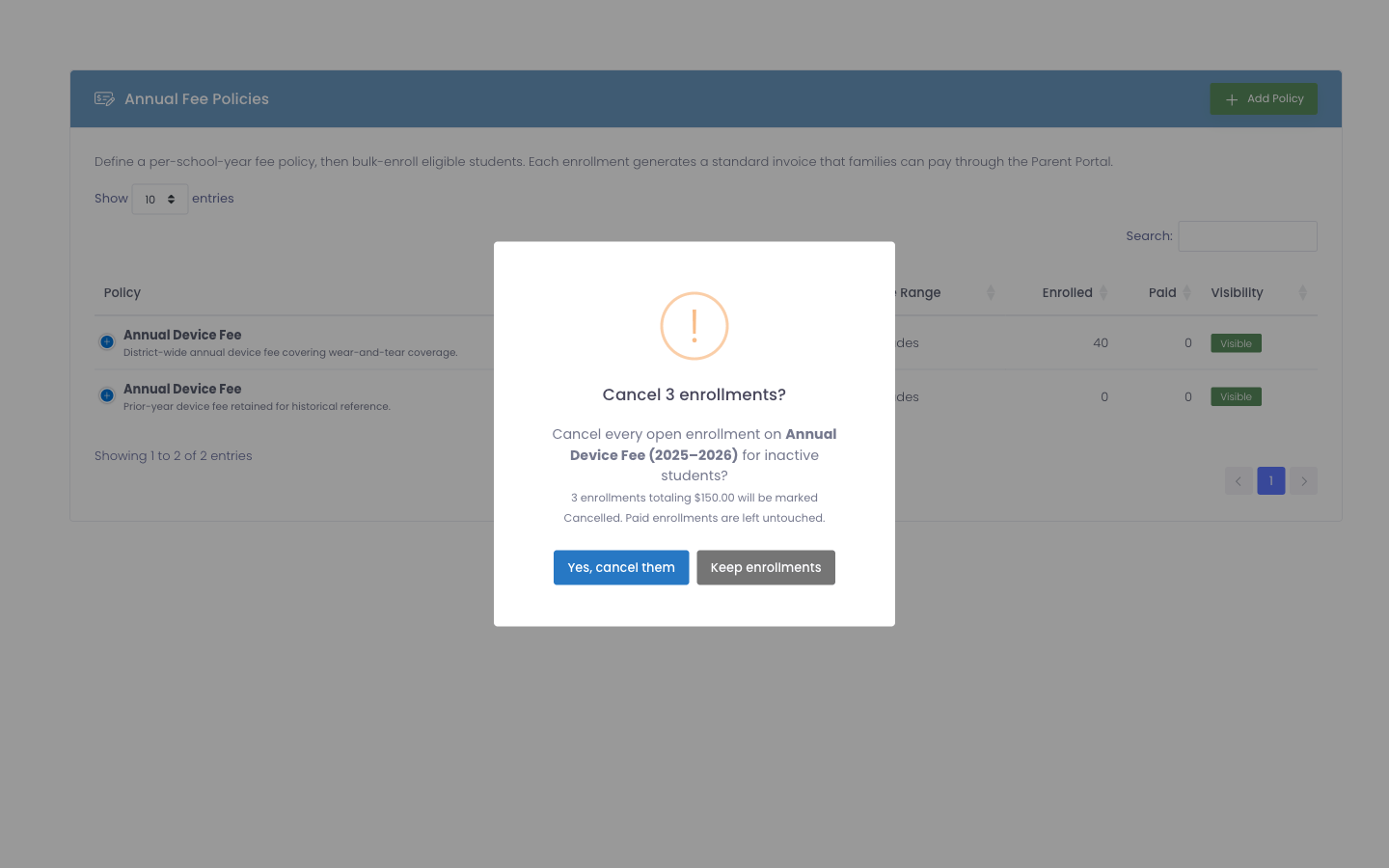
If you confirm, every matching enrollment is cancelled in one operation:
- Each enrollment's status is set to Cancelled with the reason "Student inactive — end-of-year cleanup".
- Each backing invoice is set to Cancelled so it stops counting toward outstanding balances.
- Paid enrollments are deliberately left alone — they were already collected on; only
enrolled(still open) rows are touched. - The operation runs in a database transaction so a mid-run failure rolls back cleanly instead of leaving the policy in a half-cancelled state.
- A single activity-log entry records the count + dollar total (e.g. "Annual fee — bulk cancelled 3 enrollments ($150.00) for inactive students on policy 'Annual Device Fee (2025–2026)'") instead of one entry per row.
If no inactive students have open enrollments on the policy when you click, you'll see a Nothing to cancel confirmation and no changes are made.
The bulk-cancel button only matches students whose Active flag on the user profile is unchecked. If you've imported a fresh roster that should have flagged a batch of students inactive but they're still showing Active, run your roster import first — then come back and click the button.
Grade-banded pricing example
Common case: middle-school families pay one rate, high-school families pay another. Create two policies side-by-side:
| Policy | School Year | Amount | Grade Range |
|---|---|---|---|
| Annual Device Fee — Middle | 2026 | $25.00 | 6–8 |
| Annual Device Fee — High | 2026 | $50.00 | 9–12 |
Run Bulk enroll on each in turn. Each student is matched to exactly one policy by their grade, so a single roll-out across the district produces the right invoice for every family.
Hiding vs deleting a policy
Once any student is enrolled in a policy, you can't delete it — the historical enrollments and invoices need it to stay around for the audit trail. Instead, edit the policy and turn Visible off. The policy disappears from the active list but the enrollment counts and audit history remain accessible.
Delete is reserved for policies that were created in error and never used.
Activity log entries
Every annual fee action writes to the Activity Log so you can answer "who rolled out the SY 2025–2026 device fee, and when?" months later:
- Policy created / updated / deleted.
- Bulk enrollment run, with the count of new vs already-enrolled students and the policy details.
- Single enrollment cancelled, with the reason if one was provided.