Bulk Enroll Insurance
Auto-assigning a policy takes care of new students as they arrive. But at the start of a school year you usually want to enroll everyone already in your program into a policy in one pass. Bulk Enroll does exactly that: choose a policy, choose who, and it creates coverage and a payable premium for each student — the same result as assigning the policy one student at a time, done for the whole group.
Free/reduced students are waived automatically, and any student already covered by that policy is skipped, so it's safe to run more than once.
You need the Modify Insurance permission. The feature charges a premium only when premium billing is turned on — see Insurance Premiums.
Open Bulk Enroll
Go to Settings → Insurance and open the Bulk Enroll tab, then choose Open Bulk Enroll.
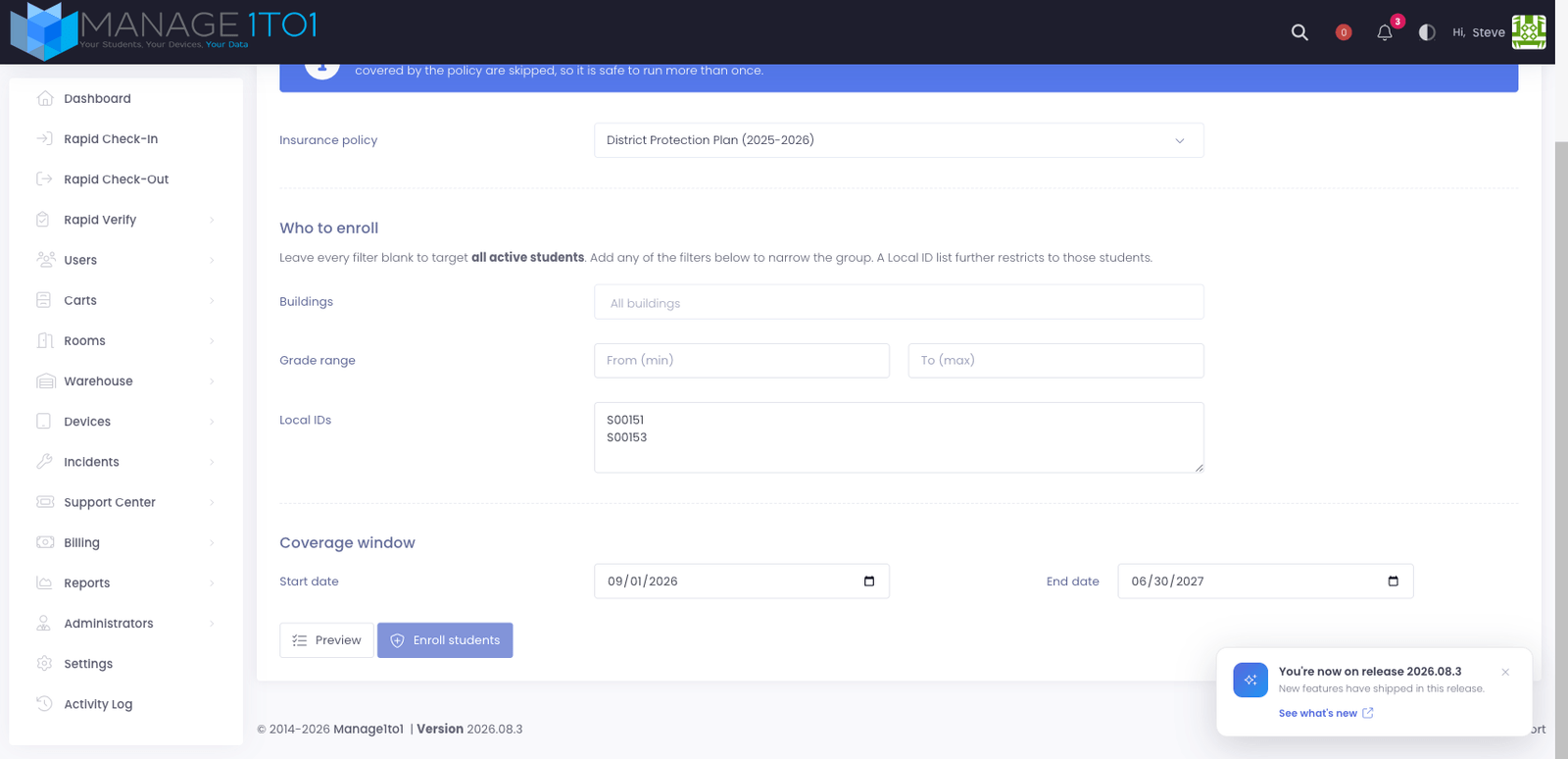
Choose the Policy and Who to Enroll
-
Insurance policy — pick the policy every selected student will be enrolled in.
-
Who to enroll — leave every filter blank to target all active students, or narrow the group:
- Buildings — limit to one or more schools.
- Grade range — limit to a span of grades.
- Local IDs — paste a specific list of students, one per line or comma-separated.
You can combine filters. A Local-ID list further narrows to just those students, and you only ever see students in the buildings you're allowed to manage.
-
Coverage window — the start and end dates for the coverage, prefilled to the current school year.
Preview Before You Commit
Select Preview to see exactly what a run would do, without changing anything:
- Will enroll — new students who will be given coverage and charged.
- Already covered — students who already hold this policy and will be skipped.
- Students matched — the total your filters selected.
Enroll
When the preview looks right, select Enroll students and confirm. For each student the tool:
- creates the insurance coverage for the policy and dates you chose,
- raises a premium invoice for the policy's price (families pay it the same way as any other invoice), and
- waives the premium automatically for students marked free/reduced.
When it finishes you'll see a summary of how many were enrolled, charged, waived, and skipped. Every run is recorded in your Activity Log.
Because already-covered students are skipped, you can run Bulk Enroll again later in the year — for example after new students arrive or after correcting a filter — without double-charging anyone.