Insurance Premiums
Insurance coverage can now come with a payable premium. When this feature is on, assigning an insurance policy to a student automatically creates an invoice for the policy's price — the same kind of invoice your existing payment flow already handles. You can also give every new student a default policy and its premium the moment they're added.
This is off until you turn it on, so nothing changes for districts that track insurance without billing for it.
To change these settings you need the Manage Settings permission. Insurance policies and their prices are set up on the Policies tab of Settings → Insurance.
Turn On Premium Billing
Go to Settings → Insurance and open the Premium & Assessment tab:
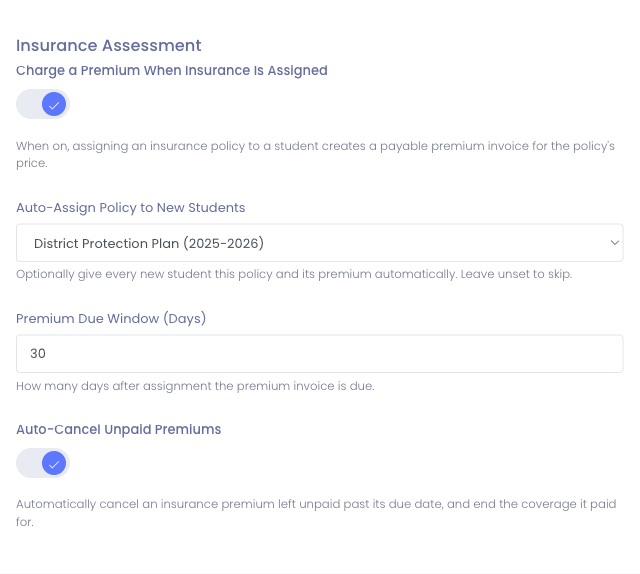
- Charge a Premium When Insurance Is Assigned — turn this on to start billing. From then on, assigning any insurance policy to a student raises a premium invoice for that policy's price.
- Auto-Assign Policy to New Students — optionally choose one policy that every newly added student receives automatically, along with its premium. Leave it on Do not auto-assign to skip this and only bill when you assign insurance by hand. This is the district-wide default; you can override it per school (below).
- Premium Due Window (Days) — how long after assignment the premium invoice is due. Defaults to 30 days.
Only policies that have a price set can be billed. If a policy has no price, assigning it creates coverage as before, with no invoice.
What Happens When You Assign Insurance
With the feature on, assigning a policy to a student:
- Creates the coverage, exactly as before.
- Raises a single Unpaid invoice for the policy's premium, due within your configured window.
The premium invoice is an ordinary invoice — it appears on the student's profile, counts toward their balance, and is paid through your normal payment options. Assigning the same policy again never creates a second premium for coverage that's already been billed.
Per-School Default Policy
Different schools often carry different coverage. Under Auto-Assign Policy to New Students you'll find Per-School Default Policy — expand it to give any school its own default policy for new students. A school left on Use global default uses the district-wide policy above; a school with its own choice uses that instead. This only affects which policy new students at that school receive automatically — you can still assign any policy by hand at any time.
New Students
When you've chosen a default policy, every student added — whether by hand, by import, or from your Student Information System — gets that coverage and its premium automatically, once each. The policy is chosen by the student's school when it has its own default, otherwise the district-wide default. Staff and service accounts are never charged, and a student who already has coverage is left alone.
To enroll the students already in your program — the yearly whole-program task — use Bulk Enroll Insurance instead, which does the same thing for a whole group at once.
Email the Premium Invoice to Families
Manage1to1 can email each premium invoice to the student's family the moment it's raised, so they know what's owed without you sending anything by hand. This has its own template, separate from any other invoice email, so you can word it specifically for insurance.
On the Premium & Assessment tab of Settings → Insurance:
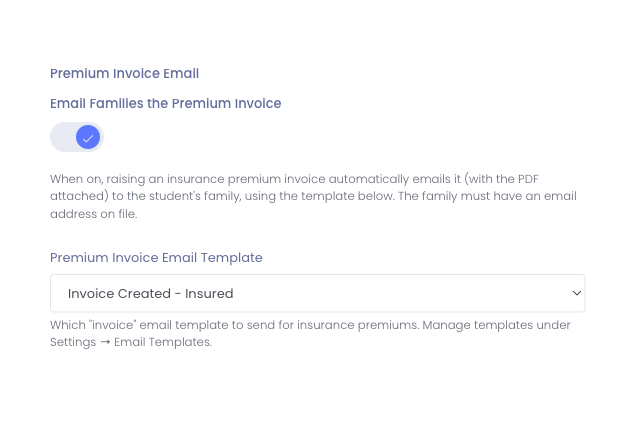
- Email Families the Premium Invoice — turn this on to email the invoice automatically whenever a premium is raised, whether you assign a policy by hand, a new student is auto-assigned, or you run Bulk Enroll Insurance. The invoice PDF is attached.
- Premium Invoice Email Template — choose which email template to send. You create and edit templates under Settings → Email Templates.
The family needs an email address on file to receive it, and each premium invoice is emailed once. Leave the toggle off and no premium emails are sent — you can still email any invoice by hand from the student's profile.
Paying the Premium
Families pay the premium invoice the same way they pay any other invoice. Recording the payment marks the invoice paid and never duplicates the student's coverage.
Automatically Cancel Unpaid Premiums
If a premium is never paid, you can have Manage1to1 close it out for you. Turn on Auto-Cancel Unpaid Premiums on the Premium & Assessment tab of the Insurance settings.
Once a day, any premium invoice still unpaid past its due date is cancelled, and the coverage it paid for is ended — so a student who never paid isn't left with active insurance. It happens once per premium; a premium that's already been paid is never touched, and one that's already been cancelled is left alone.
Waive Premiums for Free/Reduced Students
Economically-disadvantaged (free/reduced meal) students can be given insurance coverage at no charge, automatically. Turn on Waive Premiums for Free/Reduced Students on the Premium & Assessment tab, then tell Manage1to1 how to recognize an eligible student:
- Free/Reduced Status Field — the student field that holds each student's status. This is one of your user custom fields, ideally one you've mapped to the matching key from your roster provider so it stays up to date automatically.
- Qualifying Values — the values in that field that qualify a student, entered comma-separated (case doesn't matter). Different rosters use different tokens, so enter whatever yours sends — for example
Y, Free, Reduced.
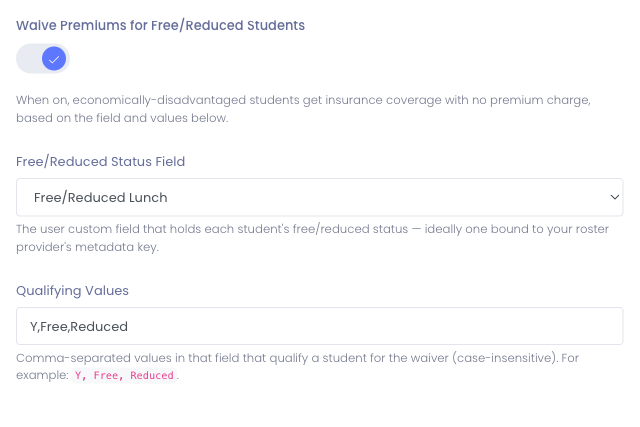
When it's on, a qualifying student who's assigned insurance gets the coverage with no premium invoice — nothing to pay, and nothing sent to Genesis. Every other student is charged as usual. Leave the field or values unset (or the toggle off) and nobody is waived.
Let Families Know Their Coverage Is Free
Because a waived student never gets an invoice, families might not realize they're covered. Turn on Email Waived Families a No-Charge Notice in the same section and pick a No-Charge Notice Template to email each waived family a short note that their coverage is provided at no cost. It's off by default, sent once per student, and only goes out when the family has an email address on file. No invoice is created — this is purely a heads-up. Manage the wording of the note under Settings → Email Templates.
Because the premium is a normal invoice line, districts using the Genesis integration have it pushed to Genesis automatically alongside their other fees.