Overview
The Dashboard is the first thing you see when you sign in. It's a customizable landing page made of one or more tabs, and each tab holds a grid of widgets that show counts, charts, trend lines, ranked tables, or feeds of recent activity.
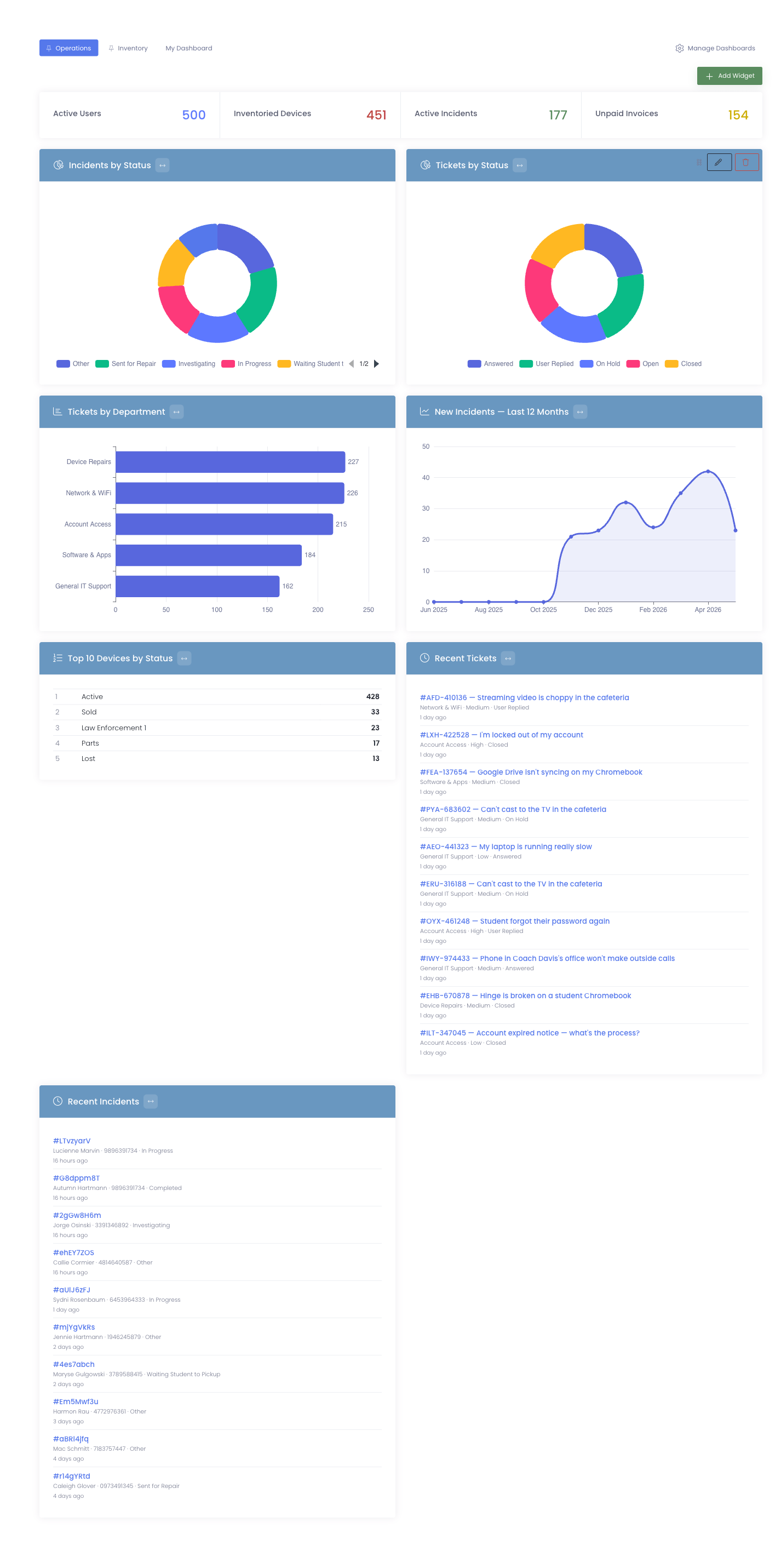
What you can do here
- Pin a widget for any entity — devices, users, carts, rooms, incidents, or tickets — with filters that narrow it to exactly the slice you care about
- Create extra tabs to group widgets by audience (operations, billing, your campus, your team)
- Share dashboards with the whole district, or keep them personal to your account
- Reorder, resize, and remove any widget on a tab you own
How tabs work
There are two kinds of tabs:
| Scope | Who can see it | Who can edit it |
|---|---|---|
| District | Every administrator | Administrators with the Manage District Dashboards permission |
| Personal | Only you | Only you |
District tabs always come first in the tab strip, in the order an administrator set them. Your personal tabs follow. You can have up to four personal tabs.
The widget gallery
Click Add Widget on any tab you can edit and you'll see the picker:
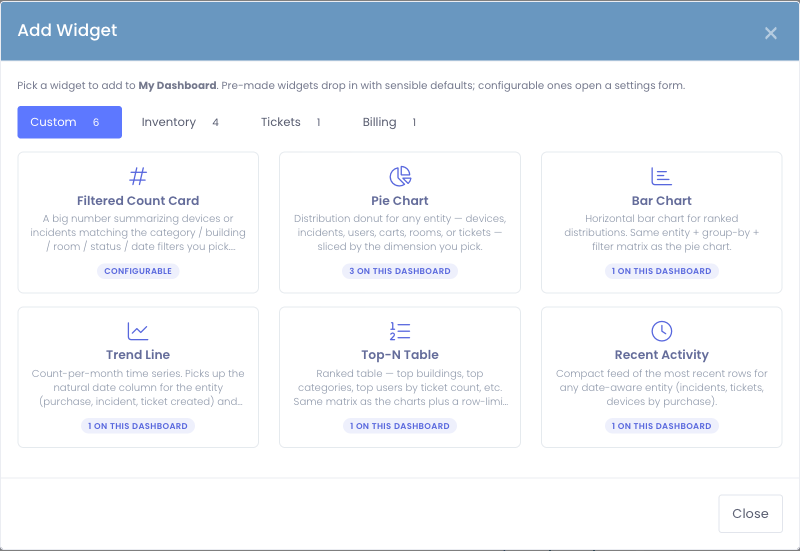
Six configurable widget types let you point at any entity and apply filters:
- Filtered Count Card — a big number summarizing how many items match your filters
- Pie Chart — distribution donut sliced by status, category, building, room, etc.
- Bar Chart — horizontal bars for the same data when ranked order matters more than proportion
- Trend Line — count per month over the look-back window of your choice
- Top-N Table — ranked table of the largest buckets with exact counts
- Recent Activity — feed of the most recent items, with a link to each one
There are also legacy pre-made widgets under the Inventory, Tickets, and Billing tabs of the picker — Quick Stats, Campus Summary, Loaner Devices, Licensing Info, Support, and Recent Unpaid Invoices. These drop in without any configuration.
Pre-made widgets are one-per-dashboard. The picker shows an Added badge so you know which ones are already on the current tab. Configurable widgets (count cards, charts, tables, feeds) can be pinned as many times as you like — each instance has its own settings.
Where to go next
Continue with the guides in this section to learn how to build out your dashboards.