Device Disposal
When devices reach the end of their useful life, Device Disposal walks you through retiring them: scan each asset, let Manage1to1 suggest whether to sell it or scrap it based on your own rules, record what you recovered, and generate a worksheet and bill of sale for your records. Finalizing a session moves the devices out of your active inventory in one step.
You reach it from Devices → Device Disposal. Working with disposal requires the device disposal permission, so an administrator may need to grant it to you first.
Set your disposal rules
Before your first disposal, set up the rules that drive the suggested value for each device. Go to Settings → Disposal Rules and add a rule for each age bracket you want to handle. For example, you might sell devices one to three years old for one amount, sell four to five year old devices for less, and automatically scrap anything older than ten years. Rules can apply to every device, to a category, or to a specific model, so a high-value model can carry its own pricing.
You can also set a salvage value per model so older devices never price below what they are still worth, and Manage1to1 factors in straight-line depreciation when it shows a device's remaining book value.
The rules suggest a disposition, but you always have the final say on each device while you scan. If no rule matches, the device is simply marked for review so nothing slips through unpriced.
Scan devices into a session
Open Devices → Device Disposal to start a removal session. Scan each device you are retiring with a USB or Bluetooth scanner, or type its asset tag and select Add. For every device, Manage1to1 pulls its details, works out its age, and suggests a disposition from your rules.
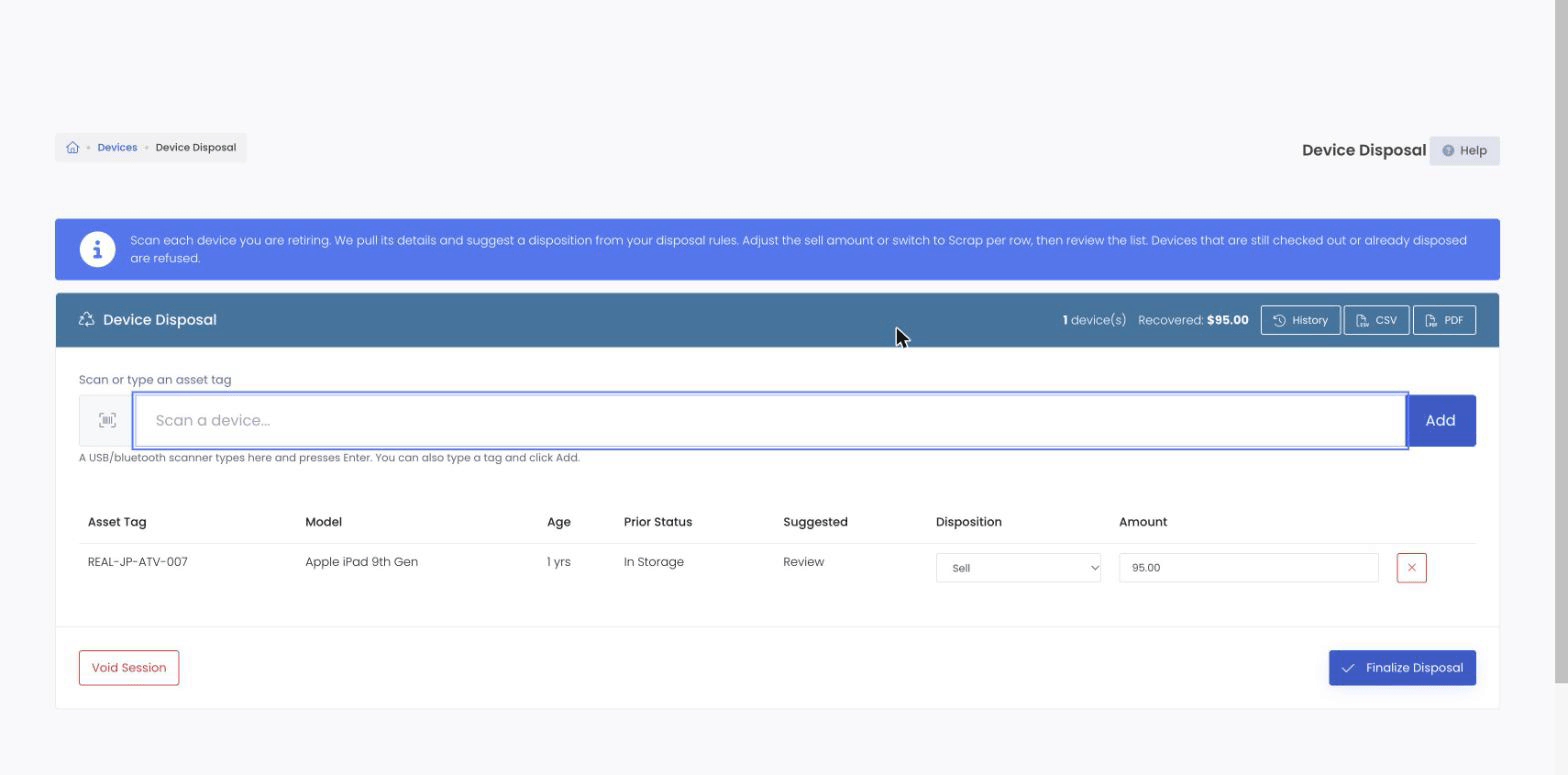
Each row shows the suggested disposition. You can:
- Keep the suggestion, or switch any row between Sell, Scrap, Donate, Recycle, or Review.
- Enter the amount you sold or expect to sell a device for.
- Record a buyer and notes for your records.
- Remove a row if you scanned something by mistake.
The running total at the top shows how many devices are in the session and how much you have recovered so far.
A device that is still checked out to someone, or one that has already been disposed, is refused when you scan it. Check a device back in before you retire it.
Export the worksheet and bill of sale
At any point you can export the session for your records or for a buyer:
- CSV gives you a worksheet that opens in your spreadsheet software, with every device, its chosen disposition, the recovered amount, and its book value at disposal.
- PDF produces a printable disposal record and bill of sale under your district's name.
Finalize the disposal
When the list is complete, select Finalize Disposal and confirm. Manage1to1 moves every scanned device into the Disposed status, removes them from your active inventory, and records the recovered total for the session. If you decide not to go ahead, Void Session clears the scanned devices without disposing anything.
Finalizing a session disposes every device in it and removes them from active inventory. Review the list first. Devices that are already disposed are skipped, so finishing an interrupted session is safe.
Review your disposal history
Select History from the disposal screen to see every finalized disposal. The summary shows how many sessions you have run, how many devices you have disposed, and the total value you have recovered, with a breakdown by disposition.
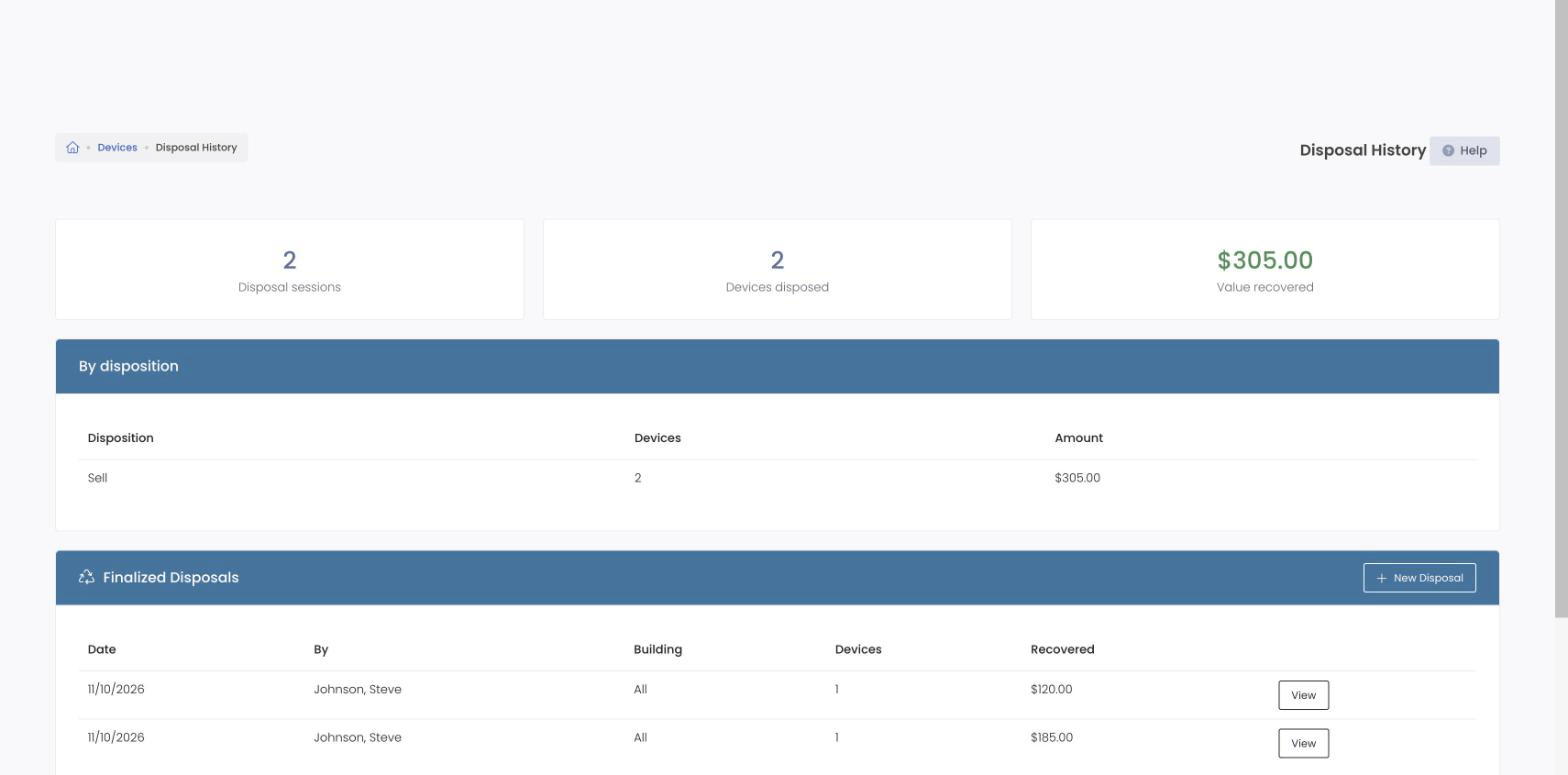
Select any session to see the devices it retired, with the same CSV and PDF exports available for that record.