Device Last Seen
Device Last Seen records the most recent time an admin physically interacted with a device — when the device was last in someone's hands, not just the last time data was synced or a record was edited.
This is different from MDM "Last Sync" (which can keep updating from a charging cart at home over the summer) and different from "Last Modified" (which fires for any edit, including bulk admin changes). Last Seen only updates when an admin actually touched the device through one of the supported workflows below.
The goal is simple: at the end of a school year, you should be able to surface every device nobody has touched in months — those are the ones most likely to be lost, sitting in a drawer somewhere, or quietly missing without a paper trail.
What Counts as a Touch
Last Seen updates automatically when one of these actions happens:
| Action | Context shown |
|---|---|
| Adding a new device (manual or bulk import) | deployed |
| Checking a device in | check-in |
| Checking a device out (to a user, room, or cart) | check-out |
| Logging an incident on the device | incident logged |
| Attaching or detaching a device from a cart | cart move |
| Scanning a device on the Rapid Verify page | audit scan |
The deployed context fires the moment a device is first registered in the system — whether you added it through the admin UI or via a bulk import. This way, freshly-imported devices don't show as "Never seen" on the audit / Stale report when you literally just handled them to enter their info.
The audit scan context comes from the dedicated Inventory Audit (Rapid Verify) workflow — used for compliance sweeps where you just want to confirm a device exists physically without changing anything else.
Each touch records three things:
- When it happened (timestamp)
- Who the admin was
- What the action was (one of the four contexts above)
What Does Not Count
These actions intentionally do not update Last Seen:
- Editing device fields (status, asset tag, custom field values)
- Adding a note to the device
- Bulk admin imports or CSV updates
- MDM sync activity
- Viewing the device profile
The reasoning: a touch should mean a real person had hands on the device. Editing a record from a desk doesn't.
Where Last Seen Appears
On the Device Profile
Open any device profile and look at the Device Information card. The Last Seen row sits below the standard device specs and shows:
- A relative timestamp (e.g. "2 days ago", "3 months ago")
- The admin who performed the action
- A small color-coded badge for the context (check-in / check-out / incident logged / cart move)
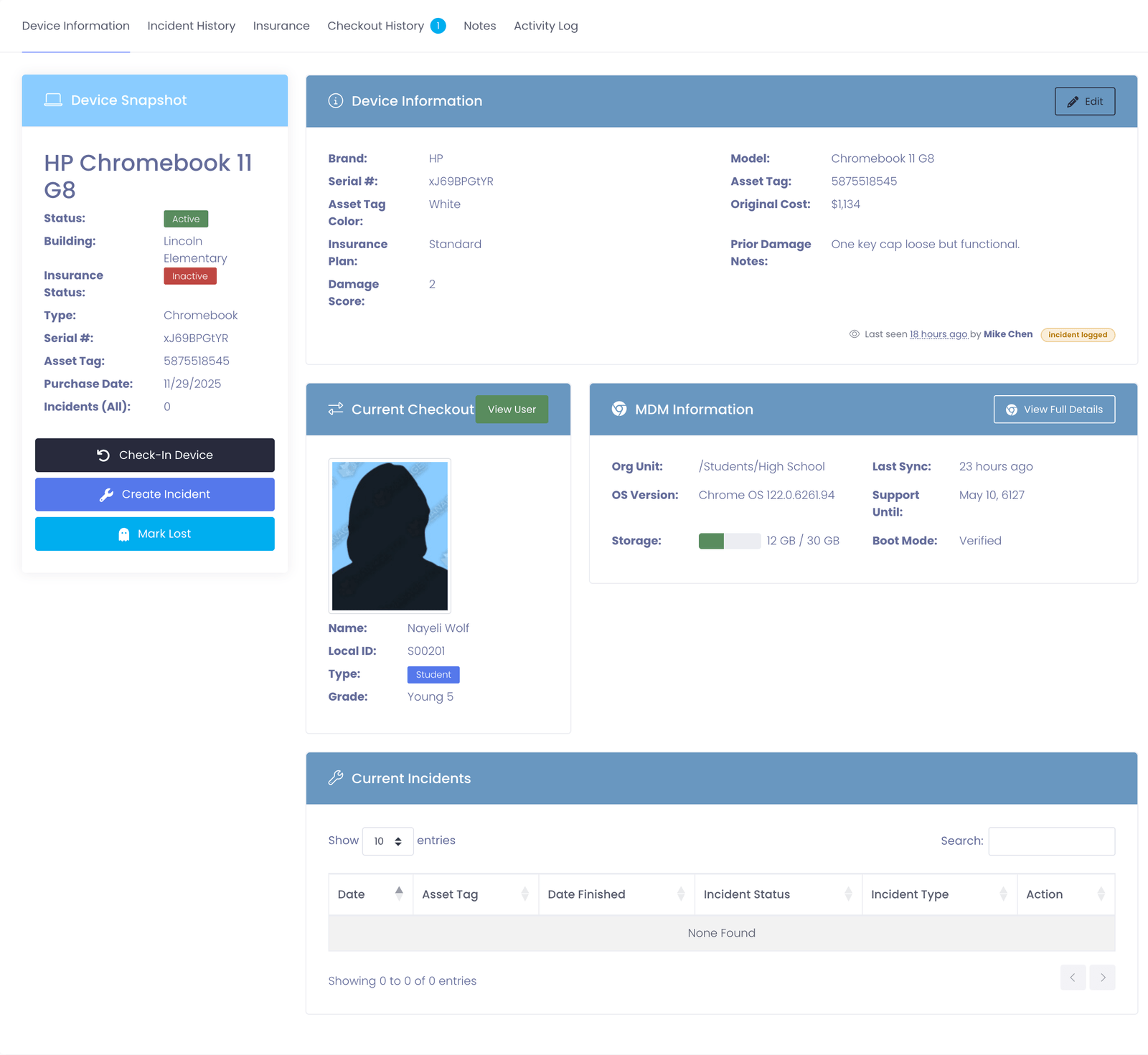
Hover the timestamp to see the exact date and time.
If a device has never been touched through one of the tracked workflows, the row reads "No physical touches recorded yet" in muted text.
On the Last Seen Report
A dedicated report at Reports → View Reports → Device Last Seen shows every device sorted by oldest-seen first, so the devices most likely to need attention float to the top of the list.
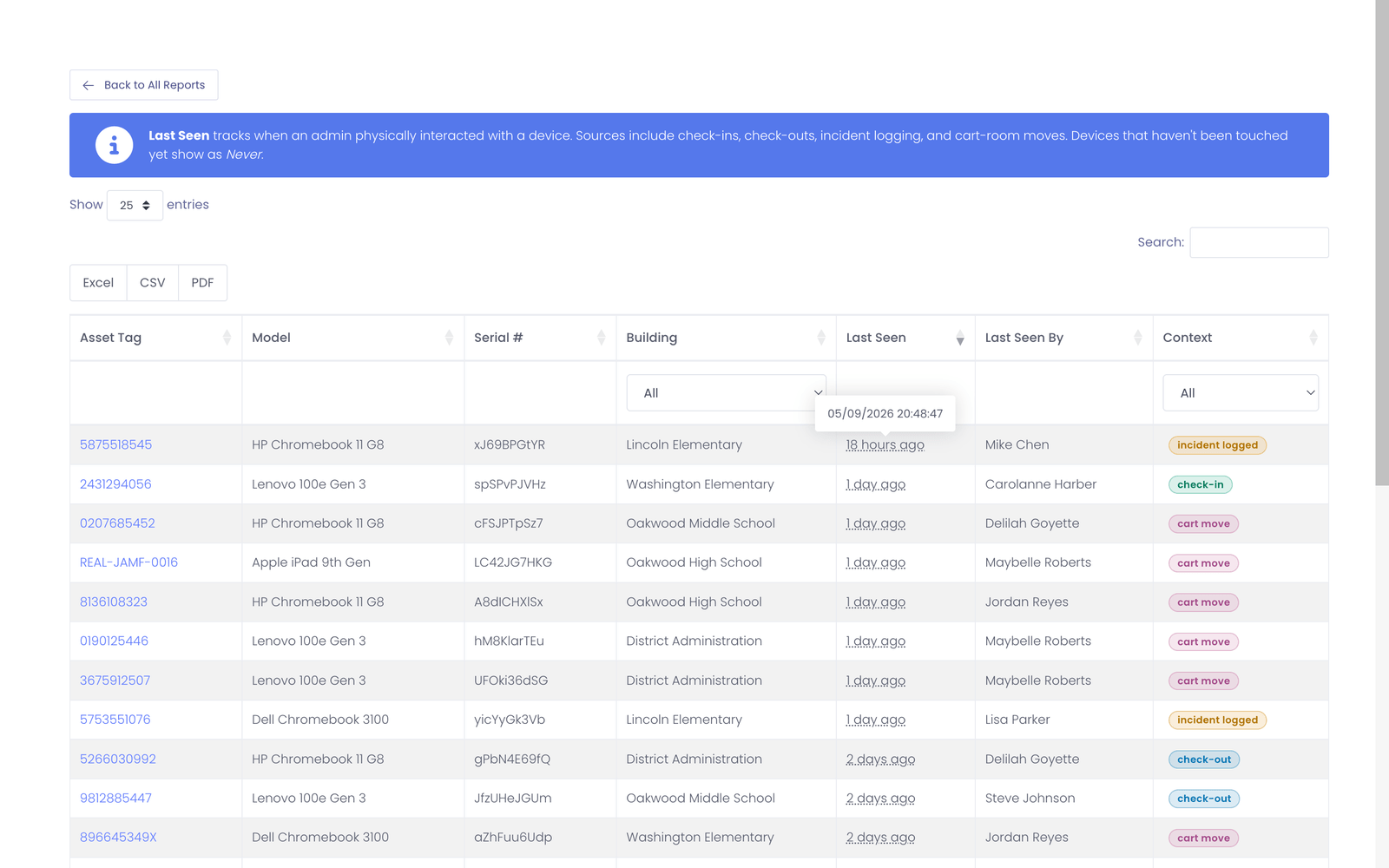
Each row shows:
- Asset tag (clickable to open the device profile)
- Model and serial number
- Building
- Last Seen (relative timestamp, or Never)
- Last Seen By (admin name)
- Context (check-in / check-out / incident logged / cart move)
You can filter by building or context using the dropdowns at the top of the table, search by any column, and export to Excel, CSV, or PDF.
In Full Device Exports
If you generate a "Full Device Export" from the Exports page, three new columns are included for every device:
- Last Seen At (full timestamp)
- Last Seen By (admin name, or empty)
- Last Seen Context (one of the four contexts, or empty)
This is useful when reconciling with district-level inventory spreadsheets or feeding the data into other reporting tools.
Common Workflows
End-of-Year Inventory Sweep
At the end of the school year you want to find devices that may be missing without a clear paper trail.
- Open
Reports → View Reports → Device Last Seen - Sort by Last Seen ascending (this is the default)
- Devices with Never sort to the top — these have never been physically processed since being added
- Below those, devices last seen many months ago appear next
- Filter by Building to narrow the sweep to one school at a time
- Export the list and use it as your physical search worksheet
Devices that were touched in the last few weeks (recent check-ins, recent incidents) are almost certainly accounted for. The ones at the top of the list are where you focus your physical inventory effort.
Verifying a Cart Was Audited
A cart-room move counts as a physical touch on every device in the cart. After a teacher returns a cart at the end of a unit:
- Open the cart's profile
- Detach the cart from the room (this stamps a cart move touch on every device in the cart)
- The next time you open the Last Seen report, those devices show today's date with the cart move badge
This gives you a built-in checkpoint for shared-device pools.
Spotting a Dormant Device After a Lost Report
A parent reports their student's device missing, but the student insists they returned it.
- Open the device profile
- Look at the Last Seen row
- If it says "Checked out 4 months ago" and there's been no check-in or incident since, the device was never returned through the system — the student's account is wrong
- If it says "Checked in last week" by an admin, the return did happen — the device was checked back out (or is misplaced in the building)
The context badge tells you exactly which workflow last produced a touch, which usually points to the next investigative step.
Permissions
Last Seen is visible to anyone who can already view the device profile or run reports. There is no separate permission for it — if you can see the device, you can see its Last Seen.
Touches are recorded automatically as part of the normal check-in / check-out / incident / cart workflows. No extra clicks or fields are required from the admin performing the action.
Common Questions
Q: I just checked in a device but the Last Seen row still shows the old timestamp — why? Refresh the device profile page. The timestamp updates immediately when the action commits, but a stale browser tab will still show the previous value until the page reloads.
Q: Why doesn't editing a device's status count as a touch? A status change can happen from a desk (bulk admin work, CSV import, automation rule). Last Seen specifically tracks "someone had hands on this device", which means a check-in, check-out, incident log, or cart move. If you want to track every change to a device, the Activity Log tab on the device profile is the audit trail you're looking for.
Q: Can I record a manual touch — a "yes I saw this device today" without checking it in or out? Not currently. The four supported workflows are the only ways Last Seen gets updated. If you've physically verified a device but it's already in the right state, the simplest workaround is to log a quick incident with type "Inventory Verification" (or similar) and resolve it immediately — that incident counts as a touch.
Q: Will old devices that existed before this feature was added show "Never"? Yes. Last Seen only starts recording from the moment the feature is enabled in your environment. Devices that were already in your system will show "Never" until they go through one of the tracked workflows for the first time. This is the expected baseline — the first sweep after enabling the feature will gradually fill in real timestamps as devices come through check-in, check-out, or incident workflows.
Q: What if multiple admins handle the same device on the same day? Last Seen always reflects the most recent touch. If Admin A checks the device in at 9 AM and Admin B logs an incident at 2 PM, the row will show Admin B's name and the incident logged context. Earlier touches that day still appear in the Activity Log and the device's Checkout History and Incident History tabs — Last Seen is just the headline.
Q: Does the cart workflow stamp every device in the cart, or just the cart itself? Every device in the cart. Attaching a cart to a room, detaching it, or moving it stamps a cart move touch on each device individually. This means cart-based programs get free Last Seen coverage even though admins don't interact with each device one at a time.
Q: How do I find devices that have never been touched? On the Last Seen report, devices that have never been physically processed sort to the very top with a Never indicator. You can also use the column search to filter for "Never" specifically.