Device Wi-Fi
On the device profile's Device Information tab, a device's current Wi-Fi reading sits in the MDM Information card as a Wi-Fi tab, right next to the device's management details. It's the fastest way to settle the question a technician asks on almost every device complaint: is it the device, or is it the Wi-Fi?
The reading comes from Network Assurance, which connects to the wireless platform your district already runs. When a device is matched to a wireless client, its latest reading appears here.
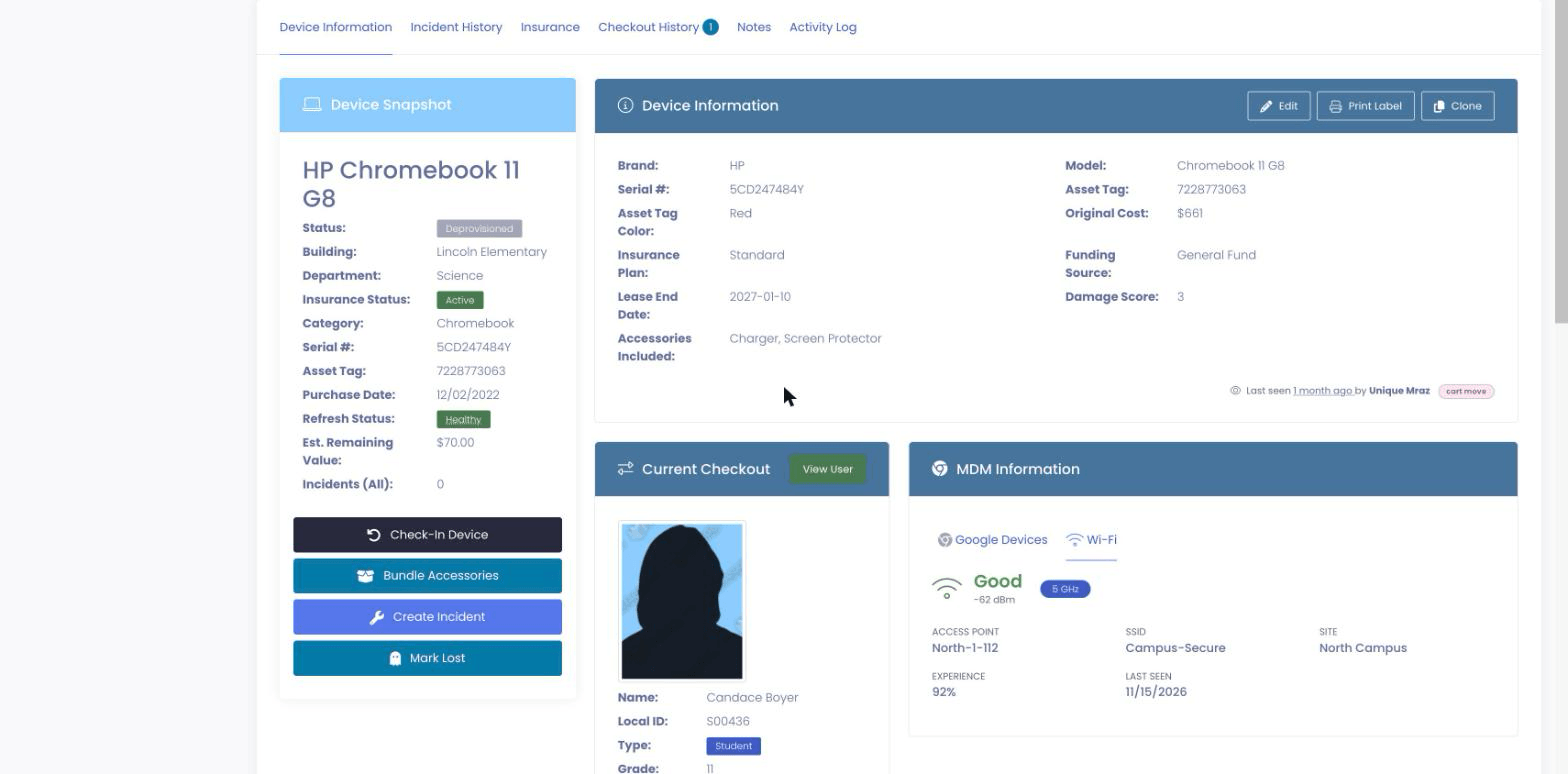
The Wi-Fi reading only shows when both of these are true:
- Your administrator role has the View Network Assurance permission
- The device has been matched to a client on your connected wireless platform
When the device also has management (MDM) details, Wi-Fi appears as one more tab in the MDM Information card. When it doesn't, the reading shows on its own as a Wi-Fi Health card. If a device isn't currently seen on Wi-Fi, or no wireless platform is connected, nothing extra appears.
What You'll See
The tab shows a quick, readable summary of the device's current connection:
- Signal quality — a plain-language rating (Excellent, Good, Fair, or Poor) alongside the signal strength reading, so you don't have to interpret a bare number
- Band — the Wi-Fi band the device is using, such as 5 GHz
- Access Point — the access point the device is connected to, by name
- Network — the wireless network the device joined
- Site — the building its connection is reporting from
- OS and Manufacturer — the device's operating system and maker, such as Chrome OS on a Dell, when your wireless platform reports them
- Uptime — how long the device has held its current connection, when reported
- Experience — an overall quality score for the connection, where your platform provides one
- Last Seen — when the device was last seen on Wi-Fi
Each field appears only when there's a value for it, so the tab stays clean rather than showing empty rows.
Why It's Useful
- Settle "device or network" on the spot. A device with a strong signal and a good connection points you back to the device itself. A weak signal or a far-off access point points at coverage in that room.
- See where a device actually is. The access point and site tell you roughly where the device connected, useful when someone isn't sure where they left it.
- No tool-switching. The reading is right on the profile you're already looking at, next to the device's checkout, incidents, and history.
The Wi-Fi tab is the single-device view. To see the whole picture, by building and across the district, open Network Assurance from the app launcher, where the same data drives fleet health scores, access point status, and a floor-plan map.
Common Questions
Q: The tab isn't on a device I expected it on. The device may not be connected to Wi-Fi right now, or it hasn't been matched to a wireless client yet. Matching happens automatically as your platform reports clients. A device that's powered off, on a wired connection, or off-site won't have a current reading.
Q: How current is the reading? It's the latest reading Manage1to1 has synced from your wireless platform. Last Seen tells you when the device was last seen on Wi-Fi.
Q: Can I change the device's Wi-Fi settings from here? No. The reading is for visibility only. Network Assurance never changes a setting on your wireless network.