Device Requests
Device Requests replace the shared spreadsheet many districts keep for tracking which students still need a device. Staff submit a request for a student, everyone works from the same queue, and each request moves from Requested to In Progress to Completed as it gets handled.
Submit a request
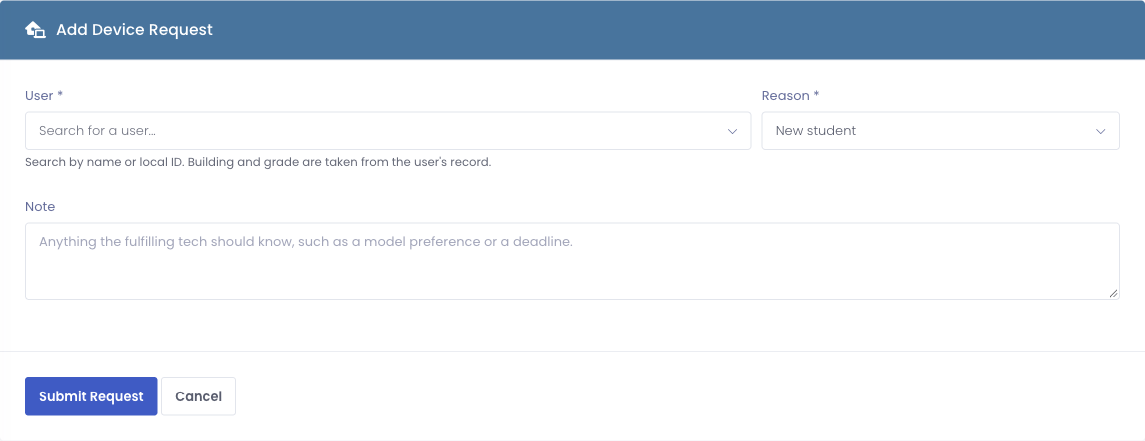
- Go to Devices → Device Requests and click Add Device Request.
- Search for the User who needs a device by name or local ID. Their building and grade come from their record automatically.
- Choose a Reason: New student, Returning, or Other.
- Add a Note if there is anything the fulfilling tech should know, like a model preference or a deadline.
- Click Submit Request.
Each student can have only one open request at a time. When a request is submitted, the staff who handle requests get a notification so nothing sits unseen.
Work the queue
The queue lists every request with the student, local ID, grade, building, reason, status, who requested it, when, and the issued device once it is done. Filter by Status, Reason, or Building to focus on what you are working on.
Each open request has these actions:
- Start moves a request from Requested to In Progress so the rest of the team can see someone has picked it up.
- Fulfill opens a short prompt where you enter the asset tag or serial of the device you issued. Recording it marks the request Completed.
- Cancel closes a request without issuing a device, for example if the student left or no longer needs one.
- The trash icon deletes a request from the queue entirely.
Who can use it
Device Requests need the Manage Device Requests permission, which you can grant to any role, and the Devices area has to be enabled. Anyone with the permission can submit, track, and fulfill requests.