Inventory Audit (Rapid Verify)
Rapid Verify is the inventory-audit scanner page. It exists to answer one question reliably: "Did we actually lay eyes on this device?"
Scanning a device on this page records a touch on its Last Seen row with an audit scan badge. Crucially, it does not check the device in, check it out, log an incident, or change anything else about the device. It's the lightweight, non-mutating way to confirm a device is physically present — perfect for end-of-year sweeps, board-mandated annual audits, and any compliance cycle where you need a clean record of "yes, we touched everything."
To use Rapid Verify you need the Verify Inventory permission assigned to your administrator role. Districts can grant this widely (any admin doing a sweep) or narrowly (only the inventory specialist) — your call.
Why a Separate Scan Workflow?
Manage1to1 already tracks Last Seen automatically when you check a device in or out, log an incident, or move a cart. Those touches happen as a side effect of normal work.
But during an inventory audit, you don't want to do any of those things. You're walking around with a scanner, confirming the device exists. Forcing you to "check it in then check it back out" just to record presence would be:
- Slower — two transactions per device instead of one
- Wrong-looking in the audit log — every device shows a phantom check-in/check-out from the audit day
- Risky — accidentally stranding a device in the wrong assignment state if something fails mid-cycle
Rapid Verify sidesteps all of that. One scan = one touch, with no other side effects.
How to Run an Audit
- Go to Devices → Rapid Verify in the main menu
- The scanner input is focused automatically
- Scan or type the device's asset tag or serial number
- Press Enter
- The device confirmation card appears with model, serial, building, and current assignment
- The input clears automatically — scan the next device
- The session counter at the top shows how many you've verified
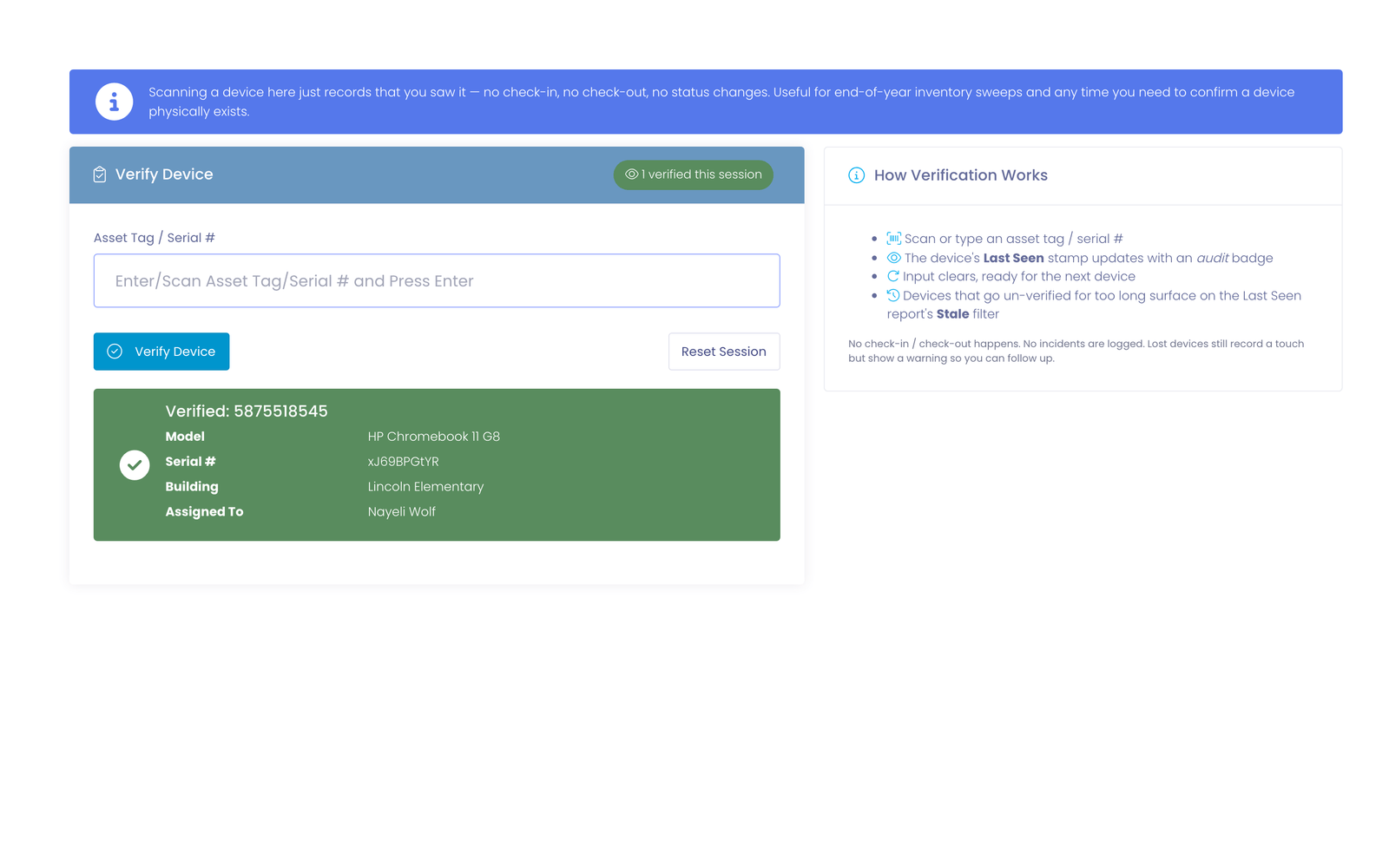
You can run for as long as you need; the page never reloads. When you're done, walk away — the touches are already recorded.
Showing Extra Details on the Scan Result
By default the confirmation card shows the device's model, serial number, building, and who it's currently assigned to. You can add your own device custom fields to that card so the details you care about during an audit are right there — no need to open the full device profile.
A common example: districts that swap a device for another one on the same lease want to see the device's Funding Source on the scan result to confirm it lines up.
To choose which fields appear:
- Go to Settings → Inventory Settings
- Open the Settings tab
- Find Rapid Verify Display Options
- In Additional Fields to Display, select any device custom fields you want on the scan result
- Click Save
The selected fields now appear on every Rapid Verify result, in the order you chose. If a scanned device doesn't have a value for one of those fields, the card shows Not set so you can still tell the field was expected. Leave the selection empty to show only the standard details.
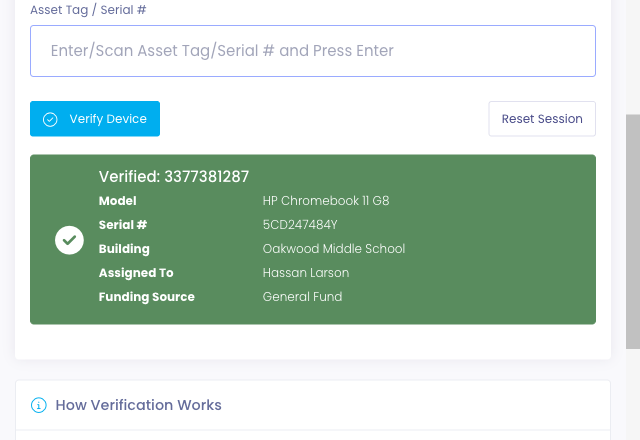
Only device custom fields are available here. If the field you want doesn't appear in the list, add it as a device custom field first (Settings → System Settings → Custom Fields), then come back and select it.
What if I scan an unknown asset tag?
The page shows a friendly error and clears the input. Nothing is recorded. Common causes: typo, mislabeled device, or a sticker from an old system that doesn't match anything in Manage1to1.
What about a Lost device?
If you scan a device that's currently marked Lost, the audit touch still records — you found it, after all. A yellow warning banner appears reminding you the device is flagged as Lost. If you have permission to mark devices Found, the banner includes an inline Mark Found button so you can clear the Lost status without leaving the scanner.
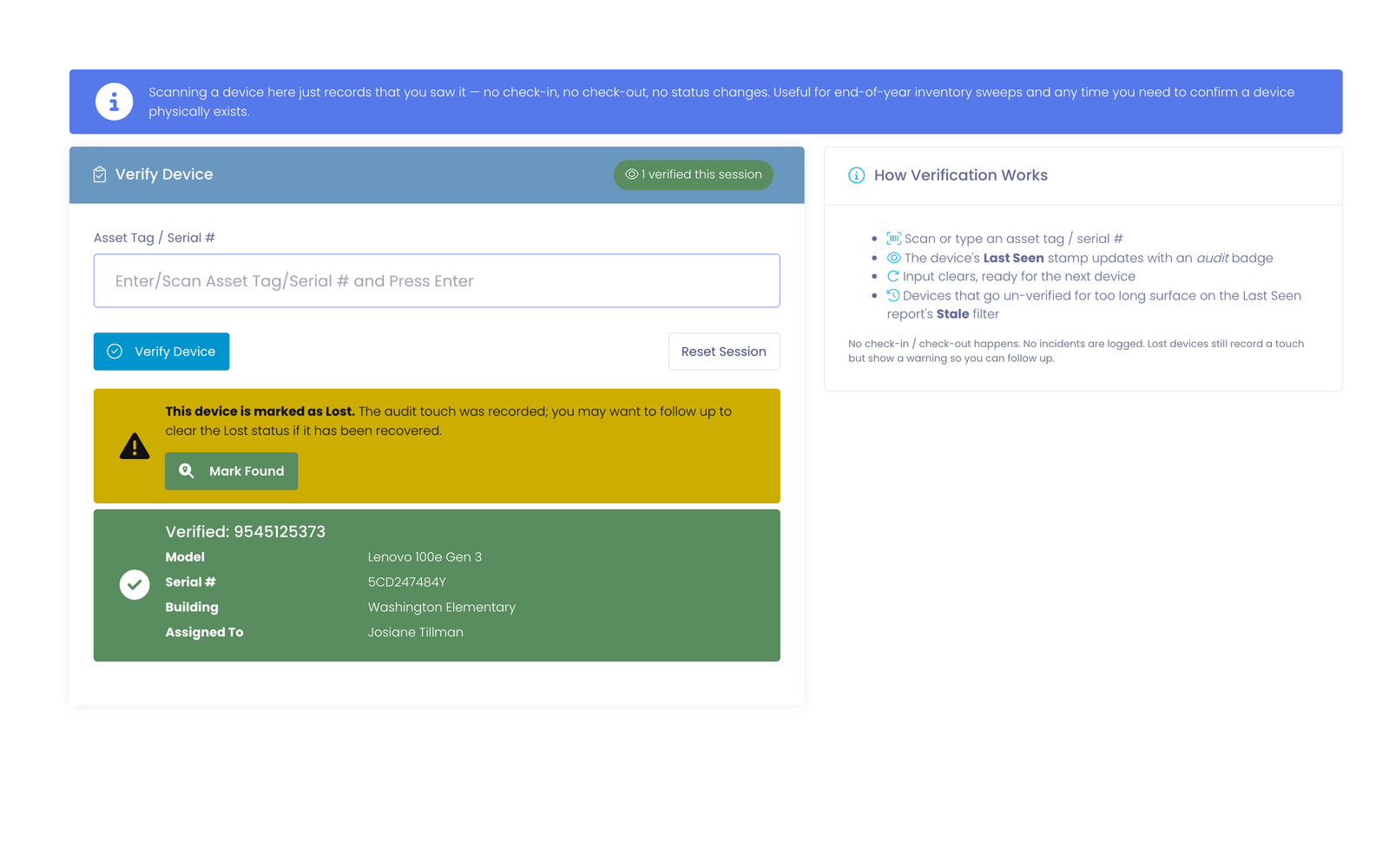
Clicking Mark Found:
- Clears the device's Lost flag
- Cancels any open invoices related to the loss (paid invoices stay as-is and show a warning)
- Re-checks the device in if it was on an active lease at the time it was lost
- Updates the banner inline to a green "Marked Found" confirmation — no page reload, scanner stays focused
If you don't have the Mark Lost permission (which gates Mark Found), the button doesn't appear and the banner is purely informational. Use the device profile to clear the flag if needed, or hand off to a senior admin.
Reset Session
The Reset Session button zeroes the counter and clears the result panel. Useful when handing off to a colleague or starting a fresh round at a new building. Touches recorded so far are still in the database — Reset only clears the on-screen state.
Mobile Barcode Scanner
Open Rapid Verify on a phone or tablet with a rear camera and a Scan Asset Tag button appears above the input. Tap it to open the camera, aim at a barcode or QR code, and on a successful read the value drops into the input and the audit touch records automatically — no typing, no separate confirm tap.
The scanner reads:
- Standard 1D barcodes (Code 128, Code 39, EAN, UPC, etc.)
- 2D codes including QR codes and Datamatrix
A few details worth knowing:
- Mobile-only by design. The button never shows on a desktop or laptop. The check is touch + a coarse pointer + an accessible camera, which lines up with phones and tablets — exactly the form factor that makes an end-of-year audit walk practical.
- Always available, no setup. No admin toggle to enable. As soon as you visit Rapid Verify from a supported device the button appears.
- Camera permission. The browser asks to use your camera the first time. Allow it once and the prompt won't return for that site.
- Scan-and-walk. Each successful scan records the touch and refocuses the input automatically, so you can move from device to device without touching the screen between scans — just point and shoot.
Finding Devices Overdue for Audit
The companion report is the Device Last Seen report. By default it opens in Audit Worklist mode — every device that's overdue for an audit per its building's threshold:
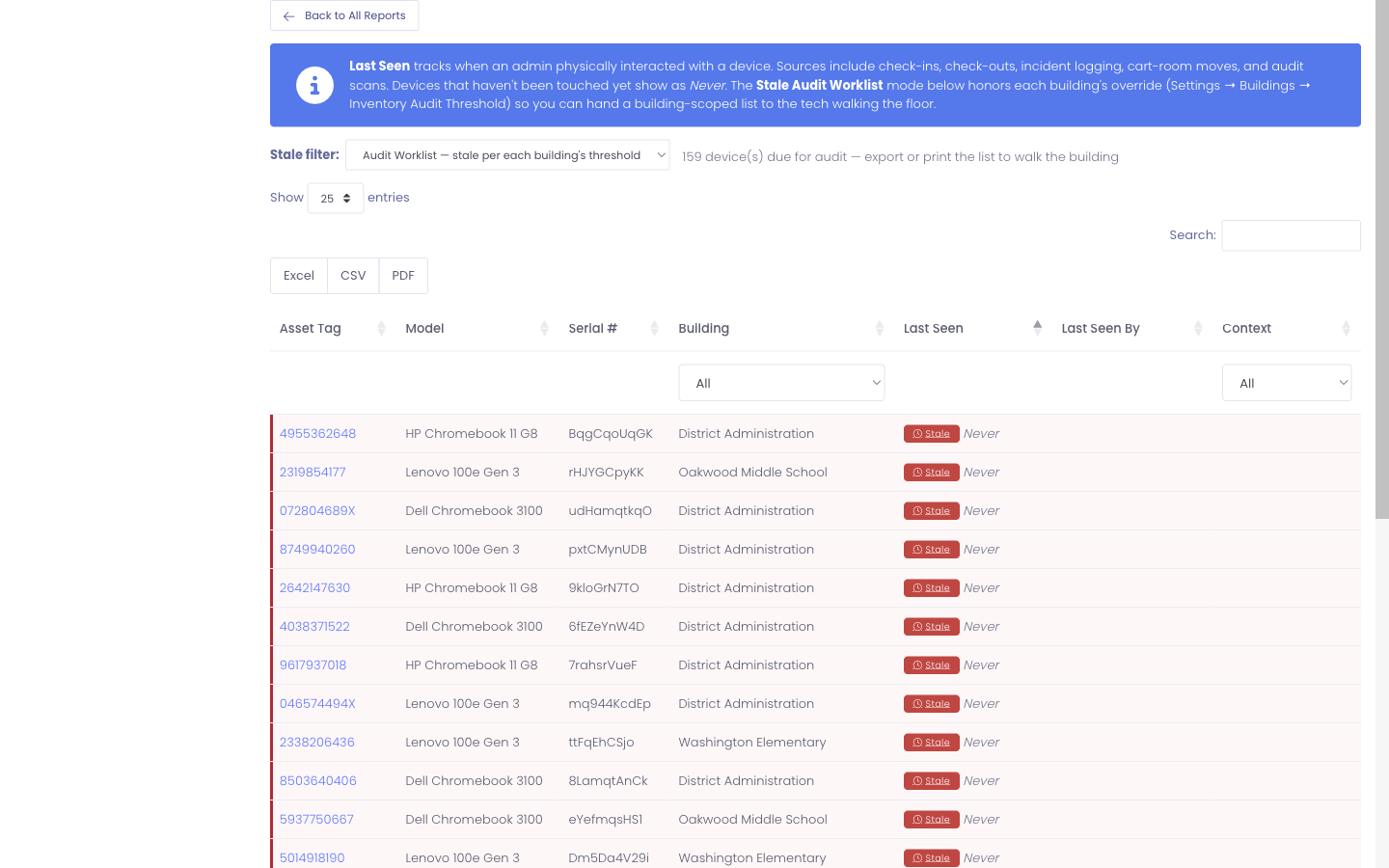
Stale devices are flagged with a red Stale badge next to their last-seen time. Hovering the badge reveals which threshold drove the flag (the district default, or a per-building override). Stale rows also get a soft red accent down the left edge so the worklist scans cleanly when you're skimming for a particular building.
Open Reports → Device Last Seen and pick a mode from the Stale filter dropdown:
- Audit Worklist — default; honors each building's threshold (per-building overrides + district default)
- Any (show all) — shows every device, no filter
- Not seen in 3 / 6 / 12 + months — ad-hoc thresholds for a one-off look
- Not seen in N+ months (district default) — the global setting (configurable, see below)
- Never seen — devices that have never been physically processed since being added
The count of stale devices appears next to the dropdown so you can size the walk before you start it. Filter the Building column to scope the worklist to one campus, then export to CSV or PDF (top-right buttons) and you have a printable walk list.
Configuring the Stale Threshold
The "district default" threshold lives at Settings → System Settings → Device Management Tab under Inventory Audit:
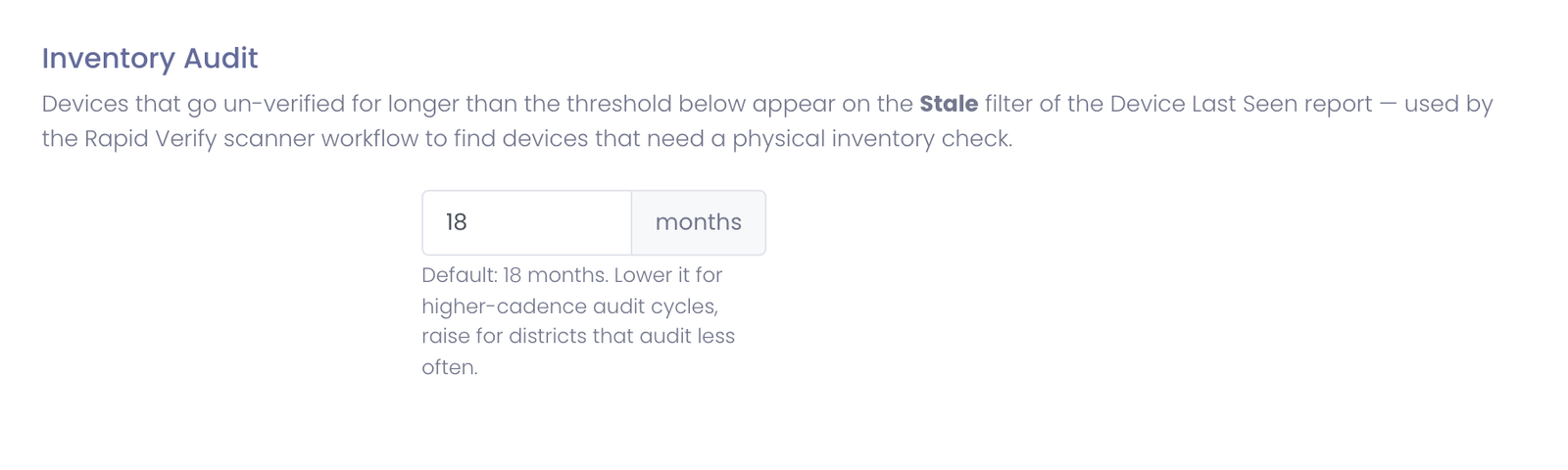
The default is 18 months, which matches a typical "every other school year" audit cycle. Tune it to match how often your district actually runs sweeps:
- 12 months for districts that do an annual audit
- 24+ months for districts that audit on insurance / funding cadence
Whatever you pick becomes the district-wide fallback. Buildings that don't set their own override inherit it, and the dropdown on the Last Seen report labels this value as (district default).
Per-Building Threshold Overrides
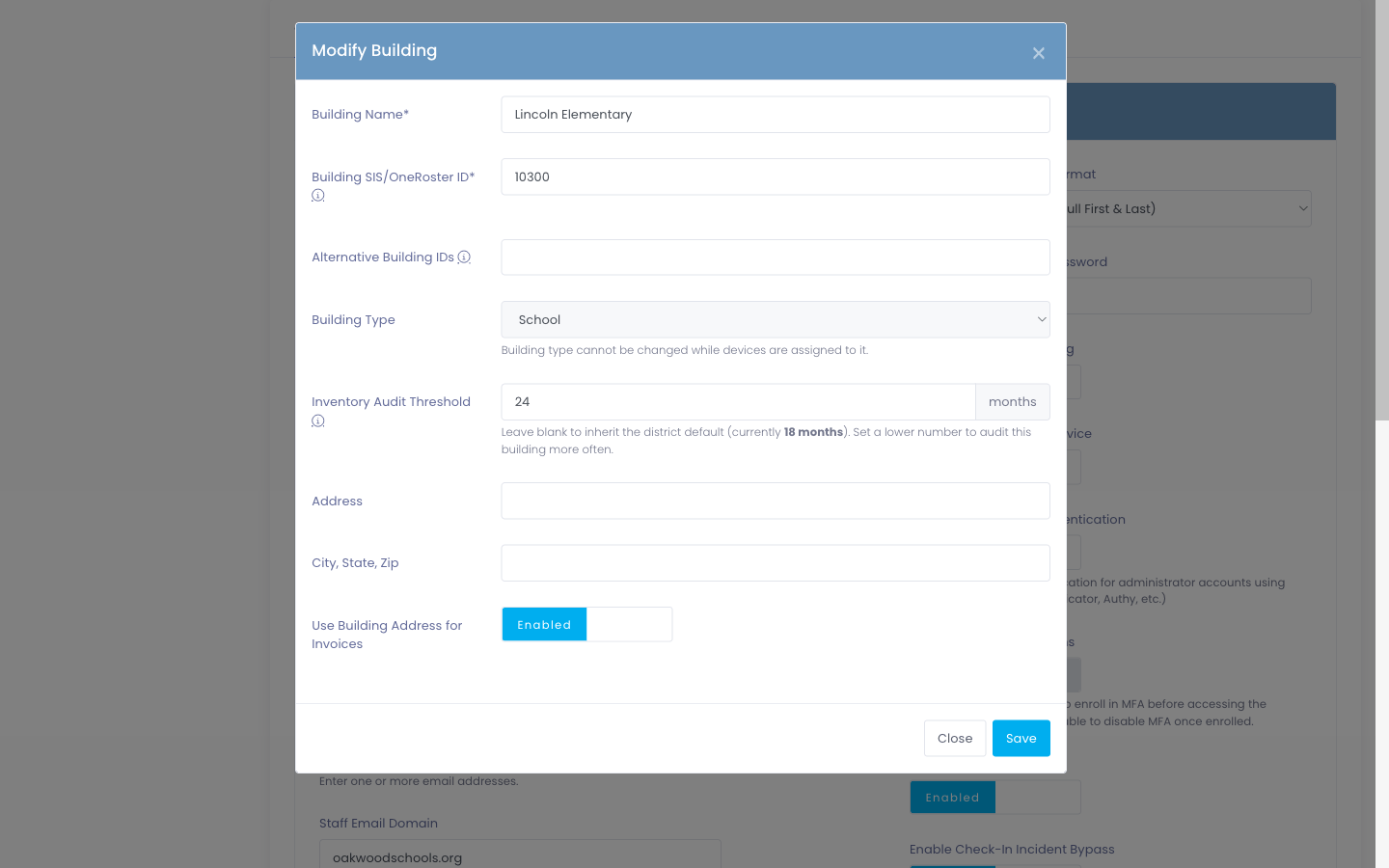
When the district default doesn't fit one of your campuses — high schools that get audited every 12 months while K–2 only needs every 24 — set a per-building override at Settings → System Settings → Buildings, edit the building, and look for Inventory Audit Threshold:
| Field state | Behavior |
|---|---|
| Blank | Inherit the district default |
| Number (1–120) | Use that month count just for this building |
The override applies the moment you save. The next time the Last Seen report is opened in Audit Worklist mode, that building's devices are evaluated against the new threshold — and the Stale badge tooltip on each device explains which scope drove the flag (e.g. "Stale per 12 months — Oakwood High School").
A 12-month threshold at a busy high school catches a missing Chromebook months before the 18-month district default would. A 24-month threshold at a stable K–2 building reduces audit fatigue without losing visibility. The two coexist cleanly — no global trade-off.
What Counts as an Audit Touch?
Only the Rapid Verify page records the audit scan context. Other physical touches keep their original context:
| Action | Context badge |
|---|---|
| Rapid Verify scan | audit scan |
| Adding a new device (manual or bulk import) | deployed |
| Checking a device in | check-in |
| Checking a device out | check-out |
| Logging an incident | incident logged |
| Cart-room move (attach/detach/move) | cart move |
The badges appear on the device profile and in the Last Seen report. If you need to know "was this verified by an actual audit, or just touched during normal work?", the badge tells you.
Common Workflows
Annual Inventory Audit
You're running the once-a-year audit required by the district's tech-policy committee.
- Open Reports → Device Last Seen and apply the Stale only: Not seen in 12+ months filter
- Export the list to CSV — that's your starting worksheet
- Walk each building with a scanner, opening Devices → Rapid Verify
- Scan every device you find
- After the round, re-open the report with the same filter — the count of stale devices shows what's left
- Investigate anything still on the list (lost? off-campus? assigned to a graduated student?)
Building-Level Spot Check
A principal asks "are all 200 of our Chromebooks accounted for?"
- Open Reports → Device Last Seen and filter by their Building
- Sort by Last Seen ascending
- Devices last seen recently are almost certainly in the building
- Devices last seen months ago are the ones to physically verify
- Use Rapid Verify to walk through and scan them
Cart-Based Program Audit
Your district does cart-based 1:1 (carts move between classrooms). The cart-move context already records touches when carts are reassigned, so most cart devices stay fresh automatically.
- Filter the Last Seen report by the cart move context dropdown to confirm cart devices show recent touches
- Anything in cart-based programs that's gone stale is a real anomaly — most likely a device that was pulled from a cart and never reassigned
- Use Rapid Verify on those specifically
Permissions
Two permissions interact with this workflow:
- Verify Inventory — required to use the Rapid Verify scanner page. Default: not granted (admins must be explicitly given the permission).
- Stats/Exports — required to view the Last Seen report. Most admins already have this for general reporting.
There is no separate permission for the stale-threshold setting itself — that's part of the broader Edit System Settings permission your admin team already controls.
Common Questions
Q: Does Rapid Verify work with our existing barcode scanners? Yes. Any handheld scanner that emits a "type-and-Enter" sequence works. The same scanners you use for Rapid Check-In and Check-Out work here without configuration.
Q: Can I audit devices in buildings I don't have access to? No. Rapid Verify respects the same building permissions as the rest of Manage1to1 — if the device's building isn't in your access list, the scan returns "Device not found." Have a building-scoped admin run those audits.
Q: I scanned a device but the Last Seen report still shows it as stale — why? Check the time on the device profile's Last Seen footer. The audit touch is recorded immediately. If the report's Stale-only filter is set to "Not seen in 18+ months" and the device was just touched, refresh the page — the filter is client-side and re-evaluates on every redraw.
Q: What happens if two admins scan the same device on the same day? The most recent scan wins for the headline timestamp. Both touches are part of the device's lifecycle — the Activity Log tab on the profile preserves the full history. The Last Seen footer just shows the most recent.
Q: Can I bulk-import a list of asset tags I scanned offline? Not yet. Rapid Verify is real-time-scan only. If you have an offline collected list, you can import it via the standard device-import workflow as a custom-field update — but those won't record as audit touches. The "scan online during the audit" path is the supported one.
Q: Does Rapid Verify update MDM data? No. MDM sync is independent. Rapid Verify only records that an admin physically saw the device — it doesn't poll or reconcile with your MDM provider.
Q: What's the difference between Rapid Verify and Rapid Check-In? Check-In returns a device that was checked out. It changes assignment state. Rapid Verify changes nothing — it only records that the device exists. If you scan a checked-out device on Rapid Verify, the user keeps the device; you've just confirmed it's physically in the building.
Q: What if I want to record an audit but I only have the device in front of me, not the asset tag? Use the device profile's standard Edit workflow — there's no Rapid Verify alternative for typing a serial number into a search box first. (If this is a recurring frustration, the next planned enhancement is a serial-search field that pre-loads the device.)