Loaner Queue
The Loaner Queue is a single screen for running your loaner pool. It shows every loaner that's currently out, highlights the ones that are overdue or due back today, and lists the loaners that are free to hand out - all with quick actions so you can extend a return date, check a loaner in, or check one out without leaving the page.
It's the companion to the day-to-day loaner desk: keep it open at the service window and you always know where every loaner is.
To open the Loaner Queue you need the Check Out Devices permission on your administrator role. Checking a loaner back in also requires the Check In Devices permission.
You'll find it in the left menu under Devices → Loaner Queue.
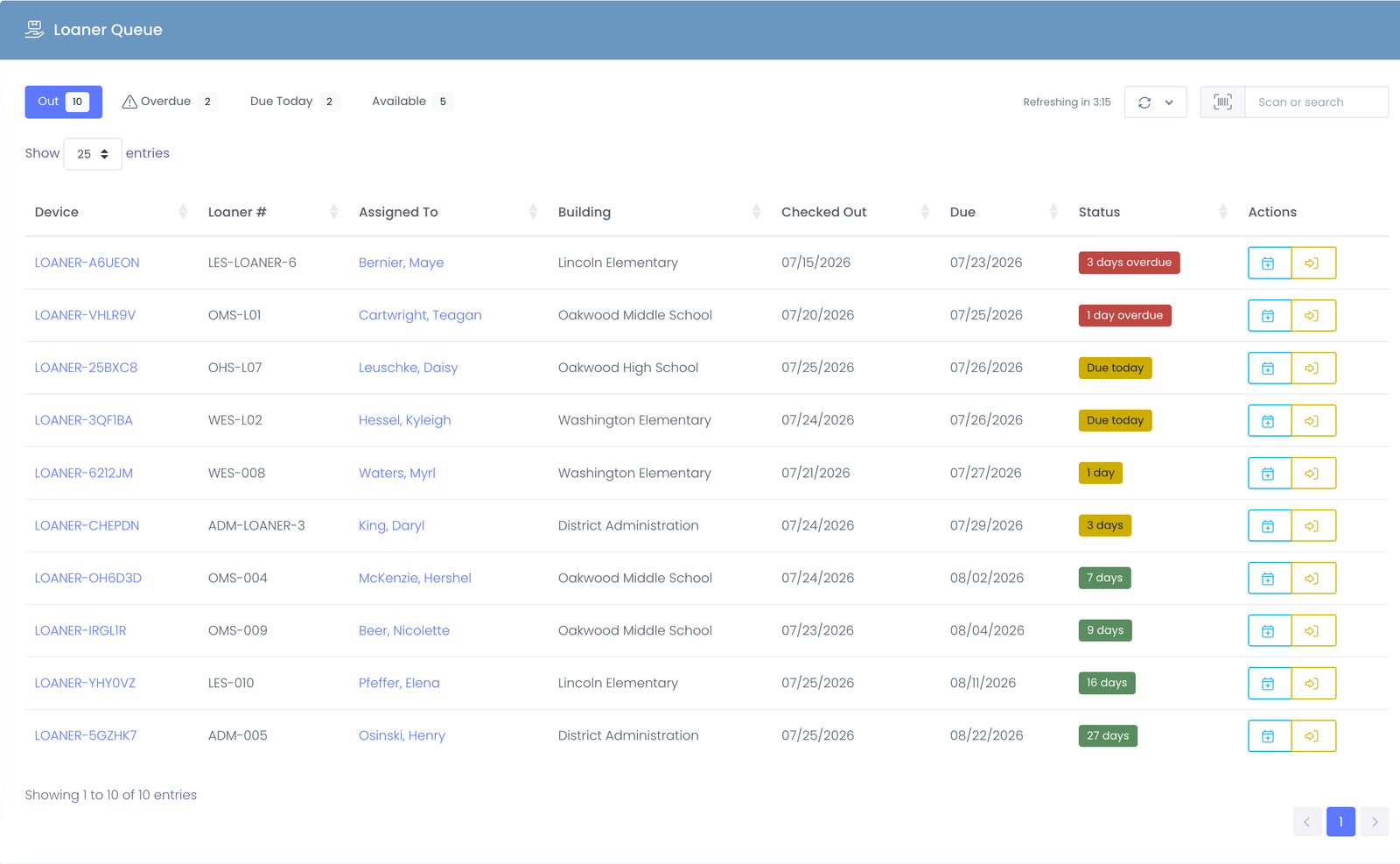
The tabs
The queue is split into tabs so you can focus on what needs attention. The number on each tab updates as loaners move in and out.
- Out - every loaner currently checked out, whoever has it and whenever it's due back.
- Overdue - loaners whose return date has already passed.
- Due Today - loaners due back today.
- Available - loaners that are free to hand out (a loaner in your pool with nobody currently holding it).
The Overdue and Due Today tabs appear when Loaner Return Dates are turned on. That's what lets the queue know when each loaner is expected back.
Each row shows the device, its loaner number, who has it, the building, when it went out, and when it's due. The Status column colors each loaner so problems stand out at a glance: red for overdue, amber for due soon, and green when there's plenty of time.
Finding a loaner
Use the Scan or search box in the top-right to jump straight to a loaner. Scan the device barcode with a handheld scanner, or type any part of the device tag, loaner number, or the person's name. The list filters as you go.
Extending a return date
If someone needs to keep a loaner a little longer:
- Find the loaner on the Out (or Overdue / Due Today) tab.
- Click the calendar button in the Actions column.
- Enter how many school days to extend by, then choose Extend.
The new return date is worked out in school days, so weekends are skipped automatically. The loaner's status updates right away.
Checking a loaner back in
When a loaner comes back:
- Find it on the Out tab (or use the search box to scan it in).
- Click the check-in button in the Actions column.
- Confirm the check-in.
The loaner drops off the Out list and reappears on the Available tab, ready to lend again.
Handing out an available loaner
The Available tab lists every loaner that's free to lend.
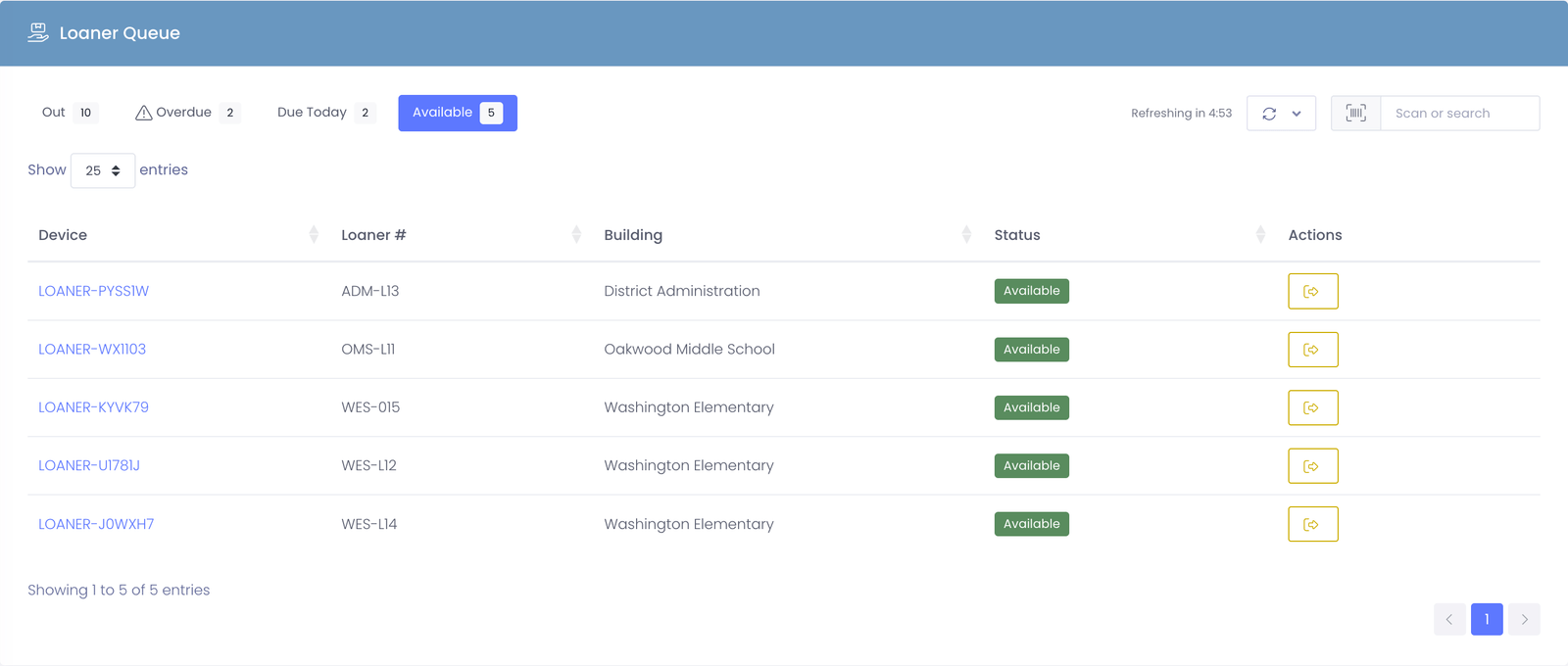
- Open the Available tab, then scan or search to find the loaner you're handing out.
- Click the Check Out button on that row.
- Pick the person receiving the loaner and complete the check-out. If a return date or signature is expected, you'll be prompted for it as part of the normal check-out.
Staying up to date
The queue refreshes on its own so the counts and rows stay current while it's open - handy on a shared desk where more than one person is checking loaners in and out. The countdown next to the refresh button shows when the next refresh will happen.
To change how often it refreshes, click the refresh button at the top-right and pick an interval (or choose Disabled to turn it off). Your choice is remembered for next time.