Marking a Device as Lost
When a staff or student device goes missing, the device profile has a Mark Lost action that does three things in one step:
- Records the device as lost in your inventory (sets device status to Lost)
- Sends a lock command to your MDM if you have one connected, so the device displays your district's configured "lost device" message
- Updates the user's profile so the device stays visible there with a Lost badge
The mark-lost modal also lets the tech capture two pieces of context that come up almost every time: whether to end the user's checkout, and which accessories went missing with the device.
Opening the Mark Lost Modal
From the device profile, click Mark Lost in the device snapshot panel. A confirmation modal opens with three optional inputs.
"Also end this checkout?"
This checkbox controls whether the user's lease ends at the moment you mark the device lost.
- Leave it unchecked (default). The device stays attached to the user's profile as a current checkout, just with a red Lost badge next to the asset tag. This is the right choice when you expect the device to turn up or when you want the user to remain accountable for it pending resolution.
- Check it. The lease ends right now and the device drops out of the user's Current Checkouts. It still appears on their profile, but in a new Recently Lost card instead of the active list.
Whether the checkbox is pre-checked or not is controlled by the Mark Lost Ends the Checkout by Default setting under Settings → Configure General Settings. Districts that prefer the auto-end workflow flip that switch once and the modal opens with the checkbox checked. Either way, the tech can override per-incident.
"Accessories also lost"
This second checkbox reveals a free-text "Which accessories?" field. Type whatever went missing (for example charger, stylus, hard case, headphones, USB-C cable) and submit.
What you enter shows up in two places:
- Directly under the device row on the user's profile, in red: "Accessories lost: charger and stylus"
- In the device notes for the audit trail
For per-accessory tracking with status and history, see the Accessories module.
"Custom lock message"
Your MDM shows a district-wide "lost device" message on every locked device's screen. The Custom lock message field lets you override it for this one device when it matters, so the person who finds it sees exactly who it belongs to and how to return it.
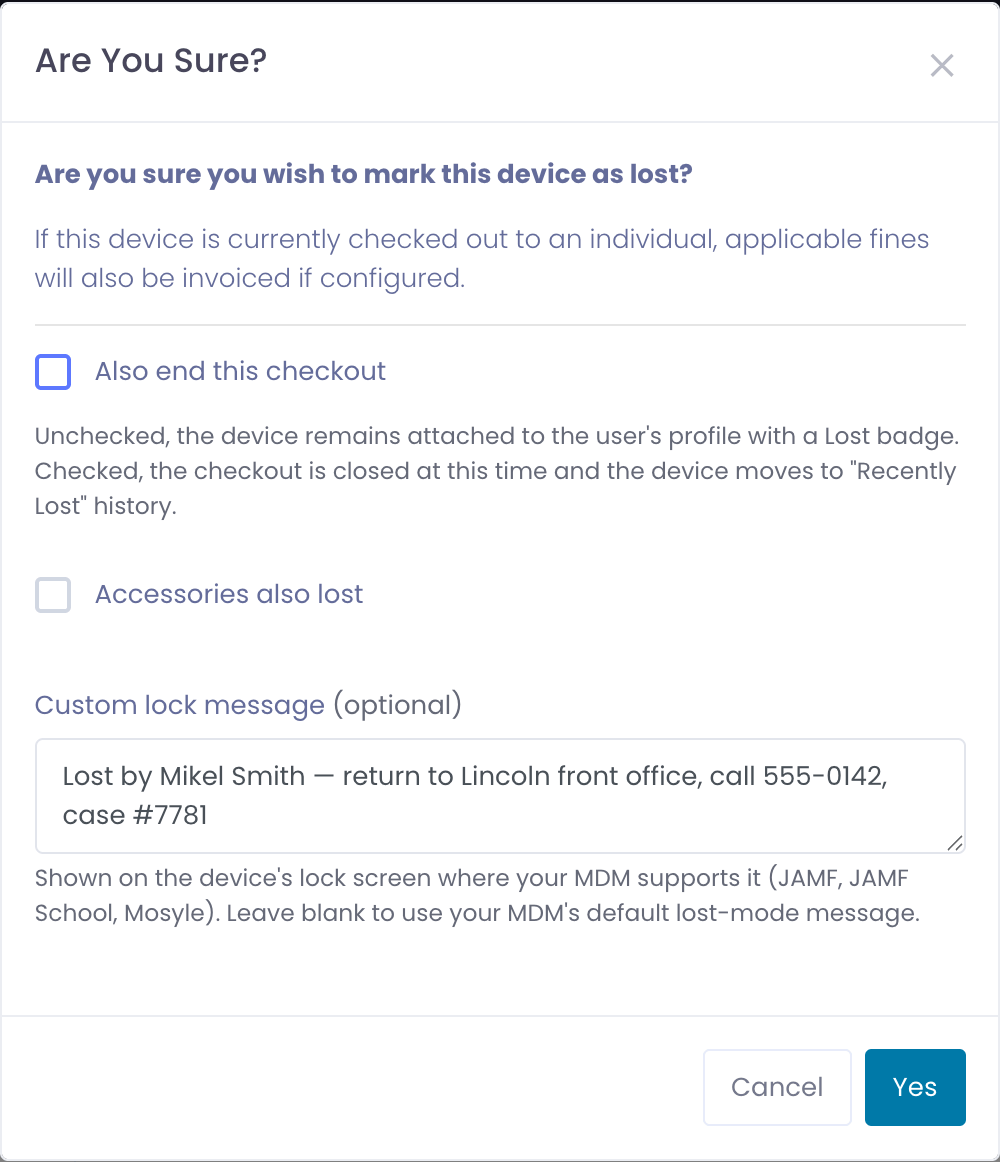
Type a one-off message, for example: Lost by Jordan Smith, please return to the Lincoln front office or call 555-0142, case #7781. Leave it blank and the device uses your MDM's district-wide default.
The custom message is sent to JAMF Pro, JAMF School, and Mosyle lost mode. Google-managed Chromebooks always use the message configured in your Google Admin Console, so the field has no effect on those.
The message sticks with the device until you Mark Found, which clears it so the next lost event starts from your default again.
After Marking Lost
On the Device Profile
The device status changes to Lost and the Mark Lost button is replaced by Mark Found. The lock command goes out to whichever MDM the device is enrolled in (JAMF Pro, JAMF School, Google Devices, etc.). See your MDM module's settings to configure the district-wide "lost" message users see on the device's lock screen.
A Lost banner appears at the top of the profile. If you set a custom lock message, the banner shows it back to you, so anyone looking at the device knows exactly what it is displaying on its lock screen.

On the User Profile
If you kept the checkout open (default behavior), the device appears in Current Checkouts with:
- A red Lost badge above the asset tag
- An Accessories lost red line (when you captured one) listing what's missing
If you ended the checkout, the device moves into a new Recently Lost card on the user profile. The card shows:
- Date the device was reported lost
- Device model, serial, and asset tag
- Any accessories you recorded as lost
The Recently Lost card only renders when the user has lost-and-ended checkouts in the last 24 months. Users with no lost-device history don't see the card at all.
Marking Lost Devices Found
If the device turns up, open it from any list and click Mark Found. Three things happen:
- Device status returns to Active
- Any open Lost Device fine on the user is canceled (paid invoices have to be handled manually)
- The lease's lost record is cleared
If you ended the checkout when you marked it lost, the lease stays closed, and Mark Found does not automatically re-issue the device. That's an intentional separate manual step so the audit trail of who-had-what-and-when stays clean.
Tips
- Default to not ending the checkout for the first week or so after a report. Most lost devices are actually misplaced and turn up within days.
- Record accessory loss honestly. The text you type here drives Accessories module replacement-threshold warnings when the same user keeps losing the same accessory.
- Need a device-specific lock message? Use the Custom lock message field in the Mark Lost modal (above). Leave it blank to use your MDM's district-wide default.