Staff Self-Inventory
Staff Self-Inventory lets your staff confirm the devices they are responsible for, right from the portal, by scanning each one. Instead of your technology team chasing down every classroom, staff do a quick scan of what they physically have, and anything that doesn't line up is collected in one review queue for an admin to sort out. It's a lightweight way to run a building-wide or district-wide inventory check without a formal audit.
How staff use it
A staff member signs in to the portal and opens Self-Inventory from the menu. They see a simple scan station:
- They scan (or type) the asset tag of each device in front of them.
- Each scan is checked against the devices that staff member is responsible for — devices checked out to them, devices in their carts, and devices in rooms they're assigned to.
- The result is shown immediately:
- Confirmed — the device is one they're expected to have. Nothing more to do.
- Needs a note — the device isn't on their expected list (for example one that moved to them informally). They can add a short note explaining why they have it, and it's sent for review.
- Not found — the asset tag didn't match a device. They can re-scan or flag it.
Staff never change inventory records themselves — they're only confirming and flagging — so there's no risk of a scan moving a device to the wrong place.
Reviewing the results
Everything that needs attention lands in the Self-Inventory Review queue in the admin area, so your team has a single list to work through rather than scattered emails.
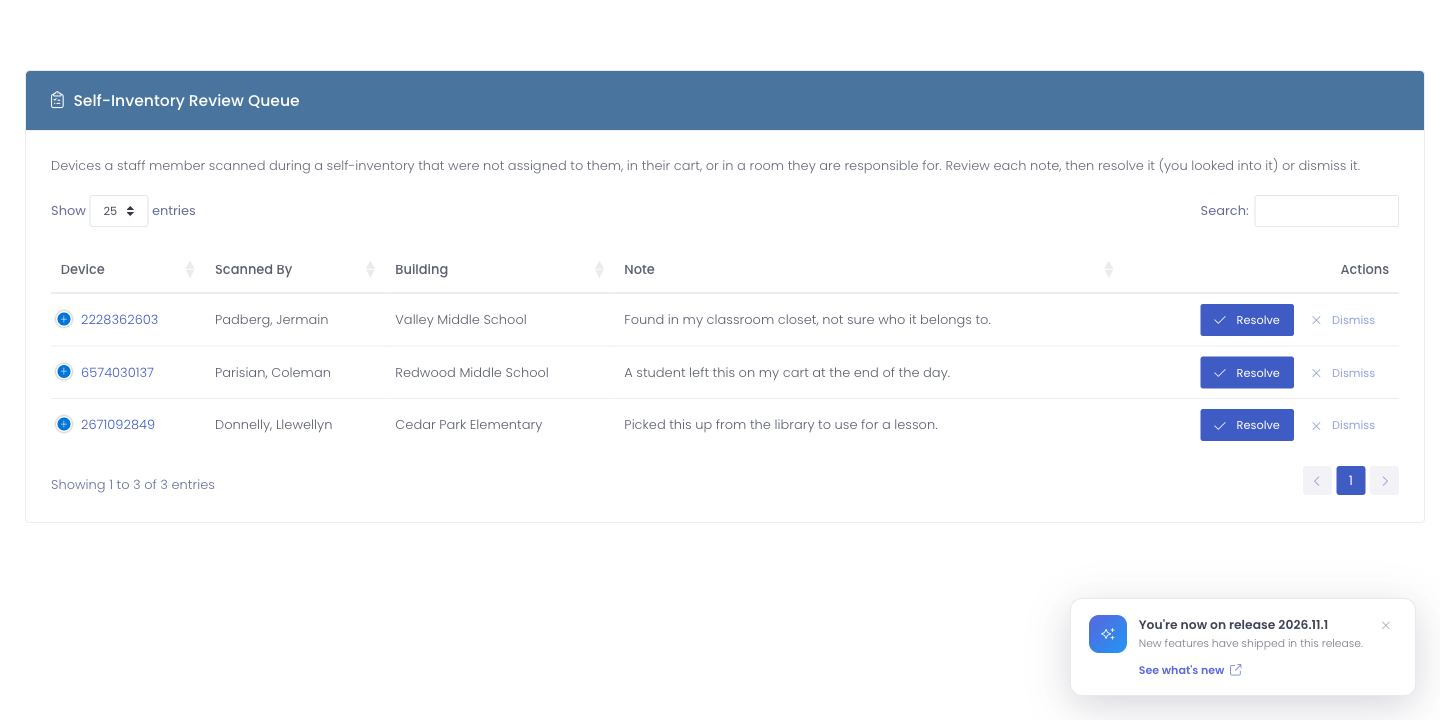
For each entry you can see who scanned it, which device, and any note the staff member left, then:
- Resolve it once you've accounted for the device (for example reassigning it to the right person or confirming it belongs where it is).
- Dismiss it if no action is needed.
Self-Inventory is ideal for a start-of-year or end-of-year check: ask staff to scan what they have during a planning day, then work the review queue to catch the handful of devices that drifted out of place, instead of auditing every device yourself.
Permissions
Access to the Self-Inventory Review queue is controlled by a dedicated permission, so you can decide which admins work the queue. Any staff member who signs in to the portal can run their own self-inventory scan.