Warranty Tracking
The Warranty Tracking feature surfaces manufacturer warranty start and end dates on every device. When enabled, a status badge appears on each device profile, a sortable Warranty column and dropdown filter appear on the device list, and the edit form exposes the warranty date fields. For supported vendors, Manage1to1 pulls the dates directly from the manufacturer on a nightly schedule — no manual data entry, no clicking around.
Warranty Tracking is opt-in. Every Manage1to1 install starts with the feature off — you turn it on under Settings → System Settings → Inventory when you're ready. Disabling it later hides every warranty surface (column, filter, badges, edit-form section) but does not delete any stored data.
Enabling Warranty Tracking
- Navigate to Settings → System Settings → Inventory tab.
- Scroll to the Warranty Tracking section.
- Toggle Enable Warranty Tracking on.
- Click Save Settings.
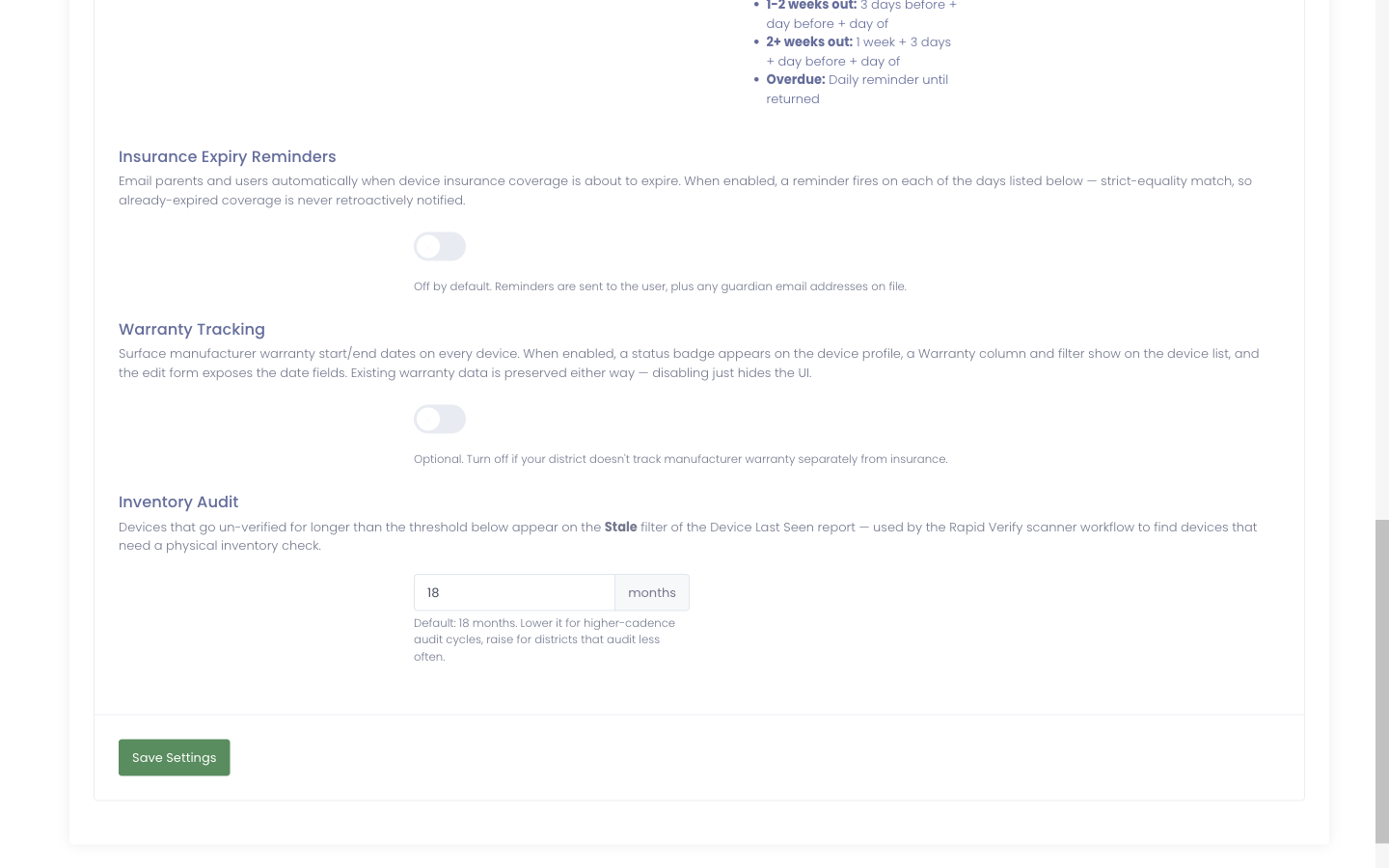
Once enabled, the warranty surfaces appear immediately on the device list, profile pages, and edit form.
The Warranty Status Badge
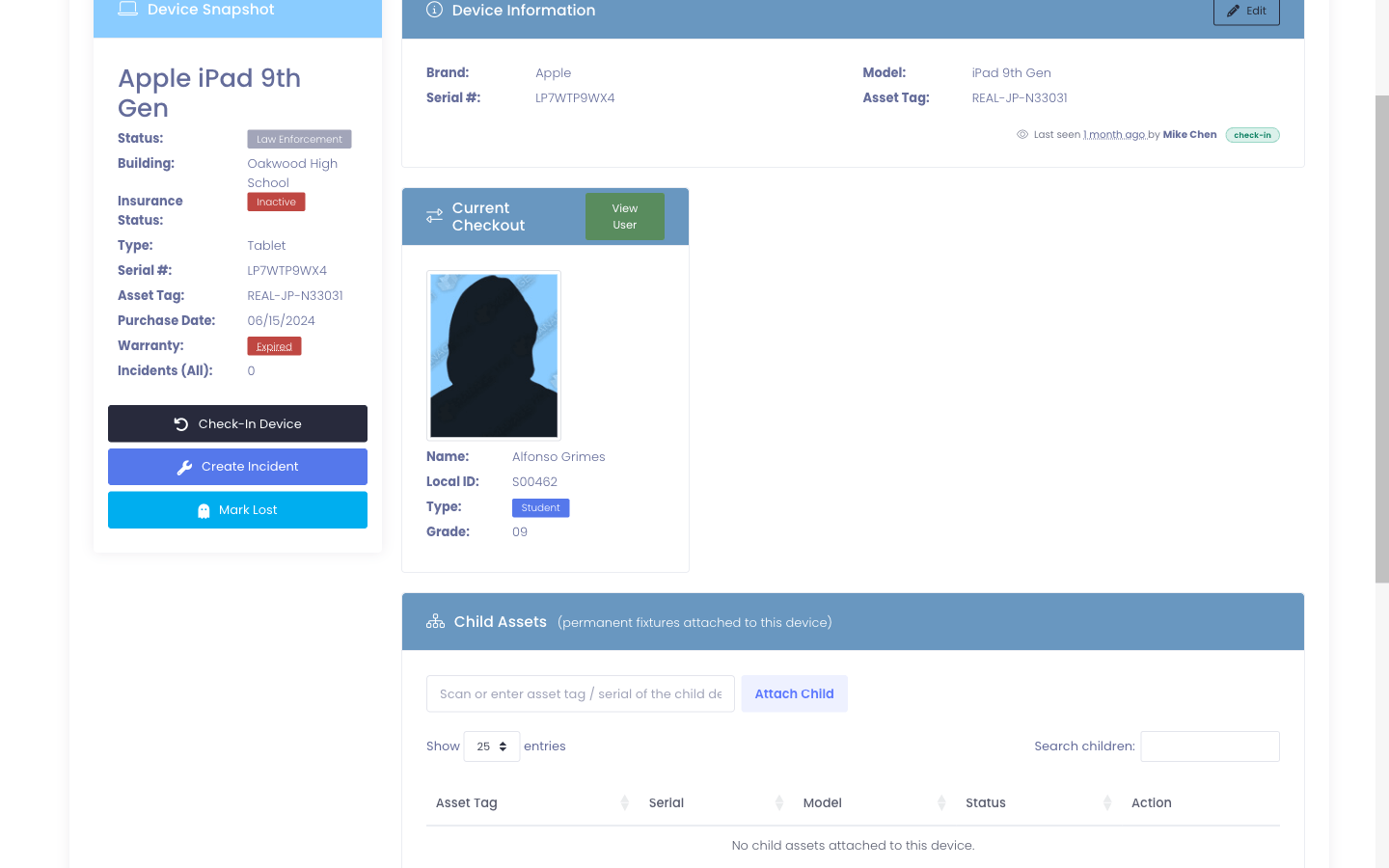
Every device shows a colored badge that reflects its current coverage state. The status is computed live from the Warranty End date — no manual reclassification is needed as time passes.
| Badge | Meaning |
|---|---|
| Active | Warranty End is more than 30 days in the future. Device is fully covered. |
| Expiring | Warranty End is within the next 30 days. Time to plan any in-warranty repairs before coverage lapses. |
| Expired | Warranty End has passed. Device is out of manufacturer coverage. |
| Unknown | No warranty data on file yet. The nightly sync will populate it for supported brands; otherwise enter manually or import via CSV. |
Hovering the badge on the device profile shows the warranty end date and provider for quick reference, no clicks needed.
The Warranty Column and Filter on the Device List
A Warranty column appears on the Devices → View Devices page when the feature is enabled. Each row shows the badge that matches the device's current coverage state.
The column header includes a dropdown filter so you can narrow the table to a single state:
- Active — only devices with warranty more than 30 days out
- Expiring Soon — devices whose warranty ends in the next 30 days
- Expired — devices already out of coverage
- Unknown — devices with no warranty data on file
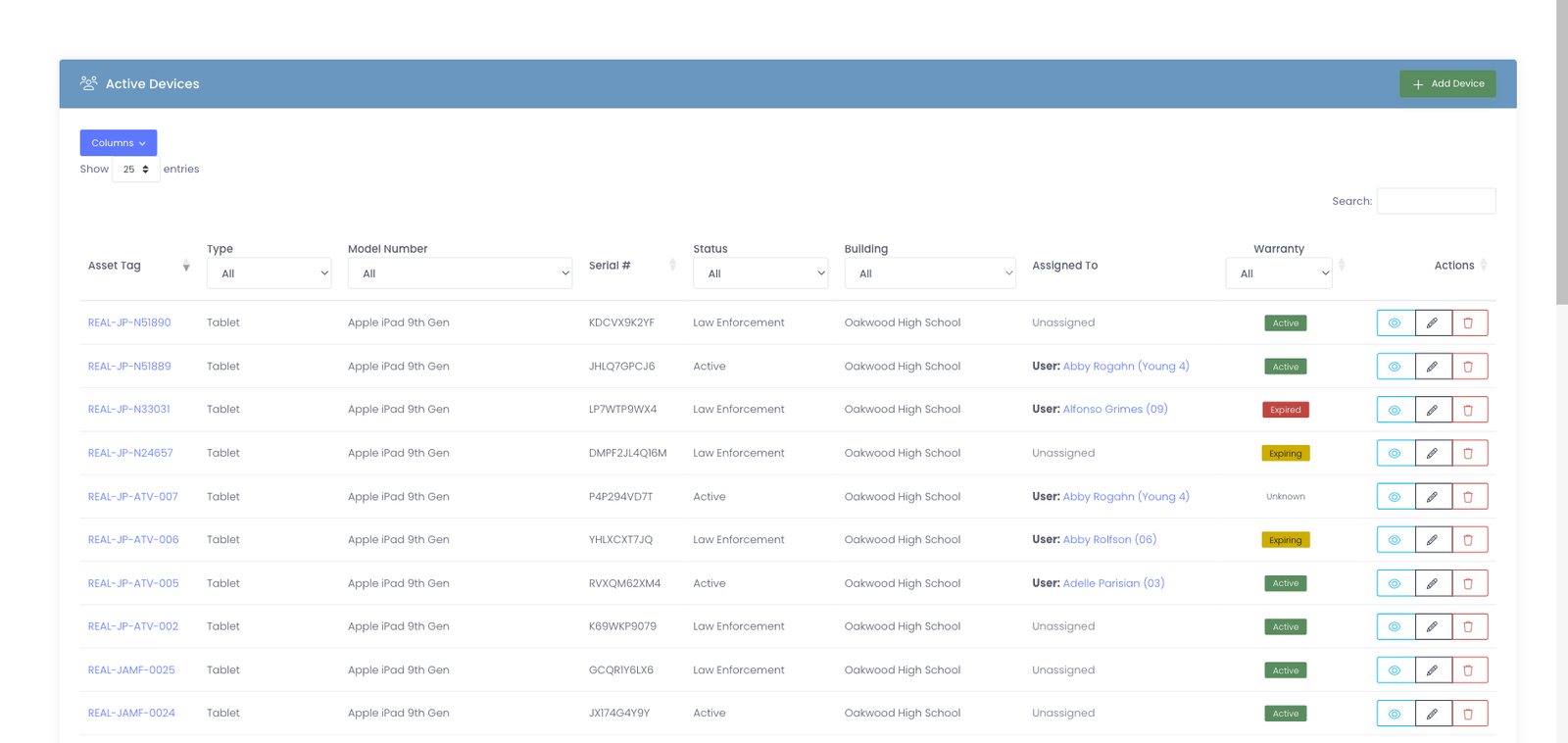
The column is sortable by warranty end date, so picking "Expiring Soon" plus a date sort surfaces the most urgent rows first.
Automatic Warranty Sync from the Vendor
For supported vendors, Manage1to1 pulls warranty data directly from the manufacturer on a nightly schedule. No buttons to click, no per-device clicks — once Warranty Tracking is enabled, the data populates itself over a few days.
| Vendor | How it works |
|---|---|
| Lenovo | Manage1to1 calls Lenovo's public support lookup using the device serial number. No setup required. |
| Apple | If your district has Apple School Manager configured, Manage1to1 reads the AppleCare coverage dates that ASM already syncs nightly. No extra credentials or setup beyond your existing ASM integration. |
| Dell, HP | Manual entry or CSV import today. Automatic vendor sync for these brands is on the roadmap. |
| Other brands | Manual entry or CSV import. |
The nightly sync skips a device once it has a warranty record on file — vendor sync is a one-shot per device. The exception: changing a device's serial number resets it (see the next section).
What the edit form tells you
The edit form's Warranty section shows a small status line that tells you where this device's warranty data came from:

- "Synced from Lenovo · 5/15/2026" — vendor sync wrote these dates on the date shown
- "Entered manually" — a tech filled in the dates through this form or via CSV import
- blank — no warranty data on file yet; either wait for the next nightly sync or enter the dates manually
Editing a Device's Warranty Data
Open any device's profile, click Edit, and a Warranty section appears alongside the standard fields:
- Warranty Start — date coverage began (typically the purchase date)
- Warranty End — date coverage expires
- Warranty Notes — free-text field for contract numbers, extended-plan IDs, or any other notes you want kept with the device
The warranty provider does not have its own input — it's read from the device model's Brand automatically so there's no chance of typos or duplicate names.
Saving the form updates the warranty values and records a clean diff line in the device's activity log, the same way any other field change is logged.
Changing a Device's Serial Number Clears the Warranty
If you change a device's serial number (typo fix, hardware swap, etc.), Manage1to1 clears the warranty fields automatically — the new serial belongs to a different physical device with different coverage, so reusing the old dates would be silently wrong.
The edit form prompts you to confirm when you leave the Serial Number field with a changed value:
Change the serial number? Changing the serial will clear this device's warranty data (start, end, notes, sync status) when you save. The new serial will be looked up fresh on the next nightly sync.
Confirm to keep the new serial; cancel to revert. Either way, the cleared device shows up on the next nightly sync run and gets a fresh warranty lookup (for supported vendors).
The same clearing happens on any write path — CSV import, API, bulk update — not just the edit form, so the warranty data can never get out of sync with the serial.
Importing Warranty Data from a CSV
The bulk device CSV importer accepts these additional, optional columns:
| Column header | Purpose |
|---|---|
| Warranty Start | Date coverage began (any common date format works) |
| Warranty End | Date coverage expires |
| Warranty Notes | Free-text notes |
Older CSV templates that don't include the warranty columns at all still import exactly the way they always have. New columns are read only when their headers are present in the file you upload.
An empty warranty cell on an existing device leaves the stored value alone — it does not clear the existing warranty. Use the edit form to deliberately clear a date.
How Warranty Status Is Calculated
There's no stored "current status" column or nightly recompute job. Every page that shows a badge or filter compares the device's stored Warranty End date to today's date at render time. A device labeled "Active" today automatically becomes "Expiring Soon" tomorrow if its end date is 30 days away — no cron, no cache, nothing for you to manage.
The 30-day window for "Expiring Soon" is the same everywhere the badge and filter are calculated.