Using Manage1to1 on a Phone
On a phone, or when you open the installed app, Manage1to1 switches to a layout built for one hand. Instead of the desktop sidebar and wide tables, you get a bottom tab bar for the places you go most, a quick-actions button for the things you do most, and stacked cards you can read and tap without pinching or scrolling sideways.
Everything you can do on a computer is still here. The mobile layout changes how you move around and how information is laid out, not what you can get to.
Manage1to1 shows the mobile layout on phone-sized screens and in the installed app on a phone. On a desktop or a wide tablet you keep the full sidebar and tables. Nothing to turn on, it adapts to the screen you are on.
The bottom tab bar
A bar fixed to the bottom of the screen gives you your main destinations with large, thumb-friendly targets. The one in the middle is a quick-actions button; the rest take you straight to a section, and the one you are in is highlighted.
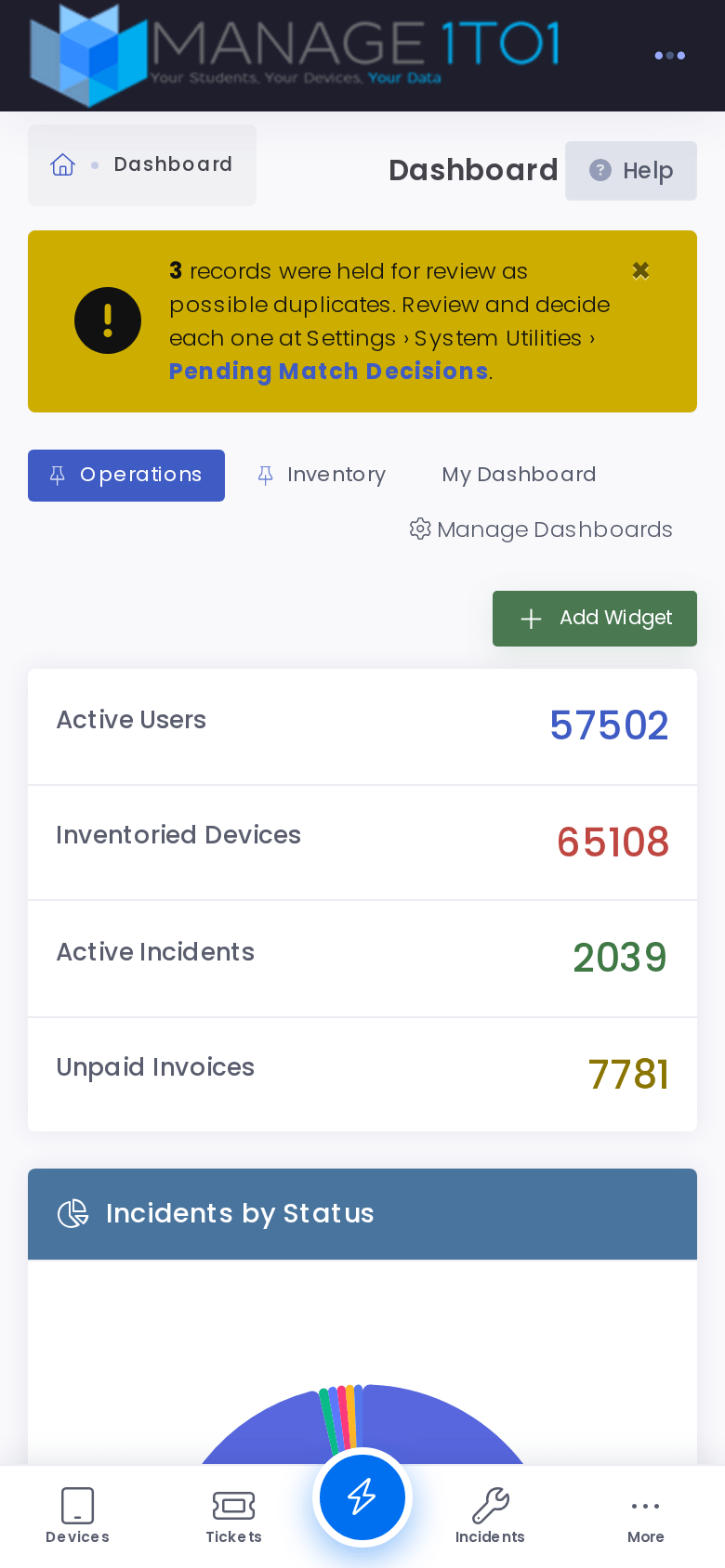
- The section buttons (such as Devices, Tickets, and Incidents) jump straight to that list.
- More opens everything else, so nothing is lost from the desktop menu, it is one tap further in.
- The bar sits above the phone's home indicator and stays put as you scroll, so your main destinations are always a thumb away.
The destinations and quick actions come with sensible defaults for each role, so the bar fits what that person actually does day to day.
Quick actions
The button in the center of the bar opens a Quick Actions sheet that slides up from the bottom, for the handful of tasks you reach for constantly.
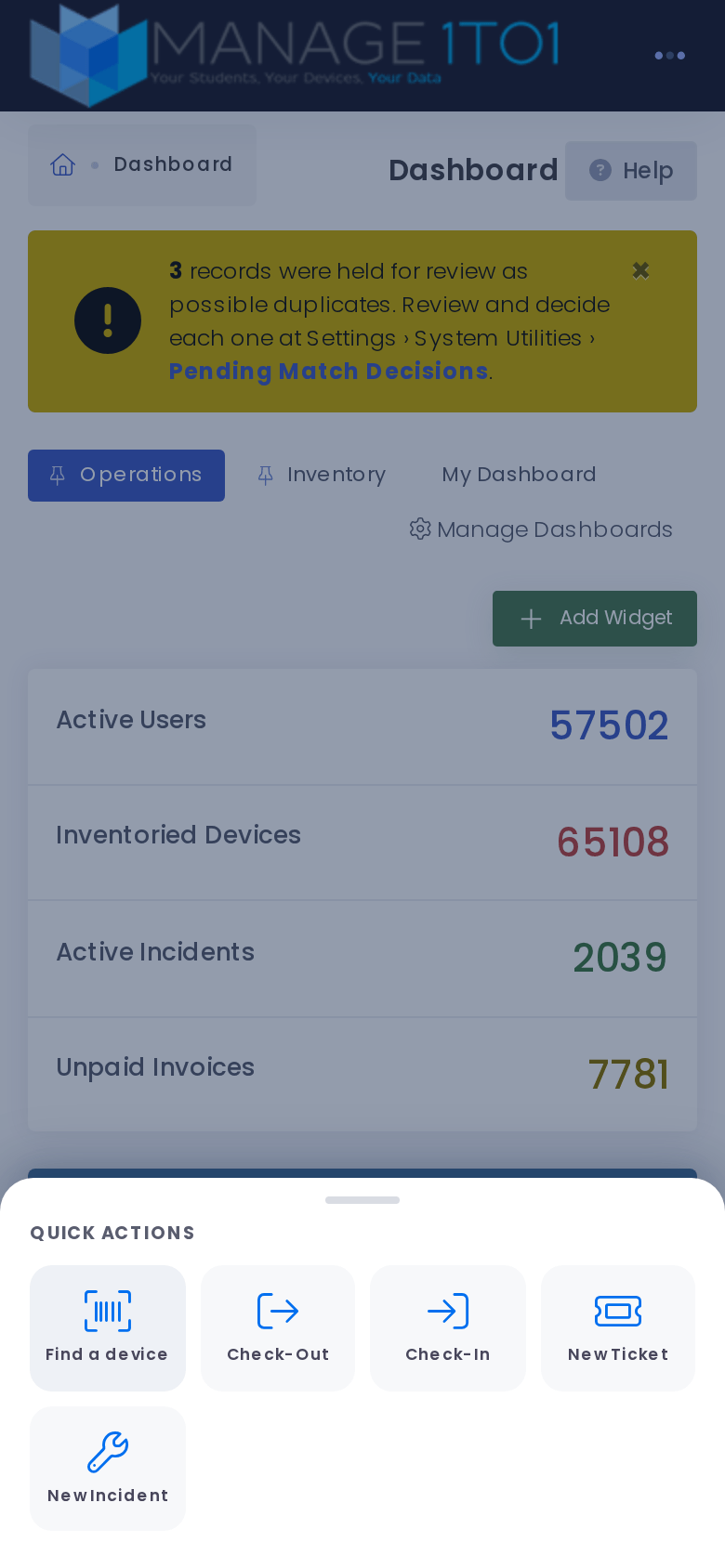
From here you can:
- Find a device — open the camera scanner and go straight to a device by scanning its tag (see Scanning beyond check-in and check-out).
- Check-Out and Check-In — jump into the rapid flows for handing devices out or taking them back.
- New Ticket and New Incident — start a support ticket or log an incident on the spot.
Swipe the sheet down, or tap outside it, to close it without choosing anything.
Cards instead of wide tables
On a phone, lists that are tables on a computer become stacked cards. Every card shows the key facts inline, so you can triage a list without opening each row or scrolling a table sideways. Tap anywhere on a card to open it.
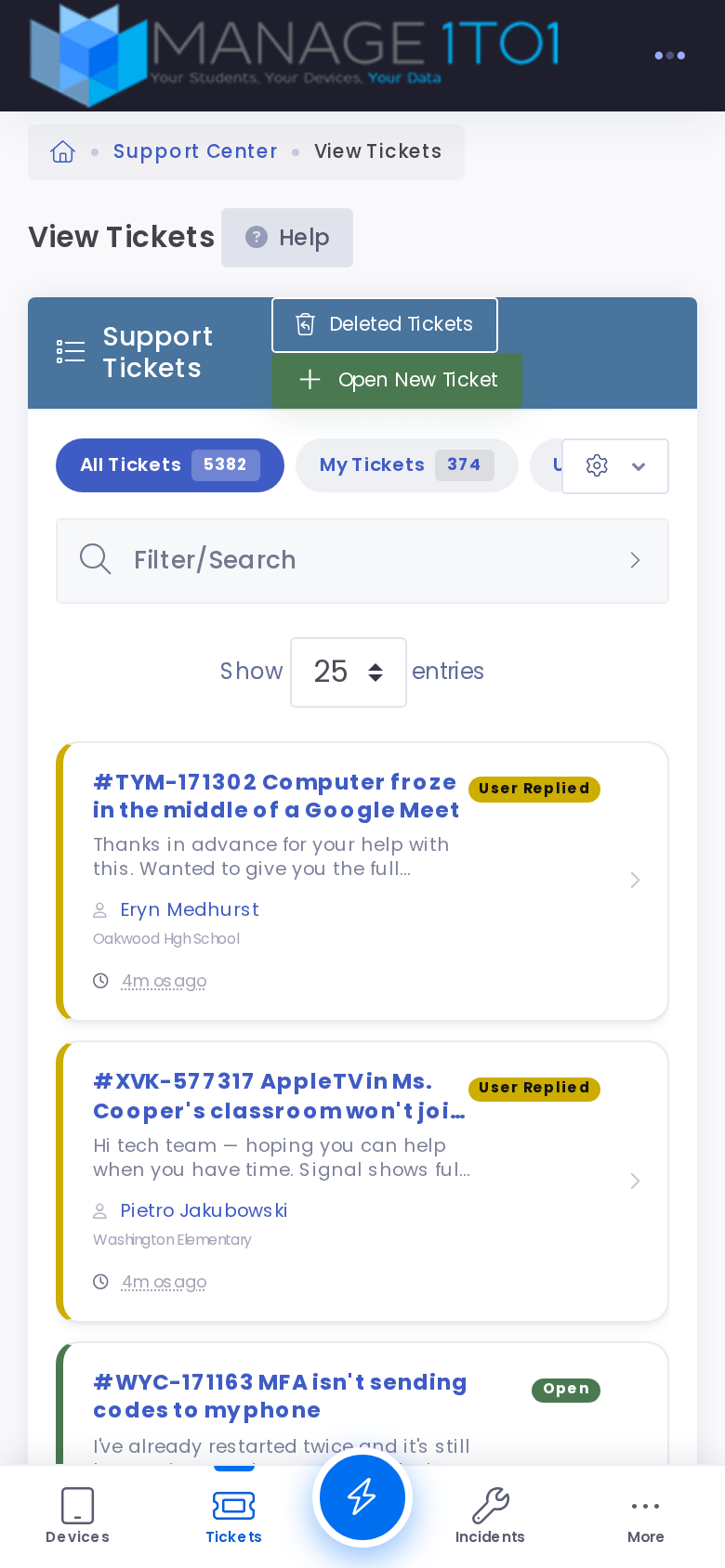
Ticket cards show the ticket number and subject, a color-coded status pill with a matching stripe down the edge of the card, a short preview of the problem, who submitted it and their building (and the room, when the ticket's device has one), and how long ago it arrived.
Device cards follow the same pattern: the asset tag and model, the device's status, its building, and who it is assigned to, all without opening the device.
The queue tabs and filters you use on a computer (such as All Tickets, My Tickets, and your custom queues) work the same on the cards, so your saved views come with you.
Forms that open as a sheet
The most common tasks open as a single-column sheet that slides up from the bottom, sized for your thumbs, instead of a wide, multi-column form. You fill it top to bottom and confirm, without hunting across a layout meant for a mouse.
Scanning anywhere
On a phone or tablet with a rear camera, the barcode scanner is available throughout the app, not just in the rapid flows. Search boxes that expect a tag show a scan button, and Find a device in the quick actions opens the scanner directly. See Scanning beyond check-in and check-out for the details.
Getting the most out of it
- Install it. Adding Manage1to1 to your home screen gives you the cleanest version of this layout, full-screen with no browser bar. See Installing Manage1to1 as an App.
- Turn on push notifications. Once installed, you can get a push the moment a ticket is assigned to you or changes status, so you don't have to keep checking. See Notification Center.