Summer Teacher Roster Rollover
Every August, the same job lands on someone's desk: every classroom needs its responsible teacher reset for the new year. Some teachers stayed put, some moved buildings, a handful retired, and a stack of new hires need to be slotted in. Editing this one room at a time across hundreds of classrooms is a slow afternoon at best.
This guide walks you through the bulk approach — a single CSV upload that touches every room you want updated, with a per-room preview before anything is written.
Anyone with the Manage Room Roster Rollover permission — usually the Technology Director or a designated bulk-update lead. The permission is restrictive by default because a bad CSV can clear every classroom's teacher in one upload. Grant it to building admins through Settings → Administrators → Roles if you want them to be able to roll over their own campuses.
Before you start
You'll need three pieces of information for every room you want to update:
- The exact building name as it appears in Manage1to1
- The exact room name as it appears under that building
- The teacher's email address as stored on their user profile
If you don't already have a master list in a spreadsheet, here's the quick way to pull what you need:
- Building and room names — Navigate to Rooms → View Rooms. The columns there are the exact strings to use in your CSV.
- Teacher emails — Navigate to Users → View Users, filter to staff, and export. The Email column matches what the rollover tool looks up.
The rollover matches teachers by email. Two teachers with the same email aren't possible in Manage1to1 (the system enforces uniqueness on user email), but a teacher whose email is missing or marked Inactive on their profile won't be matched. Check the user's profile first if you expect a row to land and it errors out.
Phase 1: Build your CSV
The fastest way to build the CSV is to download today's roster and edit from there:
- Open Rooms → Bulk Teacher Rollover.
- Click Download Current Roster. You'll get a CSV of every room and its currently-responsible teachers, named with today's date (
room-roster-YYYY-MM-DD.csv). - Open it in Excel or Google Sheets and edit:
- For a teacher who's leaving — delete their row.
- For a teacher moving to a different room — update their row's Room column, or delete and re-add.
- For a new teacher — add a row.
- For a room with no changes — leave it alone.
- Save as CSV.
That round-trip is what makes the tool fast: you're not retyping anything, you're editing yesterday's truth.
CSV format reference
The file is three columns wide. The header row is required and the column names must read exactly Building, Room, and Teacher Email (capitalization doesn't matter — BUILDING and building both work, but the words have to match).
A worked example for the start of fall:
Building,Room,Teacher Email
Oakwood High School,Counseling Office,berniece.turcotte@oakwoodschools.org
Oakwood High School,Counseling Office,jennie.hartmann@oakwoodschools.org
Oakwood High School,Science Lab B,tyree.kreiger@oakwoodschools.org
Oakwood Middle School,Room 201,bernice.wisozk@oakwoodschools.org
Oakwood Middle School,Room 201,jamir.reynolds@oakwoodschools.org
Oakwood Middle School,Room 202,deshaun.runte@oakwoodschools.org
Oakwood Middle School,Auditorium,loma.zemlak@oakwoodschools.org
Lincoln Elementary,Music Room,myrtle.koepp@oakwoodschools.org
Lincoln Elementary,Special Education Room,hunter.kub@oakwoodschools.org
Lincoln Elementary,Special Education Room,misael.heaney@oakwoodschools.org
District Administration,Library Media Center,ambrose.reichel@oakwoodschools.org
District Administration,Conference Room A,joanny.grimes@oakwoodschools.org
A few patterns worth knowing:
- Flexible identifiers. The Building column accepts the building name OR your SIS building id. The Teacher Email column accepts the teacher's email OR their staff Local ID. Pick whichever your source data already has.
- Multiple teachers per row are fine. You can either list the room on multiple rows (one teacher each) or put a whole team in a single cell separated by
;,|,,, or line breaks (wrap the cell in quotes if you use commas or line breaks). The two styles can be mixed in the same file. - Duplicates are handled. The same teacher appearing twice for the same room — whether in a duplicate row or a repeated entry in one cell — counts once. No error and no duplicate database row.
- Case and whitespace don't matter.
JANE@SCHOOL.ORG,jane@school.org, andjane@school.orgare all the same teacher to the importer. Same forgiveness on building and room names. - A blank email cell means "clear this room." If a row's email column is empty (and the room is otherwise listed), that room's responsible-staff list is cleared on commit. To leave a room untouched, omit it from the file entirely.
- Rooms not in the file are left alone. You can roll over Oakwood Middle one weekend and Lincoln Elementary the next; rooms you didn't list keep their existing teachers.
- Rooms in the file are fully replaced. If you list Room 201 with two teachers in the CSV, those become the only two responsible teachers for Room 201 after the rollover — any other teacher who was responsible before will have their assignment ended.
- Don't worry about order. The system groups rows by (Building, Room) on its own; the same room can appear in different parts of the file.
The fastest way to build a clean CSV is to start from last year's room → teacher list (export from the Rooms → View Rooms page, or save it from Excel at the end of the year). For each teacher who left or changed rooms, replace their row(s). For each new teacher, add new row(s). The structure of the file barely changes year-to-year.
Phase 2: Upload + Preview
Open Rooms → Bulk Teacher Rollover from the sidebar.
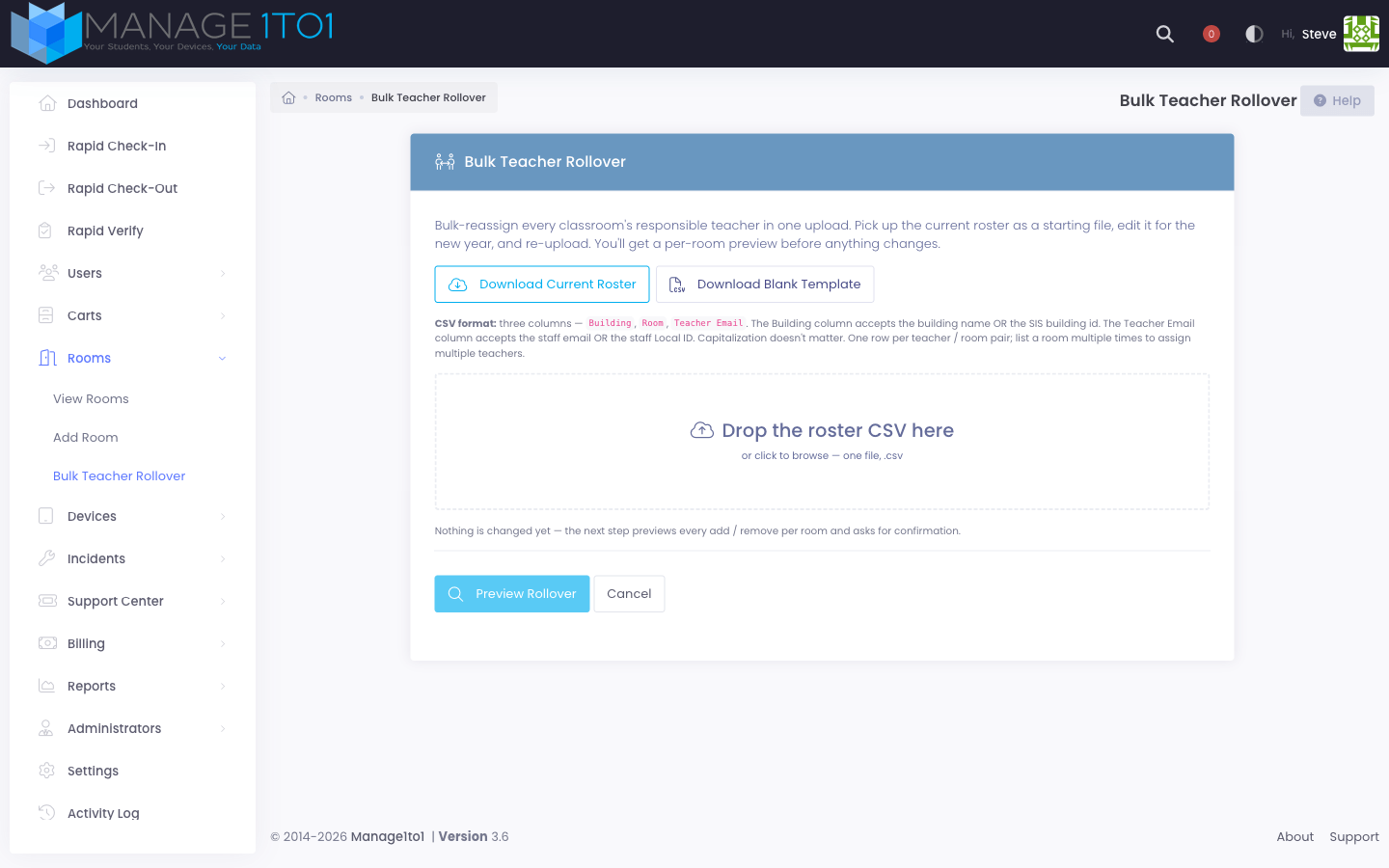
- (Optional) Click Download CSV template to grab a starter file with the right columns.
- Click Choose File and pick your prepared CSV.
- Click Preview Rollover.
Nothing is written yet. The next page shows exactly what would happen if you committed.
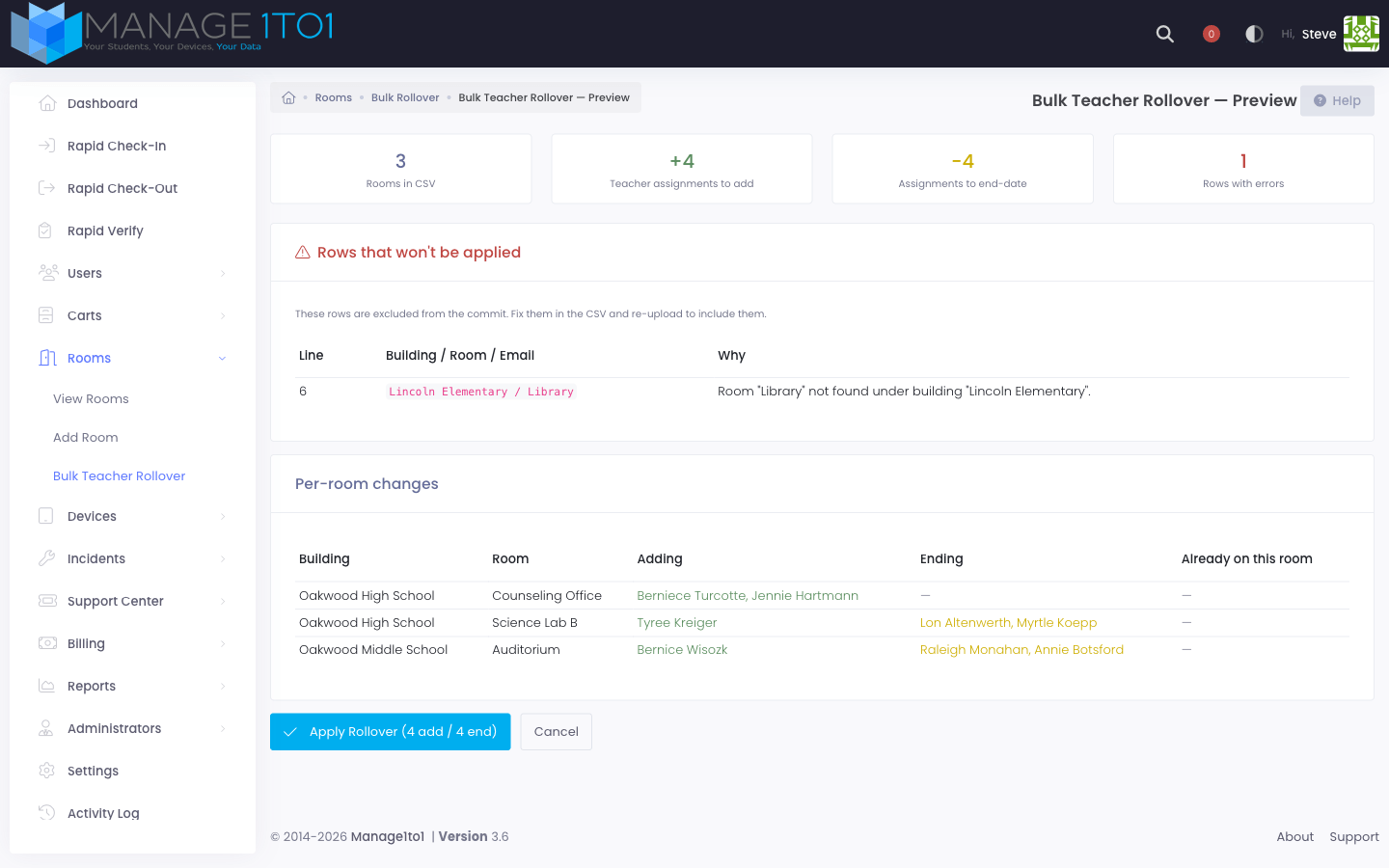
Read the four counters at the top first:
- Rooms in CSV — every (Building, Room) combination found
- Teacher assignments to add — net additions across all rooms
- Assignments to end-date — teachers whose current responsibility will end
- Rows with errors — rows that won't be applied (they're listed below)
Then scan the per-room table. For each room, you'll see who's being added, who's being ended, and who's staying put. This is the moment to spot misroutings — a teacher being added to the wrong room, or an unexpected "Ending" entry that means a current teacher was forgotten in your CSV.
Finally, look at the error section if it's there. Each error row has a line number from your CSV and a one-sentence reason — usually a typo in the building or room name, or an email that doesn't match an active staff member. These rows are simply excluded; the rest of your file will still apply cleanly.
Rooms where every listed teacher is already responsible and no teachers need ending won't show any adds or ends — they're already in the target state, and the rollover will skip them. That's why the Adding and Ending columns can show "—" on some rows.
Phase 3: Apply the rollover
If the preview looks right, click Apply Rollover at the bottom. The button label includes the totals — for example "Apply Rollover (12 add / 7 end)" — so you have one last gut-check on the scale of the change.
The system commits the whole batch in a single database transaction. If anything fails halfway, every change rolls back and your data is unchanged. Otherwise you land back on the View Rooms list with a green confirmation banner:
Rollover complete. 9 rooms updated · 12 teacher assignments added · 7 ended.
That summary line is also written to the Activity Log so you have a record of when the rollover ran and how big it was.
Phase 4: Verify and adjust
After the rollover, drop into any updated room (Rooms → View Rooms → View on a specific room) and confirm the responsible-staff section shows your new lineup. The Staff History tab on the room profile preserves the previous teachers with the date their responsibility ended — your audit trail stays intact.
If you need to make one-off corrections (a teacher who moved at the last minute, a room you missed), use the single-room edit page rather than re-running the rollover. The single-room edit is faster for tiny changes, and you keep the rollover audit line clean.
If you need to make a large second pass (say, a campus you skipped on the first upload), simply prepare another CSV with only those rooms and run the rollover again. The two batches don't conflict.
Troubleshooting
| Symptom | Likely cause | What to do |
|---|---|---|
| Several rows error with Building not found | Building name typo, or trailing spaces in your spreadsheet | Open Rooms → View Rooms and copy/paste the exact building names |
| A row errors with Room not found under building X | Room exists under a different building, or the room was renamed | Confirm both Building and Room columns on the room's profile page |
| A row errors with No active staff user found for email | Teacher's profile is set to Inactive, or they aren't marked as Staff, or the email is different from what's on the profile | Open the user's profile under Users → View Users and reconcile |
| The preview shows nothing in the Adding or Ending columns for a room | The room's current teachers already match the CSV | Nothing to do — that row will be skipped during commit |
| The button is labeled "Apply Rollover" with no count | Every CSV row already matches existing assignments, OR every row errored | Confirm the error section above; otherwise your file matches today's state |
What this guide doesn't cover
- Adding new rooms. This page only changes responsibility for rooms that already exist. To create a new room, use Rooms → Add Room first, then list it in your next rollover CSV.
- Adding new teachers. Teachers must exist as active Staff users before they can appear in a rollover CSV. If your district imports staff from a SIS, run that import first.
- Reassigning device → room. Device locations are separate from room responsibility. Use the device edit page or cart checkout to move equipment.
When the new school year is rolling and everyone's hair is on fire, this is the page that turns a week of room-by-room edits into ten minutes of CSV + preview + click.