Disposing of Retired Devices
Every refresh cycle ends the same way: a cart of five-year-old Chromebooks that no longer belong in your active inventory. Device Disposal turns clearing them out from a spreadsheet-and-sticky-notes chore into a scan-and-finalize workflow that also produces the records your business office and auditors expect — what you retired, what you recovered, and a signed bill of sale.
This guide walks a full batch from start to finish, and sets up the rules once so every future disposal is faster.
Before You Start
- You need the device disposal permission. If Device Disposal isn't in your Devices menu, ask an administrator to grant it.
- Devices you're retiring should be checked in first. A device still checked out to a student is refused at the scanner — check it back in before you retire it.
- Decide where the money side lands. Disposal records a recovered value per device, so it helps to know up front who in your district wants the worksheet (business office, asset manager, auditor).
Overview
A disposal has five steps, and only the first is a one-time setup:
- Set your disposal rules (once) — so each scanned device suggests its own sell/scrap/value.
- Scan a session — add every device you're retiring.
- Review the dispositions — confirm or override what each device should become.
- Export the records — the worksheet and bill of sale, before you commit.
- Finalize — retire the batch and move it out of active inventory.
Step 1: Set Your Disposal Rules (One Time)
Before your first disposal, teach Manage1to1 what your old devices are worth. Go to Settings → Disposal Rules and add a rule for each age bracket you handle.
A typical set of rules:
- Devices 1–3 years old → Sell, at your resale price
- Devices 4–5 years old → Sell, at a lower price
- Anything over 10 years → Scrap automatically
Rules can apply to every device, a category, or a specific model, so a high-value model carries its own pricing. You can also set a salvage value per model so an old device never prices below what it's still worth, and Manage1to1 factors in straight-line depreciation when it shows a device's remaining book value.
The rules only suggest a disposition while you scan — you always have the final say on each device. If no rule matches, the device is marked for Review so nothing slips through unpriced.
You set this up once. Every disposal after this reads from these rules automatically.
Step 2: Scan a Session
Open Devices → Device Disposal to start a session. Scan each device with a USB or Bluetooth scanner, or type its asset tag and select Add.
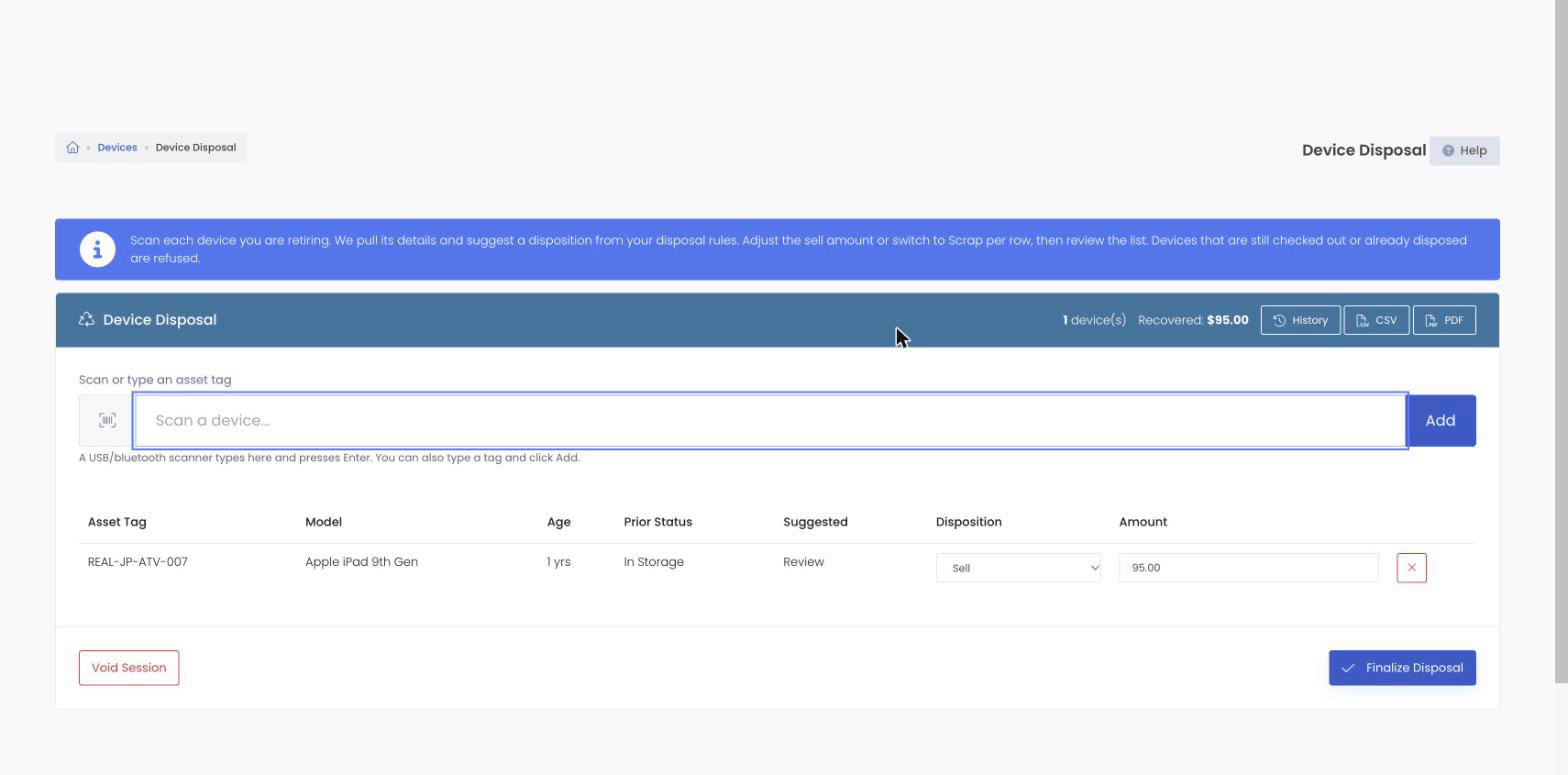
As each device lands, Manage1to1 pulls its details, works out its age, and suggests a disposition from your rules. The running total at the top shows how many devices are in the session and how much you've recovered so far — handy for a quick "are we there yet?" as a cart empties.
A device that's still checked out, or one that's already been disposed, is refused. That's a guardrail, not a bug — check the device in (or confirm it isn't a duplicate) and scan it again.
Step 3: Review the Dispositions
The rules get most rows right, but the review pass is where you earn the clean record. For each row you can:
- Keep the suggestion, or switch it between Sell, Scrap, Donate, Recycle, or Review.
- Enter the amount you sold, or expect to sell, a device for.
- Record a buyer and notes for your records.
- Remove a row you scanned by mistake.
Work the Review rows first — those are the ones no rule priced, so they need a human decision before you finalize.
Step 4: Export the Records — Before You Finalize
Export the session before you commit it, so the business office is working from the same list you're about to finalize:
- CSV is the worksheet: every device, its disposition, the recovered amount, and its book value at disposal. It opens in your spreadsheet software for reconciling against your asset ledger.
- PDF is the printable disposal record and bill of sale, under your district's name — the document a buyer or an auditor asks for.
Exporting before finalizing means the recovered total and the device list on the worksheet exactly match what you're committing. If anything looks off on the worksheet, fix it in the session and re-export before you finalize.
Step 5: Finalize the Disposal
When the list is complete and the records are exported, select Finalize Disposal and confirm. Manage1to1 moves every device into the Disposed status, removes them from your active inventory in one step, and records the session's recovered total.
If you decide not to go ahead, Void Session clears the scanned devices without disposing anything.
Finalizing disposes every device in the session and removes it from active inventory. Review the list first. Devices that are already disposed are skipped, so finishing an interrupted session is safe — you won't double-dispose anything.
After: Your Disposal History
Select History from the disposal screen to see every finalized disposal. The summary shows how many sessions you've run, how many devices you've disposed, and the total value recovered, with a breakdown by disposition.
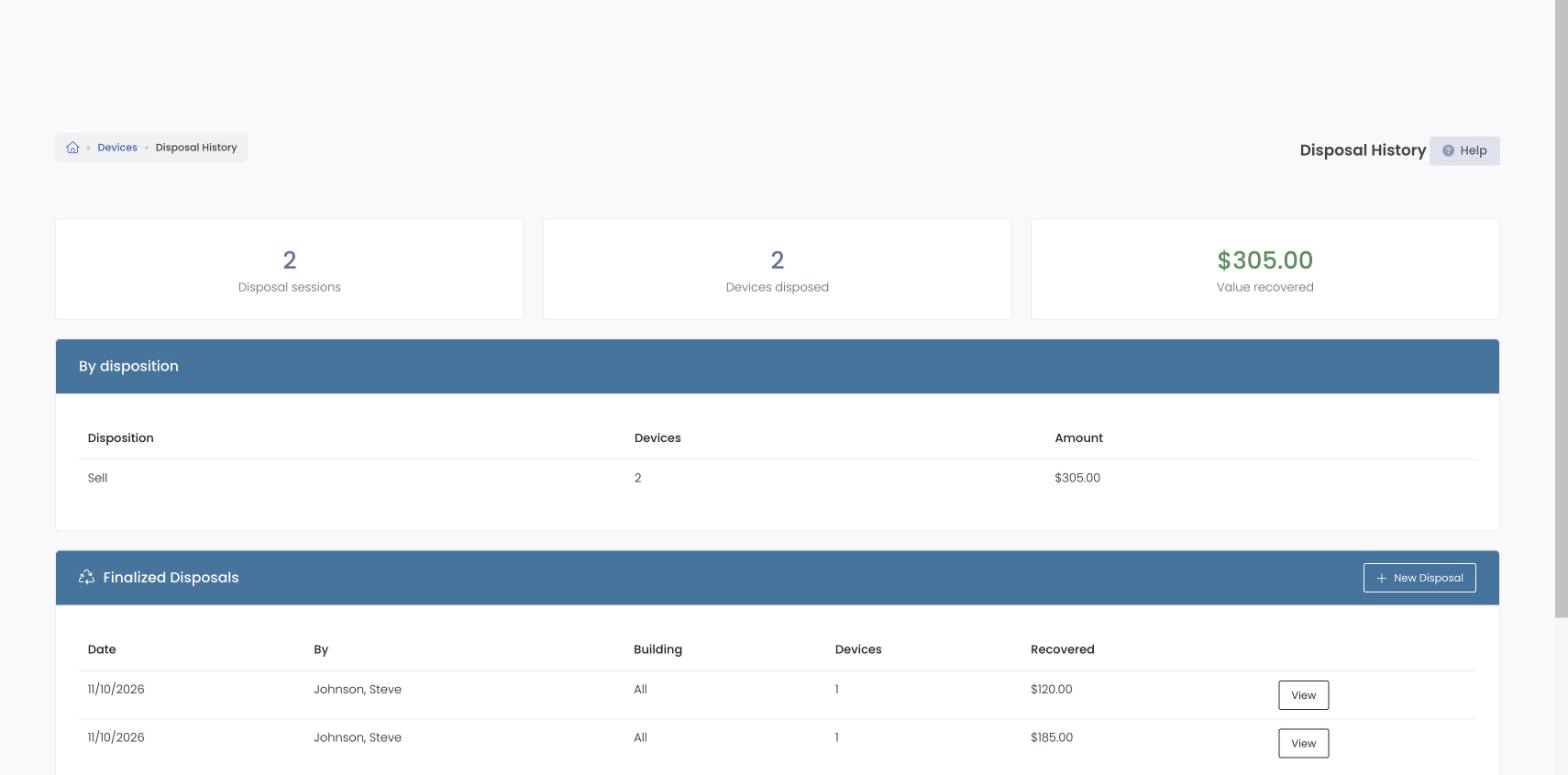
Open any session to see the devices it retired, with the same CSV and PDF exports available for that record — so a worksheet you need next budget season is always one click away.
Best Practices
✅ Do:
- Set your disposal rules once, up front, so every batch prices itself.
- Check devices in before a disposal day, so none are refused at the scanner.
- Export the worksheet and bill of sale before finalizing, and hand them to whoever owns the asset ledger.
- Clear the Review rows deliberately — they're the ones a rule couldn't price.
❌ Don't:
- Finalize before you've reviewed the list; it removes the devices from active inventory.
- Retire a device that's still checked out — check it in first.
- Skip the records. The CSV and bill of sale are the point as much as the status change.
Troubleshooting
"A device won't scan into the session"
It's either still checked out to someone or already disposed. Check it back in and scan again, or confirm you aren't re-scanning a device that's already been retired.
"A device shows up as Review with no value"
No disposal rule matched it. Either set a disposition and value on the row by hand, or add a rule in Settings → Disposal Rules that covers that age bracket or model, so future batches price it automatically.
"I finalized a session by mistake"
Finalizing moves devices to Disposed and out of active inventory. If devices were retired in error, an administrator can change their status back; the safer habit is to review the list and export the worksheet before finalizing, so the commit is deliberate.
"The recovered total doesn't match our ledger"
Export the session's CSV and reconcile row by row — it lists each device's recovered amount and its book value at disposal. The worksheet is the source of truth for what the session recovered.