Scheduling Recurring Inventory Audits
Most device audits run on memory: someone remembers, late, that the board wants an annual sweep, and a scramble follows. Manage1to1 lets you build the audit into your year instead — set how fresh each building's devices need to be, put the sweeps on a cadence, and let a reminder (with a ready-made worklist) tell you when and what to verify.
This guide connects the three moving pieces — thresholds, a schedule, and the audit day — into one cycle you set up once and then mostly forget.
Before You Start
- Setting thresholds and schedules is part of the Manage Settings permission your admin team already holds.
- The people doing the actual scanning need the Verify Inventory permission (it gates the Rapid Verify scanner).
- Whoever reviews the worklist needs Stats/Exports to open the Device Last Seen report — most admins have this already.
Overview
A recurring audit is three decisions and then a routine:
- Set the freshness bar — how long a device can go unseen before it's "overdue," per building.
- Put it on a schedule — a cadence and a notify list, so reminders arrive on their own.
- Run the audit when reminded — work the worklist with the scanner, then confirm it's clear.
Step 1: Set the Freshness Bar
An audit is really a question — "have we laid eyes on this device recently enough?" — and "recently enough" is a number you set.
Start with the district default at Settings → Inventory Settings → Settings tab, under Inventory Audit. The default is 18 months (an every-other-year cycle). Tune it to how you actually audit:
- 12 months for an annual sweep
- 24+ months if you audit on an insurance or funding cadence
Then override it where a campus needs a different cadence. At Settings → Buildings, edit a building and set its Inventory Audit Threshold:
| Field state | Behavior |
|---|---|
| Blank | Inherit the district default |
| A number (1–120) | Use that month count for this building only |
A 12-month threshold at a high school catches a missing Chromebook months before an 18-month default would; a 24-month threshold at a stable K–2 building reduces audit fatigue. The two coexist — there's no global trade-off, and a scheduled sweep honors each building's own bar.
Step 2: Put It on a Schedule
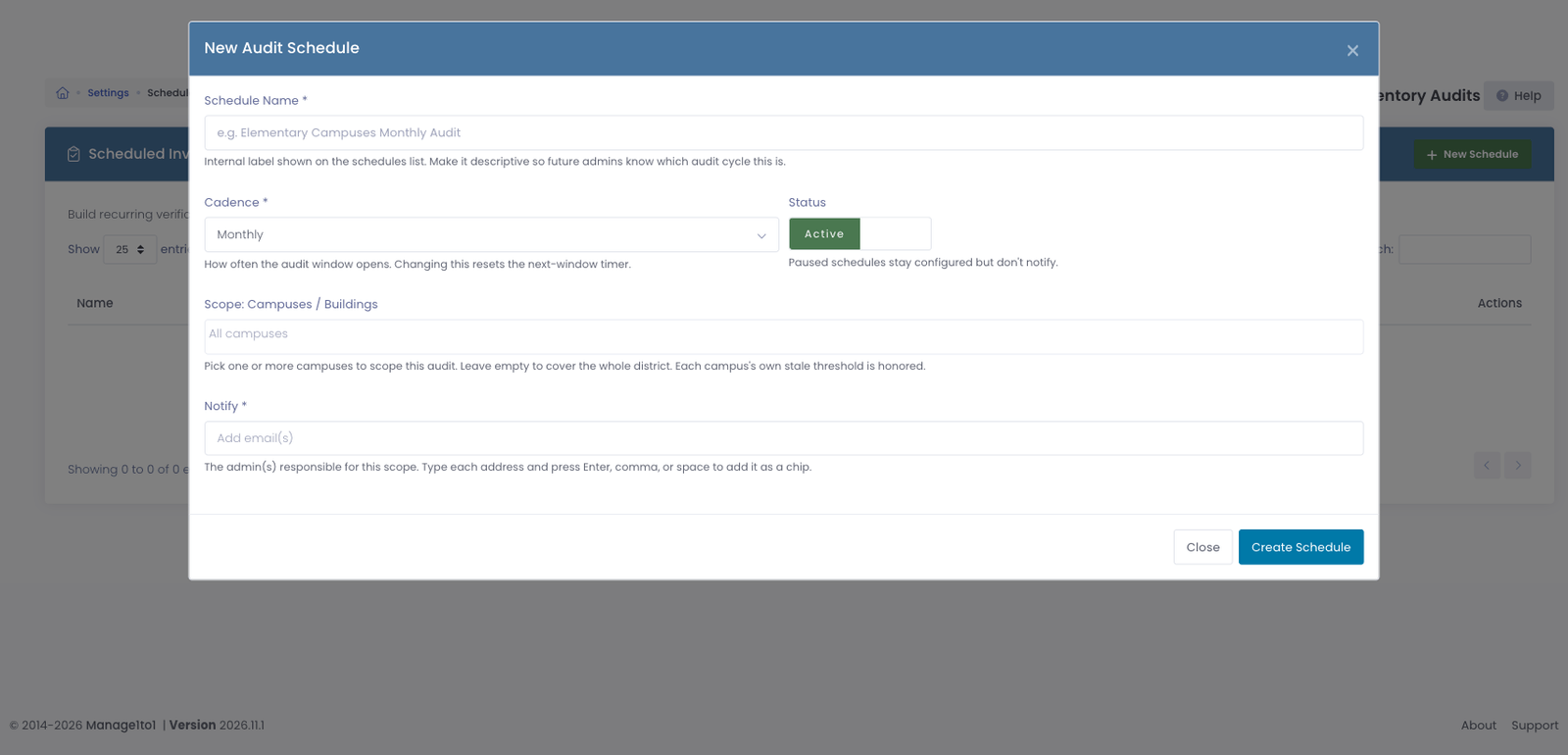
Now make the reminders arrive on their own. Go to Rapid Verify → Scheduled Audits, select New Schedule, and set:
- Cadence — Weekly, Monthly, Per semester, or Per school year.
- Scope — leave it empty for the whole district, or pick one or more campuses. Each campus's own threshold is honored, so the schedule respects the overrides you set in Step 1.
- Notify — the admin email address(es) responsible for that scope.
When a schedule's window opens, everyone on the notify list gets an email telling them how many devices in scope are overdue for verification, with a button to review them. The count in the email matches the Device Last Seen report exactly, so the reminder and the worklist never disagree.
Use Notify Now on a new schedule to send yourself the reminder immediately. It confirms the scope and recipients are right before you rely on the cadence — and it's also how you kick off a cycle early. A schedule can be paused (keeps its setup, stops sending) or deleted anytime.
Step 3: Run the Audit When Reminded
When the reminder lands, the work is already scoped for you. Open Reports → Device Last Seen — it opens in Audit Worklist mode, listing every device that's overdue against its building's threshold, each flagged with a red Stale badge.
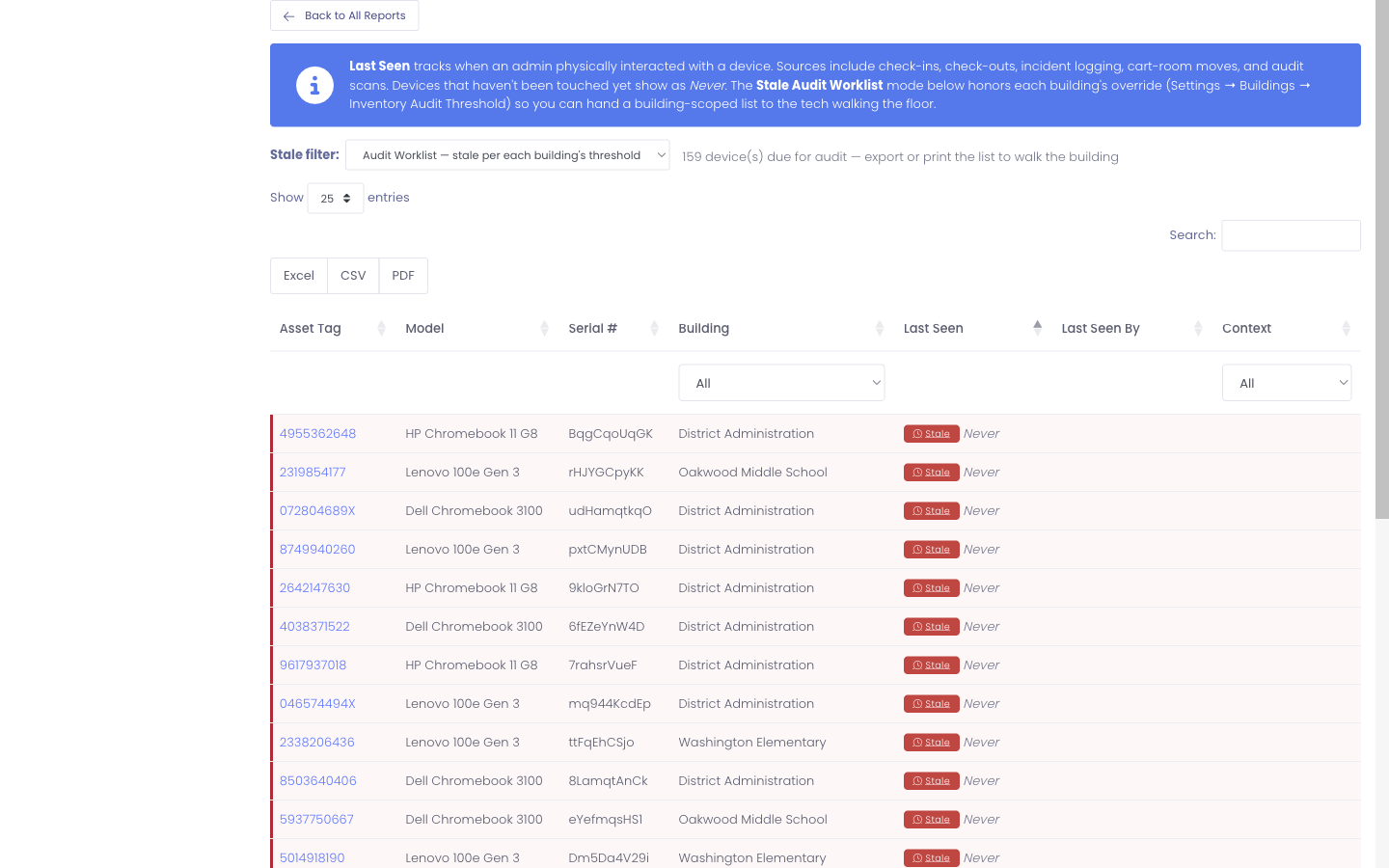
- Filter the Building column to the campus you're auditing, and the count next to the filter tells you how big the walk is before you start.
- Export to CSV or PDF for a printable walk list if you want paper in hand.
Then walk the building with a scanner and open Devices → Rapid Verify. Scan each device you find — one scan records that you physically saw it, with no check-in, check-out, or status change. On a phone or tablet, a Scan Asset Tag button opens the camera so you can point-and-shoot down a row of devices.
When the round is done, re-open the worklist with the same filter. The count shows what's left — and what's left is the real work: a device that's lost, off-campus, or assigned to a student who's moved on.
If you scan a device marked Lost during the audit, the touch still records — you found it. The scanner shows a banner with an inline Mark Found button (if you have the permission) so you can clear the flag without leaving the page.
How the Cycle Holds Together
The three pieces reinforce each other, which is what makes this a system rather than three settings:
- The threshold defines "overdue" — one number per building.
- The schedule watches that definition and reminds the right people on a cadence.
- The worklist turns the reminder into a scoped, countable walk, and Rapid Verify clears it one scan at a time.
Because the schedule's reminder count and the worklist count are the same number, you always know whether a sweep actually moved the needle: run the audit, refresh the worklist, watch the count fall.
Best Practices
✅ Do:
- Match the district default to how often you genuinely audit, then override only the campuses that differ.
- Use Notify Now to prove a schedule works before you depend on it.
- Scope a schedule's notify list to the admin who actually walks that building.
- Re-open the worklist after a sweep to see what's genuinely unaccounted for.
❌ Don't:
- Set one tight threshold district-wide and create audit fatigue at your stable buildings.
- Treat the reminder as the finish line — it's the start of the walk.
- Rely on normal check-in/out touches alone for compliance; a scheduled Rapid Verify sweep is the clean "we touched everything" record.
Troubleshooting
"The reminder went out but the count looks wrong"
The reminder count mirrors the Device Last Seen report in Audit Worklist mode for that scope. Open the report, filter to the same building(s), and compare — if they differ, the threshold was likely changed after the reminder was generated. The next reminder will reflect it.
"A building isn't getting audited on the right cadence"
Check two things: the building's Inventory Audit Threshold (blank means it inherits the district default) and whether a schedule actually covers it in its scope. A building with a tight threshold still needs a schedule whose scope includes it to get reminders.
"I scanned devices but they still show as stale"
The audit touch records immediately, but the report's stale filter re-evaluates on redraw — refresh the report. Confirm on the device profile's Last Seen footer that the audit scan is recorded.
"Someone audited a building they shouldn't have access to"
They can't — Rapid Verify respects building permissions. A device whose building isn't in an admin's access list returns "Device not found" on scan. Scope schedules and access to the admins who own each campus.