Tracking Manufacturer Warranty
Manage1to1 can surface manufacturer warranty start and end dates on every device, with a color-coded status badge on the profile and a filterable column on the device list. For supported vendors (Lenovo, Apple), it pulls the dates directly from the manufacturer on a nightly schedule — no manual entry, no per-device clicks. This guide walks through enabling the feature and reading the badge to find at-risk devices.
Warranty Tracking is off when you first install Manage1to1. Turn it on under Settings → System Settings → Inventory once you're ready. Disabling it later hides every warranty surface but preserves your stored data.
Step 1 — Open Settings
From any admin page, click Settings in the left sidebar. The Settings hub lists every configuration area in your district.
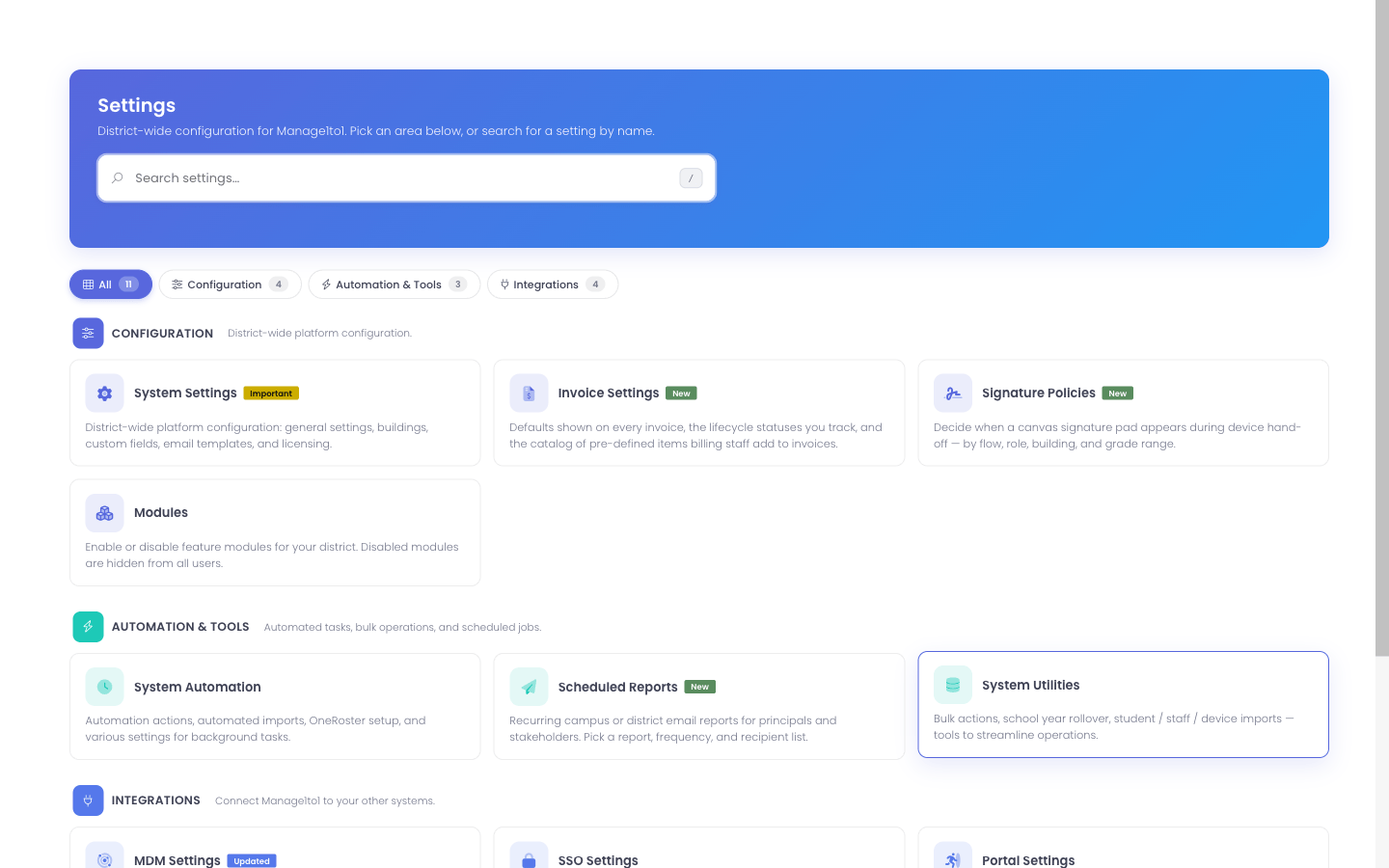
Click the System Settings card. Warranty Tracking lives inside System Settings under the Inventory tab.
Step 2 — Enable Warranty Tracking
On the System Settings page, click the Inventory tab at the top. Scroll down to the Warranty Tracking section.
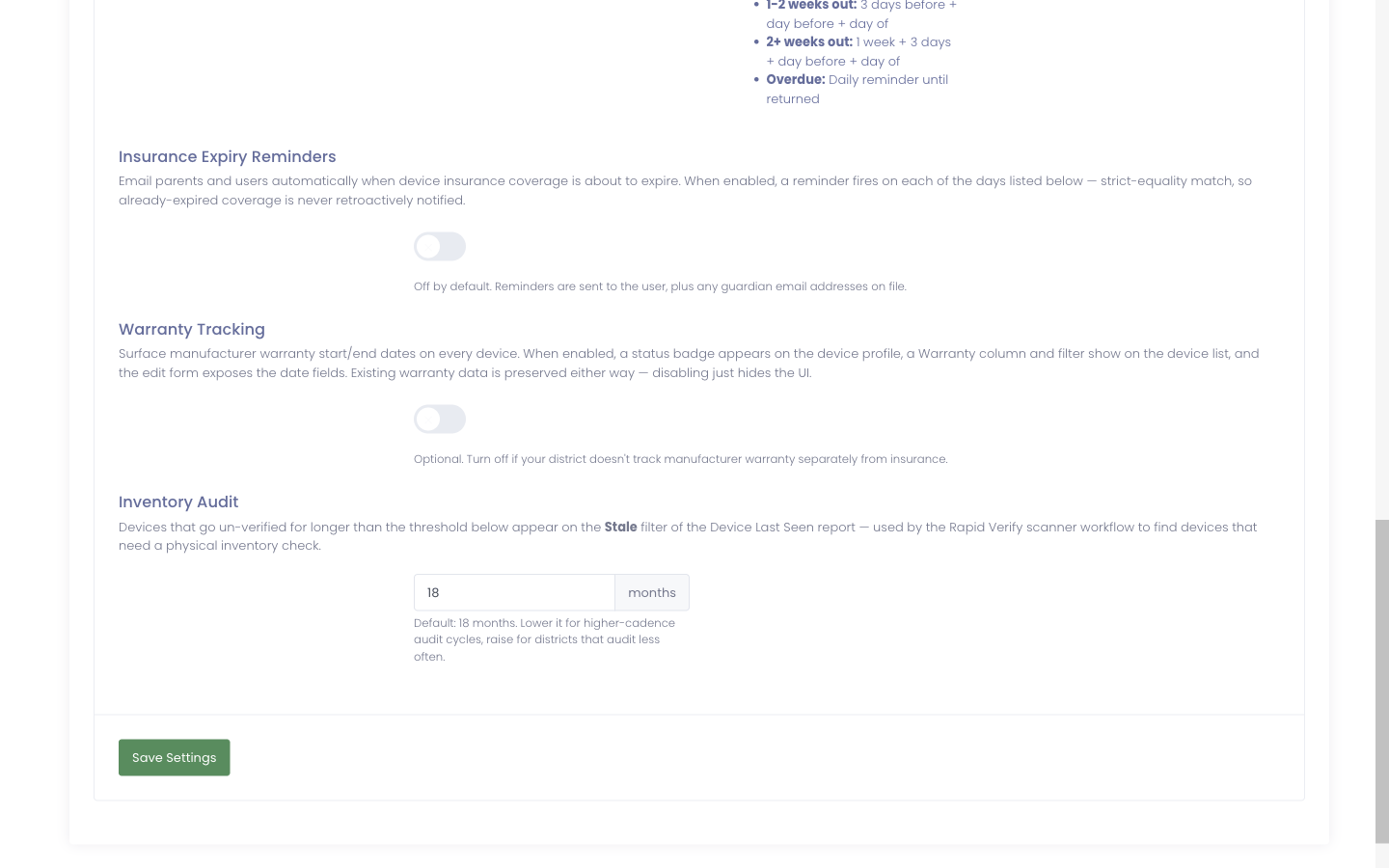
The toggle starts in the off position — flip Enable Warranty Tracking on, then click Save Settings at the bottom of the page. The warranty surfaces appear immediately — no logout or refresh needed.
Step 3 — See the New Warranty Column
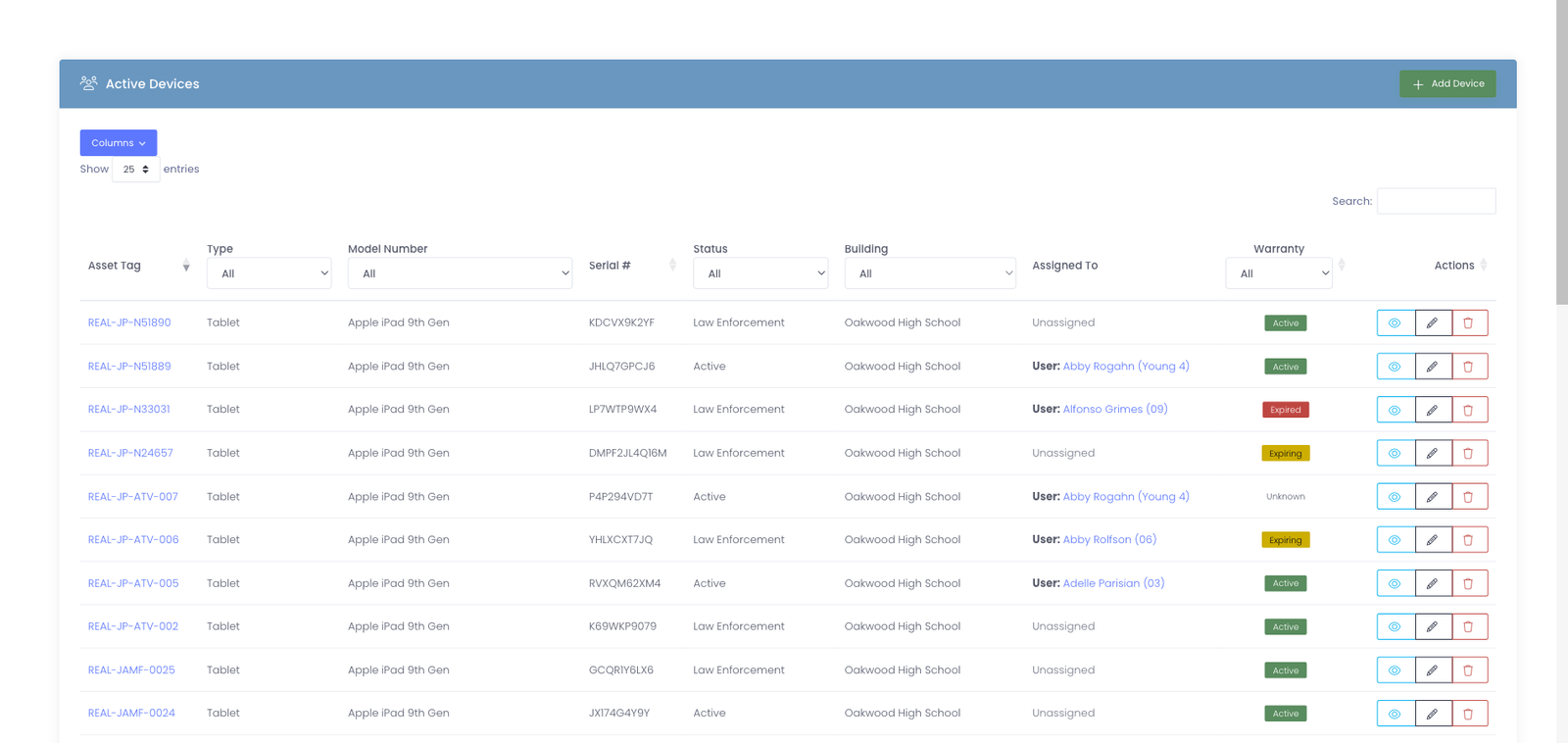
Open Devices → View Devices from the sidebar. A new Warranty column appears between Assigned To and Actions, showing a colored badge for each row:
- Active — coverage is more than 30 days out
- Expiring — coverage ends in the next 30 days
- Expired — coverage has lapsed
- Unknown — no warranty data on file yet
A dropdown filter in the column header narrows the table to a single state — useful for sweeping every "Expiring Soon" device into a single batch.
Step 4 — Read the Badge on a Device Profile
Click any device's asset tag to open its profile. The Device Snapshot panel shows the same warranty badge at-a-glance, with the warranty end date in a hover tooltip.
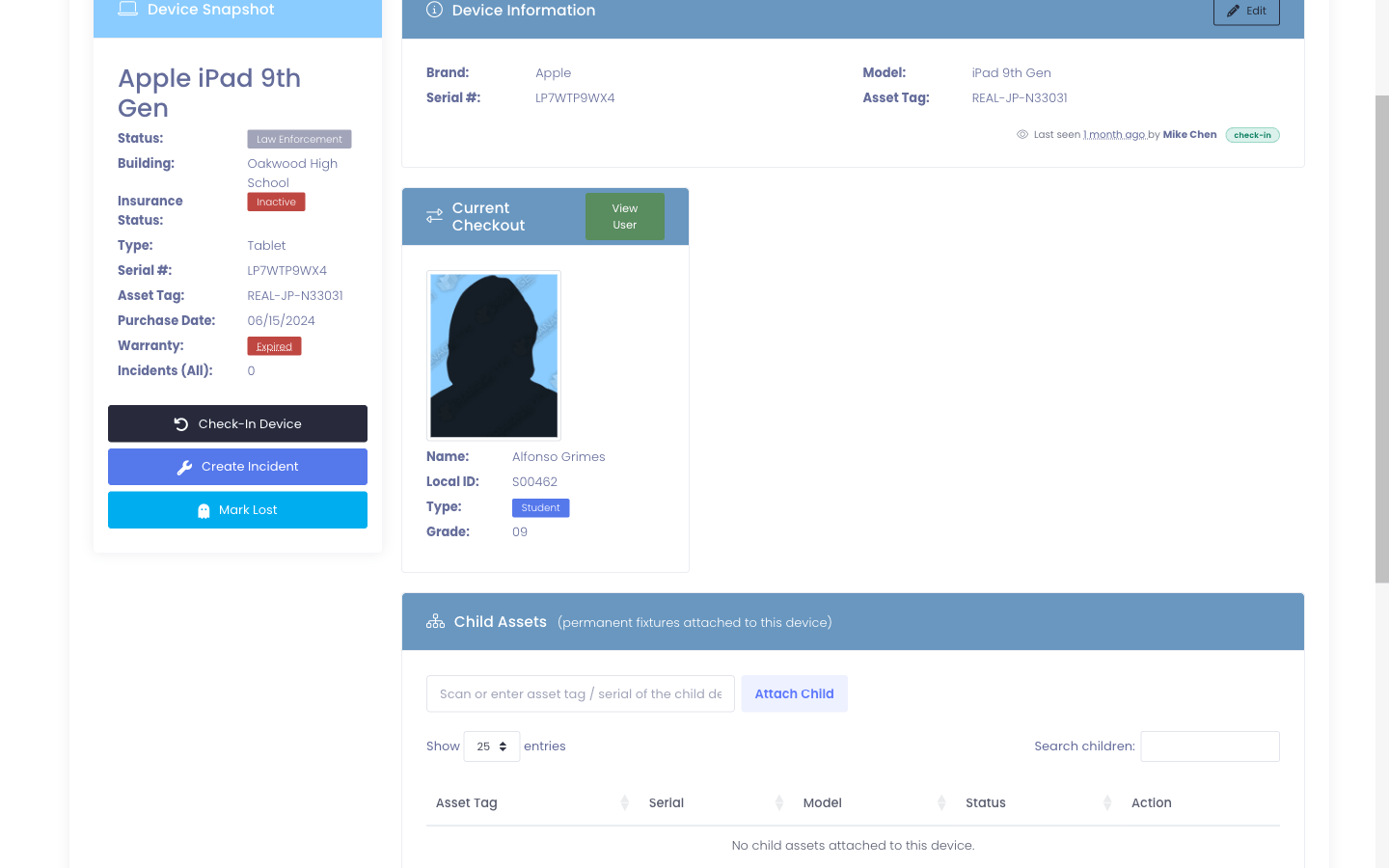
If a device shows the Unknown badge, it means no warranty data has been entered yet. The next step explains how it gets populated.
Step 5 — How Warranty Data Gets Populated
You have three ways to get warranty data onto a device, in roughly increasing order of effort:
Option A — Let the nightly sync handle it (Lenovo, Apple)
For Lenovo and Apple devices, a background job runs every night and asks the manufacturer for warranty data. After about a week, every supported device in your fleet has a definitive warranty record without you touching anything. Apple sync works automatically if your district already has Apple School Manager configured.
Once a device has a record, sync never re-runs for the same serial — the Synced from Lenovo · date status line on the edit form confirms what landed and when:
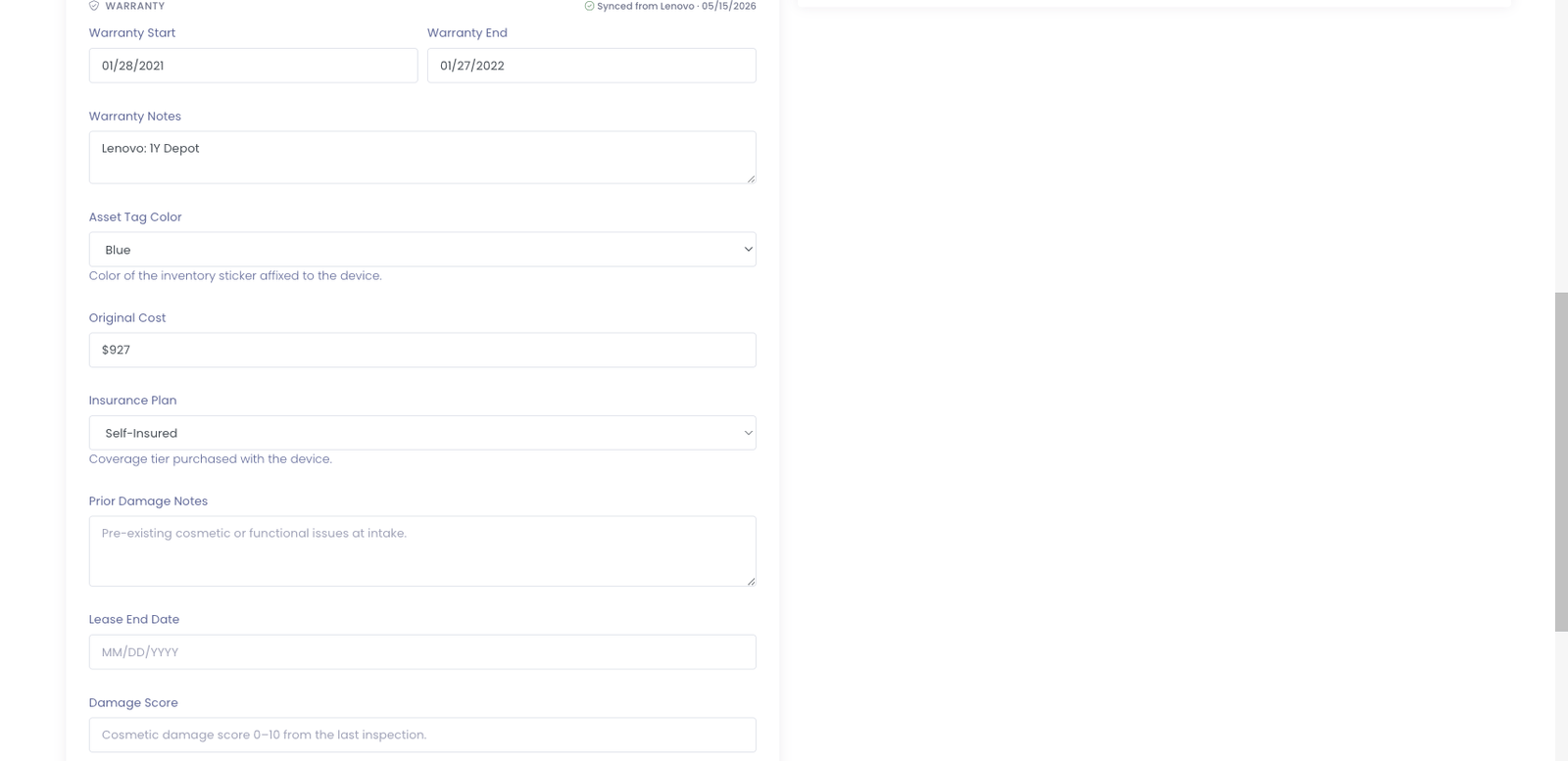
Option B — Bulk-load from a spreadsheet (Dell, HP, others)
For brands Manage1to1 can't auto-sync (Dell, HP, others), add Warranty Start, Warranty End, and (optionally) Warranty Notes columns to your existing device-import CSV, and re-import via Settings → System Utilities. Empty cells on existing devices are skipped — only filled cells write to the database — so the same upload can mix in-coverage and unknown rows freely.
Option C — Type the dates by hand
For one-off cases, use the same edit form to enter dates manually:
- Warranty Start — date coverage began (typically the purchase date)
- Warranty End — date coverage expires
- Warranty Notes — free-text field for contract numbers, extended-plan IDs, or any other notes you want kept with the device
Fill in the dates and click Save. The badge updates immediately to reflect the new coverage state, the status line switches to Entered manually, and the change is recorded in the device's activity log.
What Happens When You Change a Serial Number
If a tech corrects a typo'd serial number (or swaps physical hardware and reuses the same Manage1to1 device record), Manage1to1 clears the warranty fields automatically — the new serial belongs to a different physical device with different coverage. The edit form prompts to confirm:
Change the serial number? Changing the serial will clear this device's warranty data (start, end, notes, sync status) when you save. The new serial will be looked up fresh on the next nightly sync.
Confirm to keep the new serial (warranty fields clear on save and the device shows Unknown until the next sync); cancel to revert.
Frequently Asked Questions
Which vendors does the automatic sync support today?
Lenovo (no setup) and Apple (when you have Apple School Manager configured). Dell and HP are on the roadmap — Manage1to1 currently does not automate those, so warranty for Dell and HP devices comes from manual entry or CSV import.
How does Manage1to1 know to use Apple School Manager?
If your district already syncs AppleCare from ASM (a separate feature), the warranty adapter just reads the same data — no extra configuration. If you haven't enabled ASM, Apple devices show the Unknown badge until you fill them in manually.
How often does the nightly sync run?
Once per day, at the time your district's cron is configured to fire. It processes up to 100 unknown devices per night, so a fresh district with thousands of unknowns drains over the course of about a week.
Does the sync ever re-run for a device that already has data?
No. Sync is one-shot per device — once a record lands (either real warranty data or a definitive "vendor has no record" answer), Manage1to1 never re-asks the same vendor for the same serial. The only way to trigger a re-sync is to change the device's serial number.
Do I need to recalculate warranty status?
No. Status (Active / Expiring / Expired / Unknown) is computed on every page load from the device's Warranty End date and today's date. A device labeled "Active" today automatically becomes "Expiring" tomorrow if the end date is 30 days away.
What happens if Lenovo's site is down?
The sync logs a failure and retries the device on the next nightly run. After five consecutive failures, Manage1to1 sets the device aside (typically a serial-number typo or a model Lenovo doesn't recognize). Correcting the serial number clears the device's warranty state and re-queues it.
Will turning Warranty Tracking off delete any data?
No. Disabling the feature only hides the warranty UI — every stored value is preserved. Flip the toggle back on at any time to restore the badges, columns, and edit-form section exactly as they were.
What if I want to track warranty data the same way I track insurance?
You can — they're independent features. Insurance covers third-party plans (AppleCare+, SquareTrade, etc.) while Warranty Tracking covers the factory hardware warranty a device shipped with. Most districts use both side by side.