Mapping SIS Data into User Custom Fields
OneRoster exports include a metadata blob per user — a free-form bucket your SIS uses to carry district-specific fields like bus route, graduation year, program track, or carpool color. Manage1to1 lets you bind a user custom field to one of those metadata keys so every nightly sync writes the SIS value onto the user record automatically.
This guide walks through it with a concrete example: a Bus Route field on student profiles, populated from metadata.bus_route in your SIS export.
About 3 minutes to create the field and bind it. The first sync populates it on the next OneRoster run; existing users get the value on their next sync tick.
Before You Begin
What You'll Need
- OneRoster integration already configured for your district. (If not yet, see your Settings → System Automation → OneRoster tab first.)
- The exact metadata key name your SIS uses for the field you want to map. Common examples:
bus_route,graduation_year,program_track,cohort_id. Check your SIS's OneRoster integration documentation — Manage1to1 reads the key verbatim. settingspermission on your admin role (the standard system-settings permission).
What "Metadata Key" Means
OneRoster lets your SIS attach district-specific metadata values to each user — things your SIS has chosen to publish alongside the core fields. Manage1to1 looks at one key per custom field. If your SIS publishes bus_route with the value 42, binding a Manage1to1 user custom field to the key bus_route makes that field show 42 on every matching student's profile after the next sync.
Custom-field-to-metadata mapping is available on user custom fields only. Device custom fields don't carry SIS-driven metadata.
Step 1: Open the Custom Fields Tab
- Open Settings → System Settings
- Click the Custom Fields tab
- Click + Add User Custom Field (or Edit an existing user field)
The User Custom Field modal opens.
Step 2: Discover the Keys Your Provider Is Sending
You no longer have to dig through your SIS documentation to find the exact key name. In the modal, under OneRoster Metadata Key, click Preview keys from your provider.
Manage1to1 checks your live roster feed and lists the metadata keys it's actually sending, each with a sample value so you can tell what the key holds. Keys already bound to another field are labeled so you don't map the same one twice.
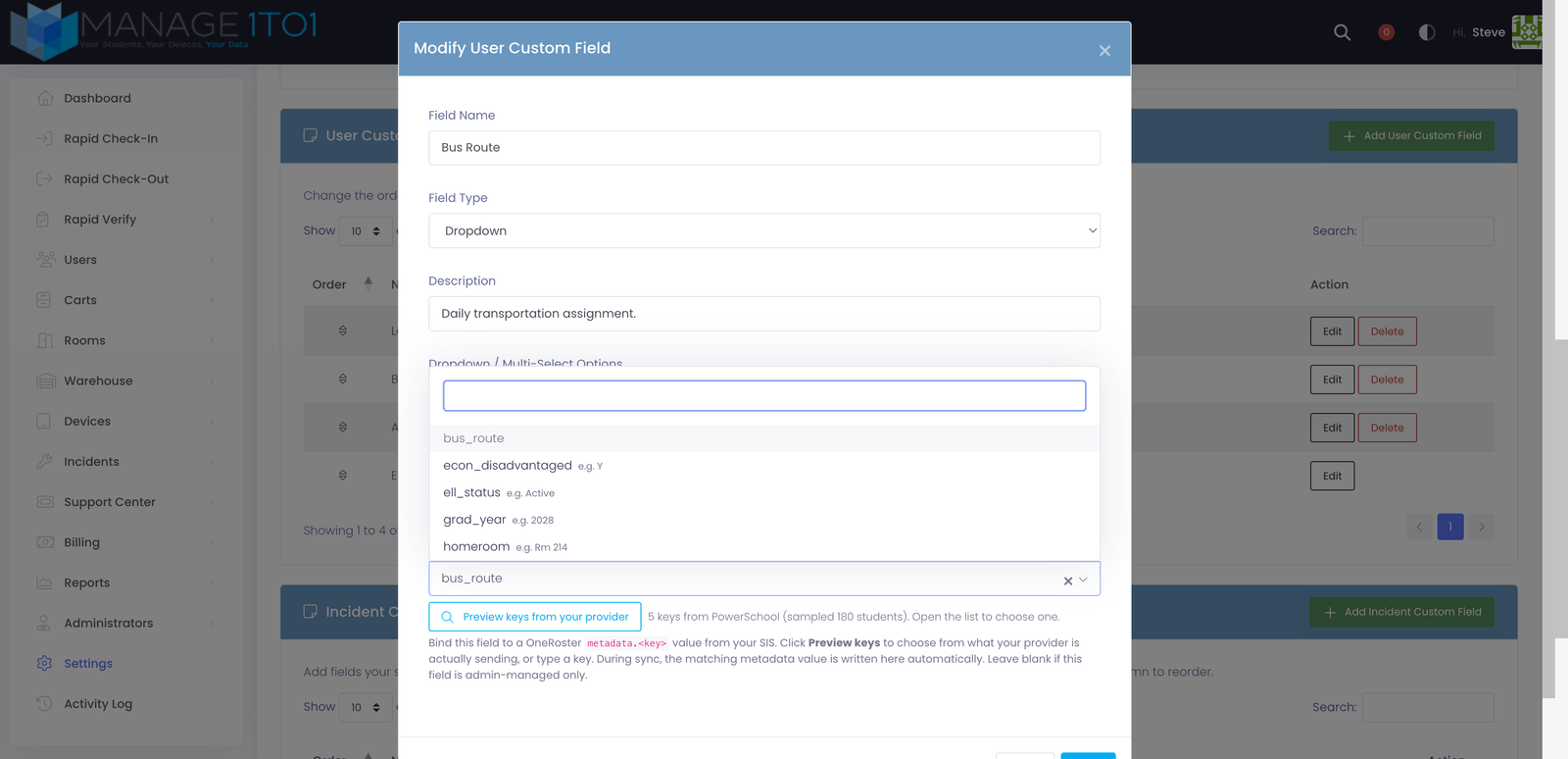
If the preview can't reach your provider, you'll see a short message explaining why (for example, the roster integration isn't set up yet). You can still type a key by hand — see Step 3.
Step 3: Pick the Key (or Type One), Then Fill in the Field
In the OneRoster Metadata Key picker, choose the key you want from the previewed list. If the key you need wasn't in the sample, you can type it in directly — sampling only looks at a batch of users, so a rare key might not appear.
A few things worth knowing about keys:
- The match is not case-sensitive —
BusRouteandbusrouteare treated as the same key. - Keys may contain letters, digits, underscores, dots, and hyphens, and must start with a letter.
- Leave the picker blank for a field you manage by hand — it just won't be touched by roster sync.
Then set up the rest of the field as you would any user custom field:
- Field Name — Human-friendly label that appears on the user profile (e.g. Bus Route, Graduation Year).
- Field Type — Match the data type. Text Box is safe for most string values. Use Number for numeric values (graduation year), Date for date values, Dropdown if you want to constrain to a fixed list.
- Description — Optional, but worth filling — "Daily bus route from the SIS" tells the next admin who opens this field where the value comes from.
- Hidden — Leave unchecked unless you want the field tucked away on edit screens only.
- Required — Leave unchecked for SIS-driven fields. The OneRoster importer skips required-ness; this checkbox only enforces required at manual edit time.
Click Save. The field is now created and bound.
Step 4: Wait for the Next OneRoster Sync (or Run One Manually)
The next time the OneRoster cron tick runs (typically nightly), every matching user record's metadata blob is read and the value for your bound key is written into the new custom field.
To trigger a sync immediately for verification, go to Settings → System Automation → OneRoster and use the Run Sync Now action on the relevant integration.
After the sync completes, open a student profile that you know has the metadata key populated in your SIS. The new field should show the value:
| Where the value lives | After the sync |
|---|---|
| Student profile, User Information card | Your new field shows the SIS value (e.g. Bus 42) |
| Student profile, edit screen | The field is editable, but the next sync overwrites manual edits |
| Activity Log for that user | A row is recorded the first time the field is populated and on every subsequent change |
A SIS-bound field is owned by the SIS — manual edits via the user profile edit screen are overwritten on the next sync. If you want a field that's manually maintained, leave the OneRoster Metadata Key blank when you create it.
Step 5: Verify the Binding Worked
If the field stays blank after a sync, the mismatch is almost always one of three things:
- Wrong key name — Open the custom field via Edit and confirm the OneRoster Metadata Key matches what your provider sends. Case doesn't matter, but leading or trailing spaces do — click Preview keys from your provider to compare against the live list.
- Your provider isn't actually sending the key — Click Preview keys from your provider. If your key isn't in the list, your SIS isn't publishing it (or isn't publishing it for the users you sampled).
- The user record specifically doesn't have that key — Some SIS exports only populate metadata for certain user roles or buildings. Check a few different student profiles.
Common Examples
Bus Route (Text)
- Field Name: Bus Route
- Field Type: Text Box
- OneRoster Metadata Key:
bus_route
Useful for end-of-day dismissal routing or contacting transportation when a charger is found on a bus.
Graduation Year (Number)
- Field Name: Graduation Year
- Field Type: Number
- OneRoster Metadata Key:
graduation_year
Pairs well with year-end device collection — filter the device report by graduation year to see all 2026 grads who haven't returned their device.
Program Track (Dropdown)
- Field Name: Program Track
- Field Type: Dropdown (with options: IB, AP, CTE, General)
- OneRoster Metadata Key:
program_track
Lets you filter user reports by track. Note: if the SIS writes a value that isn't in your dropdown options, the field stays blank for that user.
Cohort ID (Text)
- Field Name: Cohort
- Field Type: Text Box
- OneRoster Metadata Key:
cohort_id
Useful for districts that group students into cohorts for hybrid scheduling, lab assignments, or AUP signing waves.
Common Questions
Q: Can one custom field bind to multiple metadata keys? No. Each custom field binds to exactly one metadata key. If you need values from two SIS keys, create two custom fields.
Q: Can I bind a custom field that already has manually-entered data? Yes. On the next sync, the SIS value overwrites whatever's there. If that's not what you want, create a new field for the SIS-bound version and leave the manual one alone.
Q: Does this work regardless of how our OneRoster integration is set up? Yes. However your district feeds OneRoster data to Manage1to1, user metadata is read the same way and bound fields are populated on each sync.
Q: What happens if I delete the custom field later? The field disappears from every user profile. The SIS metadata key is no longer read; the data in the SIS itself is untouched. Re-creating the field with the same metadata key picks up the binding again on the next sync.
Q: Does this work for metadata on enrollments or classes too? No, currently only user-level metadata is bound. Metadata attached to other OneRoster entities isn't surfaced as Manage1to1 custom fields.
Troubleshooting
"Invalid Metadata Key" Error on Save
Cause: The key contains characters outside [a-zA-Z0-9_] or starts with a digit.
Fix: Use only letters, digits, and underscores. Start with a letter. Match your SIS's actual key name — if your SIS literally uses 42-bus-route or bus.route, that's a SIS-side configuration issue you'd need to fix on the SIS export side first.
Field Stays Blank After Sync
See Step 5 above. The three causes are: wrong key name, SIS not populating the key, or the user record not carrying that key.
Field Showed a Value Yesterday and Is Blank Today
Cause: The SIS stopped publishing that metadata key for the user (maybe a SIS update wiped it).
Fix: Confirm with your SIS or district IT admin that the key is still being published for that user. If it's missing on the SIS side, fix it there. Manage1to1 does not retain the prior value — the latest sync is the source of truth.
I Need to Bind a Field After the OneRoster Sync Has Already Run
That's fine. The binding doesn't have to exist before the sync. Once you create the field with the metadata key, the next sync picks it up. Old syncs aren't re-processed; populate populated profiles on the next normal sync tick or trigger one manually via Run Sync Now.