Uploading Student, Staff & Guardian CSVs via SFTP
Manage1to1 can import students, staff, and guardians from CSV files dropped into your SFTP folder. The import runs nightly at a time you choose — no clicking, no in-app uploads, no separate cron of your own. Pair this with your SIS or HR system's scheduled export and your roster stays current without anyone touching the admin UI.
This guide covers the SFTP side of that automation. For the column schemas each file expects, see the per-file references under System Utilities — the column layout is the same whether the file arrives via SFTP or via the in-app Bulk Import utility.
Before You Start
You'll need:
- Your SFTP credentials — see Accessing Your SFTP Credentials for where to find them in the Manage1to1 Client Area. Credentials are only available to the primary contact for your district.
- An SFTP client — WinSCP, FileZilla, or
sftpon the command line all work. Same guide covers connection setup. - An export from your SIS or HR system in one of the supported column layouts. Most districts schedule a nightly drop from PowerSchool, Skyward, Infinite Campus, etc.
The automated import always creates new records and updates existing ones — that part is on by default once you enable the import. Deactivation of records missing from the file is opt-in per file type (Students and Guardians have a toggle for it; Staff does not). Always run a small test file before turning on any deactivation toggle to confirm the column mapping behaves the way you expect.
The Three Files
The automated importer looks for these exact filenames in your SFTP /incoming/data/ folder:
| Filename | What it imports |
|---|---|
students.csv | Students — names, grade, building, local ID, email, optional guardians |
staff.csv | Staff — names, building, email, position, optional password |
guardians.csv | Guardian-to-student relationships (only used when the dedicated guardian import is enabled — see below) |
Filenames are case-sensitive and have no district prefix. If you drop Students.csv or students-2026.csv the importer skips it.
Step 1 — Connect and Drop the File
- Connect to your SFTP server using the credentials from your Client Area subscription page.
- Open the
/incoming/data/folder. - Upload the file using the exact name
students.csv,staff.csv, orguardians.csv. - If a file with the same name already exists, replace it. The importer always reads the latest file.
SIS / HR scheduled exports usually let you set the output filename — point yours directly at students.csv (or the appropriate name) so no manual rename is needed.
Step 2 — Enable the Automated Import
Go to Settings → System Automation in the admin area. Each file type has its own toggle:
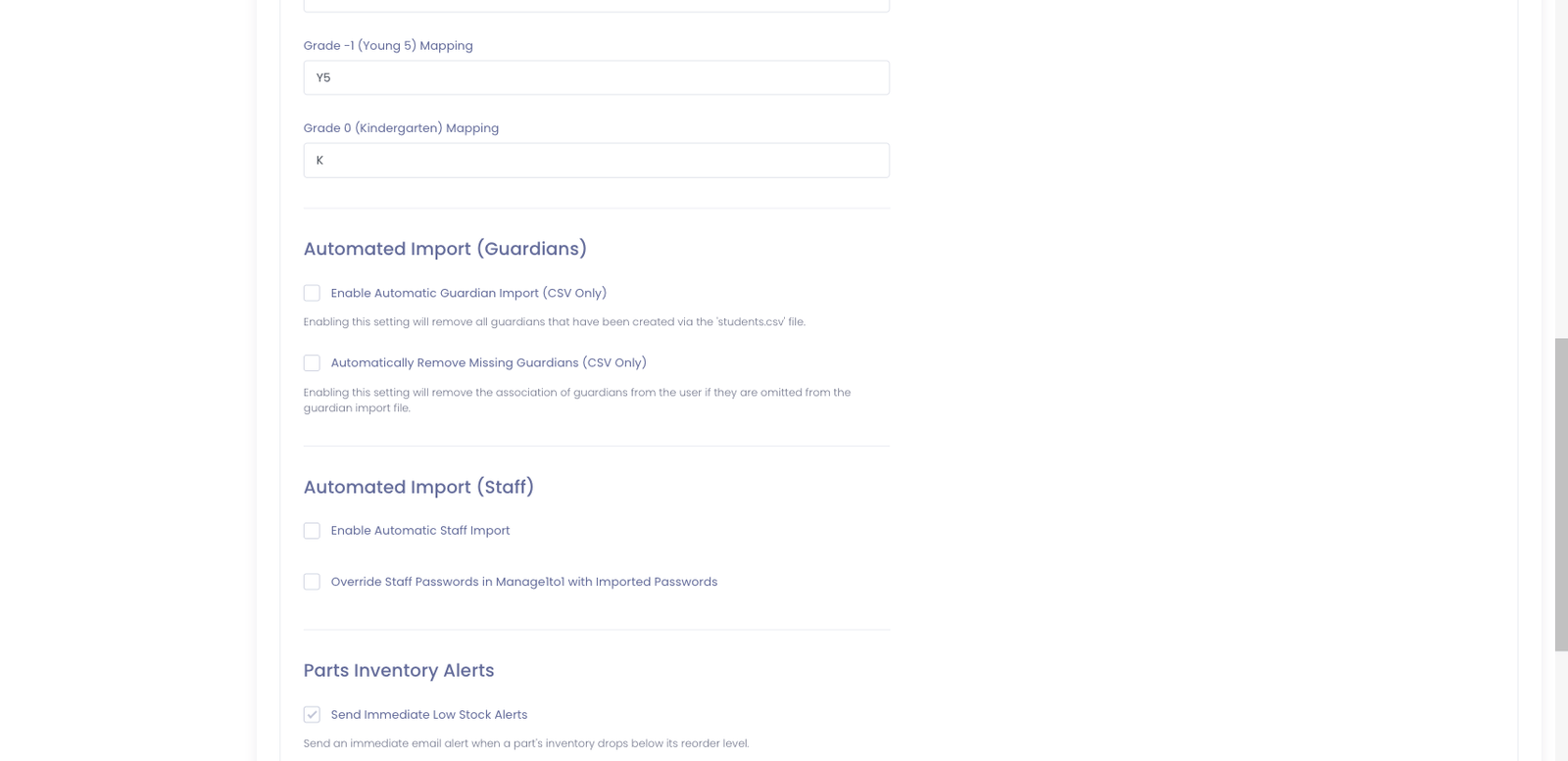
| Toggle | What it does |
|---|---|
| Enable Automatic Student Import | Nightly import of students.csv — creates new students and updates existing ones. |
| Override Student Passwords... | If on, passwords in the CSV replace existing passwords on update. Off by default — most districts let the user pick. |
| Automatically Mark Missing Students as Inactive | If on, students omitted from the latest students.csv are marked inactive. Off by default — only turn this on when your students.csv represents the full district roster every night. |
| Enable Automatic Guardian Import (CSV Only) | Nightly import of guardians.csv from a dedicated guardian feed. Off by default — most districts include guardians inline in students.csv. |
| Automatically Remove Missing Guardians (CSV Only) | If on, guardians omitted from the latest guardians.csv are unlinked from their students. Treat this as authoritative-source-of-truth behavior. |
| Enable Automatic Staff Import | Nightly import of staff.csv — creates new staff and updates existing ones. There is no missing-staff deactivation toggle; staff who leave the district must be deactivated manually or via a separate process. |
| Override Staff Passwords... | Same as the student version — replace existing passwords with what's in the CSV. |
If you switch on Enable Automatic Guardian Import (CSV Only), the system removes all guardians that were created via students.csv and rebuilds the guardian list from guardians.csv going forward. Only flip this on when you have a dedicated guardian feed ready to upload — and run a test first.
Automatically Mark Missing Students as Inactive and Automatically Remove Missing Guardians treat your CSV as the authoritative source: anything not in the file gets deactivated or unlinked on the next run. This is the right behavior for a full nightly district roster export — and the wrong behavior for a partial mid-day file that only contains additions or one building's data. If your CSV is partial, leave these toggles off or the importer will deactivate everyone the partial file doesn't mention.
Below the import toggles is Default Daily Automation Time — pick the hour the nightly import runs. Most districts choose between 2 AM and 5 AM local time so the import lines up with their overnight SIS export.
Step 3 — Watch It Run
After your first upload + the configured run time, open Settings → System Automation Status to see what the importer did. The status page shows:
- Last run timestamp per file type
- Counts of new / updated / deactivated records
- Any rows the importer skipped, with the row number and reason
If a file failed to parse, the page tells you which file and why — most commonly a missing required column or a UTF-8 encoding issue.
File Format Reference
The column schema for each file matches the in-app Bulk Import utility — same headers, same required vs. optional columns, same data types:
- Bulk Student Import — column reference for
students.csv - Bulk Staff Import — column reference for
staff.csv - Bulk Guardian Import — column reference for
guardians.csv
A common pattern: build your CSV once, validate it by running the in-app Bulk Import on a copy of the file, then schedule your SIS to drop the same shape into SFTP for nightly automation.
Troubleshooting
"The import didn't run last night"
- Confirm the file landed in
/incoming/data/(not/incoming/or your home directory) — the importer only looks insidedata/ - Confirm the filename is exactly
students.csv,staff.csv, orguardians.csv— case-sensitive, no extra suffix - Confirm the matching toggle on the Automation Settings page is on
- Check the System Automation Status page for the last attempted run time — if there's no entry, the file wasn't seen at the configured run time
"It ran but skipped a bunch of rows"
The Status page lists each skipped row with a reason. The most common reasons:
- Missing required columns in the CSV header
- A local ID that already exists on a different student / staff record (collision)
- A grade value the system doesn't recognize (use the Grade Mapping fields on the Automation page to handle non-standard SIS exports — e.g.
PK→-2)
"All my guardians disappeared" or "all my students were marked inactive"
You almost certainly turned on a deactivation toggle (Automatically Remove Missing Guardians (CSV Only) or Automatically Mark Missing Students as Inactive) without a complete CSV in place. The importer treated the partial file as the full roster and deactivated everything it didn't see.
To recover:
- Turn the deactivation toggle off
- Re-upload a complete CSV (or, for students, manually reactivate the affected users via the user profile until your full feed is ready)
- Re-enable the toggle only once your nightly export is confirmed to contain every active record
"The importer says the file is locked or in use"
If your SIS export is writing the file at the same time the importer is reading it, you can get a "file in use" failure. Two fixes:
- Schedule your SIS export to finish at least 30 minutes before your Default Daily Automation Time
- Have your SIS write to a different filename and rename it to
students.csvafter the export completes — atomic rename means the importer only ever sees a fully-written file
When to Use SFTP vs. In-App Bulk Import
- SFTP automated import — daily roster sync from your SIS / HR system, hands-off
- In-app Bulk Import — one-off corrections, mid-year additions, importing a building you've onboarded after the initial sync
Both paths share the same column schema, so a CSV that works in one works in the other.