Finding Wi-Fi Dead Zones in a Building
Some Wi-Fi complaints aren't about one device at all. When a whole class struggles in the same room, or a hallway is where connections always drop, you're looking at a dead zone — an area where coverage is too weak to work reliably. This guide shows you how to find one, prove it with data, and hand networking a specific room and access point instead of "the Wi-Fi is bad over there."
The goal is a fixable, named problem: this room, this access point, this many devices affected.
Before You Start
- Network Assurance needs to be connected and syncing. If it isn't, start with Getting Network Assurance Connected.
- The Location Map step needs a floor plan from your wireless platform. The rest of the workflow works without one.
- These pages are richest with Juniper Mist; the health scores work with every supported platform.
Overview
Finding a dead zone works from the whole district down to one spot on a floor:
- Spot the weak building on the dashboard, from the coverage-related scores.
- Confirm it's the worst with Site Comparison, so you're fixing the right one first.
- Rule out a simple outage on the Access Points page — an offline access point is a dead zone with an easy fix.
- Pinpoint the area on the Location Map, where devices cluster on far or weak access points.
- Hand it off with specifics so networking can act without re-investigating.
Step 1: Spot the Weak Building
Open Network Assurance and read the Wi-Fi Health Dashboard. Two of the seven scores point at coverage problems:
- Coverage — whether devices have a strong enough signal where they actually are. A low score means dead spots or weak corners.
- AP Availability — how much of the time your access points are up and serving. A low score often means an access point has gone offline, which creates a dead zone around it.
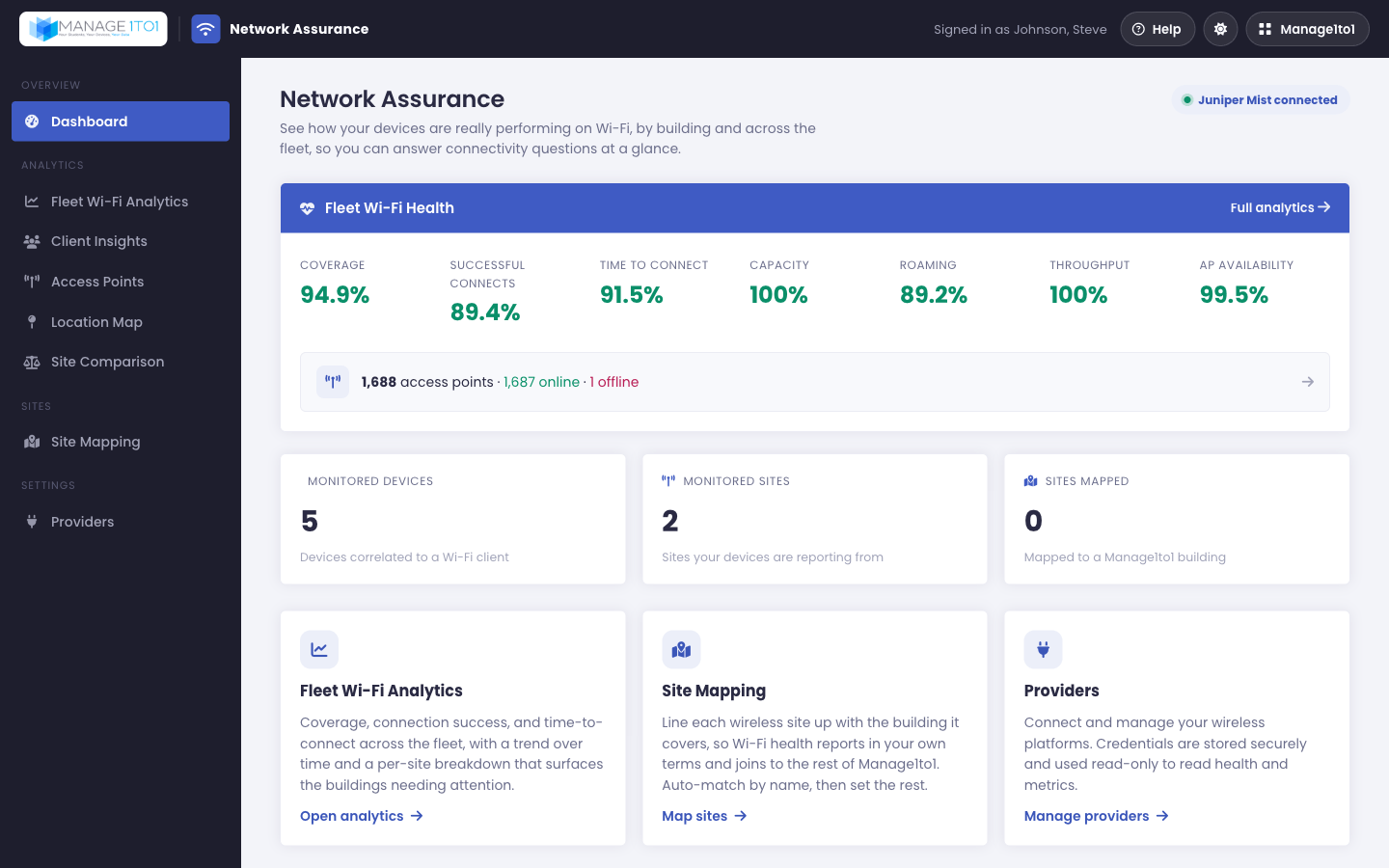
If Coverage is amber or red for a building, that building has at least one area where the signal isn't strong enough. That's your starting point.
A low Coverage score alongside a healthy Capacity score means the problem is reach, not crowding — a true dead zone rather than an overloaded room. If Capacity is the low one instead, see the crowding pattern in Investigating a Wi-Fi Complaint; the fix is different.
Step 2: Confirm It's the Worst One
If more than one building looks weak, use Site Comparison to line them up side by side before you spend any time on-site.
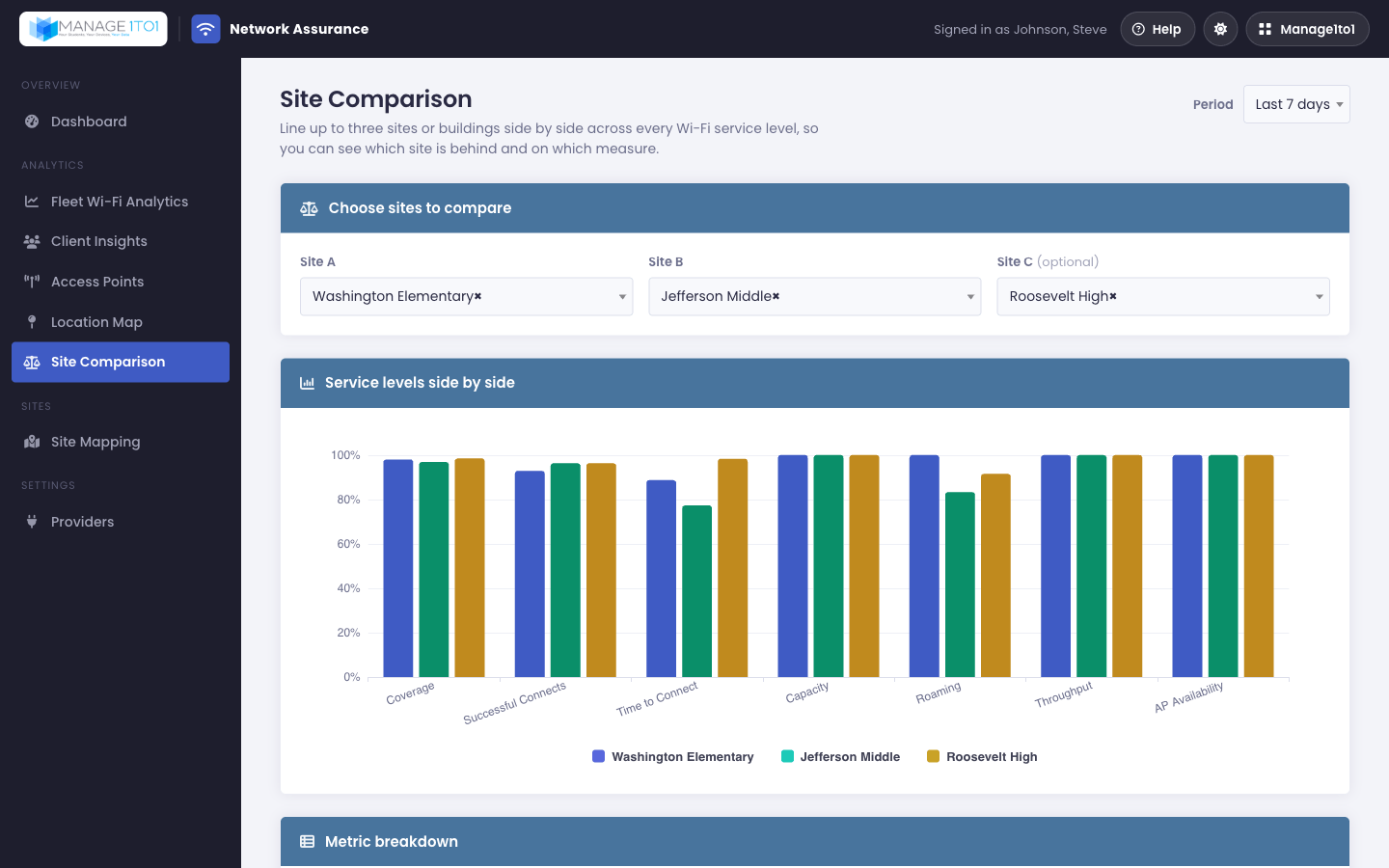
Site Comparison tells you which building will give you the most relief for the least effort. Your best-performing building is a fair benchmark — the gap between it and the weakest one is your opportunity. Pick the building that's dragging the most and work that one first.
Step 3: Rule Out a Simple Outage
Before assuming a design problem, open the Access Points page and check the building. An offline access point is the simplest dead-zone cause, and the fastest to fix.
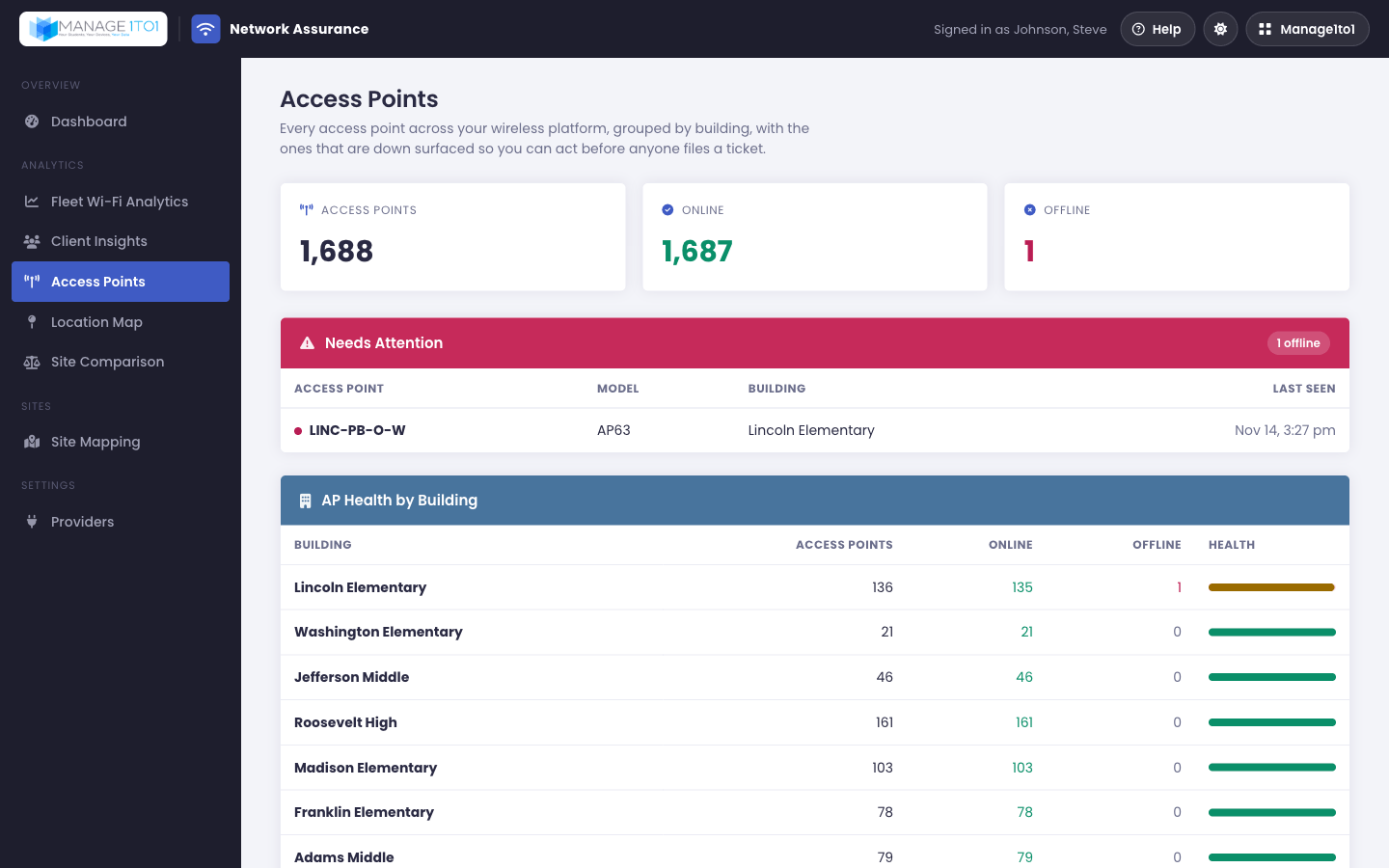
Access points are grouped by building with a clear online/offline count. If one is offline, you may have found your dead zone already: every device that leaned on that access point is now reaching for a farther one, which looks exactly like weak coverage in that area. That's one network fix that can clear a pile of device tickets — hand it straight to networking.
If every access point is online, the dead zone is a coverage-design issue rather than an outage, so move to the map to pinpoint it.
Step 4: Pinpoint the Area on the Floor
Open the Location Map, choose the building, and choose the floor people are complaining about. Devices appear as dots, access points as square markers, and a line runs from each device to the access point serving it.
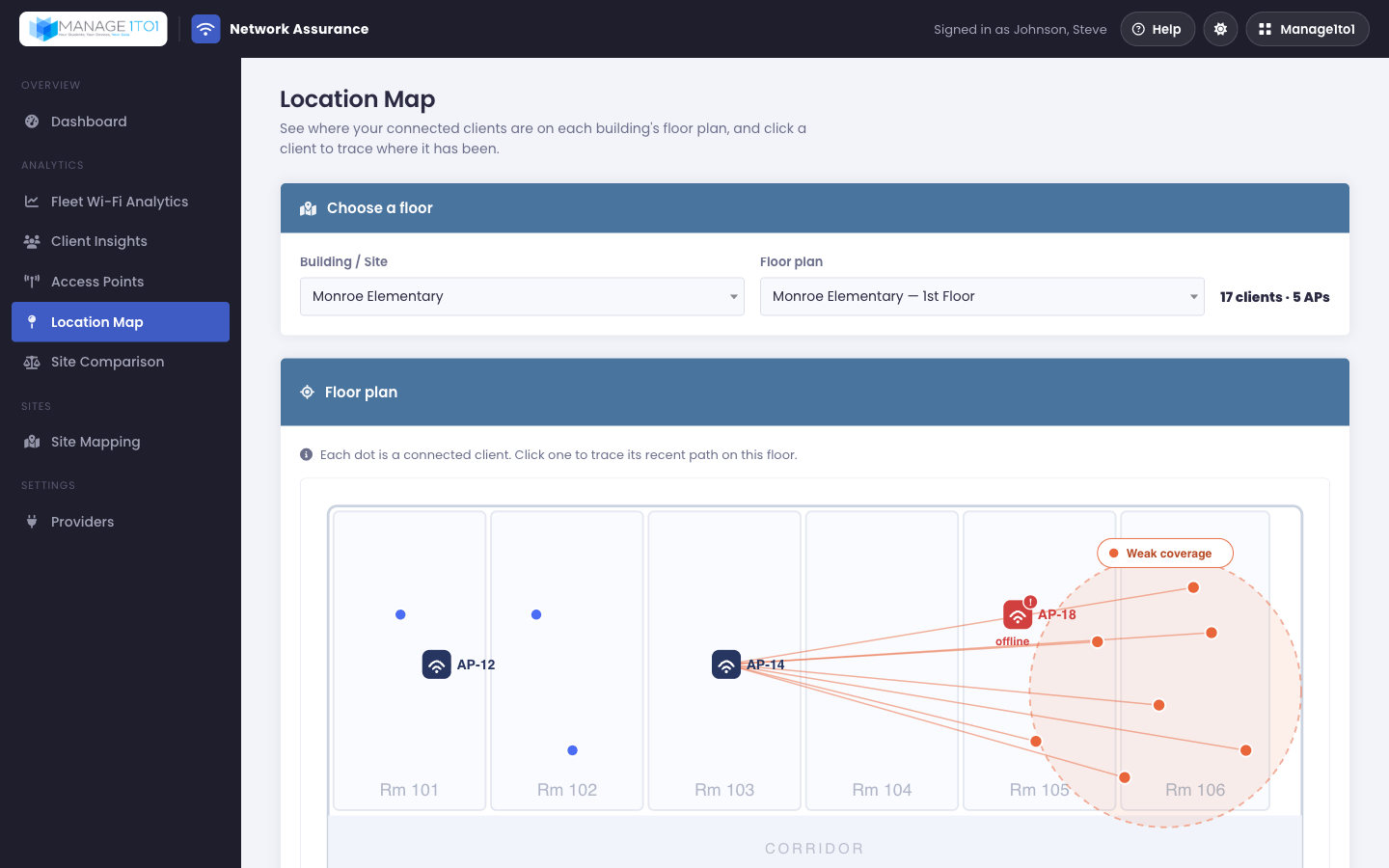
A dead zone has a recognizable shape on the map:
- Devices reaching across the floor. When several dots in one area all connect to an access point that's far away — with a closer one that they're not using — the signal in that spot is too weak to hold them on the near access point. That corner is your dead zone.
- An area with no nearby marker. A cluster of devices with no access point close to them is a coverage gap by layout. The map shows you exactly where another access point would help.
Hover the access point markers to confirm which one the affected devices are on, and note the room. You now have the specific location and the access point involved.
Step 5: Hand It Off With Specifics
The point of the whole workflow is to give networking something they can act on without starting over. Instead of "the Wi-Fi is bad in the 200 wing," you can hand over:
- The building and room where devices struggle
- The access point they're falling back on, and whether a nearer one is missing or offline
- How many devices are affected, from the cluster on the map
- Which score flagged it — low Coverage points at a design or reach problem, low AP Availability at an outage
That's the difference between a ticket that bounces back and one that gets fixed.
Best Practices
✅ Do:
- Start from the dashboard scores, not from a single complaint — one weak score often explains several tickets.
- Use Site Comparison to fix the worst building first when time is short.
- Check for an offline access point before assuming a coverage-design problem; it's the cheapest fix.
- Record the room and access point so a future complaint from the same spot is instantly recognizable.
❌ Don't:
- Chase individual device tickets when the building's Coverage score is low across the board — that's a network project wearing many disguises.
- Confuse crowding with a dead zone; a low Capacity score with healthy Coverage is a different problem with a different fix.
- Hand networking a vague area when the map can give them a room and an access point.
Troubleshooting
"Coverage looks fine but people still complain in one room"
Check the room at the busy time, not a quiet one. If Capacity dips during the complaint window while Coverage stays healthy, it's crowding, not a dead zone — the room has enough signal but not enough room on the access point. That's the capacity pattern in Investigating a Wi-Fi Complaint.
"The building has no floor plan, so I can't use the map"
You can still find and prove the dead zone without it. The dashboard scores tell you the building is weak, Site Comparison ranks it, and the Access Points page finds an offline unit. The map makes pinpointing easier, but the case stands without it.
"The map shows devices on a far access point, but nothing looks offline"
That's a coverage-design dead zone rather than an outage: the nearest access point either doesn't exist where it's needed or is too far to hold devices on a strong signal. The fix is placement, not a reboot — which is exactly the kind of specific, map-backed finding networking can plan around.