Getting Network Assurance Connected
Network Assurance reads the health data your wireless platform already collects and brings it into Manage1to1, next to the devices and people it affects. Setup is a one-time job: connect your platform, line its sites up with your buildings, and confirm the data is flowing. This guide walks the whole journey, and points you at the reference page for the exact field names along the way.
By the end you'll have Wi-Fi health on every device, a panel on your tickets, and the full Network Assurance app ready to use.
Before You Start
You'll need two permissions. The person doing the setup needs Manage Settings. Anyone who should see the results needs View Network Assurance on their role. Grant both before you begin so you're not stopped halfway.
Gather these from your network administrator. Network Assurance connects to the wireless platform you already run — Juniper Mist, HPE Aruba Central, or Ruckus One — and the connection is read-only. For whichever platform you use, your network admin creates a read-only API token and gives you your organization or customer ID and your region. The exact field names per platform are listed on the Network Assurance integration reference →.
Manage1to1 only ever reads from your wireless platform to show you the data. It never changes a setting on your network. A read-only token is all it needs, and all you should give it.
Overview
Setup is three short steps, then a look to confirm it worked:
- Connect your platform — enter the read-only credentials and test them.
- Match sites to buildings — so Wi-Fi health reads in your building names, not your vendor's site codes.
- Let the first sync run — data arrives on a schedule, not instantly.
- Confirm it's working — check a device, a dashboard, and a ticket.
Step 1: Connect Your Wireless Platform
Open Network Assurance from the app launcher, and in the left nav choose Providers (under Settings). Pick your platform's card.
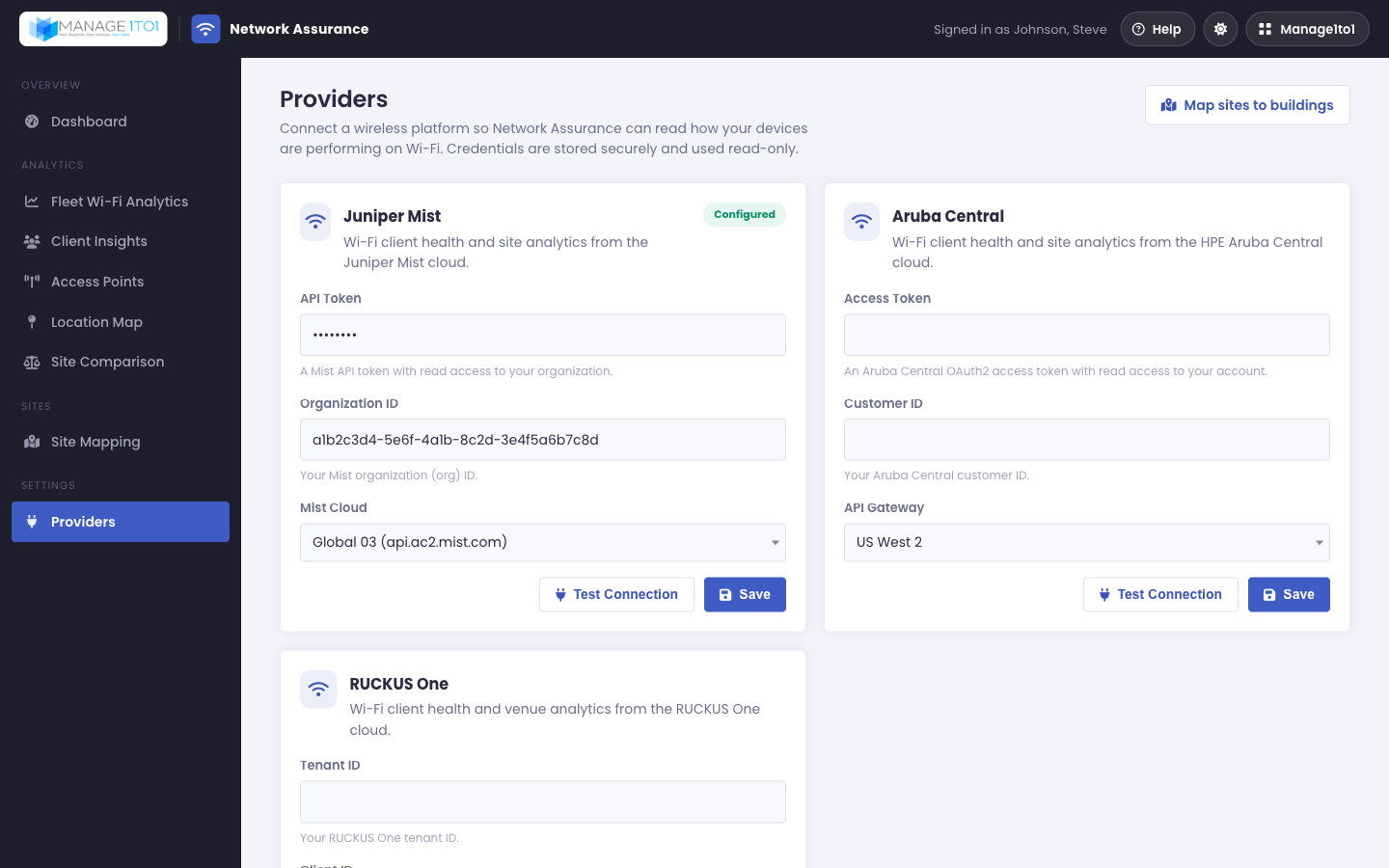
Fill in the connection details your network administrator gave you — the token, your organization or customer ID, and your region. The token is stored securely and hidden after you save it.
Use Test Connection to confirm the credentials work before you save. A green result means Manage1to1 can reach your platform; an error means the token, ID, or region needs a second look. When the test passes, choose Save.
The Test Connection button is the fastest way to catch a mistyped token or the wrong region. Fixing it here takes seconds; discovering it after a day of "why is there no data?" does not.
Step 2: Match Sites to Your Buildings
Your wireless platform groups access points into its own sites, often with short codes only your network admin recognizes. Manage1to1 already knows your buildings. Matching the two means every Wi-Fi health score, access point, and client location rolls up under the building name your team actually uses.
From the Providers page, choose Map sites to buildings at the top right to open the Site Mapping screen.
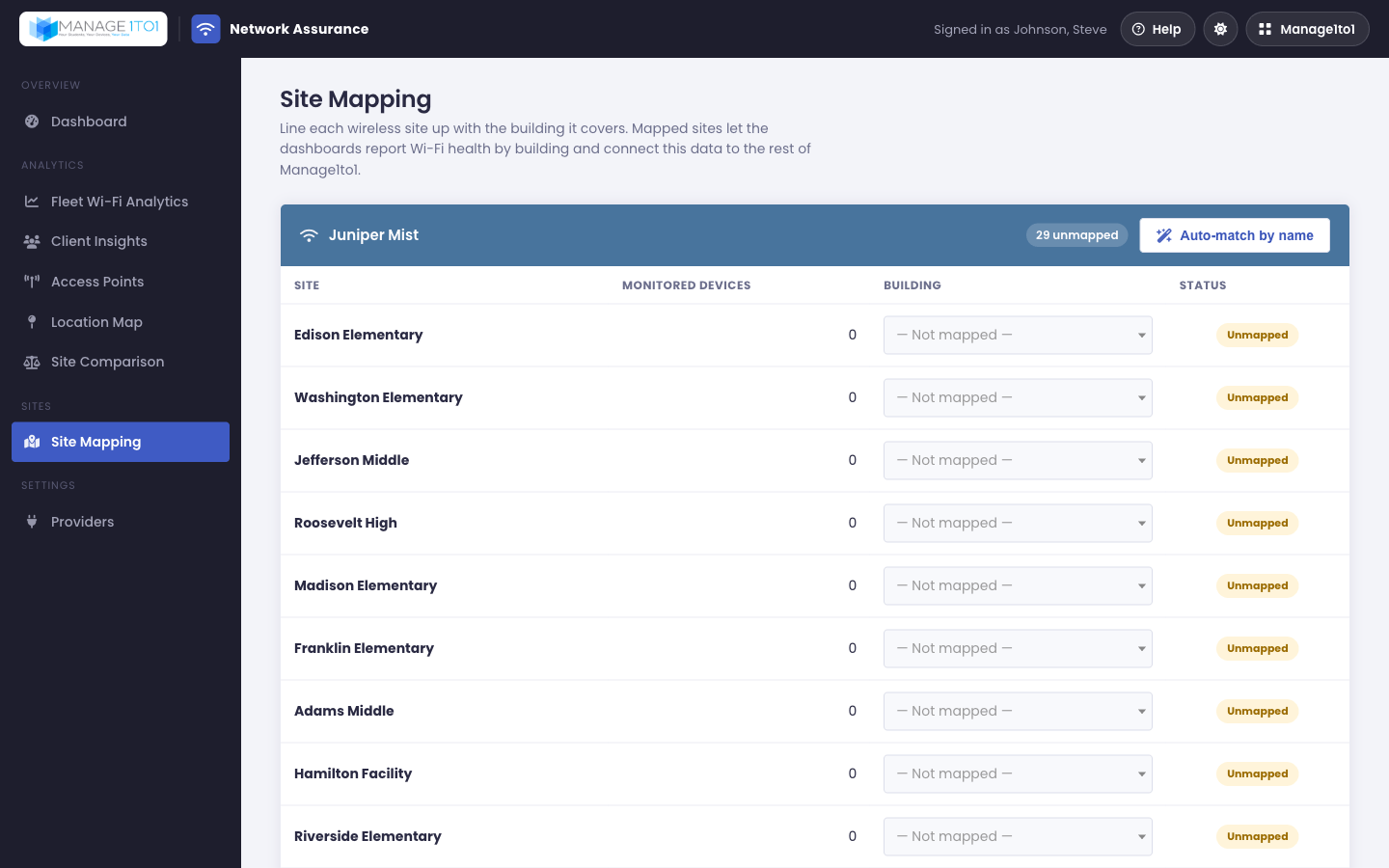
- Choose Auto-match by name first. It fills in every site whose name clearly matches a building, so most of the work is often done for you.
- For anything left over, pick the building from the searchable list. Sites you haven't mapped yet are flagged Unmapped.
You can change a mapping at any time, so don't worry about getting every edge case perfect on the first pass — map the buildings you care about most and come back for the rest.
An unmapped site still collects data; it just shows under the site's own label instead of a building name until you map it. Nothing is lost by mapping it later.
Step 3: Let the First Sync Run
Manage1to1 collects Wi-Fi health on a regular schedule, not the instant you click Save. After you connect, the device Wi-Fi tabs, the ticket panels, and the dashboard scores fill in as data arrives over the first sync cycles.
If the app or a device shows no Wi-Fi data in the first few minutes, that's expected. Give it a sync cycle and check back rather than re-entering your credentials.
Step 4: Confirm It's Working
Once the first sync has run, confirm the three places Wi-Fi health shows up:
On a device. Open a device profile for something you know is on Wi-Fi right now. A Wi-Fi tab appears, showing its current access point, network, band, signal, and experience score. If the tab is there with live readings, matching is working — and there's nothing to map by hand, Manage1to1 links clients to your devices automatically. See the Wi-Fi tab on the device profile →.
In the app. Open Network Assurance from the app launcher (the grid icon in the top navigation bar). The Wi-Fi Health Dashboard should show scores for your mapped buildings.
On a ticket. Open any ticket or incident about a device. A Wi-Fi Health panel appears right in the ticket, so your team sees connectivity context without leaving the page.
If all three show data, you're connected and ready to use.
What to Do First
With Network Assurance live, two things are worth doing right away:
- Read your dashboard once. The Wi-Fi Health Dashboard gives you a baseline — which buildings look healthy and which don't — so later changes stand out.
- Run one real investigation. The next time a "my Wi-Fi keeps dropping" ticket comes in, walk it through Investigating a Wi-Fi Complaint. It's the fastest way to see what the data does for day-to-day support.
Troubleshooting
"Test Connection fails"
The token, organization or customer ID, or region is off. Have your network admin confirm the token still has read access and hasn't expired, and double-check the region matches where your platform account is hosted. The integration reference lists the exact fields for your platform.
"Connected, but there's no data yet"
Data arrives on a sync schedule, not instantly. Wait a sync cycle after connecting before expecting the dashboard and device tabs to fill in. If it's still empty after that, confirm at least one site is mapped and that the platform account the token belongs to actually sees your access points.
"A building has no scores"
Check that its wireless site is mapped to it in Map sites to buildings. An unmapped site's data shows under the site label, not the building, so the building can look empty until you map it.
"A device has no Wi-Fi tab"
The tab appears once Manage1to1 has seen that device as a client on your wireless platform. A device that's powered off, on a wired connection, or off-site won't have been seen yet. Matching is automatic by identifiers you already keep, so there's nothing to configure — just check back once the device has been on Wi-Fi.
"The detailed pages are emptier than the dashboard"
The Access Points, Client Insights, and Location Map pages use richer per-access-point and per-client detail that Juniper Mist reports today. On Aruba Central or Ruckus One, the health scores and per-device readings work fully, and those three pages fill in as that detail becomes available from your platform.