Switching Your Roster Source
Many districts start on manual CSV / sFTP import and later move to an automated rostering provider such as ClassLink. This page explains how to make that change cleanly, and how to avoid the two things that go wrong when you don't: duplicate buildings and orphaned students.
The single most important step is aligning your building IDs up front. Read the recommended approach below before you enable a new provider.
Changing your roster source is done under Settings → Rostering & SIS and requires the Settings permission.
How rostering providers identify your schools
This is the root of everything on this page, so it's worth understanding first.
- ClassLink, and most OneRoster providers, identify each school by a
sourcedId. AsourcedIdis a long, opaque, provider-assigned code, almost always a GUID (something likeb3c1f2a4-8e7d-4c19-9f0a-2d6e5a1c7b88). It is not your friendly local code. - Your manual CSV / sFTP setup almost certainly uses a clean code as each building's ID, something like
HS-001,1001, orOAK-HS.
Because those two identifiers are completely different, the IDs your new provider sends on the first sync will not match the clean codes already stored on your buildings. Left unhandled, Manage1to1 sees each incoming school as brand new and creates a duplicate building, and the students on it attach to the duplicate, leaving your original building empty. That is the exact failure this page prevents.
How Manage1to1 reconciles buildings
When a building sync runs, each incoming school is resolved in this order:
- By ID (best). The
sourcedIdyour provider sends matches a building's Building SIS / OneRoster ID, or one of its Alternate IDs. The building is updated in place. This is deterministic and always correct. - By name (safety net). If no ID matches, Manage1to1 looks for a single existing building with the same name (ignoring capitalization and surrounding spaces). When exactly one matches, it links to that building, adopts the provider's
sourcedIdas the building's ID, and keeps your previous ID as an Alternate ID. - New building. If neither matches, a new building is created.
The name match is a safety net, not a strategy. It can't help when two schools share a name (it refuses to guess and flags them for manual review), and it's fragile against small naming differences ("Oakwood Elementary" vs "Oakwood Elem."). Relying on it is how districts end up with a few duplicates to clean up after the fact. The reliable path is to make every building match by ID, which is what the next section sets up.
Recommended: pre-align your building IDs before switching
Make every building match by ID on the very first sync, so nothing depends on name matching. For each school, you'll put the provider's sourcedId on the building as its primary ID and demote your old clean code to an Alternate ID (so historical references still resolve).
Step 1, Get each school's sourcedId
You need the GUID your provider will send for each school. Two ways to get it:
- From your provider. ClassLink (and other OneRoster) admin consoles list each school's
sourcedIdin their roster/org export. - From the Preview Building Match. After you enter your provider's connection details (below), Preview Building Match connects to the provider and lists every incoming school with the ID it will send, without saving anything. This is the easiest way to see the exact GUIDs.
Step 2, Put the sourcedId on each building
For each school, go to Settings → System Settings → Buildings, open the building, and edit two fields:
- Building SIS / OneRoster ID, set this to the provider's
sourcedId(the GUID). - Alternate IDs, add your existing clean code (e.g.
HS-001) here. Keeping it as an alternate means anything that referenced the old ID, in-flight imports, saved files, historical matching, still resolves. - Save.
See Buildings Tab for the full building-edit walkthrough.
The building edit form intentionally warns against changing the SIS / OneRoster ID once OneRoster is enabled. Pre-aligning before you turn the provider on avoids that warning entirely and means your first automated sync matches every building by ID.
Step 3, Confirm with the preview
Re-run Preview Building Match. Every school you aligned should now read Matches by ID. If any still show New, will create or Links by name, their IDs don't line up yet, fix those buildings before syncing.
Once the preview is all green, you're safe to sync.
Changing the roster source
With your buildings pre-aligned (or if you're relying on the name safety net), make the switch itself.
Enter the new provider
- Go to Settings → Rostering & SIS.
- Click Configure Provider.
- Choose your new provider from the Rostering Provider dropdown and enter its details.
- Save.
A confirmation appears summarizing the risks before the change takes effect:
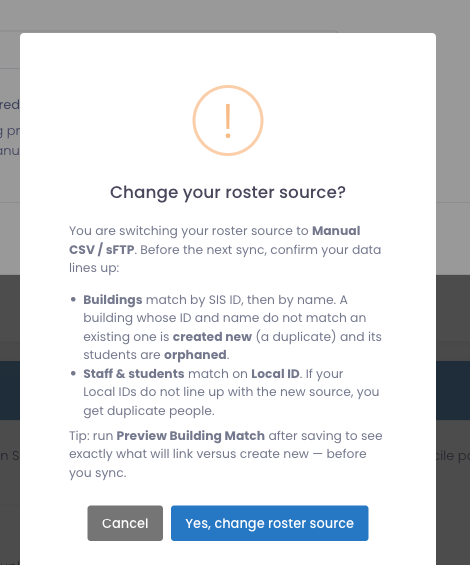
Read it, then confirm to continue, or cancel if you still need to align your data.
Preview the building match
Back on the User Rostering page, click Preview Building Match (next to Synchronize Buildings). This connects to your provider and shows exactly what a building sync would do, without saving anything:
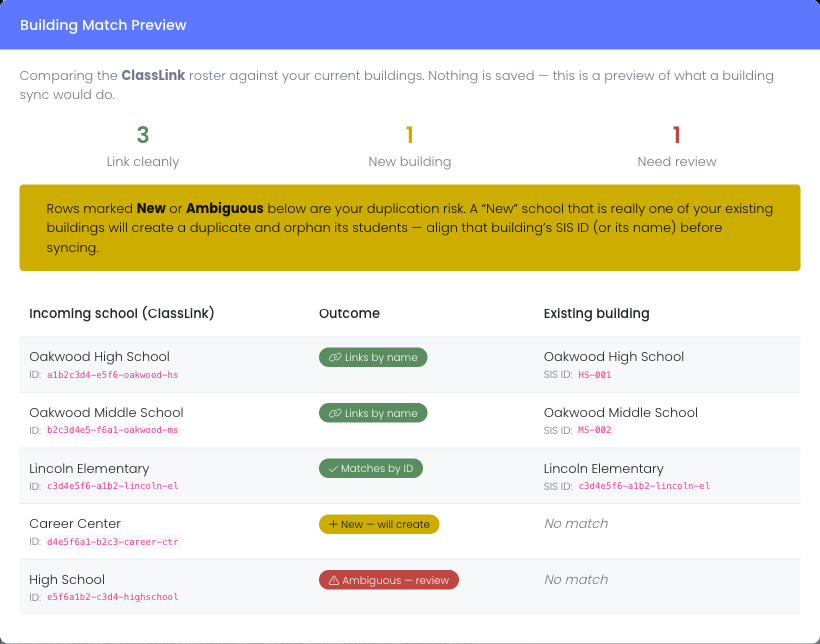
Each incoming school shows one of:
- Matches by ID, links to an existing building by its Building SIS / OneRoster ID or an Alternate ID. This is what you want to see for every row.
- Links by name, no ID matched, but the name did; it will link and keep the old ID as an alternate. Acceptable, but pre-aligning the ID (above) is safer.
- New, will create, no match found; a new building will be created. Check these carefully, if the school is really one you already have, pre-align its ID or fix its name first.
- Ambiguous, review, the name matched more than one building. Reconcile these by hand before syncing.
The summary at the top tells you at a glance how many link cleanly, how many are new, and how many need review.
Sync
Once the preview looks right, ideally every row Matches by ID, run Synchronize Buildings, then Synchronize Users. Building sync must finish before user sync.
What about students and staff?
Students and staff match on Local ID, the identifier your provider sends is compared to the Local ID already on each person. As long as those line up (they usually do, because both your CSV and your provider draw them from the same SIS), existing people are updated, not duplicated. Only buildings need the ID pre-alignment described above; people generally take care of themselves. If your provider's Local IDs differ from what's on file, align those first the same way you'd align a building ID.
Frequently asked questions
Q: Why can't Manage1to1 just match my schools by name automatically?
It tries, name matching is the built-in safety net. But names are unreliable keys: two schools can share a name, and small differences ("Elementary" vs "Elem.") break the match. Matching by ID is exact, which is why pre-aligning the sourcedId is the recommendation.
Q: Where do I find a school's sourcedId?
From your provider's admin console (ClassLink lists it in the org/roster export), or from Preview Building Match, which reads the incoming ID for every school without saving anything.
Q: What exactly do I put where?
The provider's sourcedId (the GUID) goes in the building's Building SIS / OneRoster ID field. Your old clean code (e.g. HS-001) goes in Alternate IDs. That way the new sync matches by the GUID, and everything that referenced the old code still resolves.
Q: Will switching duplicate my buildings?
Not if their IDs line up. With the sourcedId pre-aligned, every building matches by ID. Without it, you're relying on the name safety net, use Preview Building Match to confirm before you sync either way.
Q: What happens to my old building IDs if I let the name match handle it instead?
When a building links by name, the provider's sourcedId becomes its primary ID and your previous ID is kept as an Alternate ID automatically, the same end state as pre-aligning, just decided by name instead of by you.
Q: A school shows "Ambiguous, review." What do I do?
Two or more of your buildings share that name, so Manage1to1 won't guess. Give the buildings distinct names, or (better) set the correct building's Building SIS / OneRoster ID to the sourcedId your provider sends, then preview again.
Q: Can I switch back to manual CSV/sFTP later? Yes. Set the Rostering Provider back to Manual CSV / sFTP. Your buildings and people stay as they are; automated syncing simply stops.