Posting a Status Update Families See
When Wi-Fi drops or Google has a bad morning, the help desk's day is decided in the first ten minutes: either people see a clear "we know, here's the status" notice, or they each file the same ticket and you spend the morning saying "yes, we're aware" fifty times. Manage1to1 gives you two ways to post that notice — one you write by hand, one that posts itself — and they share the same banner area so it all looks like one voice.
This guide covers both, and when to reach for each.
Before You Start
- Posting a Help Desk Alert is part of your Help Desk settings access.
- Turning on Service Health needs the Manage Service Health permission, granted to the same roles that run your other Help Desk settings.
- Decide who should see a given notice. "Everyone who visits the portal" is powerful for cutting duplicate tickets, but it's also everyone — most routine notices belong to staff only.
Two Tools, One Banner
| Use... | When... |
|---|---|
| Help Desk Alerts | You know about it: a planned maintenance window, a weather closure, your own Wi-Fi down, a heads-up you want to word yourself. |
| Service Health | A watched vendor (Google, Microsoft 365, ClassLink) is having trouble — the banner goes up and clears itself with no one touching it. |
Both post to the same banner area, so a notice you wrote by hand and an automatic outage banner sit together and look consistent to whoever's reading.
Posting a Notice You Write (Help Desk Alerts)
Go to Settings → Help Desk → Help Desk Alerts and select Add Alert.
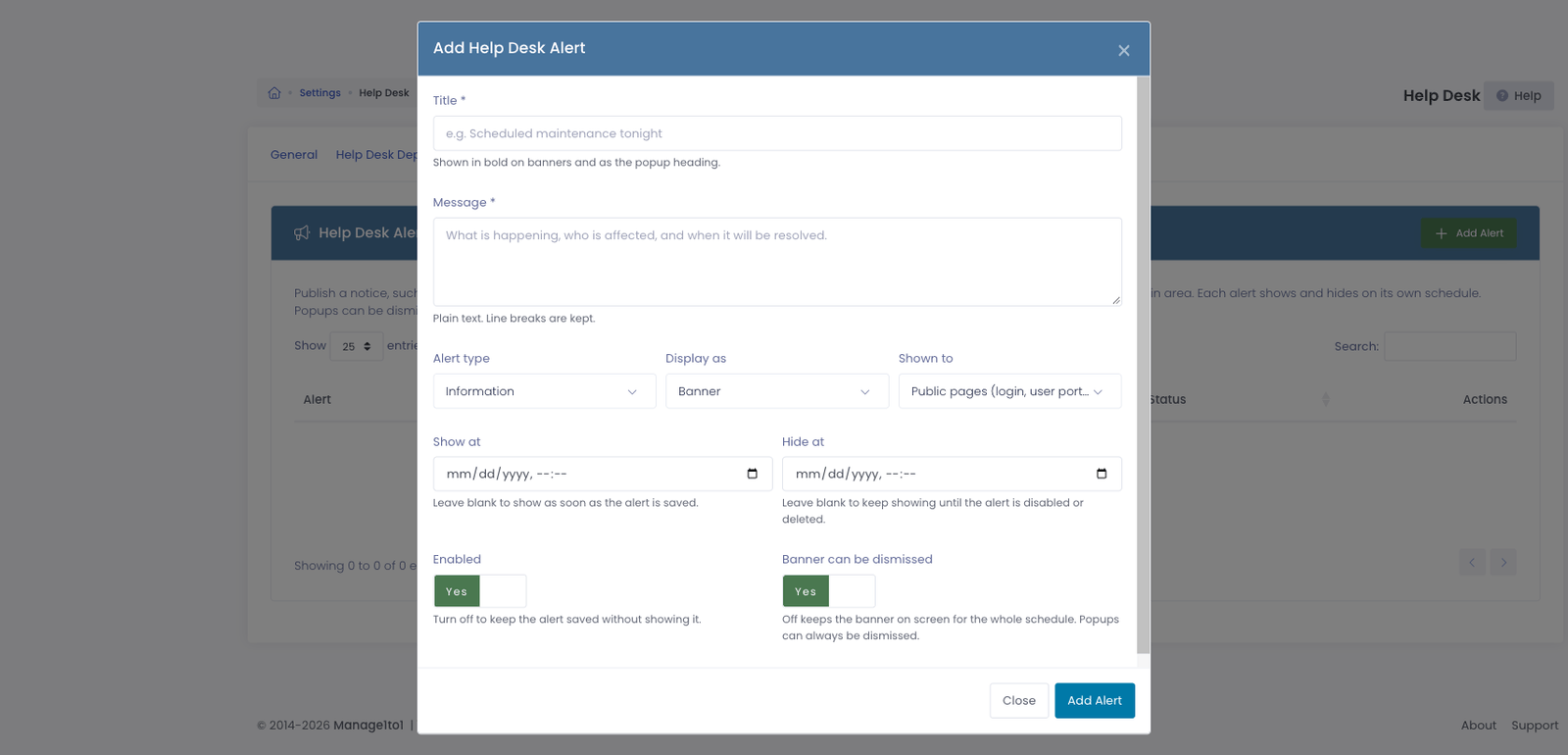
Fill in the notice:
- Title and Message — say what's happening, who's affected, and when you expect it back. Specific beats vague: "Student Wi-Fi is down in the Main building; we expect it back by 2pm" beats "We're experiencing technical difficulties."
- Alert type — Info, Warning, or Critical, which sets the color and tone.
- Display as — a Banner across the top, a Popup on arrival, or Both. A banner stays put; a popup can be dismissed and stays dismissed for that person.
- Shown to — Public pages (the sign-in page and family portal), the Admin area (your staff), or Both.
- Show at / Hide at — the notice's own schedule. This is the feature that makes alerts proactive: set up a maintenance banner days ahead and let it appear and disappear on its own.
- Enabled — turn it on or off without deleting it.
For a planned window, create the alert now with Show at set to the morning of the work and Hide at set to when you expect it done. It posts and clears itself — no one has to remember to put it up at 6am or take it down after.
Letting Outages Post Themselves (Service Health)
For the vendor outages you don't see coming, let Service Health watch them. Go to Settings → Help Desk → Service Health and open it.
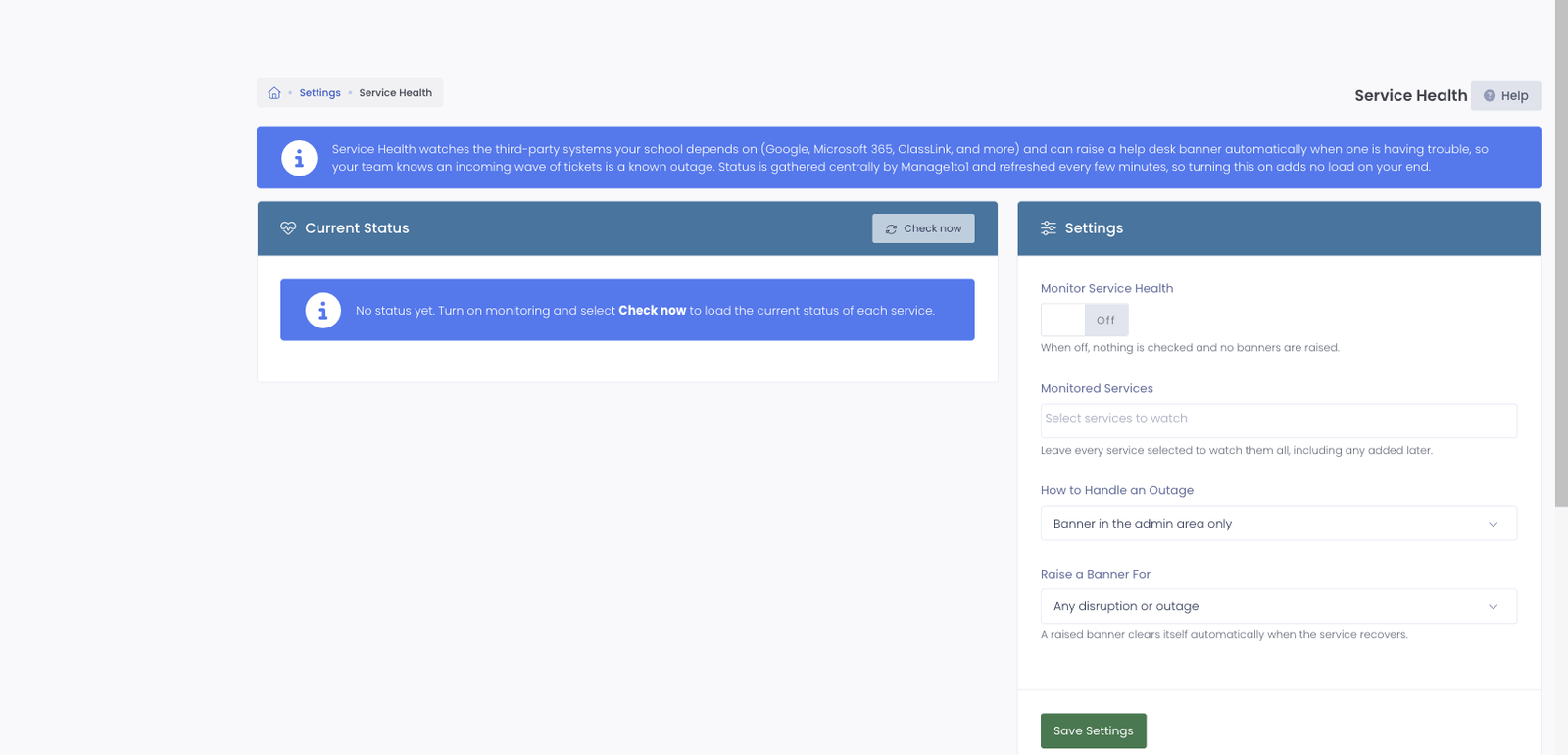
Switch Monitor Service Health on, and:
- Leave every service selected to watch them all, or pick just the ones your school uses.
- Choose How to Handle an Outage — a banner in the admin area, on the user portal, both, or none. Admin-only is the safe default; the portal banner is for when cutting duplicate family tickets matters most.
- Choose Raise a Banner For — any disruption, or full outages only.
When a watched service crosses that bar, Manage1to1 posts a banner naming the service and whether it's a disruption or an outage, and clears it the moment the service recovers. These banners aren't dismissible, because they reflect live status.
Put your own systems on the same page
Service Health isn't only for the big vendors. Under Your Services, add your SIS, a building's Wi-Fi, or any homegrown app, put each in a group ("Network," "Instructional Apps"), and set its status by hand. They sit alongside the monitored vendors on one public status page you can link from your school website — so "is it down?" has a single answer families can check themselves.
Choosing the Audience Well
The one decision that matters most is who sees it, and it's the same decision in both tools:
- Keep it to staff for routine things — a brief internal hiccup, a heads-up that related tickets may come in. Most notices live here.
- Reach for the public / portal banner when a known issue is generating duplicate tickets from families, and a visible "we know, here's the status" will stop the flood.
- Share the public status page link during a widespread outage, from your school website or a message home, so people have somewhere to look without contacting you at all.
Best Practices
✅ Do:
- Write the message like the person reading it: name the service, say what to expect, give a time.
- Schedule planned-maintenance alerts ahead with Show at / Hide at, so they post and clear on their own.
- Let Service Health handle vendor outages automatically instead of watching status pages yourself.
- Add your own systems to the status page so families have one place to check.
❌ Don't:
- Default every notice to the public portal — "everyone" is a lot of people; keep routine notices to staff.
- Leave a hand-written alert up after the issue clears; set a Hide at, or disable it when it's resolved.
- Post a vague "technical difficulties" banner that answers none of the questions people are about to ask.
Troubleshooting
"Families aren't seeing my alert"
Check Shown to — if it's set to Admin area, only staff see it. Switch it to Public pages (or Both) so it reaches the portal and sign-in page. Also confirm Enabled is on and the current time is within any Show at / Hide at window.
"The alert won't go away"
A banner stays while the alert is live. Set a Hide at time, toggle Enabled off, or delete it. (A Service Health banner, by contrast, clears itself when the service recovers — you don't take those down by hand.)
"A service is down but no banner went up"
Check How to Handle an Outage isn't set to "Do not show a banner," and that Raise a Banner For isn't set to "Full outages only" when the service is only reporting a partial disruption. Use Check now to refresh the status immediately.
"I only want one place for families to check status"
Use the public status page. It gathers the monitored vendors and your own components into one page with a shareable link — point families there from your website instead of posting a banner for every wobble.