Round-Robin Tickets Across a Team
When your help desk has multiple technicians sharing a queue, "first available" rarely works fairly. Whoever's at their desk first gets every ticket; whoever's running between buildings ends up doing nothing. A round-robin distribution evens that out — each new ticket goes to the next person in the rotation, then the one after that, then back to the start.
This recipe builds a round-robin workflow that distributes new tickets evenly across a team of technicians. It pairs nicely with topic-routing rules (covered in Auto-Route by Keyword) — the topic rules grab the specialty tickets first, and the round-robin handles everything else.
What you'll build
A workflow that, every time a new ticket is opened:
- Distributes the ticket to the next admin in a configured rotation
- Skips anyone whose admin profile is opted out of round-robin pools
- Maintains its own pointer separate from any other round-robin rule, so you can have multiple pools without them conflicting
The rotation pointer is per-rule, so two round-robin rules (say, one for Hardware and one for Networking) maintain independent rotations. They don't share state.
Workflow round-robin vs. department auto-assignment
Manage1to1 has two layers of auto-assignment:
- Department-level (
Settings → Help Desk → Departments) — for "every ticket in this department gets distributed across this admin pool". Configurable per department, no conditions. - Workflow-level (this recipe) — for distribution that depends on what the ticket is about (subject keywords, custom fields, priority).
The two layers run in order: department-level first (when a ticket comes in), workflow-level second. The workflow's choice wins because it ran last.
Use department auto-assignment for "spread tickets across this whole queue evenly" — it's the default and applies to every ticket in the department.
Use a workflow when assignment depends on the ticket content. Examples:
- "Hardware tickets that mention Chromebook go to Pat; everything else round-robins to the Hardware pool"
- "Network outage keywords skip the round-robin and page the on-call lead; everything else round-robins to Networking"
- "Tickets with a custom field marked 'student-facing' go to the student-services pool; everything else round-robins to general support"
If a workflow always reassigns tickets in a given department, you can set that department's auto-assignment to None to skip the redundant first-pick. It's not required — the second pick wins anyway — but it removes one row of audit-log churn.
Before you start
You need:
- The Manage Ticket Workflows permission
- A list of admins to include in the round-robin pool. Most districts pick a "Tier 1" team or a department's specific roster
- An understanding of which department(s) the rule should apply to — round-robin rules typically scope to one department's queue
If you want admins to opt out of round-robin pools individually, that's a per-admin profile setting (under their admin record's General tab). Opted-out admins are skipped automatically by all round-robin actions.
Step 1: Create the rule
Navigate to Support Center → Ticket Workflows. Click New Workflow.
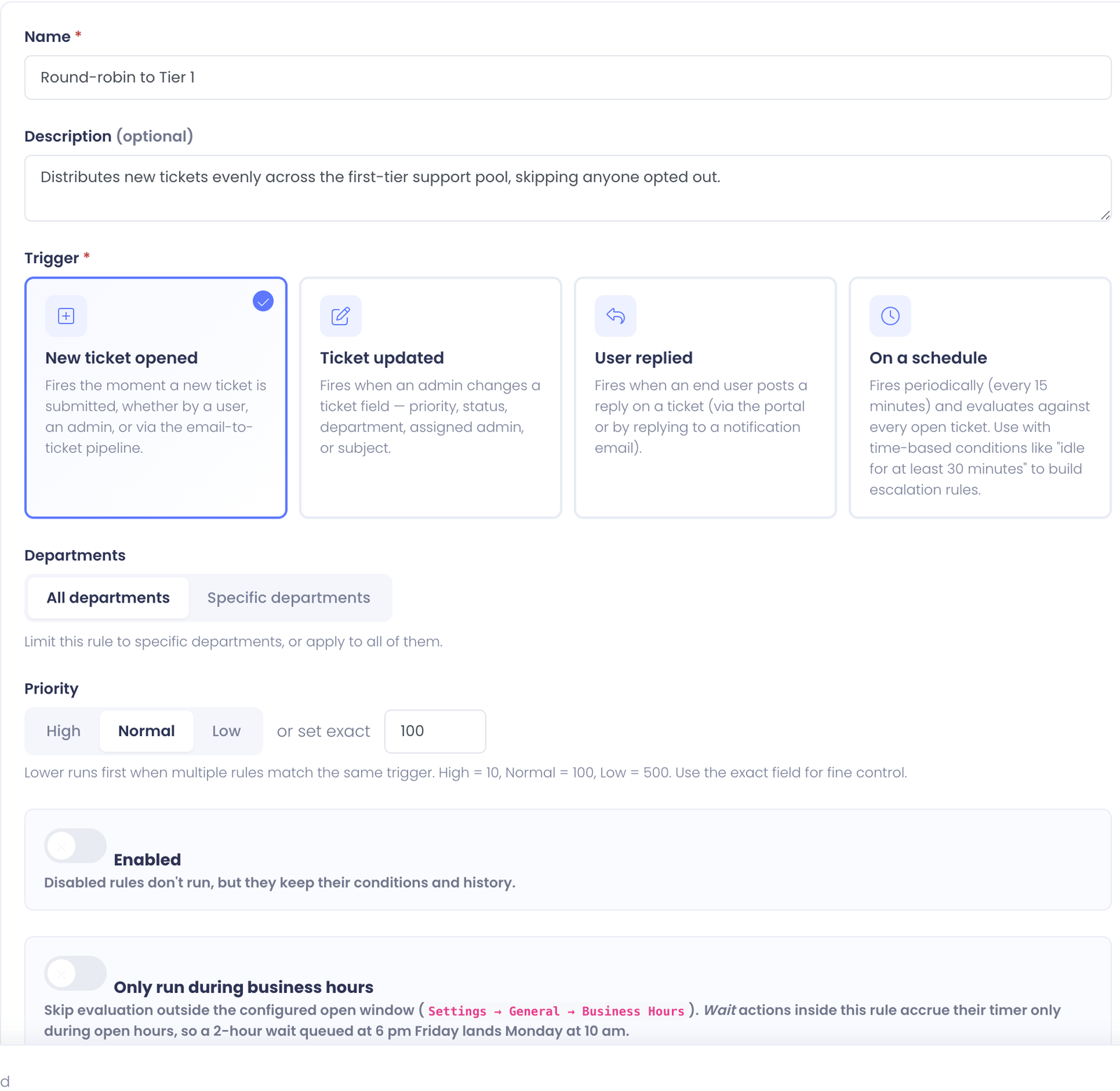
On the Settings tab:
- Name → "Round-robin Tier 1" (or whatever describes your pool)
- Description → "Distributes new tickets evenly across the Tier 1 team. Topic-routing rules above this one grab specialty tickets first; this catches the rest."
- Trigger → New ticket opened
- Departments → Specific departments → pick the department(s) the rotation applies to (typically just one)
- Priority → Normal (100) — round-robin rules should run after any topic-specific routing rules, so they catch the leftovers. Topic rules typically use High (10) or a custom integer below 100.
Don't enable the rule yet. Save Changes.
Step 2: Skip the conditions tab (or don't)
For a basic round-robin rule, no conditions are needed. The trigger and department scope already determine which tickets the rule sees; if you want every one of those to round-robin, leave the Conditions tab empty.
The rule list will warn you that a rule with no conditions matches every triggering event — and for a round-robin rule, that's exactly what you want.
If you do want to refine — say, only round-robin tickets above a certain priority — add conditions on this tab. Common variants:
- Priority is at least Medium — auto-assign only "real" tickets, leaving Low-priority cruft for someone to triage manually
- Subject does not contain "test" — exclude obvious test tickets
These are optional — most round-robin rules have no conditions at all.
Step 3: Add the round-robin action
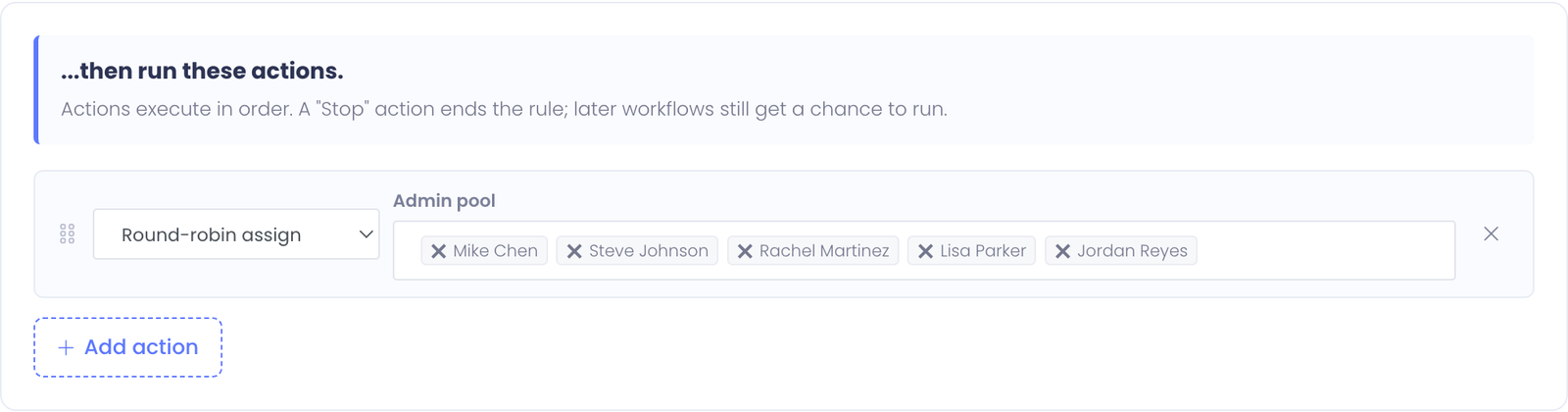
Switch to the Actions tab. Click Add action.
- Action type → Round-robin assign
- Admin pool → pick every admin who should be in the rotation
The pool picker is a multi-select. Pick the technicians who should share the load. Order doesn't matter — the action takes them in a fixed sequence based on internal IDs. What matters is who's in, not what order they're in.
The action skips any admin who has Opted out of round-robin pools checked on their profile, so you can add an admin to multiple workflow pools and let them opt out at the profile level if they're temporarily not taking tickets.
Save Changes.
Step 4: Test the rotation
Switch to the Test tab.
Build a synthetic ticket:
- Subject → "Test ticket for round-robin"
- Department → whatever you scoped to
- Priority → Medium
Click Run test. The result panel should show:
- (No conditions evaluated, since you didn't add any)
- ✓ Action: Round-robin assigned to [admin name]
Click Run test again. The next admin in the rotation should be picked. Click again — the next. The Test tab fires the round-robin action exactly the same way a real ticket would, so you can verify the rotation visually.
Test mode advances the same per-rule pointer that production uses. So if you run the test 5 times before enabling, the first real ticket will pick up where the test left off, not from the start of the pool. That's usually fine — the rotation is balanced over time anyway — but be aware of it.
Step 5: Enable and watch
Flip the Enabled toggle on. Save Changes.
The rule now runs on every new ticket in the scoped department. Each ticket gets assigned to the next person in the pool.
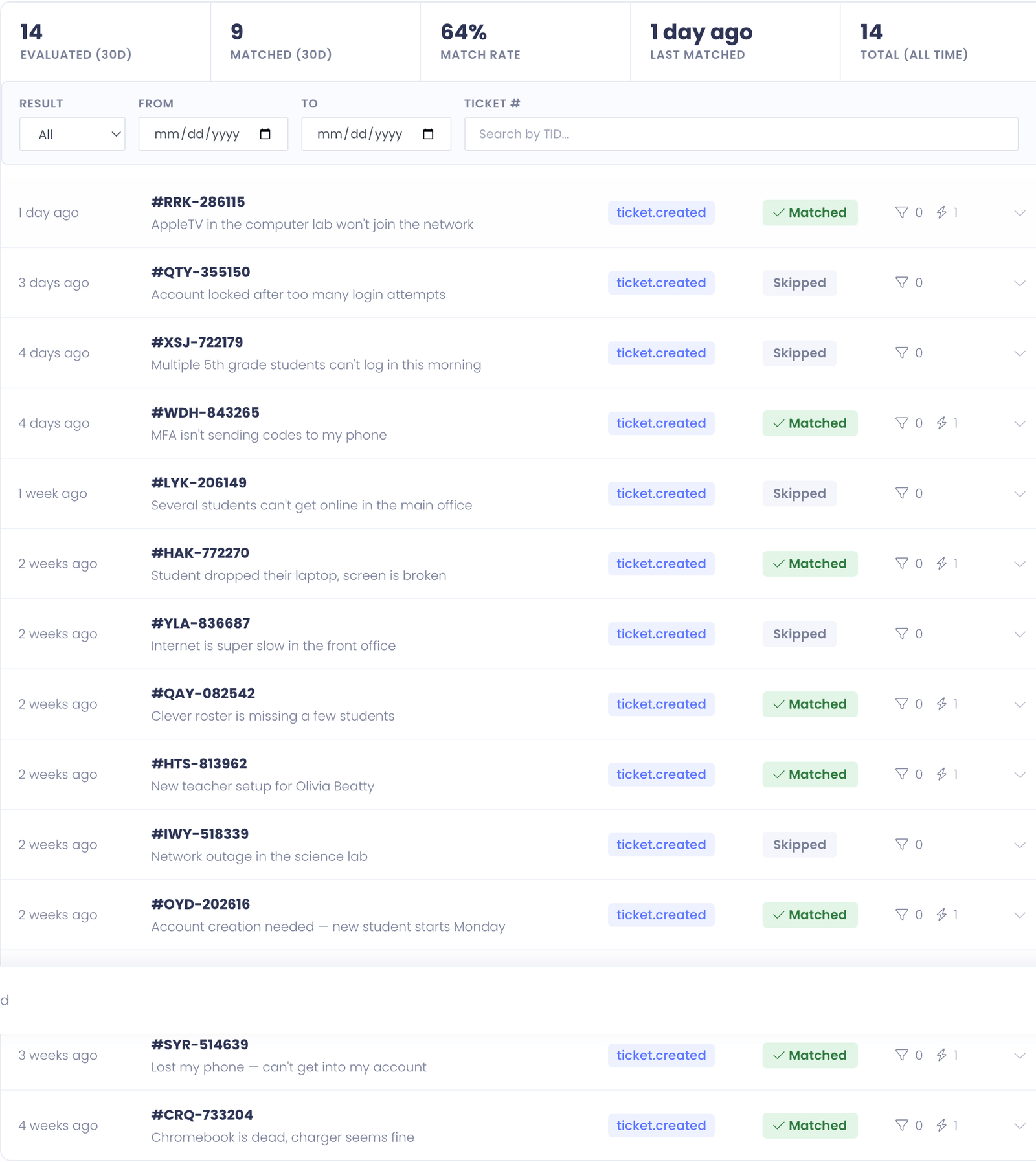
Watch the History tab for the first day. Each row's expanded view shows Round-robin assigned to [admin] — you should see the assignment cycling through your pool. If one admin is consistently being skipped, they probably have Opted out set on their profile (which may or may not be intentional).
Variation: round-robin within a sub-team
Say your Hardware department has six technicians but only three of them handle Chromebook tickets. Author a second rule that round-robins just those three for tickets with Chromebook in the subject:
- Trigger → New ticket opened
- Department → Hardware
- Priority → High (10) — this rule beats the general round-robin
- Conditions → Subject contains "Chromebook"
- Actions → Round-robin assign (pick the three Chromebook techs) → Stop
The Stop action terminates rule processing so the general Hardware round-robin (Priority 100) doesn't run on the same ticket. End result: Chromebook tickets cycle through the three specialists; everything else cycles through the full team of six.
Variation: round-robin with a "first responder" override
For VIP tickets — say, tickets opened by a principal or superintendent — you might want a specific person to handle them, not the round-robin pool.
- Author a higher-priority rule (Priority 5) that matches Subject contains "URGENT" (or use a custom field flag)
- That rule's actions: Assign to admin → Stop
The Stop action prevents the round-robin rule below from re-routing it. VIP tickets always land on the designated person; everything else round-robins.
Variation: tiered round-robin (Tier 1 → Tier 2)
If your team has tiers — Tier 1 handles general tickets, Tier 2 handles complex hardware repair — you can have two pools and route based on a custom field flag.
- Tier 2 rule (priority 50): Custom field "Complexity" equals "Tier 2" → round-robin Tier 2 pool → Stop
- Tier 1 rule (priority 100): no conditions → round-robin Tier 1 pool
Tickets flagged as Tier 2 by whoever opens them (or by a separate workflow that classifies tickets) skip the Tier 1 pool entirely.
How the rotation pointer works
Each round-robin rule maintains its own pointer in the database. The pointer increments after each successful assignment, wrapping back to the start of the pool when it hits the end.
If you change the pool — add a new admin, remove someone — the rule recomputes from the next pointer position the next time it fires. There's no "reset" button, but the rotation re-balances over time anyway.
If you delete an admin who was in the pool, the rule skips that admin's slot the next time it tries to assign. The pool size effectively shrinks by one until you edit the rule and remove the deleted admin from the saved list.
Tips
- Don't put leads in the general round-robin pool. Leads usually handle escalations and edge cases; if a routine ticket lands on them, they're either too busy to handle it or end up handling it instead of the work they should be doing. Keep the pool to actual front-line technicians.
- Combine with the Idle escalation rule. A round-robin distribution is great for distribution, but it doesn't catch tickets the assignee never touches. Pair this rule with Urgent Ticket Escalation so idle tickets get escalated regardless of who originally got them.
- Watch for opted-out admins. If three of your six pool members opt out one morning (sick day, training, vacation), the remaining three carry the load. That's by design but worth knowing — check admin profiles weekly.
- Round-robin rules don't dedupe. If two rules both round-robin the same ticket, the second one overrides the first. Use Stop actions to prevent unintended cascades.
Common Questions
Q: My pool has six admins but only four are getting tickets. Why? The two who aren't getting any either: (a) have Opted out of round-robin pools checked on their profile, (b) are inactive admins (deactivated since you saved the rule), or (c) aren't actually in the rule's saved pool — open the rule's Actions tab and verify the multi-select.
Q: Can the same admin be in multiple round-robin rules? Yes — each rule maintains its own independent pointer. An admin in three pools gets tickets from all three; opting out at the profile level skips them in all three at once.
Q: I want a strict equal-share distribution. Does round-robin guarantee that? Over time, yes — but small samples can look uneven. After 100 tickets through a 5-person pool, each person should have ~20. After 12 tickets, the spread will look lumpier. The pointer increments deterministically, so the rotation is fair on average, not on every cycle.
Q: Will the rule re-assign tickets that someone manually reassigned? No — the rule only runs on the trigger event (new ticket opened). Once a ticket exists, manual reassignment is final until another rule fires on a different trigger (like ticket.updated).
Q: How do I see who's next in the rotation? Today there's no UI surfacing the next pointer position. The History tab shows recent assignments; you can extrapolate from there. If "Pat → Alex → Sam" is the recent pattern, the next is whichever admin follows Sam in the internal pool order.