Escalate Urgent Tickets That Sit Idle
Some tickets can't wait. A network outage, a critical software bug during testing season, a server crash at 8 AM on Monday — these need attention fast, and if they're sitting unanswered the right person needs to find out.
This recipe builds an escalation workflow on the On a schedule trigger, which evaluates every 15 minutes against every open ticket. It uses the Idle time condition so escalation only fires when a ticket has actually gone untouched, and it respects business hours so it doesn't page anyone at 3 AM on a Saturday.
What you'll build
A workflow that, every 15 minutes:
- Looks at every open high-priority ticket
- Checks whether it's been idle (no admin reply or update) for more than 30 minutes
- Waits an additional 2 hours of business time — accruing only during open hours, so a ticket queued at 6 PM Friday lands Monday at 10 AM
- If the ticket is still idle after that wait, notifies the team lead via email
The rule has built-in cooldown: once it fires for a given ticket, it won't re-fire on that same ticket for 24 hours. You won't end up paging the lead every 15 minutes about the same ticket.
Before you start
You need:
- The Manage Ticket Workflows permission
- An admin (or admins) you want to notify — typically a team lead or on-call rotation
- Business hours configured at the rule list level (we'll cover this in Step 1 if you haven't done it yet)
- An understanding of your team's response expectations — how long is "too long" for a high-priority ticket to sit?
Step 1: Configure business hours
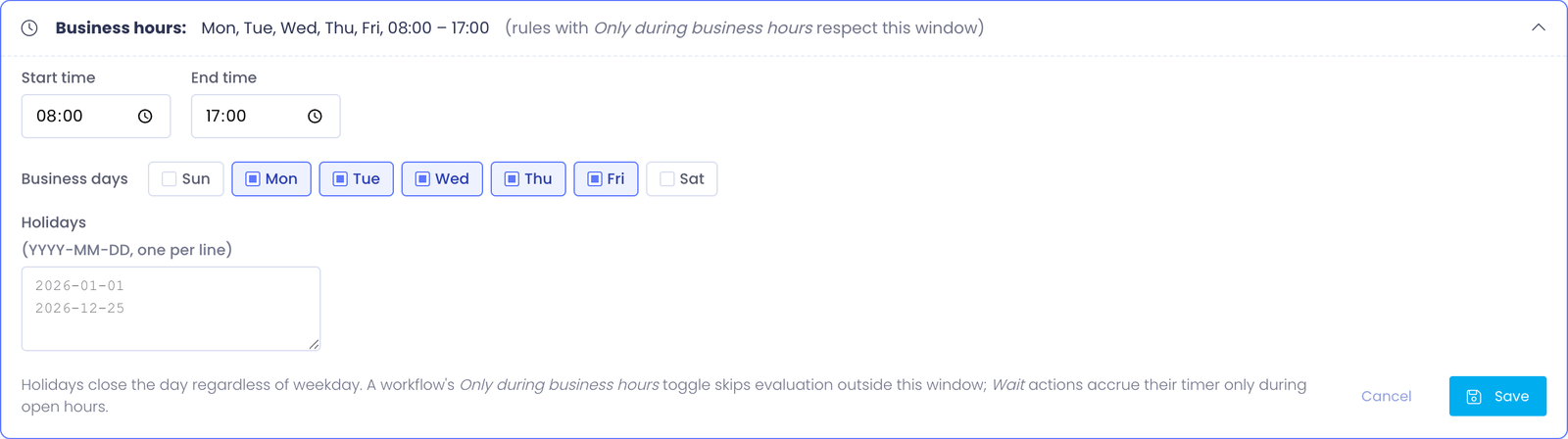
If you haven't already, go to Support Center → Ticket Workflows. Above the rule list there's a Business hours card — click it to expand.
Set the values that match your district:
- Start time / End time — typically 08:00 to 17:00 in your district's timezone
- Business days — usually Monday through Friday
- Holidays — list specific dates one per line (
2026-01-01,2026-12-25, etc.) for federal holidays and known closure days. Holidays close the day regardless of weekday.
Click Save. These settings apply to every workflow rule that has its Only during business hours toggle on.
This step matters because the escalation rule we're about to build should be a business-hours rule. Without it, the rule would fire at 3 AM on a Sunday for a ticket that came in Friday afternoon — and nobody wants to be woken up by an email about an idle ticket.
Step 2: Create the rule
Click New Workflow in the top-right of the rule list.
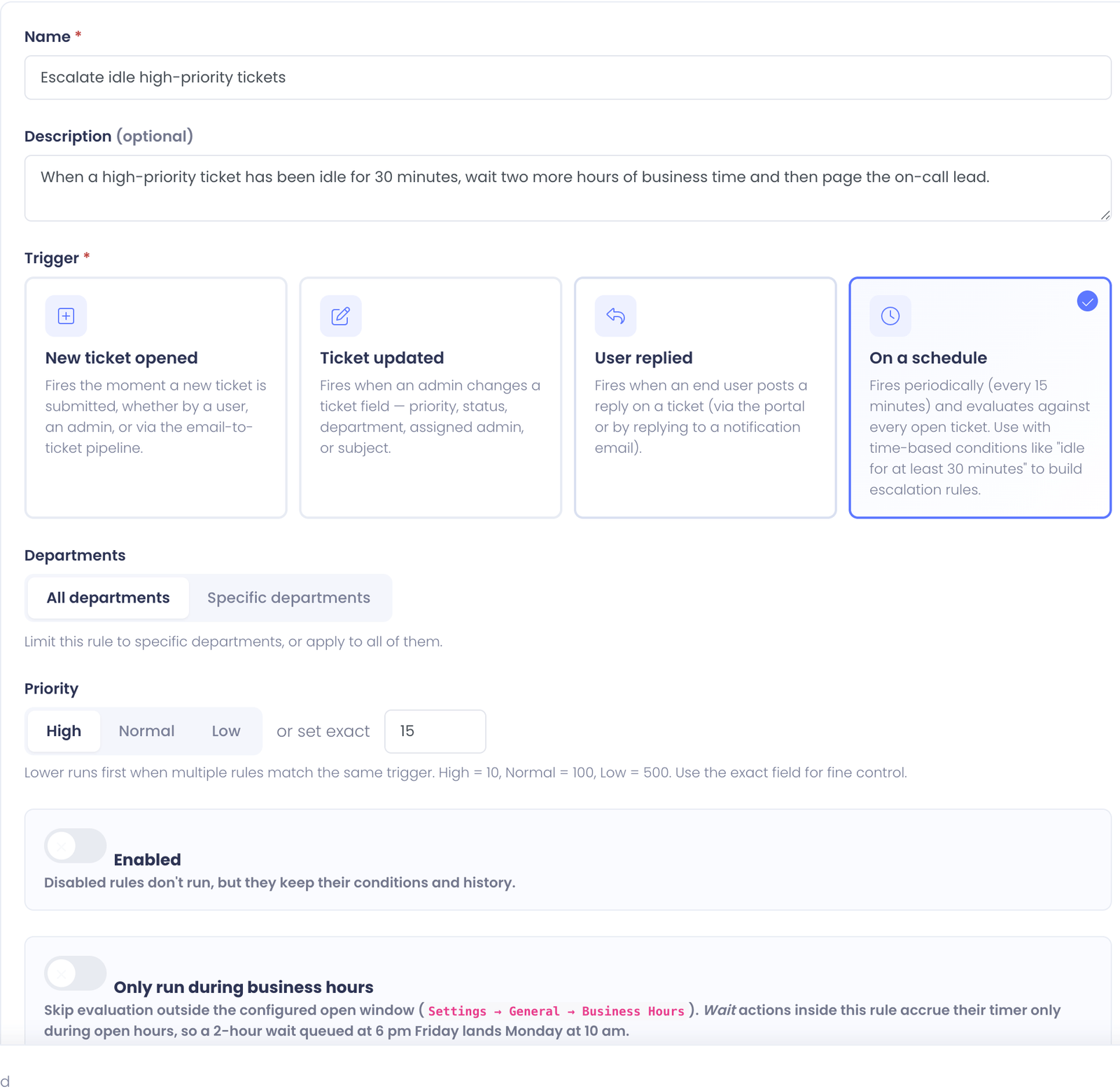
On the Settings tab:
- Name → "Escalate idle high-priority tickets"
- Description → "When a high-priority ticket has been idle 30+ minutes during business hours, page the team lead after a 2-hour business-time wait. Cooldown of 24 hours per ticket."
- Trigger → On a schedule
- Departments → All departments (or scope to specific departments if escalation only applies to some teams)
- Priority → High (10) — escalation rules should run before anything else, in case a separate rule would otherwise touch the ticket
- Only during business hours → flip on (this is the important one)
Save Changes.
Step 3: Add the conditions
Switch to the Conditions tab.
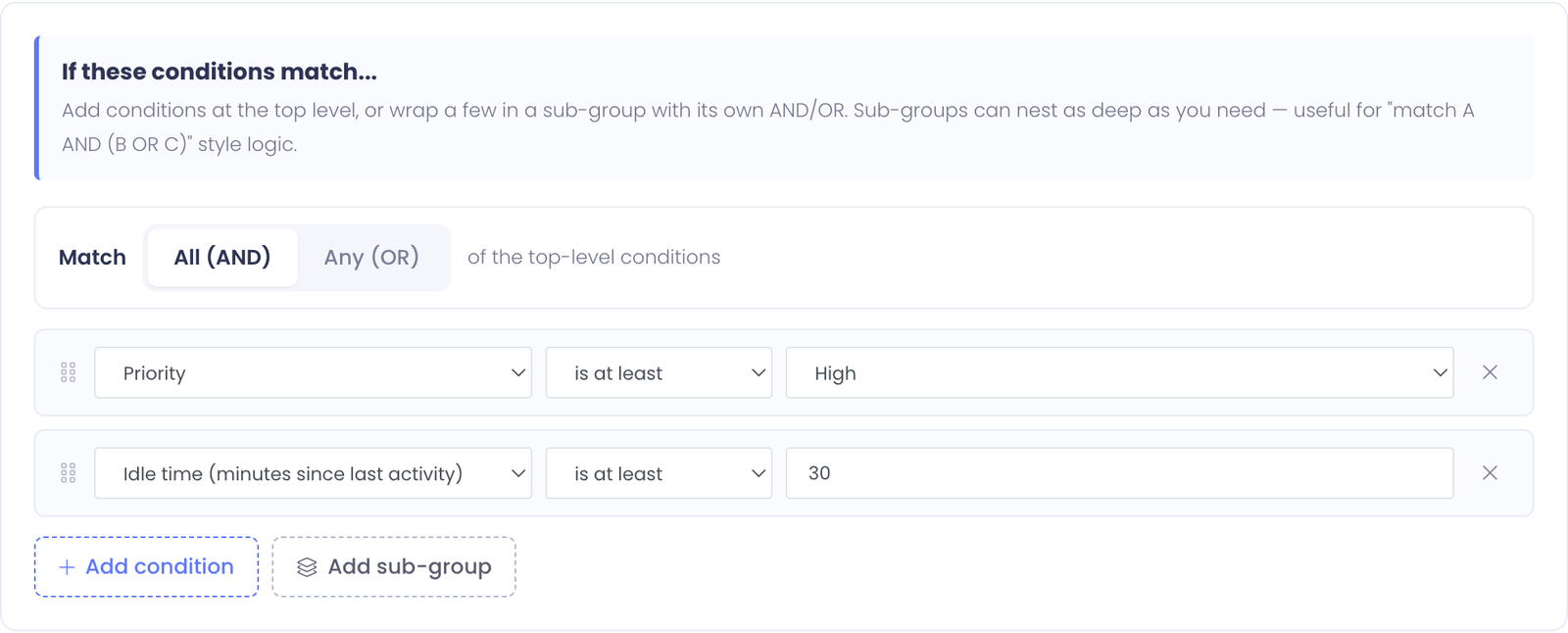
You need two conditions, both must be true (so leave the match strategy at All of the conditions):
Condition 1: priority filter
- Field → Priority
- Operator → is at least
- Value → High
This keeps the rule from firing on every ticket — only ones that were actually flagged urgent. Adjust the threshold if your district uses different priority labels (some use Critical as the highest tier).
Condition 2: idle threshold
Click Add condition.
- Field → Idle time (minutes)
- Operator → is at least
- Value →
30
The Idle time field measures minutes since the ticket was last touched by an admin (admin reply, status change, field edit). When a user-only reply comes in, idle time reflects how long the team has been silent — exactly what you want for escalation logic.
Step 4: Add the actions
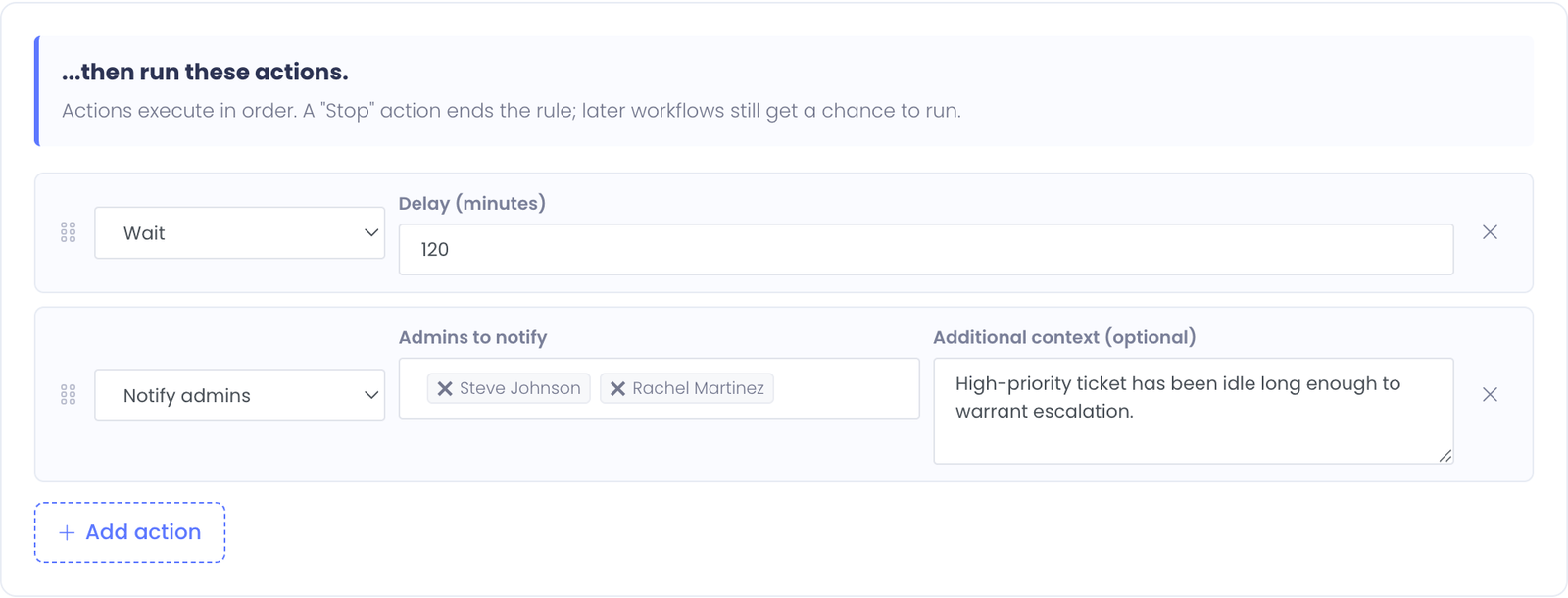
Switch to the Actions tab. The action chain is two steps: Wait, then Notify.
Action 1: Wait 2 hours of business time
- Action type → Wait
- Delay (minutes) →
120
The Wait action pauses the workflow chain. With Only during business hours on (Step 2), the timer accrues only during open hours — so a wait queued at 6 PM Friday won't expire until Monday at 10 AM (8 AM open + 2 hours of business time).
When the wait expires, the engine re-checks every condition before running subsequent actions. If the ticket has been answered in the meantime (idle time has reset to under 30 minutes), the conditions no longer match and the Notify action below is skipped automatically. That's the whole point of the wait — to give the team a window to handle the ticket before paging anyone.
Action 2: Notify the lead
Click Add action.
- Action type → Notify admins
- Admins to notify → pick the team lead (and optionally a second person — see Variation: notify a rotation below)
- Additional context (optional) → "This high-priority ticket has been idle long enough to warrant escalation. Please follow up or reassign."
The Notify action sends an email through the Workflow Notification template. Recipients see who the rule is from, the ticket details, and your additional context. If the template is disabled in admin settings, the action becomes a no-op — but it's enabled by default.
Save Changes.
Step 5: Test before enabling
Switch to the Test tab. The Test form lets you build a synthetic ticket to dry-run against without firing real notifications.
Build a ticket that should match:
- Subject → "Network is down across the building"
- Priority → High
- Department → whatever you scoped to (or any if you left scope as All departments)
Click Run test. The result panel should show:
- ✓ Priority is at least High
- ✓ Idle time (minutes) is at least 30 — note the Test form simulates an idle time, so this will report what the engine would see
If the verdict is "rule would have matched" with the Wait → Notify chain visible, you're good. Re-test with a ticket that shouldn't match (low priority, or fresh ticket) to confirm the negative case works too.
Step 6: Enable and verify
Flip the Enabled toggle on. Save Changes.
The rule now runs every 15 minutes against every open ticket. The first evaluation cycle won't fire actions yet because the wait timer is still accruing. Real escalations will start landing 2 hours of business time after a high-priority ticket has been idle 30 minutes.
Watch the History tab over the next few hours of business time. You should see:
- Rows where the rule was evaluated but not matched (low-priority tickets, tickets that aren't idle yet) — these are healthy noise
- Rows where the rule matched and the Wait action ran — these get a deferred until timestamp
- Eventually, rows where the Notify action fired and the team lead got an email
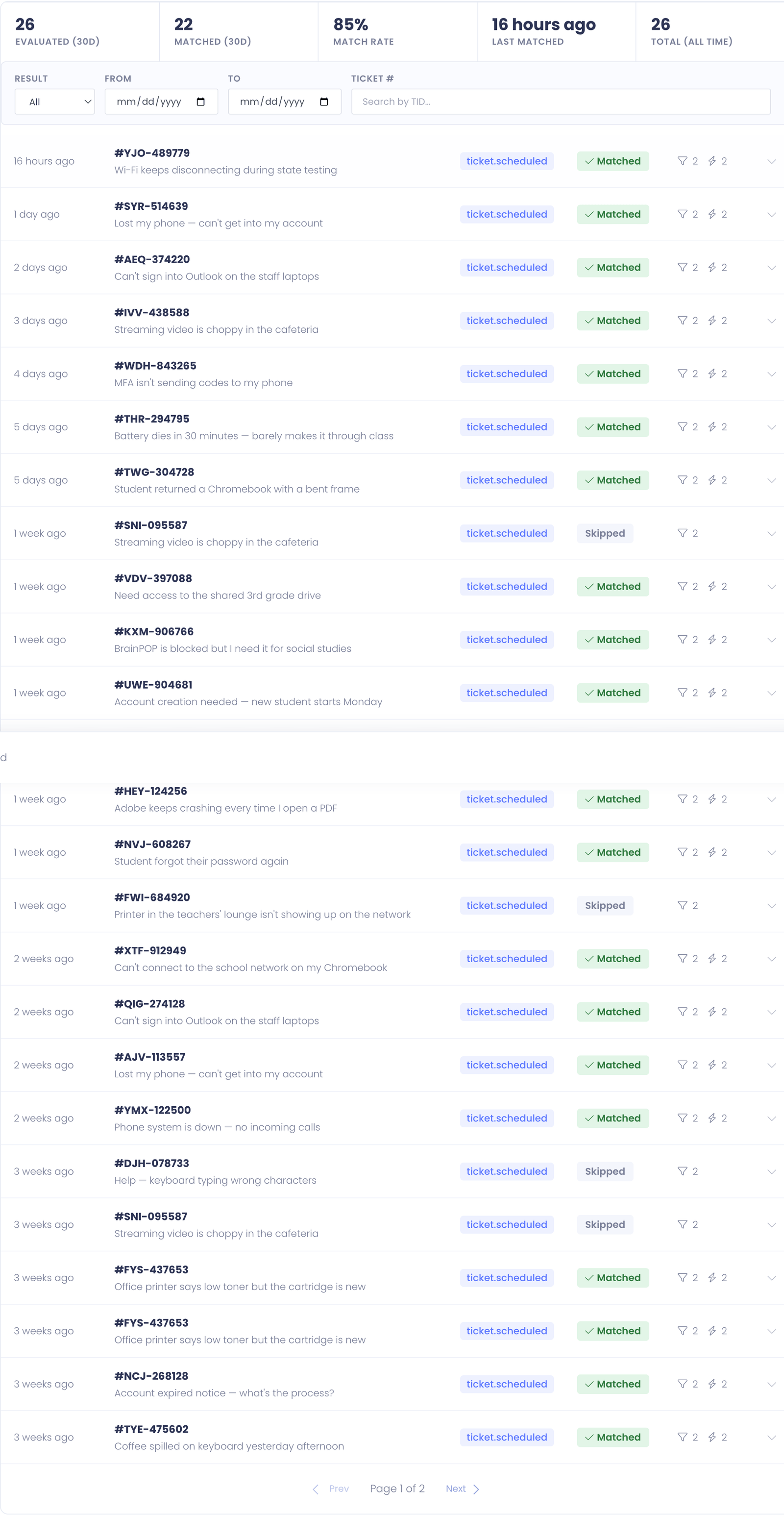
If you don't see any matches at all in the first business day, your idle threshold or priority filter might be too narrow. Adjust and re-test.
How the cooldown works
The On a schedule trigger has a built-in 24-hour per-ticket cooldown — once the rule has fired for ticket #1234, it won't re-fire on that same ticket within the next 24 hours, even if the ticket is still idle.
That keeps escalation from spamming the lead every 15 minutes about the same unanswered ticket. It also means if the team handles the ticket and it goes idle again the next day, the rule will fire again as expected.
You can't tune the cooldown in the rule itself — it's a system-level guarantee on the scheduled trigger.
Variation: notify a rotation, not one person
If you have an on-call rotation and want all of them notified (or want to expand the recipient list to multiple leads), the Notify action's Admins to notify field accepts multiple admins. Pick everyone who should get the page.
For more sophisticated rotation logic — like "page the on-call lead based on day of week" — that's beyond what a single workflow rule can express. You'd typically have one rule per shift or rotation pattern, each scoped to specific days.
Variation: tiered escalation
For tickets that are really urgent (priority Critical if your district uses that tier), you might want a faster escalation than the standard High priority chain.
Author a second rule with the same shape but tighter thresholds:
- Priority is at least Critical
- Idle time is at least 15 (not 30)
- Wait 60 minutes (not 120)
- Priority in the rule list set to 5 (above the High-priority rule's 10)
The two rules now layer: critical tickets get the fast track, high-priority tickets get the standard chain. Each maintains its own cooldown.
Variation: skip escalation for specific departments
If one department's team handles their own escalation (or has an external pager system), you don't want this rule firing on their tickets.
Two options:
- Scope the rule to Specific departments and exclude the self-managed team from the picker
- Disable the rule for those tickets via a Stop rule — author a higher-priority rule that matches tickets in the excluded department and has a single Stop action. That intercepts the ticket before this escalation rule runs.
Tips
- Escalation rules are sensitive — test thoroughly. A misconfigured rule can spam leads with false positives, which trains them to ignore real escalations. Test the negative case explicitly.
- The Notify action sends real emails the moment it fires (no preview). If you're tuning, keep the rule disabled while you iterate, or temporarily change the recipient to your own admin user.
- Watch business hours alignment. If your district has unusual hours (an after-school program staffed until 8 PM), make sure the business-hours configuration reflects that — otherwise wait timers will pause during those hours and escalations will lag.
- Add a holiday entry for closure days. Snow days, professional development days, the week between Christmas and New Year's — list them in the Holidays field on the rule list page, and escalations will pause until the next open business day.
Common Questions
Q: The Wait action expired but Notify didn't fire. Why? Most likely the ticket was answered between the rule firing and the wait expiring — when the wait expires, every condition is re-checked, and if idle time has dropped below 30 minutes the chain stops there. That's intentional. Check the History tab's run detail; you'll see the wait expired but the conditions show idle time as below threshold.
Q: How do I see what's currently waiting? Pending wait actions live in a queue that the cron processes on every cycle. Today the queue isn't surfaced in a UI — but every wait shows up in the History tab as a deferred until timestamp on the action row. If you need to clear pending actions, disabling the rule supersedes them on the next cron sweep.
Q: Will the rule fire on tickets that already exist when I create it? Yes — On a schedule rules evaluate against every open ticket on every cycle, regardless of when the ticket was opened. So an old ticket that's been idle for hours might match on the very first run after you enable the rule. Check the cooldown — it'll only fire once per 24 hours per ticket.
Q: Can I escalate based on something other than idle time? Absolutely — pair the same trigger with the Ticket age (minutes) condition for "any high-priority ticket older than 4 hours", regardless of whether it's been touched. Idle vs. age are different questions: idle = "team hasn't replied", age = "ticket has existed".