Confidential Documents
Confidential Documents let you attach sensitive files to an incident — such as a consent-to-search form, a forensics unit intake form, a property receipt when a device comes back, or any other paperwork you need to keep with the case. Unlike incident photos, these documents are visible only to staff with confidential access, so they're the right place for material tied to law-enforcement, legal, or disciplinary matters.
They live on their own Confidential Documents tab on the incident profile.
Confidential Documents are visible only to administrators with confidential incident access — the same permission that controls who can see an incident's confidential notes. If you don't see the Confidential Documents tab on an incident, your role doesn't have that access. Staff without it never see the tab, the documents, or that any documents exist.
What to Store Here
Use Confidential Documents for files that shouldn't be visible to every administrator who can open the incident. Common examples:
- Consent-to-search forms signed before a device is handed over
- Forensics unit intake forms and chain-of-custody paperwork
- Property receipts issued when a device is released to, or returned from, law enforcement
- Signed statements, legal correspondence, or disciplinary records related to the incident
For general damage evidence that any help-desk technician should see (photos of a cracked screen, for example), use Incident Photos instead.
Uploading Documents
- Open the incident profile.
- Select the Confidential Documents tab.
- Add your files using the upload area:
- Drag files onto the box, or
- Click the box to browse and choose files, or
- Paste a file you've copied.
- The files you've chosen appear in a list, where you can remove any you didn't mean to include.
- Click Upload Documents.
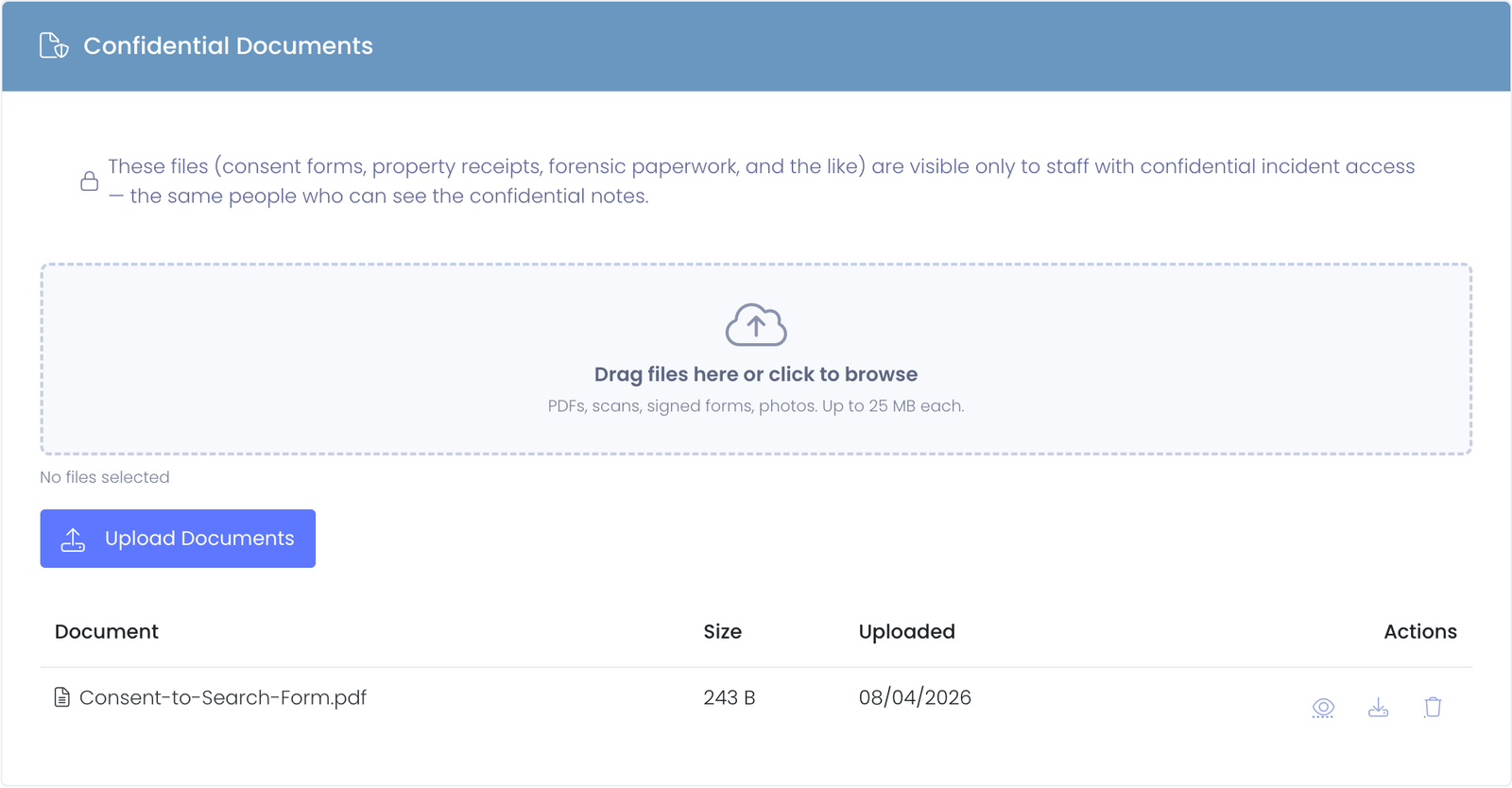
You can upload several files at once, and add more to the incident any time. PDFs, scans, signed forms, and photos are all accepted, up to the size limit shown in the upload area (25 MB per file by default).
Previewing a Document
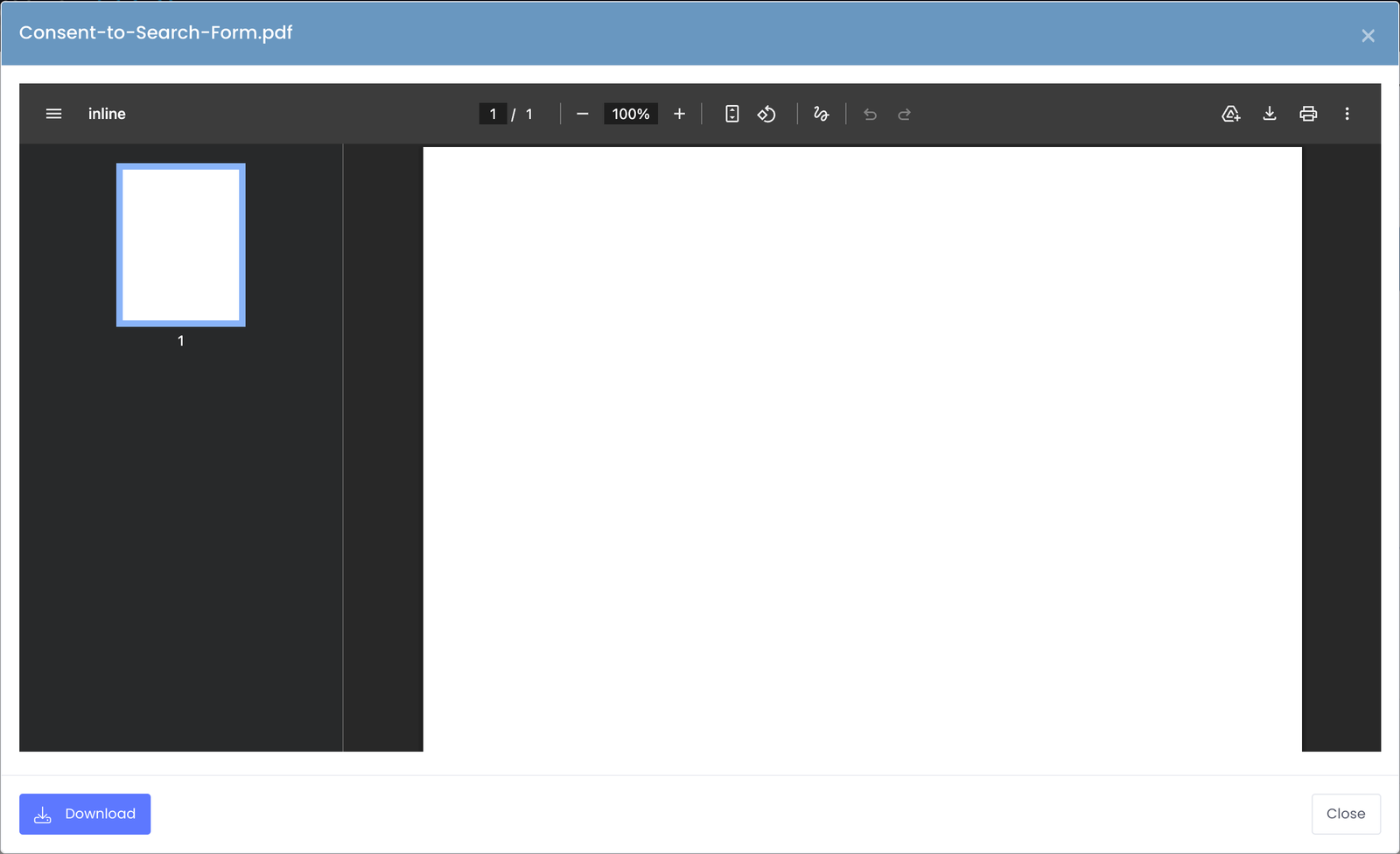
Click a document's name, or the preview (eye) icon, to open it without leaving the incident:
- PDFs and images open in a preview window so you can read them in place.
- Other file types that can't be shown in the browser display a short message instead, with a button to download the file and open it on your computer.
Every preview window includes a Download button, so you can always save a copy.
Downloading and Removing
Each document row has actions on the right:
- Preview (eye) — open the document in place, as described above.
- Download — save the file to your computer.
- Remove (trash) — permanently delete the document from the incident. You'll be asked to confirm first.
Removing a document deletes it for good, so only remove a file that was attached in error or is no longer needed.
Who Can See These Documents
Confidential Documents follow the incident's confidential access rule exactly:
- Administrators with confidential incident access see the Confidential Documents tab and can preview, download, upload, and remove files.
- Administrators without that access never see the tab and cannot reach the documents, even by a direct link.
- End users (students and staff in the User Portal) never see incident documents of any kind.
Every upload and removal is written to the activity log, so there's a record of who added or removed each document.
Common Questions
Who should have confidential incident access? Typically a small group — technology directors, administrators handling legal or disciplinary matters, and anyone responsible for law-enforcement device handoffs. Access is granted through the same role permission that governs confidential incident notes.
Can I attach a Word document or a scanned TIFF? Yes. A range of file types is accepted. PDFs and images preview in the browser; other types (such as a Word document) can be downloaded and opened on your computer.
Is there a size limit? Yes — the upload area shows the per-file limit (25 MB by default). If a file is larger, save a smaller or compressed version before uploading.
What happens to the documents if the incident is deleted? They're removed along with the incident, so confidential files are never left behind.
Do students or parents ever see these files? No. Confidential Documents are part of the internal incident record and are never visible in the User Portal.