Assignment Sign-Off
The Assignment Sign-Off report gathers everything currently assigned to one staff member or one room into a single list you can print as a sign-off sheet or export to CSV. It gives you a clean record of who holds what, whether you are handing devices out at the start of the year, running an audit, or collecting them at the end of the year.
Open the report from Reports → Assignment Sign-Off.
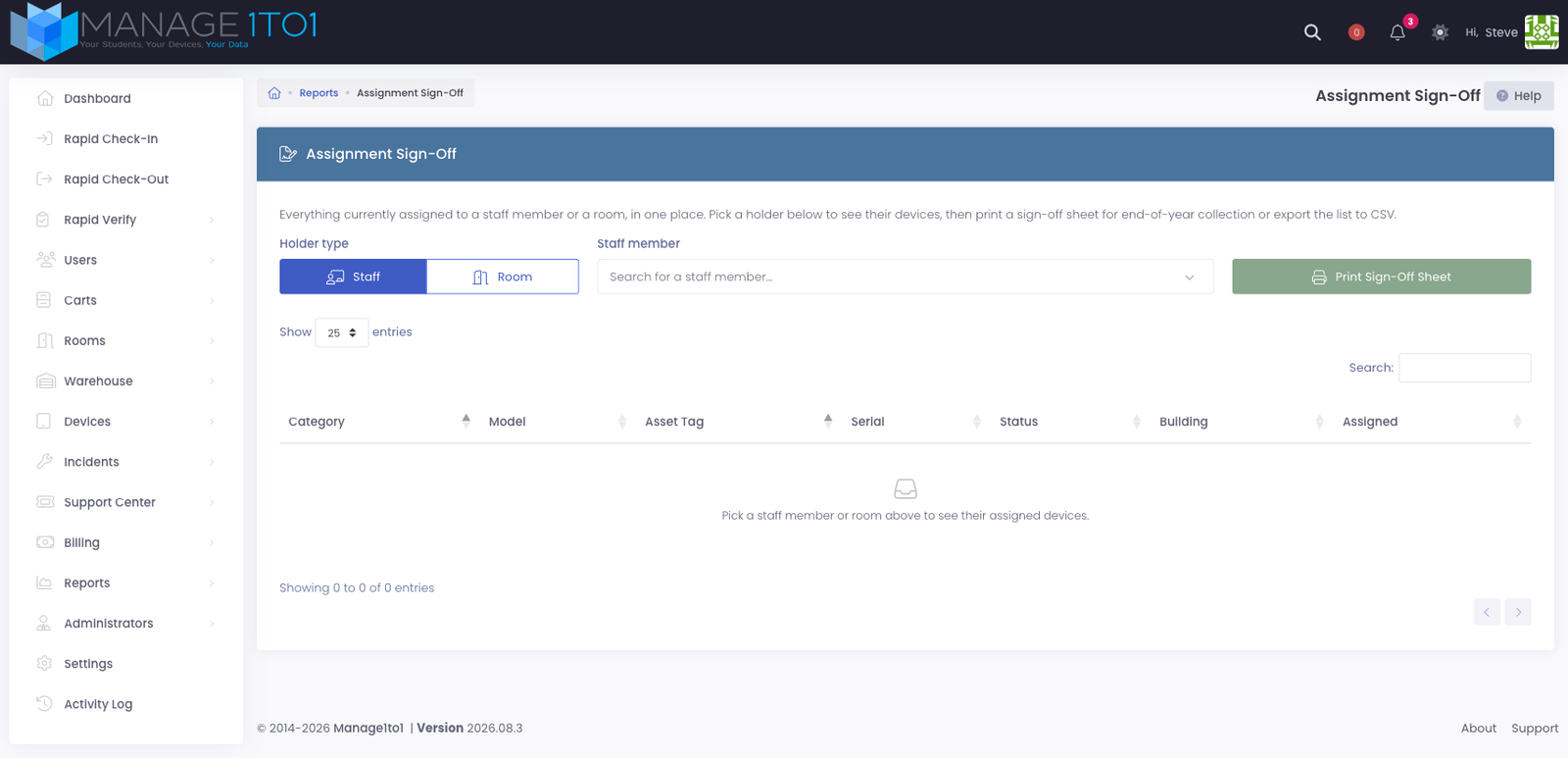
Choosing a Holder
- Pick a Holder type: choose Staff for a staff member, or Room for a room.
- Choose the specific staff member or room from the picker. The list is limited to the buildings you have access to.
As soon as you pick a holder, the table fills with every device currently assigned to them.
What You'll See
| Column | What it shows |
|---|---|
| Category | The device category (for example, Student Chromebook) |
| Model | The make and model |
| Asset Tag | The device's asset tag |
| Serial | The device's serial number |
| Status | The device's current status |
| Date Assigned | When the device was assigned to this holder |
If the holder has nothing assigned, the report shows a clear message that no devices are currently assigned to that holder.
Printing and Exporting
- Print Sign-Off Sheet opens a printable sheet listing the holder's assigned hardware, ready to hand over for review and signature.
- Export CSV downloads the same list as a spreadsheet.
End-of-year returns
Print a sign-off sheet for each staff member or room at collection time so the holder can confirm exactly which devices they are returning.
Related articles
Loading…