Carts Usage
The Carts Usage report shows, in one place, how every cart in your fleet is actually being used. It is the quickest way to spot the carts that are busy, the ones sitting idle, and which one is out right now.
Open the report
Go to Reports and open Carts Usage from the Devices section.
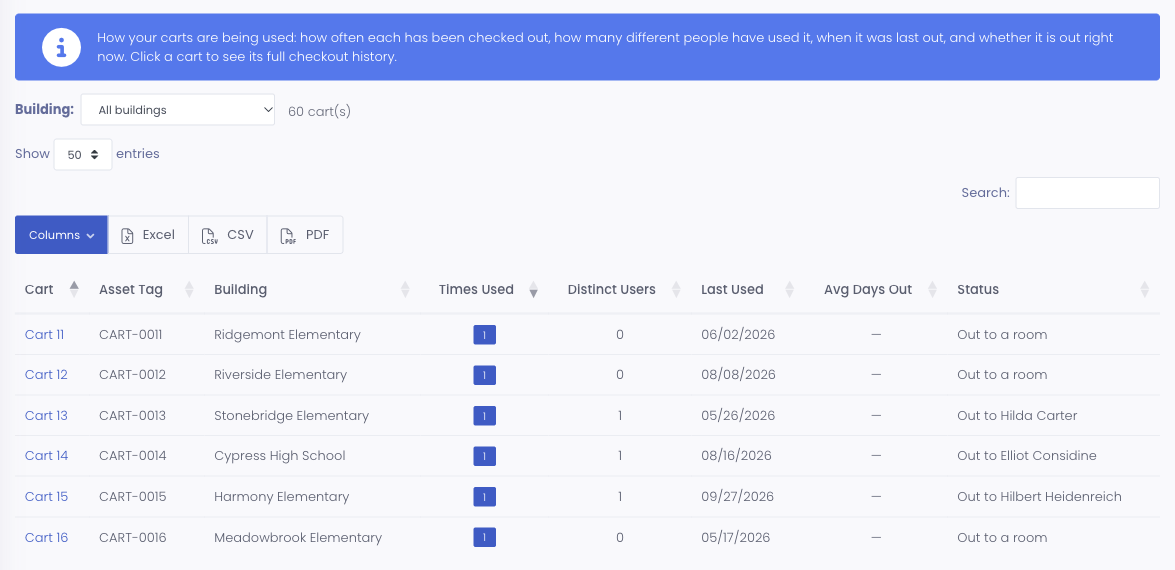
Each row is one cart, with these columns:
- Cart and Asset Tag identify the cart. The cart name links to its full checkout history.
- Building is where the cart lives.
- Times Used is how many times the cart has been checked out or moved.
- Distinct Users is how many different people it has gone out to.
- Last Used is the most recent time it went out, or Never if it has not been used yet.
- Avg Days Out is the average length of a completed checkout. It shows a dash until the cart has at least one returned checkout.
- Status tells you whether it is Available or currently out, and to whom.
Carts that have never been used are still listed, so a new pilot program can see its idle carts right alongside the busy ones.
A "use" is the whole cart being checked out or moved to a destination, such as a classroom, a staff member, or sent home. It does not count the individual devices that live inside the cart. So Times Used = 12 means the cart itself went out twelve times, not that twelve devices were loaned.
Filter and export
Use the Building filter to narrow the list to one building, or leave it on All buildings to see everything you have access to. A live count below the filter tells you how many carts match. You can export the table to Excel, CSV, or PDF, or use Columns to choose which columns to show.
See one cart's full history
Click a cart name to open that cart's page, where the Cart Assignment History panel lists every checkout, newest first, with where it went, when it went out, when it came back, and who handled each end. This is the detailed record behind the summary numbers in the report.
Reaching the Carts Usage report needs the Reports permission, and the report card appears for admins who can view carts.