Check-In/Check-Out Students
Check-In/Check-Out (CICO) is for students who are expected to return their device every day and check it out again the next morning. The Check-In/Check-Out Students report is the single place to see, at a glance, who is on a CICO plan and whether each student still has a device out right now.
Use it near the end of the day to spot the devices that have not come back yet, so someone can follow up before the student leaves.
This report shows restriction details, so it needs the View/Edit User Restricted permission. Admins without it will not see the report card.
Opening the report
- Go to Reports → View Reports
- In the Restricted section, open Check-In/Check-Out Students
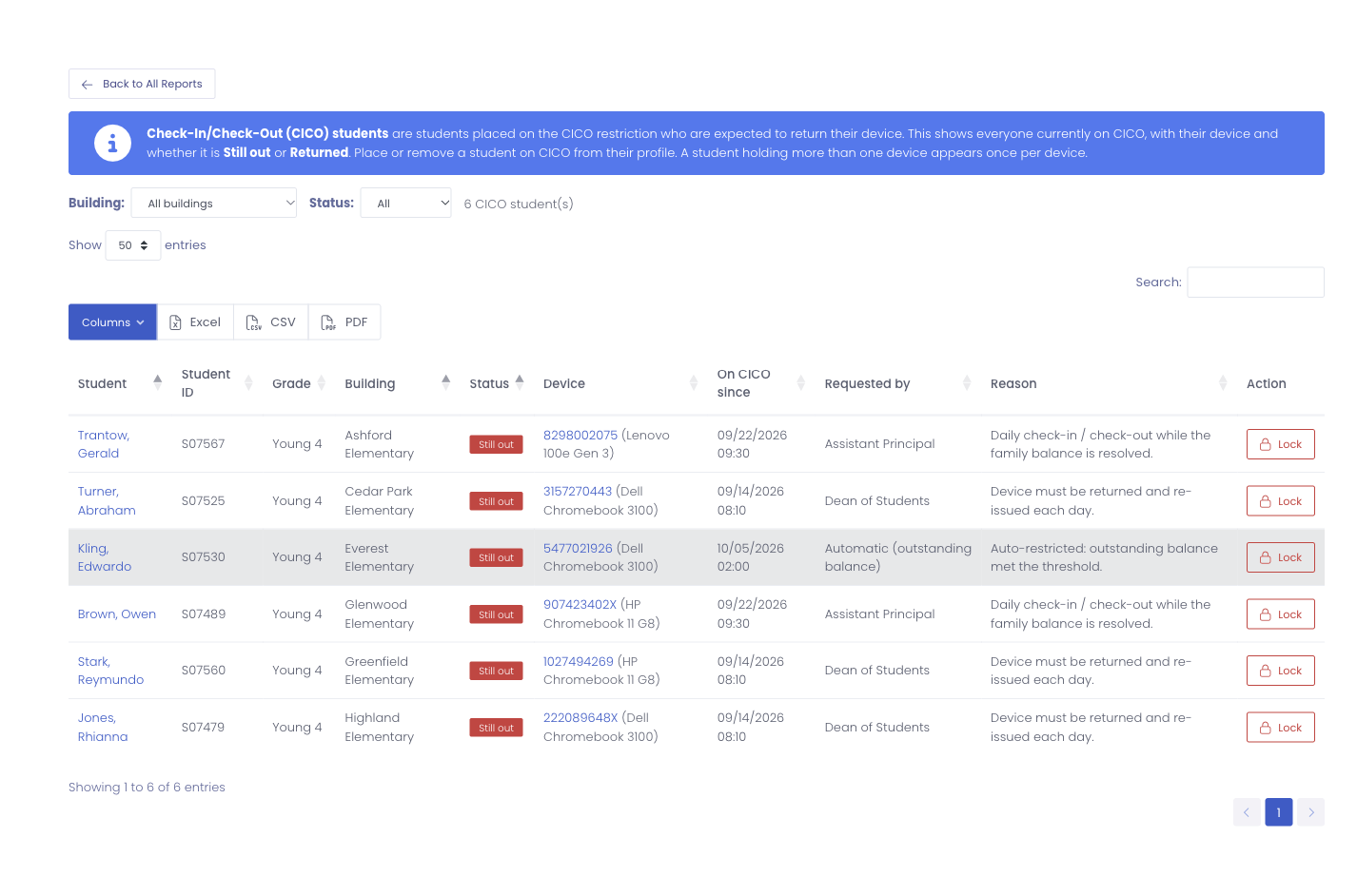
The report lists every active student who is on the Check-In/Check-Out plan, whether or not they currently hold a device. A student who has returned their device still appears, marked as Returned, so you can confirm the device is back.
Reading the report
Each row is one student (a student holding more than one device appears once per device):
| Column | What it is |
|---|---|
| Student | The student's name (click through to their profile) |
| Student ID | The student's local ID |
| Grade | The student's grade |
| Building | Where the student is enrolled |
| Status | Still out (the device has not been returned) or Returned |
| Device | The asset tag and model of the device they hold (click through to the device) |
| On CICO since | When the student was placed on the plan |
| Requested by | Who put the student on the plan. Students placed automatically read Automatic (outstanding balance) |
| Reason | The note recorded when the student was placed on the plan |
Use the Building and Status filters above the table to narrow the list, for example to show only the Still out students in one school. The count beside the filters shows how many students match.
A student is put on, or taken off, Check-In/Check-Out from their user profile, in the same place you manage any technology restriction. This report is the read-only roster.
Locking a device that has not come back
If a device is still out and you need to make sure it is not used until it is returned, you can lock it straight from the report.
When your district has an MDM connected and you have the Disable Device via MDM permission, a Lock button appears on each Still out row whose device is managed by your MDM.
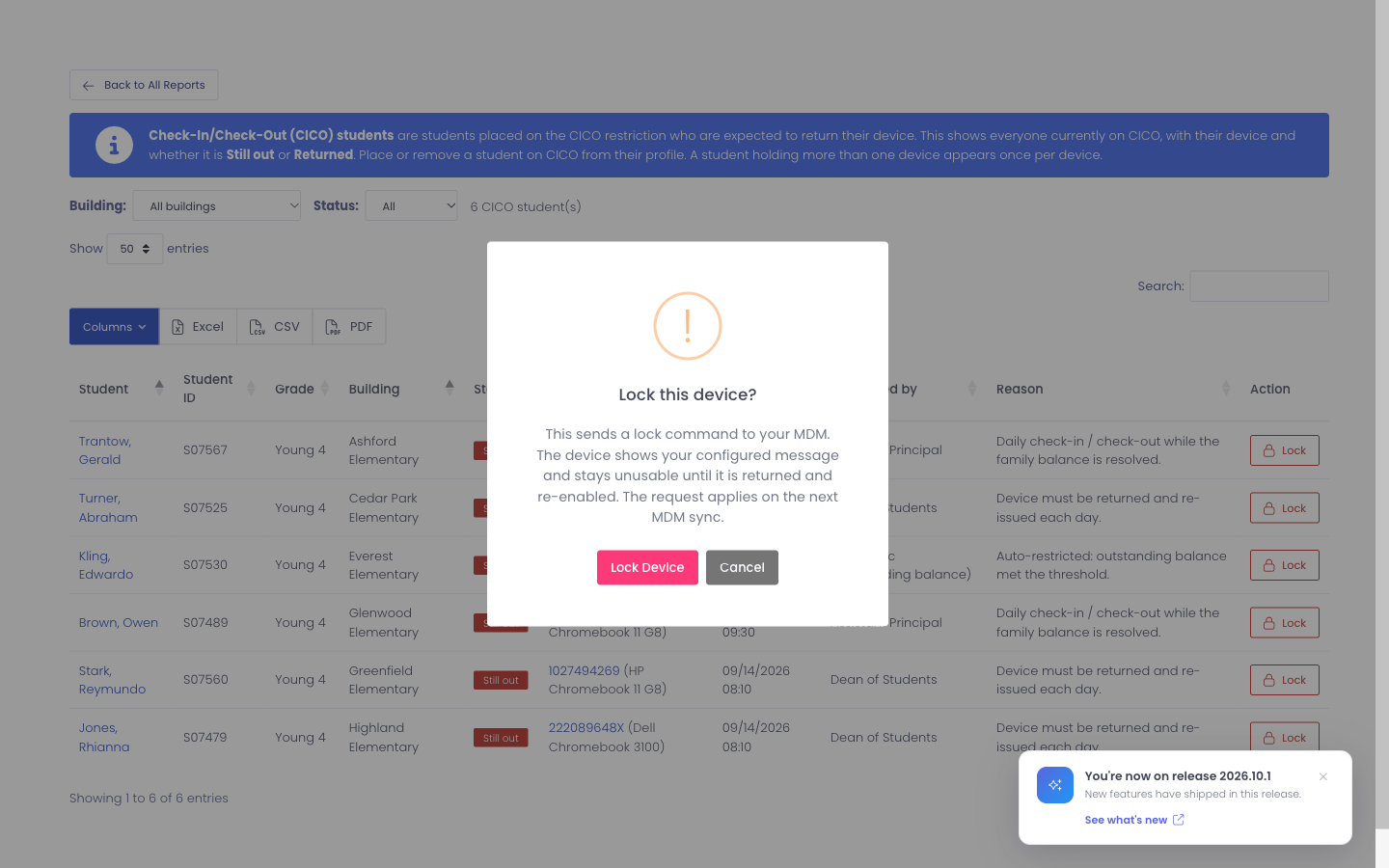
Selecting Lock asks you to confirm, then sends a lock request to your MDM. The device shows your configured message and stays unusable until it is returned and re-enabled. The request is queued and applies on the device's next check-in with your MDM. Re-enabling a returned device is done from the device's own profile.
Exporting
Use the Excel, CSV, or PDF buttons above the table to export the current list for printing or sharing.