Device Battery Health
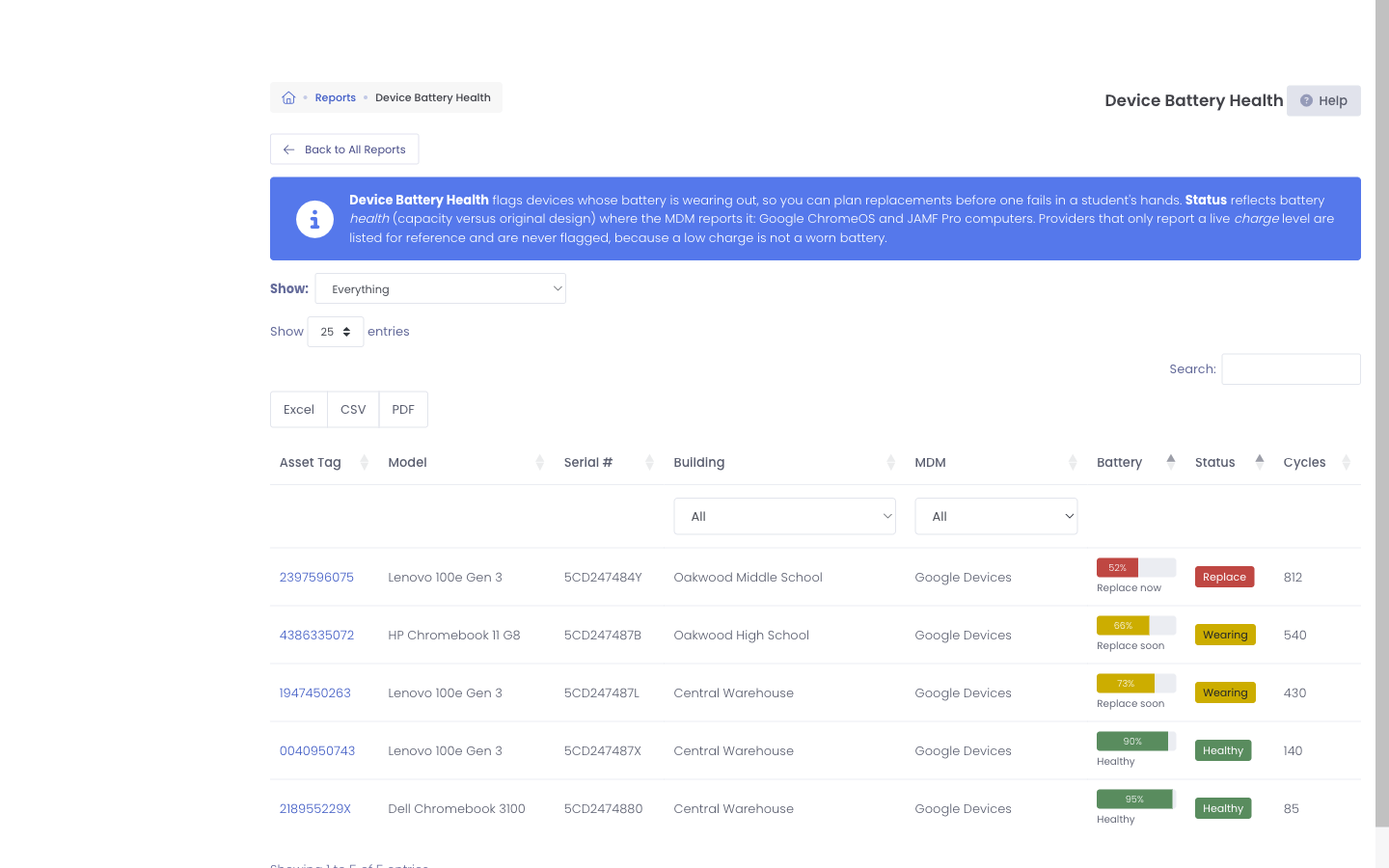
Device Battery Health gives you a single worklist of devices whose battery is wearing out, pulled from every MDM provider you have connected. Use it to plan battery replacements before one fails in a student's hands.
You can open it from Reports → View Reports, then select the Device Battery Health card in the Devices section.
To use this report:
- You need the Stats/Exports permission assigned to your role.
- At least one MDM provider that reports battery information must be configured and syncing.
Understanding battery status
The Status column tells you how much life a battery has left:
- Healthy - The battery still holds most of its original capacity.
- Wearing - The battery has lost enough capacity that you should plan to replace it soon.
- Replace - The battery is significantly worn and should be replaced.
Status reflects battery health, which is how much capacity the battery still holds compared to when it was new. This is different from a battery's current charge level, which simply tells you how full the battery is right now.
Battery health is reported by Google ChromeOS devices and by JAMF Pro managed computers. Devices that only report a charge level, such as tablets and phones, are listed for reference and marked Charge only. They are never flagged as needing attention, because a low charge is not the same as a worn battery.
Reading the report
Each row represents one device:
- Asset Tag - The device's asset tag. Select it to open the full device profile.
- Model - The device model.
- Serial # - The manufacturer serial number.
- Building - The building the device is assigned to.
- MDM - The provider the battery information came from.
- Battery - A capacity bar for devices that report health, or the current charge for reference devices.
- Status - Healthy, Wearing, Replace, or Charge only.
- Cycles - How many charge cycles the battery has been through, when the provider reports it.
The report opens with the batteries that need attention listed first, so the devices most in need of a replacement are at the top.
Filtering and exporting
Use the Show menu at the top to focus the list:
- Needs attention - Devices marked Wearing or Replace. This is the default view.
- Replace only or Wearing only - Narrow the worklist to a single status.
- Healthy - Devices whose batteries are still in good shape.
- Charge only - The reference devices that report charge instead of health.
- Everything - The full list.
You can also filter by Building or MDM using the menus at the top of those columns, and use the search box to find a specific device. To hand the list to a technician or keep a record, use the Excel, CSV, or PDF buttons to export the current view.
Common use cases
- Plan a battery replacement cycle - Review the Wearing and Replace lists each term to budget and schedule battery swaps before devices start failing.
- Prioritize by building - Filter by building to give each site a worklist of the devices that need attention.
- Catch aging fleets early - Devices with a high cycle count and falling capacity are good candidates to refresh at the next opportunity.
Battery information updates each time Manage1to1 syncs with your MDM provider. If a device looks out of date, confirm it is still enrolled and syncing with its provider.
Common Questions
Q: Why is a device missing from the report?
Only devices whose provider reports battery information appear here. Desktops and devices without a battery, and providers that do not report battery data, are left out.
Q: A tablet shows a low percentage but is not flagged. Why?
Tablets and phones typically report only their current charge level, not battery health. The report shows this for reference as Charge only and never flags it, because a low charge does not mean the battery is worn.
Q: How current is the battery information?
It is as current as your most recent MDM sync. Device information refreshes each time Manage1to1 syncs with the provider.