Google Drive Storage
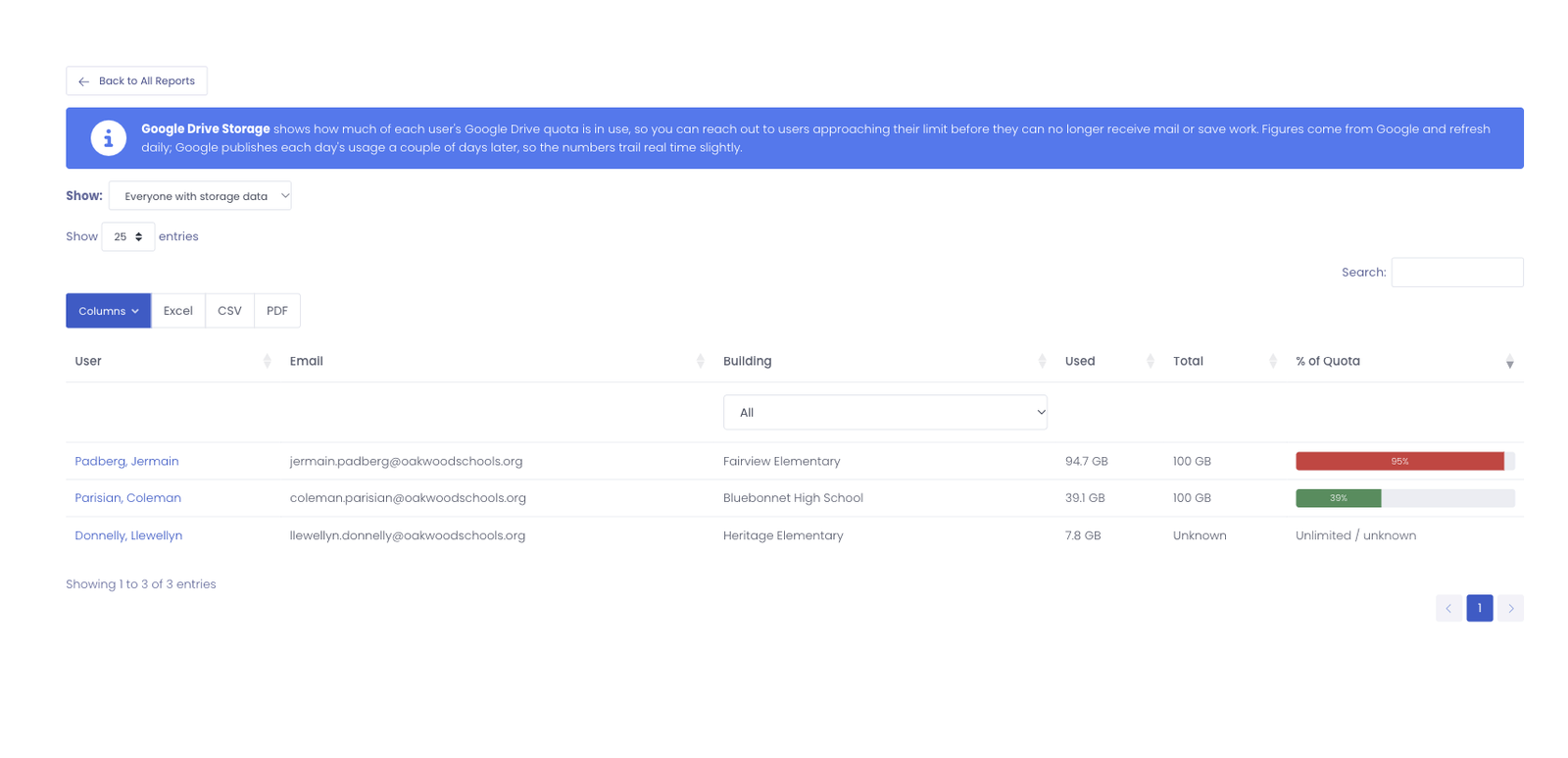
The Google Drive Storage report shows how much of each user's Google Drive quota is in use, so you can reach out to users who are running low before a full Drive starts causing problems (a user who is out of space can no longer receive mail or save new work).
The figures come directly from Google and refresh every day. Google publishes each day's usage a little while after the fact, so the numbers trail real time by a couple of days.
Turning it on
This report is part of the Google integration and is off until you enable it.
- Go to Settings → MDM Settings → Google Devices.
- Turn on Sync Google Drive Storage.
- Select Reconnect so Google can grant the additional read-only permission this uses.
After the next sync, storage figures begin appearing on the report and on each user's profile. Your existing settings and synced devices are kept; reconnecting only adds the new permission.
Reading the report
Each row is one user, with:
- Used and Total: how much Drive storage the user is using, and their quota.
- % of Quota: a bar showing how full the account is. Users at or above 90% are highlighted so they stand out.
Use the Show menu to focus on users approaching their limit (90% or more), users at 75% or more, or everyone with storage data. You can filter by building, search, and export the list to Excel, CSV, or PDF.
Some accounts show Unlimited / unknown when Google does not report a fixed quota for them (for example, accounts on an unlimited storage plan).
Sort by % of Quota or choose Approaching limit (90%+) to get a short worklist of the users most likely to run into trouble, then follow up with them to clean up or request more space.