Restricted Students with Devices
Restricted Students with Devices answers a specific, recurring question: "Which restricted students currently have one of our devices — and which device?" It lists every active student who both carries a technology restriction and has a device checked out right now, grouped by grade.
It's built for the moments when a restricted device must not slip through: a summer swap, a mid-year hardware refresh, or an end-of-year collection. Print or export the list and you have a checklist of exactly which restricted students to see and what to collect from each.
This report shows restriction details, so it needs the View/Edit User Restricted permission (the same one that gates the Restricted Plans report). Admins without it won't see the report card.
Opening the Report
- Go to Reports → View Reports
- In the User & Billing section, open Restricted Students with Devices
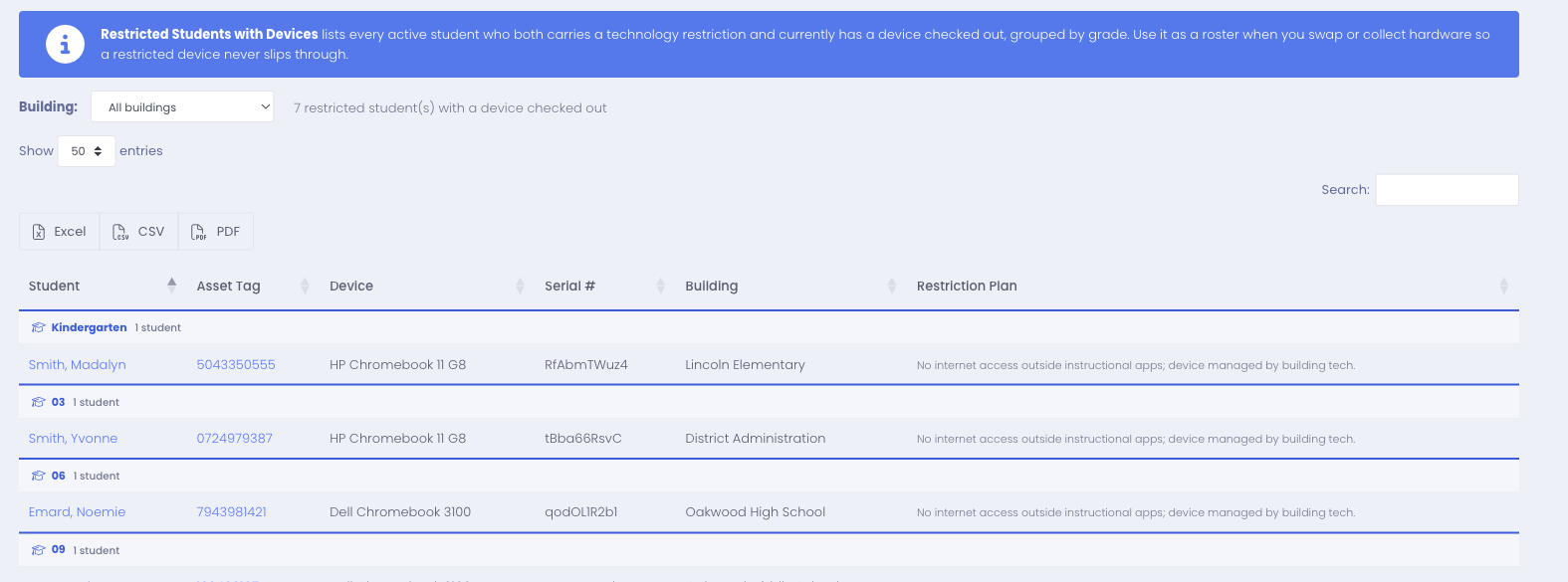
The report only lists students who are active, restricted, and have a device checked out at that moment. A restricted student with no device — or a device that's already been returned — won't appear, because there's nothing to collect.
Reading the Report
Rows are grouped under a grade header (with a count of students in that grade), running from the earliest grades through to the highest, so you can work one grade band at a time. Each row shows:
| Column | What it is |
|---|---|
| Student | The student's name — click through to their profile |
| Asset Tag | The device they hold — click through to the device |
| Device | Make and model |
| Serial # | The device serial number |
| Building | Where the student is enrolled |
| Restriction Plan | The restriction notes recorded for the student |
The count above the table shows how many restricted students currently have a device out across everything you can see.
Use the Building filter to narrow the list to a single school before you print or export — handy when each building collects its own hardware.
Exporting
Use the Excel, CSV, or PDF buttons above the table to export the list. The grade is included as the first column in every export, so the "separated by grade" grouping carries over to your spreadsheet or printout.
How It Relates to Other Reports
- The Restricted Plans report lists every restricted student, whether or not they hold a device. Use it to review restrictions in general.
- This report is the narrower, action-oriented slice: only restricted students who have hardware to account for right now.