Service Accounts
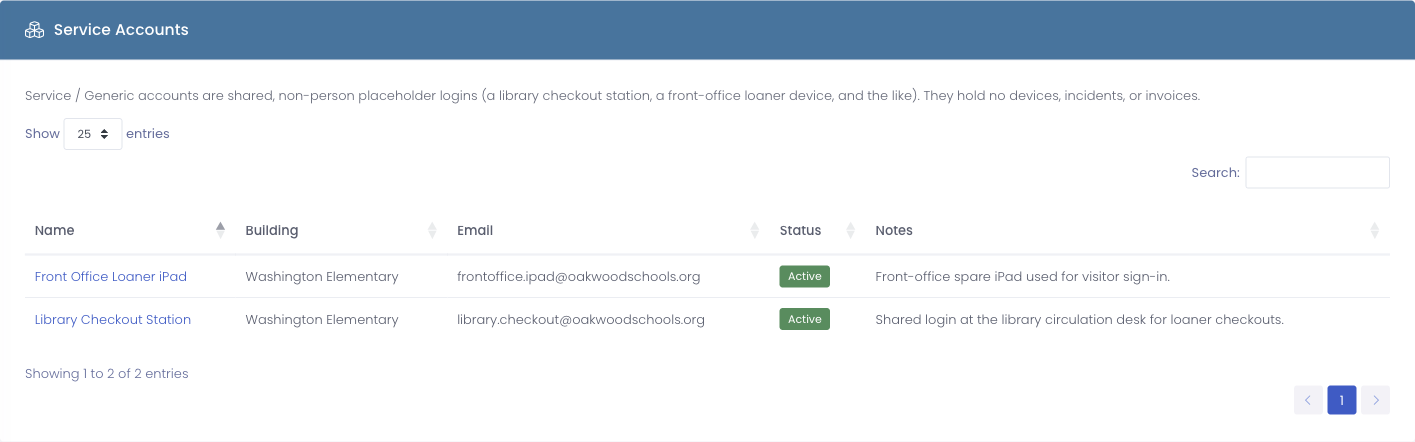
The Service Accounts report is a dedicated list of every service (shared, non-person) account in your system, so you can review all of your kiosk, library-station, and spare-cart logins in one place instead of hunting for them in the main user list.
A service account is a shared sign-in with no real person behind it — a library checkout station, a front-office loaner device, or a spare-cart login. You create them from the Add User screen by choosing the Service / Generic account type.
Open the report from Reports → Service Accounts.
What You'll See
The report lists every service account in the buildings you have access to, with these columns:
| Column | What it shows |
|---|---|
| Name | The account's name, linked to its profile |
| Building | The building the account belongs to |
| The email stored on the account, if any | |
| Status | Whether the account is Active or Inactive |
| Notes | The free-text notes saved on the account (for example, where the station lives or who owns it) |
Use the Columns button to show or hide columns, and Export CSV to download the list for auditing or record-keeping.
If you don't have any service accounts yet, the report shows No service accounts yet.
Seeing a Service Account's Password
Because a service account is a shared credential that's meant to be handed out — taped inside a cart, posted at a checkout station — its password is not locked behind the stricter staff-password permission that protects a real employee's password. Any administrator who is allowed to view passwords can see a service account's password on the account's profile.
To see or copy the password, open the account (click its Name in this report) and view the password on its profile. Real staff and student passwords continue to follow their own, more restrictive permissions.
Common Questions
Q: Why isn't a shared login showing up here? Only accounts created with the Service / Generic type appear on this report, and only for buildings you have access to. If a shared login was created as a regular Staff account, it won't appear here — recreate it as a Service / Generic account, or check the Account Type filter on the main View Users list.
Q: Can I see the password right on this report? No — the report lists the accounts and their details. Open an individual account to view its password, which any administrator with permission to view passwords can do.