Ticket Time & Labor
The Ticket Time & Labor report rolls up the work time your team logs against tickets, so you can see where help-desk effort is going. It answers two questions for any date range: how much time each technician spent, and how much each team spent.
Time is logged on individual tickets (from the Time Logged panel on a ticket). Each logged entry is attributed to the technician who logged it and the ticket's team at that moment, so moving a ticket to another team later never distorts the history.
Opening the Report
Go to Reports → Administrative → Ticket Time & Labor.
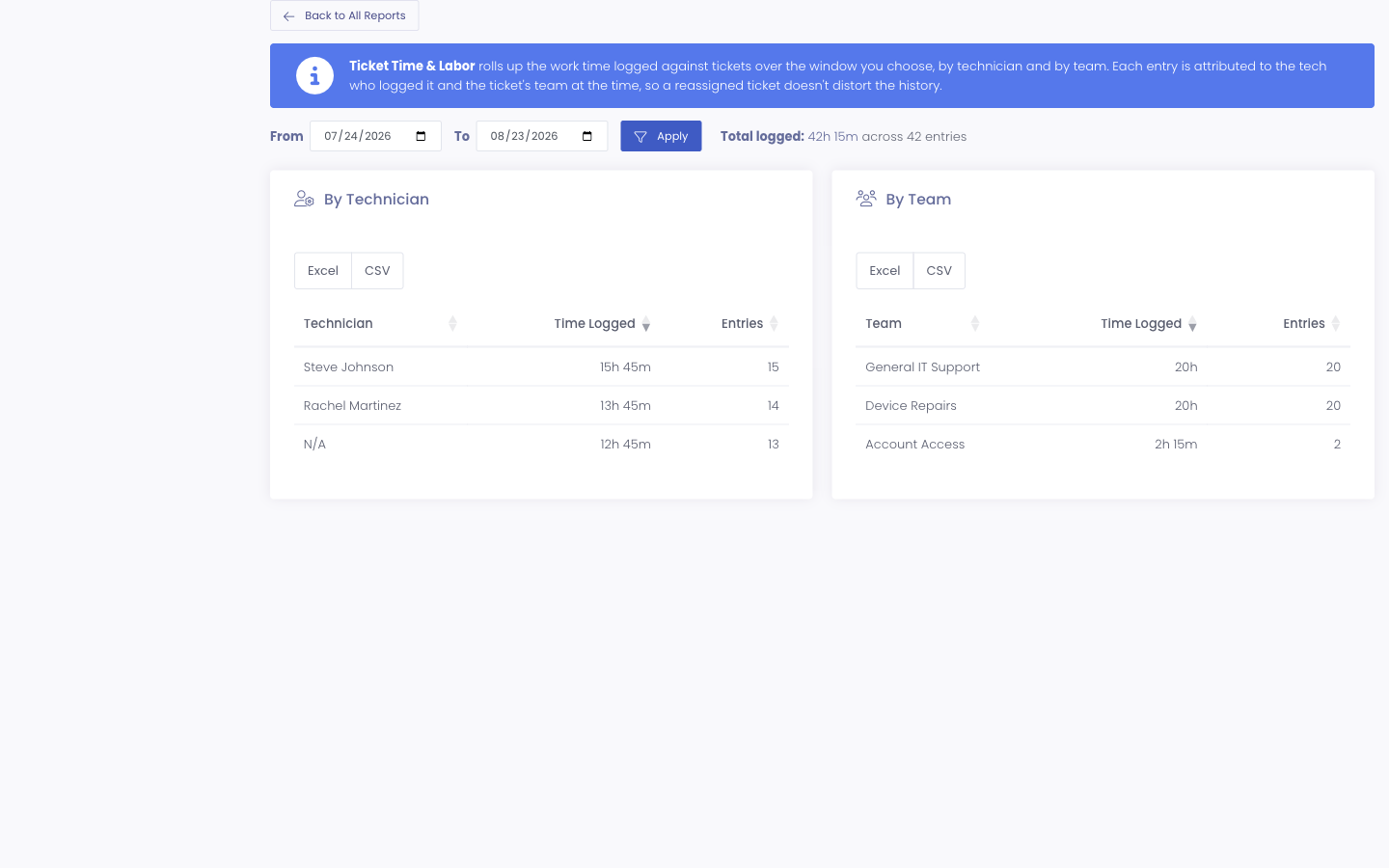
Choosing a Date Range
At the top, pick a From and To date and click Apply. The report defaults to the last 30 days. Only work dated inside the window is counted, and the total updates to match.
Reading the Rollups
- The Total logged line shows the combined time and number of entries across the whole window.
- By Technician lists each technician with their total time logged and how many entries they recorded.
- By Team does the same for each team (department).
Both tables sort by time logged (largest first) and can be re-sorted by any column. Use the Excel and CSV buttons on each table to export the rollup for payroll, staffing, or budgeting.
The report only reflects time that has actually been logged on tickets. Encouraging technicians to log their time as they work each ticket keeps these rollups accurate and makes the staffing picture complete.
Who Can See It
This report is available to staff with the Help Desk Analytics permission. It surfaces staff workload, so it's kept to roles that already have help-desk reporting access rather than every administrator.