Users with Multiple Devices
Users with Multiple Devices answers a simple question that is otherwise tedious to check: "Who has more than one of our devices out right now, and which ones?" It lists every active user who currently holds two or more devices, with the devices next to each name.
It is the list to work from when you are tidying up assignments: a student who was issued a replacement but never returned the original, a staff member holding both a laptop and a loaner, or anyone who ended up double-issued during a busy rollout.
Opening the report
- Go to Reports → View Reports
- In the User & Billing section, open Users with Multiple Devices
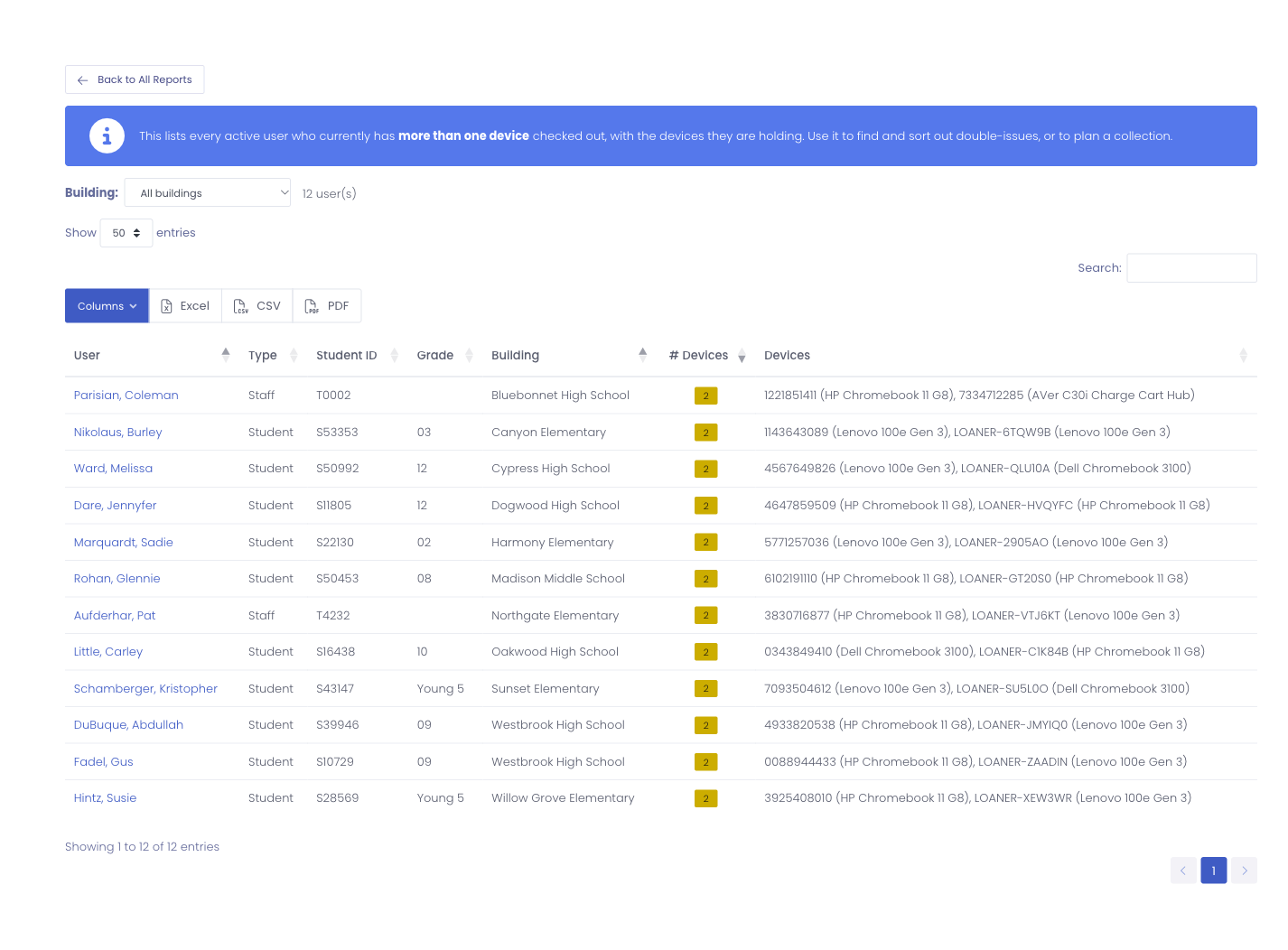
Only users who currently have two or more devices checked out appear. A user with one device (or none) is not listed, because there is nothing to reconcile.
Reading the report
Each row is one user:
| Column | What it is |
|---|---|
| User | The user's name (click through to their profile) |
| Type | Student or Staff |
| Student ID | The student's local ID |
| Grade | The student's grade |
| Building | Where the user is enrolled |
| # Devices | How many devices they currently hold |
| Devices | The asset tags (and models) of those devices |
Use the Building filter to narrow the list to a single school before you work through it. The count beside the filter shows how many users match.
The report opens sorted by # Devices, highest first, so the users holding the most devices are at the top, usually the ones worth looking at first.
Exporting
Use the Excel, CSV, or PDF buttons above the table to export the list for a collection sweep or to share with building staff.