Bulk Teacher Rollover
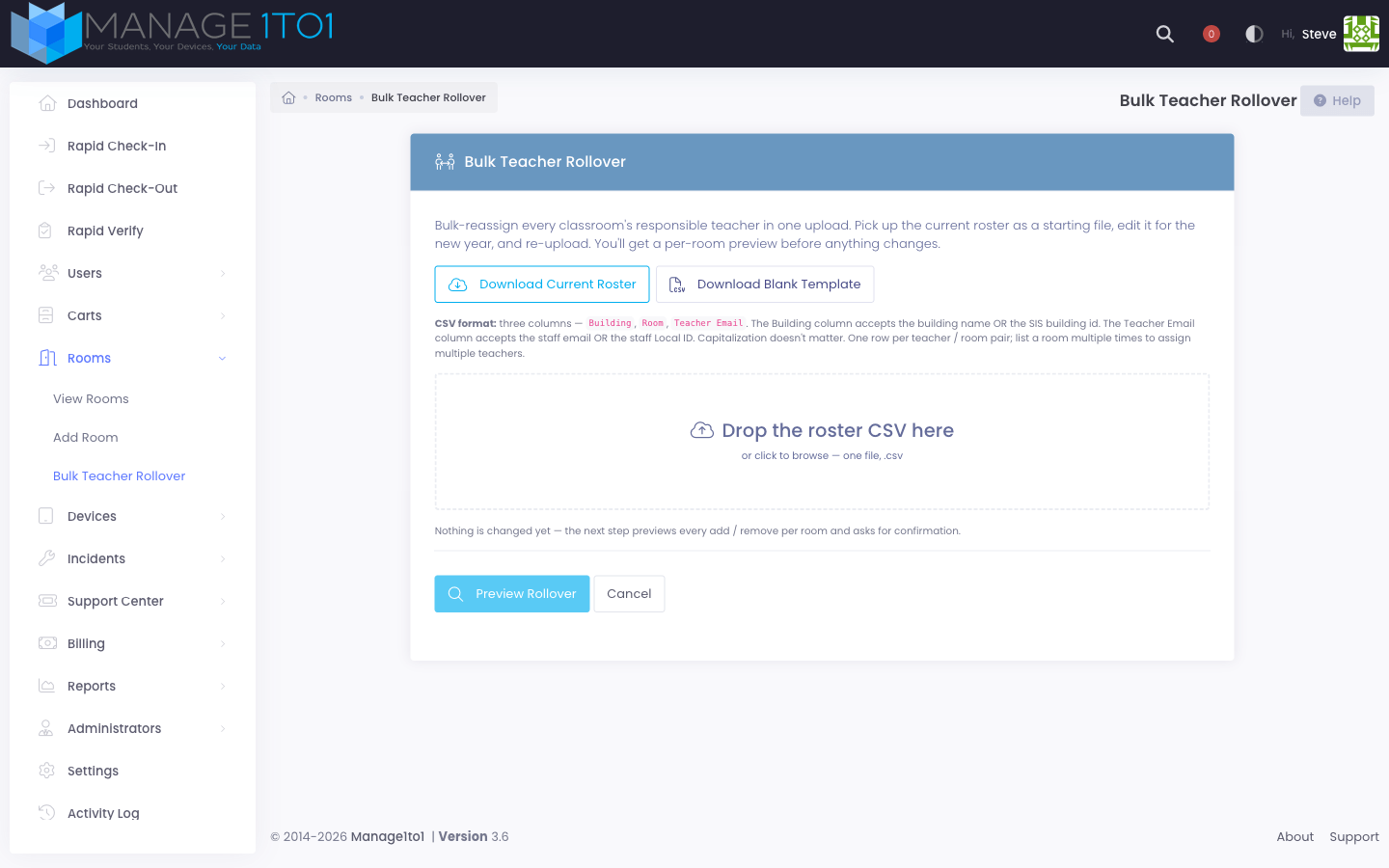
The Bulk Teacher Rollover page lets you reassign every classroom's responsible teacher in one upload — designed for the summer rollover when a new school year's room assignments need to land all at once instead of edited room-by-room.
You'll find it under Rooms → Bulk Teacher Rollover in the sidebar.
Who can use this
This page requires the Manage Room Roster Rollover permission. It's intentionally restrictive — one bad CSV can clear every classroom's teacher list — so it's granted to your Technology Director role by default. Add it to other roles through Settings → Administrators → Roles if you want building-level admins to be able to run their own campus rollovers.
How the workflow works
The page is a two-step, preview-then-commit flow. Nothing is written to your data until you confirm the preview.
- Upload your CSV of teacher → room assignments.
- Review the preview — every room appears with the teachers being added, the teachers being end-dated, and the teachers staying put. Any rows with errors are listed separately so you can fix them and re-upload.
- Click Apply Rollover — the system commits the whole batch in one transaction. If any single room fails, none of the changes land, and your data is unchanged.
CSV format
The file must include three column headers (case-insensitive) on the first row:
| Column | What it holds | Example |
|---|---|---|
| Building | The building's name OR its SIS building id OR one of its alternate ids | Oakwood High School or 10100 |
| Room | The exact room name as it appears under that building | Counseling Office |
| Teacher Email | The teacher's email OR their staff Local ID | berniece.turcotte@oakwoodschools.org or T12345 |
The flexible matching on Building and Teacher Email means districts that key their rosters on SIS identifiers (rather than human-readable names) can drop their export straight in without translating it.
Each row pairs one or more teachers with one room. Two equivalent shapes work — pick whichever your source data already produces:
Shape 1 — one teacher per row, repeat the room:
Building,Room,Teacher Email
Oakwood High School,Counseling Office,berniece.turcotte@example.com
Oakwood High School,Counseling Office,jennie.hartmann@example.com
Oakwood High School,Science Lab B,tyree.kreiger@example.com
Shape 2 — multiple teachers in one cell:
Building,Room,Teacher Email
Oakwood High School,Counseling Office,"berniece.turcotte@example.com; jennie.hartmann@example.com"
Oakwood High School,Science Lab B,tyree.kreiger@example.com
Inside a single cell the importer accepts ;, |, ,, or line breaks as separators between emails — wrap the cell in double quotes if you use commas or line breaks so the CSV stays valid. The two shapes can also be mixed in the same file.
Duplicate and edge-case handling
The importer is deliberately forgiving:
- The same teacher listed twice for the same room (whether by a duplicate row or a repeated entry in one cell) counts once. No error, no duplicate database row.
- Case-insensitive matching everywhere.
JANE@SCHOOL.ORGandjane@school.orgresolve to the same teacher. Same for building names and room names. - Extra whitespace is stripped. Excel often leaves leading/trailing spaces — they don't break the lookup.
- Empty cells in the email column are simply ignored on that row — they don't add a teacher and don't trigger an error.
- A row with no teachers at all (the email cell is blank) explicitly clears that room's responsible-staff list when committed. If you want a room left untouched, omit it from the file entirely.
Starting from today's roster
The upload page has two download buttons:
- Download Current Roster — a CSV of every room with its currently-responsible teachers, in the exact shape the rollover accepts. Open it in Excel or Sheets, swap in the new year's teacher assignments, and re-upload. Most rooms barely change year-to-year, so the edit footprint stays small.
- Download Blank Template — a stub file with the column headers and a couple of example rows. Useful for first-time setup or when building a CSV from a different source.
Both downloads come back with today's date in the filename (e.g. room-roster-2026-05-16.csv).
Rooms that aren't listed in your CSV are left completely alone — their existing teachers stay. You can roll over one campus at a time, or even one wing at a time, by only including those rooms in your upload.
If a room appears in your CSV, the teachers in your CSV become the complete new list for that room. Any teacher currently responsible for that room who is not in the CSV will have their assignment ended.
The preview screen
After the upload, the preview screen shows four counters at the top and a per-room diff below.
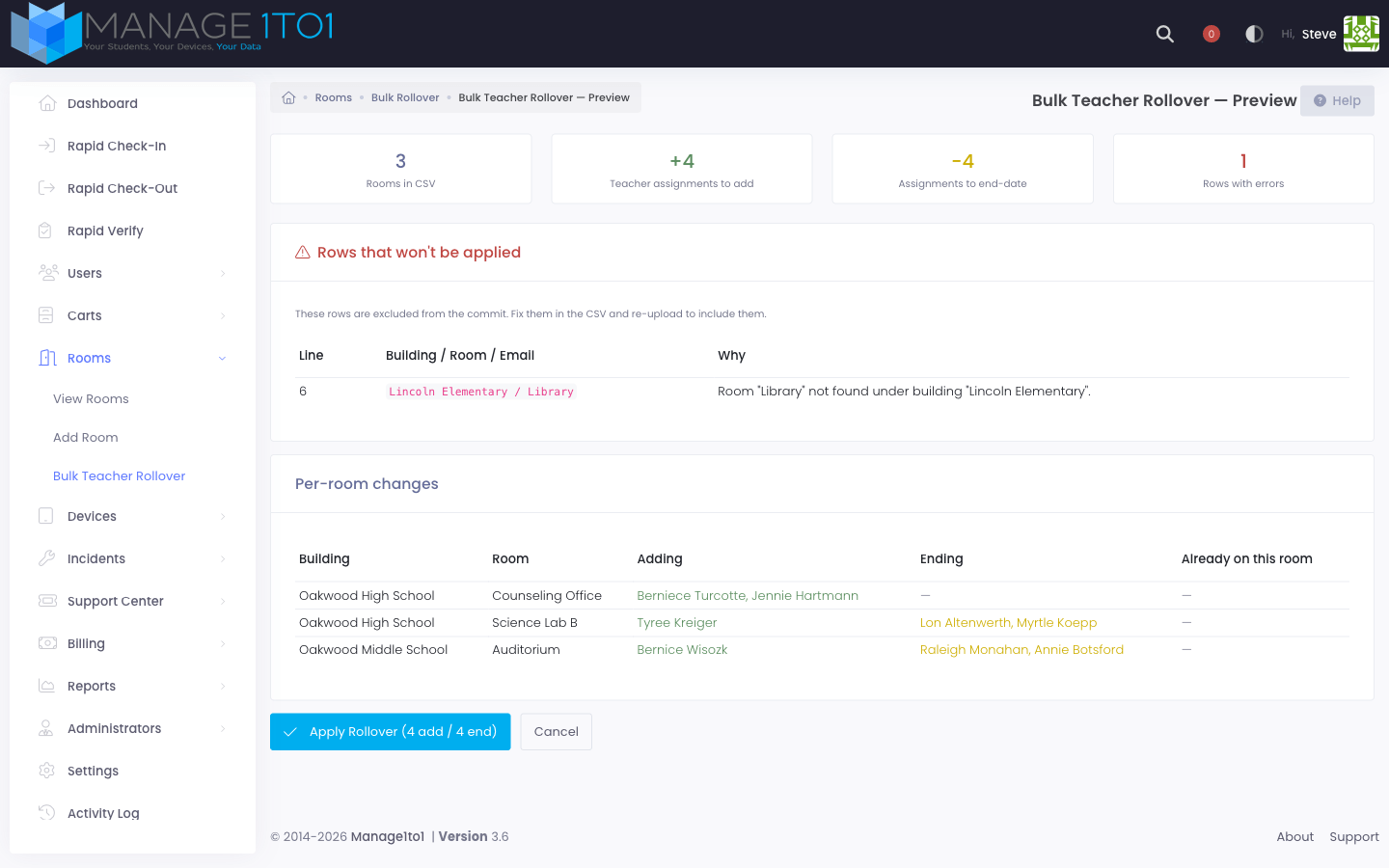
The four counters tell you:
- Rooms in CSV — how many distinct (Building, Room) combinations were parsed
- Teacher assignments to add — how many new responsibility rows will be created
- Assignments to end-date — how many currently-active responsibilities will be ended
- Rows with errors — rows that couldn't be matched to a real building, room, or teacher
The error section (when present) lists every row that won't be applied with the line number from your CSV and a one-line reason — for example "Room 'Library' not found under building 'Lincoln Elementary'." Fix these in your CSV and re-upload to include them.
The per-room table shows, for each room in your CSV:
- Adding — teachers who'll get a brand-new responsibility row starting today
- Ending — teachers whose current responsibility row will be end-dated today
- Already on this room — teachers who were already responsible and stay unchanged
What gets recorded
When you apply the rollover, each room is updated using the same teacher-history system used by the single-room edit page:
- Teachers being added get a new row in the room's history with today's date as the start date and no end date.
- Teachers being ended keep their original row, with today's date added as the end date. They stay visible on the room's Staff History tab so you can see exactly who was responsible when.
- The whole upload writes a single Activity Log line summarizing the totals (rooms updated, assignments added, assignments ended). Each individual room change does not generate its own log entry — that would flood the log during a 200-room rollover.
Common errors and how to fix them
| Message | What to check |
|---|---|
| Building "X" not found. | The Building column doesn't match an existing building name. Watch for typos and trailing spaces. |
| Room "Y" not found under building "X". | The Room exists somewhere else, or the building name is off. Confirm both columns against your Rooms list. |
| No active staff user found for "email". | The email doesn't match a user, OR the matching user isn't marked as Staff, OR the user is marked Inactive. Open the user's profile to confirm. |
| Building and Room are required. | One of the first two columns is empty on this row. |
Errors are reported once per offending row. Other rows in the same file still commit cleanly when you click Apply.
What this page doesn't do
- It does not delete teachers from your district — it only ends their responsibility for the listed rooms.
- It does not touch device assignments — devices stay where they are; only the room's responsible-staff list changes.
- It does not retroactively rewrite history — every change is dated today. To correct a wrong start or end date after the fact, use the single-room edit page on Rooms → View Rooms.