Room Types
Room types let you categorize each room by what it is used for, such as Classroom, Lab, Conference, or Storage. Assigning a type makes it easier to tell your rooms apart at a glance and keeps your inventory organized by the kind of space each room is.
Every room type is optional, and you control the full list of types your organization uses.
Setting a room's type
You choose a room's type on the Add Room and Edit Room forms, using the Room Type picker.
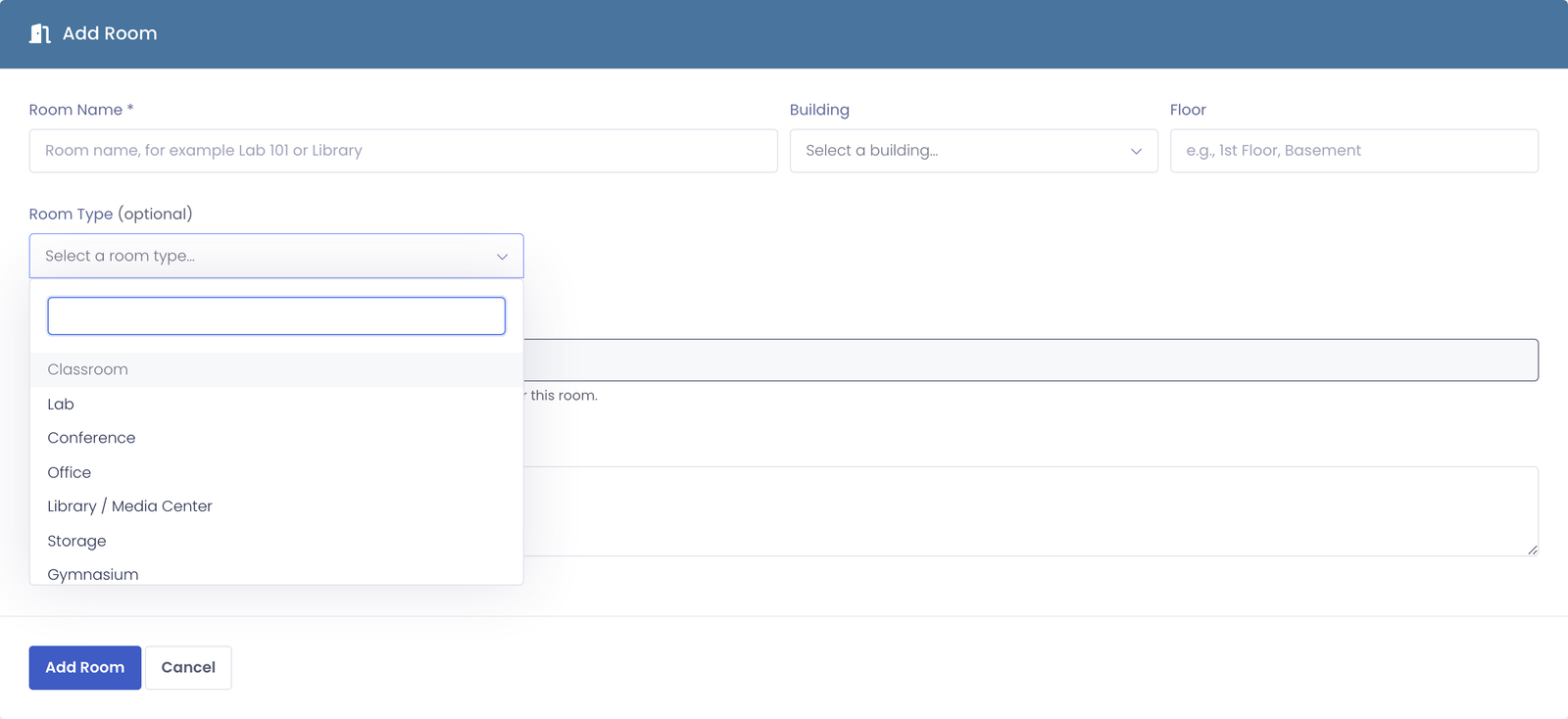
- Go to Device Management → View Rooms.
- Click Add Room, or click Edit on an existing room.
- Open the Room Type picker and choose a type. You can start typing to filter the list.
- Save the room.
The room's type then appears on the room's detail page and in the Type column of the View Rooms list. To remove a type from a room, clear the picker and save.
Customizing the list of types
Your organization's list of room types is fully customizable. Go to Settings → Room Types to add, rename, reorder, or remove types.
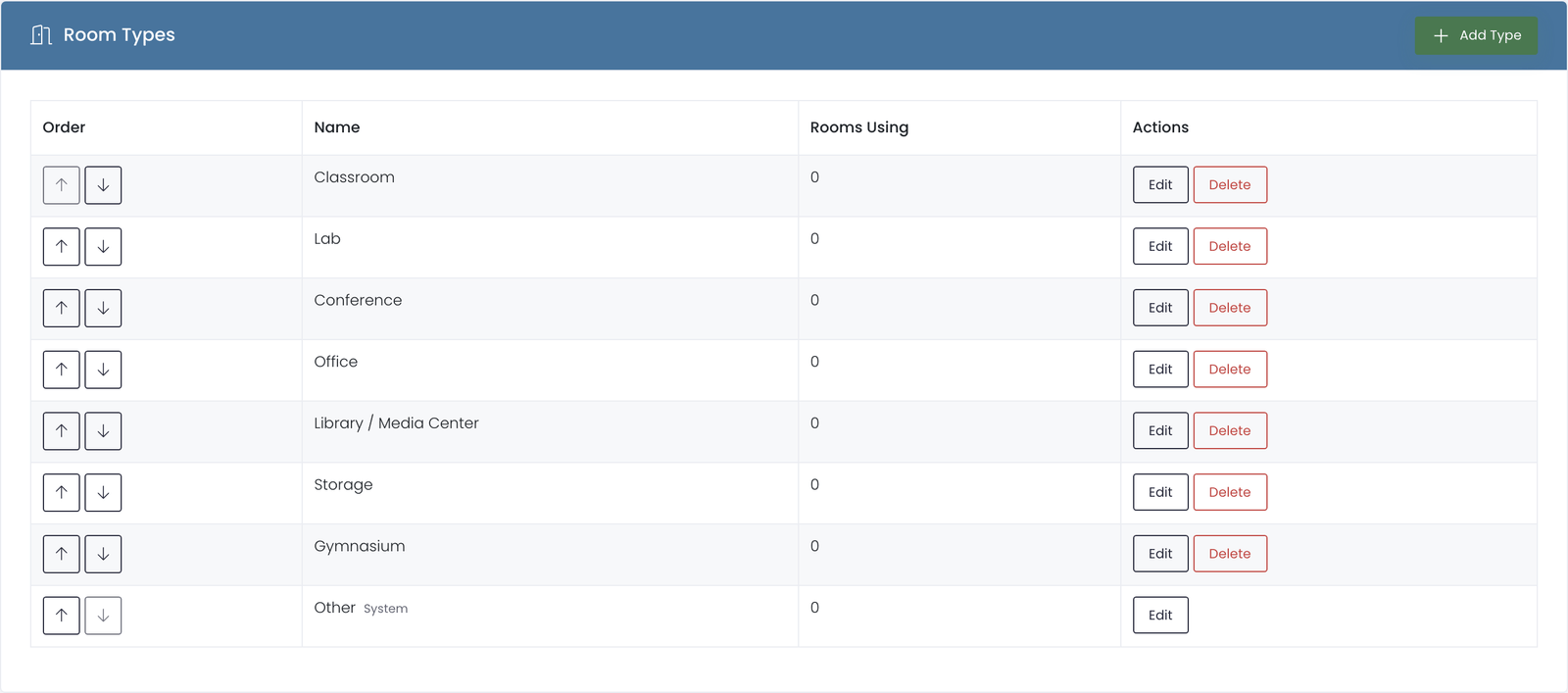
- Add a type. Click Add Type, enter a name, and save. The new type is immediately available in the room picker.
- Rename a type. Click Edit on a type and change its name. Every room already assigned to it keeps the type.
- Reorder the list. Use the up and down arrows to set the order. This is the order types appear in the room picker, so you can put your most common types at the top.
- Remove a type. Click Delete on a type you no longer need.
The Rooms Using column shows how many rooms currently use each type.
A few common types are provided to get you started, and one catch-all type is marked as a system type. A system type cannot be renamed or deleted, but you can still reorder it. Every other type is yours to change.
If a type is assigned to one or more rooms, you cannot delete it. Move those rooms to a different type first, then delete the empty type. This keeps any room from losing its category unexpectedly.