Send Email via Google Workspace
Configure Manage1to1 to send outbound email through your Google Workspace or Gmail account using OAuth2. Messages will be sent as your chosen Google address, with no stored password.
To change email delivery settings you need the Manage Settings permission in Manage1to1, plus access to the Google Cloud Console for your domain.
Reuse your Help Desk setup if you have it
If you already connected Google OAuth for Help Desk email importing, you can reuse the same Google Cloud project and OAuth client for sending. The Gmail scope https://mail.google.com/ that importing already uses also covers sending, so there is nothing new to create in Google.
Sending uses a different callback address than importing, so add the outbound callback URL (shown in Step 2 below) as an additional entry under Authorized redirect URIs on your existing OAuth client. Both importing and sending then run from the same project. If you have not set up importing, follow the project-creation steps in the Help Desk email importing guide first, then return here.
Before you start
You will need:
- Access to the Google Cloud Console
- The Google Workspace or Gmail address you want Manage1to1 to send from
- An OAuth Client ID and Client Secret (reused from importing, or created fresh)
- The outbound OAuth Callback URL shown in Manage1to1
Step 1: Open the Email Server configuration in Manage1to1
- Go to Settings → System Settings → General.
- In the Email Server field, select Update Email Server.
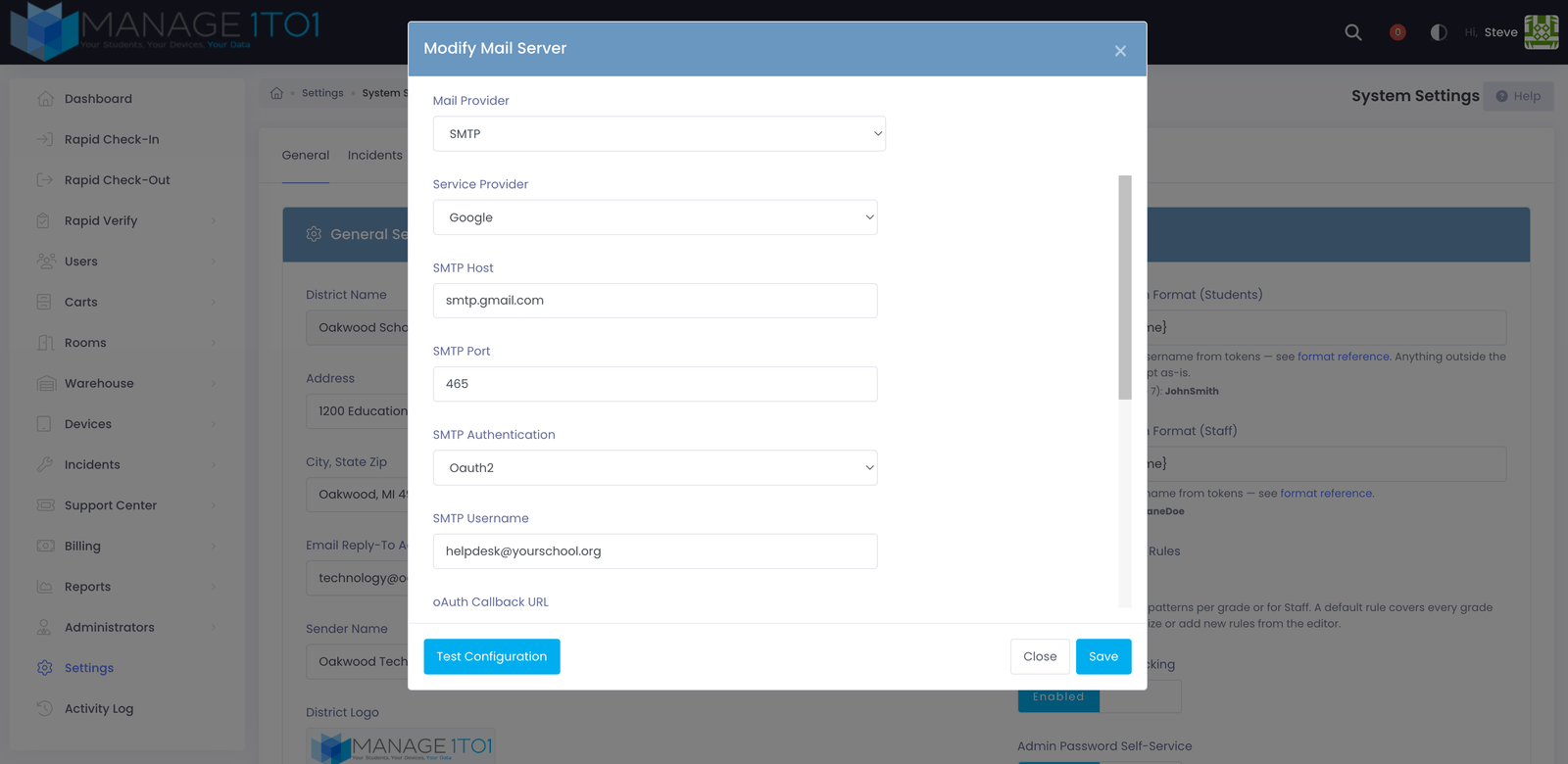
- Set Mail Provider to SMTP.
- Set Service Provider to Google.
- Set SMTP Authentication to OAuth2.
The OAuth fields appear, including the read-only OAuth Callback URL.
Step 2: Add the callback URL to your Google OAuth client
- Copy the OAuth Callback URL shown on the screen above.
- In the Google Cloud Console, open your existing Web application OAuth client (or create one, following the importing guide).
- Under Authorized redirect URIs, add the callback URL you copied. If importing is already configured, this will be a second entry alongside the importing callback. Leave both in place.
- Save.
The redirect URI must match exactly. Any difference will stop the authorization and no token will be generated.
Step 3: Enter the sender and OAuth details
Back on the Modify Mail Server screen in Manage1to1, enter:
- SMTP Username - the Google address to send from (for example,
helpdesk@yourschool.org) - OAuth Client ID - from your Google OAuth client
- OAuth Client Secret - from your Google OAuth client
Manage1to1 sets the Google send host (smtp.gmail.com) and a secure port for you. Leave SMTP Security on the secure option shown.
Step 4: Connect and authorize
- Select Connect.
- When Google prompts you, choose the same Google account as the sending address you entered.
- Approve access when Google requests it.
After authorization completes, the OAuth Token field fills in automatically. That token is what lets Manage1to1 send on your behalf.
If your school uses Google Workspace, set the OAuth app's Audience to Internal in the Google Cloud Console. An app left as External in Testing status has its access revoked by Google after 7 days, which would silently stop your outbound email about once a week. If you must use External (a personal Gmail account with no Workspace behind it), publish the app to In production so access persists. This is the same choice described in the Help Desk importing guide.
Step 5: Test and save
- Select Test Configuration to confirm Manage1to1 can send with these settings.
- Select Save.
If the test fails, confirm the redirect URI matches exactly, the Client ID and Secret are correct, and you authorized the same Google account you entered as the sender. Re-run Connect if needed.
Once saved, all outbound Manage1to1 email for your district is delivered through your Google account.
Deliverability
Because mail now originates from your own Google Workspace account, your existing SPF and DKIM records cover it automatically. Confirm your setup in Email Deliverability.