Chat Notifications
Chat Notifications post help desk ticket alerts straight into a Microsoft Teams or Google Chat channel. Instead of every update arriving by email, a Smart Rule can drop the alerts that matter into the space your team already watches: escalations in a managers' channel, new device tickets in the device team's channel, and so on.
You set up your channels on this page, then point ticket workflow rules at them using the Notify a chat channel action. Because the rule decides which tickets match, you control exactly what reaches each channel.
Where to find it
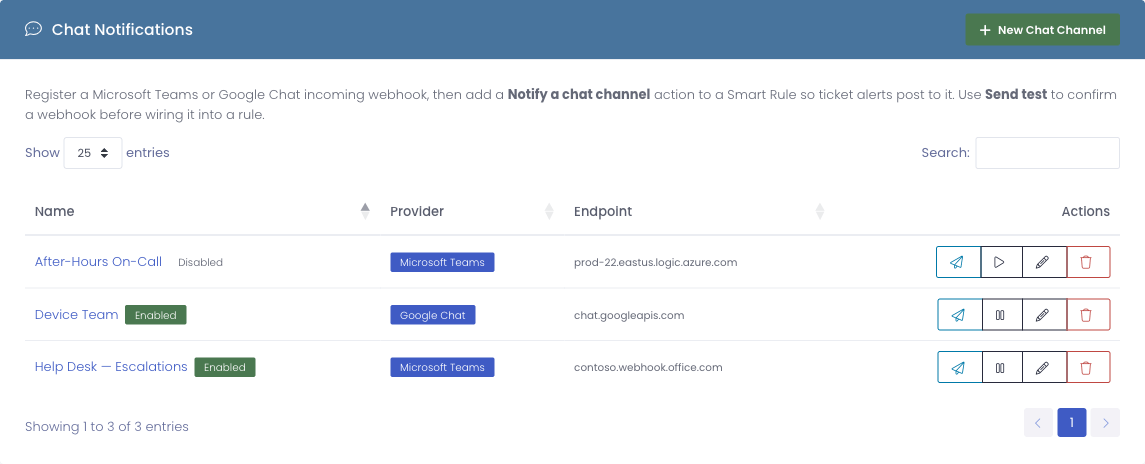
Open Settings, then choose Chat Notifications. The page lists every channel you have added, along with its provider and whether it is enabled.
How it works
Getting an alert into a chat channel takes two pieces, set up once:
- Add the channel here. Give it a name and paste the webhook link you copied from Teams or Google Chat.
- Use it in a Smart Rule. Add a Notify a chat channel action and pick the channel. The rule's conditions decide which tickets trigger a post.
That separation is the whole idea: the same channel can receive very different alerts depending on which rules point at it, and one rule's conditions keep the noise down so a channel only hears about the tickets it cares about.
Before you start: get your webhook link
Every channel needs an incoming webhook from your chat tool. This is a one-time setup on the Teams or Google Chat side, and it is where the alerts will appear.
Microsoft Teams
- Go to the Teams channel where you want the alerts to appear.
- Open the channel's connectors or workflows options and add an Incoming Webhook (newer Teams versions offer this through Workflows as a "post to a channel" webhook).
- Give it a name your team will recognize, then copy the URL it generates.
Google Chat
- Open the Google Chat space where you want the alerts to appear.
- Go to Apps & integrations, then Webhooks.
- Create a webhook, give it a name, and copy the URL it generates.
Keep that copied URL handy for the next step. Treat it like a password: anyone with the link can post to your channel.
Adding a channel
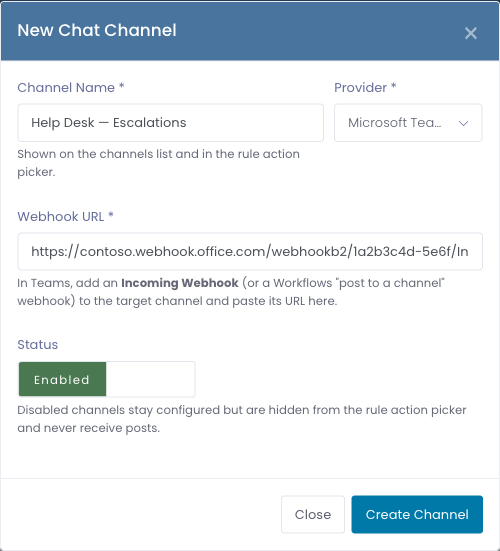
Click New Chat Channel and fill in the form.
| Field | What it does |
|---|---|
| Channel Name | A label for your own reference, such as Help Desk Escalations. This is the name you pick from when building a rule, so make it descriptive. |
| Provider | Microsoft Teams or Google Chat. This must match where your webhook came from. |
| Webhook URL | The incoming-webhook link you copied above. It must begin with https://, and its address has to match the provider you picked (a Teams webhook for a Teams channel, a Google Chat webhook for a Google Chat channel). |
| Status | Enabled channels can receive posts and appear in the rule action picker. Disabled channels stay saved but are skipped. |
Click Create Channel to save it. If the webhook link does not look like a real address for the selected provider, Manage1to1 tells you so you can correct it before saving.
Testing a channel
Once a channel is saved, click the Send test button on its row (the paper-plane icon). Manage1to1 posts a short sample message to the channel.
If it appears in your Teams or Google Chat channel, the webhook is working and you are ready to use it in a rule. If nothing arrives, see Troubleshooting below.
Using a channel in a Smart Rule
With at least one channel enabled, open Support Center → Ticket Workflows, then edit or create a rule. On the Actions tab, add the Notify a chat channel action, pick your channel, and optionally add a short note.
The full walkthrough of the action lives in the ticket workflow actions guide, but in short: when the rule's conditions match a ticket, the channel receives a message with the ticket's subject, priority, department, the requester's building, and a link that opens the ticket. Your optional note appears beneath those details.
A few example rules:
- When a ticket's priority changes to High, notify a Managers channel.
- When a ticket is created in the Devices department, notify the Device Team channel.
- When a ticket has had no reply in 24 hours, notify a Follow-Up channel.
Managing channels
Each channel row has four controls:
- Send test posts a sample message so you can confirm the webhook still works.
- Enable / disable turns the channel on or off. Disabling is the quick way to pause a channel's alerts without deleting it; any rules pointing at it simply stop posting until you re-enable it, and a disabled channel disappears from the rule action picker.
- Edit changes the name, provider, or webhook link.
- Delete removes the channel. Rules that pointed at it stop posting to it.
The Endpoint column shows only the address of each webhook, never the full private link.
Troubleshooting
The test message never arrives. Double-check that you copied the entire webhook URL, and that the channel or space the webhook belongs to still exists. Webhooks can be revoked on the Teams or Google Chat side; if in doubt, create a fresh webhook and paste the new link in with Edit.
Manage1to1 says the URL doesn't look right when I save. The webhook address has to match the provider you picked. A Microsoft Teams webhook lives on a Microsoft address, and a Google Chat webhook lives on a Google address. Make sure the Provider dropdown matches where you created the webhook, and that you pasted the complete link.
My channel isn't in the rule's channel list. Only enabled channels appear in the Notify a chat channel action. Open Chat Notifications and confirm the channel's status is Enabled.
A rule stopped posting to a channel. Check whether the channel was disabled or deleted, and use Send test to confirm the webhook still works. If the webhook was removed on the chat side, create a new one and update the channel with Edit.
Common questions
Do chat notifications replace email notifications? No. They work alongside email. Many teams keep routine updates in email and use chat alerts only for the tickets that need immediate attention, like escalations.
Can one channel receive alerts from several rules? Yes. Point as many rules as you like at the same channel. Each rule's conditions decide what it sends, so you can layer, for example, "new high-priority tickets" and "tickets with no reply in a day" into the same managers' channel.
Who can add or change channels? Anyone with the Manage Ticket Workflows permission. Channels exist to feed workflow notifications, so the same people who build the rules manage the channels.
Is Slack supported? Microsoft Teams and Google Chat are supported today. Support for more chat tools is planned.