Import Warning Suppression
When a student or staff import file contains a column that Manage1to1 doesn't recognize, Manage1to1 records a warning — "Unknown column(s) ignored" — so you know that column was uploaded but isn't being used.
That's helpful the first time. But if your SIS export deliberately includes extra columns (because it's simpler to leave the export unchanged), that same warning repeats on every import. Import Warning Suppression lets you tell Manage1to1 "I know about this column — stop reminding me," for those specific columns only.
To manage import warning suppression, you need the Manage Settings permission assigned to your role.
Suppression only silences the "unknown column" notice. It never hides real import errors — the list of warnings you're allowed to suppress is fixed, so you can't accidentally turn off something important.
Open the page
- Navigate to Settings.
- Under Automation & Tools, select Import Warning Suppression.
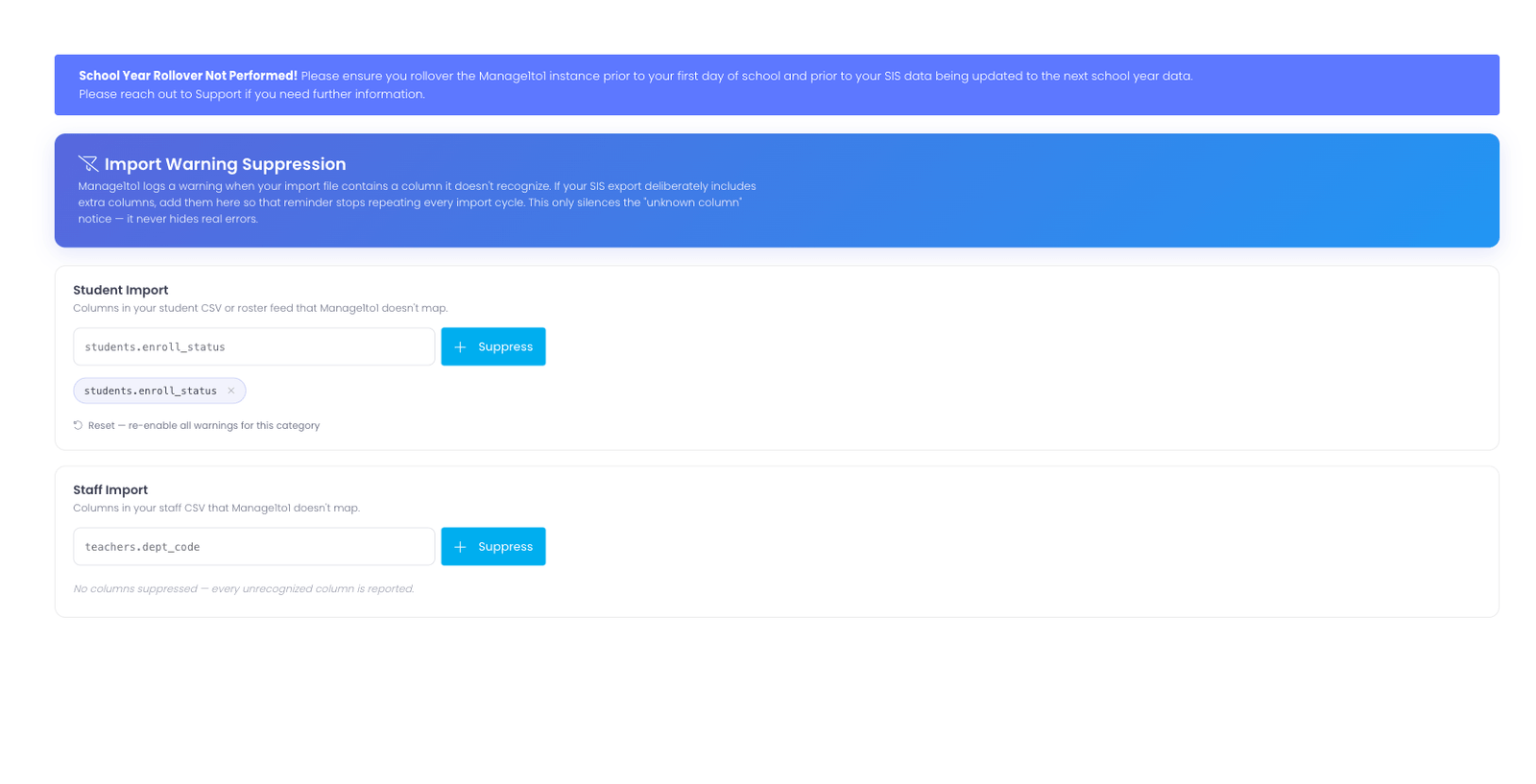
Each import type — Student Import and Staff Import — has its own section. A column suppressed for one does not affect the other.
Suppress a column
- In the section for the import type (Student or Staff), type the column name into the box — for example,
students.enroll_status. - Select Suppress.
The column now appears as a chip below the box, and the "unknown column" warning for it will no longer be recorded on future imports.
Match a group of columns with a wildcard
To suppress every column that starts with the same prefix, end the entry with an asterisk (*).
For example, entering students.* suppresses every column whose name begins with students. — handy when your SIS exports a whole block of columns under one naming convention.
Matching is not case-sensitive, so Students.Enroll_Status and students.enroll_status are treated the same.
Remove a suppression
To start seeing the warning for a column again, select the × on its chip. The next time that column appears in an import, the warning will be recorded as normal.
Reset a category
To clear every suppression for an import type at once, select Reset — re-enable all warnings for this category beneath the chips, then confirm. This is useful if you suspect you may have suppressed a column you actually want to be reminded about.
Common Questions
Q: Does suppressing a column change what gets imported? No. Suppression only affects the warning message. Unrecognized columns were already ignored during import — this simply stops Manage1to1 from reminding you about them.
Q: Can I suppress a real error, like invalid credentials? No. Only the "unknown column" import warning can be suppressed. The set of suppressible warnings is fixed, so real errors always come through.
Q: Is suppressing or un-suppressing a warning tracked? Yes. Adding, removing, and resetting suppressions are recorded in the activity log, so there's always a record of why a warning stopped (or started) appearing.
Q: Do Student and Staff suppressions share a list?
No. Each import type keeps its own list. Suppressing students.enroll_status under Student Import has no effect on the Staff Import warnings.