Genesis Fee Passback
The Genesis integration sends the device fees and fines you raise in Manage1to1 to each student's account in Genesis, so families pay them in the same place they pay for everything else. Manage1to1 stays the place where fees are created; Genesis becomes the place where they are collected.
This is a SIS enhancement: it works on top of your rostering connection and does not change where your students or staff come from.
To set up the Genesis integration, you need the Manage Settings permission assigned to your role.
Genesis fee passback matches Manage1to1 students to Genesis students using the roster you already sync. Set up User Rostering before turning this on.
What It Does
- Fees and fines you raise in Manage1to1 (repair charges, lost-device fees, fines, and any other fee type you choose) are sent to the matching student's Genesis account as individual line items.
- Each invoice on the profile page shows a badge telling you whether it has been sent to Genesis or whether a push failed.
- Families pay in Genesis, and Genesis is the system of record for payments and waivers. When a fee is paid or waived there, Genesis notifies Manage1to1 and the matching invoice updates on its own, so you never have to reconcile by hand.
Connect Manage1to1 to Genesis
Go to Settings → Integrations, choose Genesis, and fill in the connection details your Genesis administrator provides:
- Genesis Server URL — your district's Genesis address.
- API Key and API Secret — the credentials Genesis issued for Manage1to1. The secret is stored securely and hidden after you save it.
- District Code — the code Genesis uses to identify your district.
- Student Match Field — the Manage1to1 student field that holds the Genesis student ID. Choose Student Number, State ID, or Email Address, depending on which one matches Genesis.
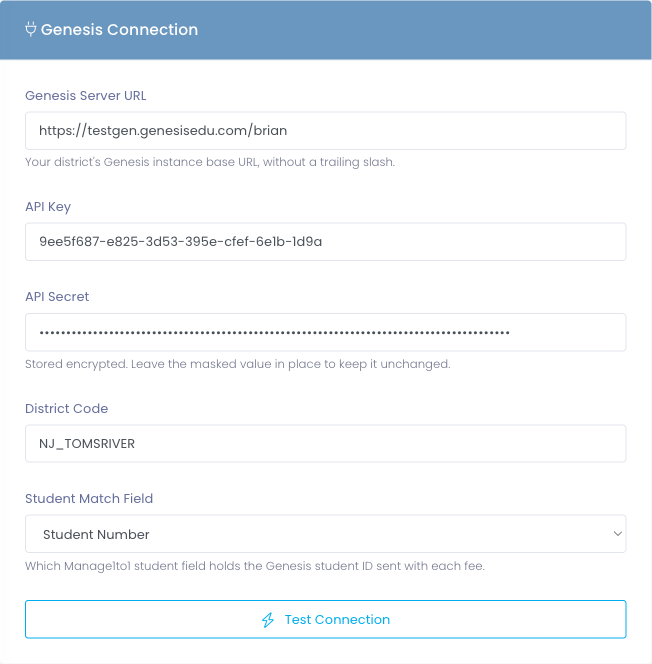
Click Test Connection. Manage1to1 signs in to Genesis and loads your district's fee categories. If the connection details are wrong, the test tells you what to fix before anything is saved.
Map Your Fee Categories
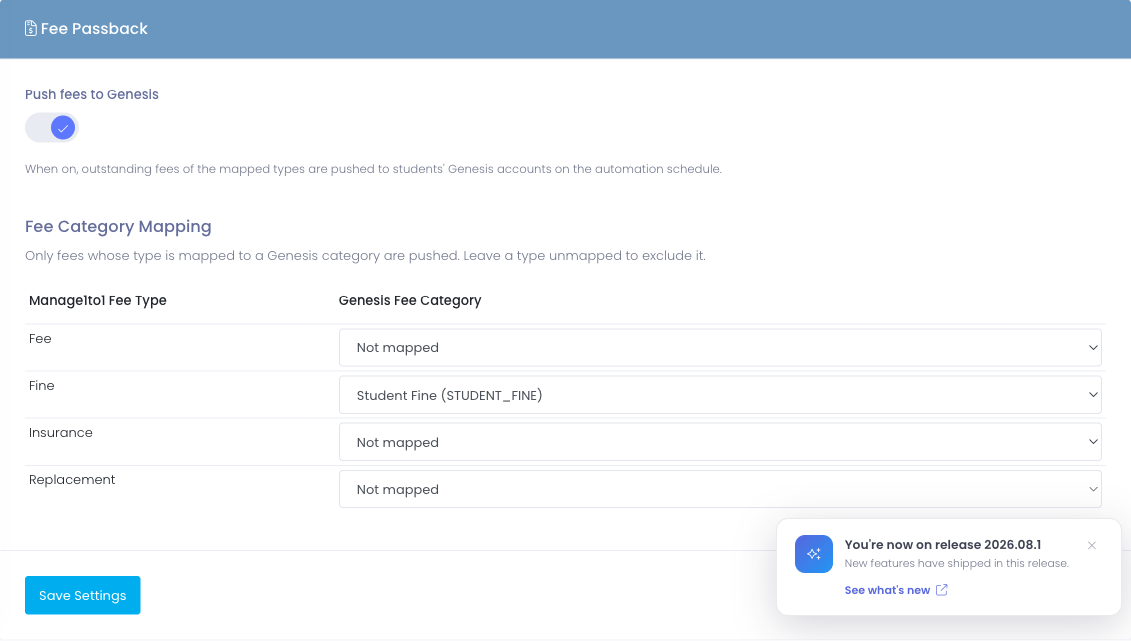
After a successful test, the Fee Category Mapping table lists your Manage1to1 fee types on one side and your Genesis fee categories on the other. For each Manage1to1 fee type you want to send, choose the Genesis category it should land in (for example, a repair charge might map to the Genesis "Chromebook Repair" category).
Only the fee types you map are sent. Anything left unmapped stays in Manage1to1 and is never pushed.
If you add a fee category in Genesis later, click Refresh Categories above the table to pull the latest list into the dropdowns without leaving the page — your existing mappings are kept.
Each row also has a Genesis Account dropdown — pick the Genesis account this fee type should post to, and Manage1to1 includes it with the fee. Leave it on Not set to send the fee without an account.
Each row also has an Optional checkbox. Tick it for a fee type whose charges families may choose whether to pay — Genesis then receives that fee marked optional. Leave it unticked (the default) and the fee is sent as required. This only tells Genesis how to present the charge; it doesn't change anything about the fee in Manage1to1.
Turn On Fee Passback
Switch Push fees to Genesis on and save. From then on, Manage1to1 checks for outstanding, unpaid fees of the mapped types and sends them to Genesis automatically on a regular schedule. You do not need to send anything by hand.
Sending is safe to repeat: a fee that has already been accepted by Genesis is never sent twice. Only fees that are still unpaid are ever sent, so anything a family has already paid, or that you have waived, is left alone.
Push Fees Dated On or After
To keep turning the integration on from suddenly sending years of old fees, Manage1to1 sets a Push fees dated on or after date to the day you switch pushing on. Only invoices dated on or after that date are sent, so by default you sync from today forward.
If you want to catch up a specific range on purpose, set an earlier date (for example the first day of the current school year) and save. Clearing the date resets it to today rather than sending your whole history.
Watch Push Status on the Invoice
Open any invoice to see its Genesis status:
- Sent to Genesis — the fee reached the student's Genesis account.

- Genesis push failed — Genesis could not accept the fee. The reason is shown next to the badge, along with two buttons:
- Retry Push — try sending this invoice again (useful after fixing the cause, such as adding a missing student ID).
- Dismiss — clear the error for a failure you can't resolve (for example, a student who legitimately has no Genesis account), so it stops being retried and drops off the daily summary.

Payments and Waivers Come Back Automatically
Genesis is where families pay and where staff record waivers. Whenever a fee is paid or waived in Genesis, Genesis notifies Manage1to1 and the matching invoice updates by itself:
- A payment in Genesis marks the Manage1to1 invoice paid (or reduces its balance if it was a partial charge).
- A waiver in Genesis clears the invoice's balance in Manage1to1 with no action on your side.
You do not record these payments in Manage1to1 — Genesis stays the system of record, and Manage1to1 simply reflects the result.
Connect the Payment Webhook
For Genesis to notify Manage1to1, it needs two things from the Payments from Genesis section of the Genesis settings page:
- Webhook URL — the address Genesis calls. Copy it and enter it in Genesis as the payment webhook.
- Webhook Signing Secret — a shared secret that lets Manage1to1 confirm each notification really came from Genesis. Click Generate, copy the value into Genesis, and Save Settings. The secret is stored securely and hidden after you save it.
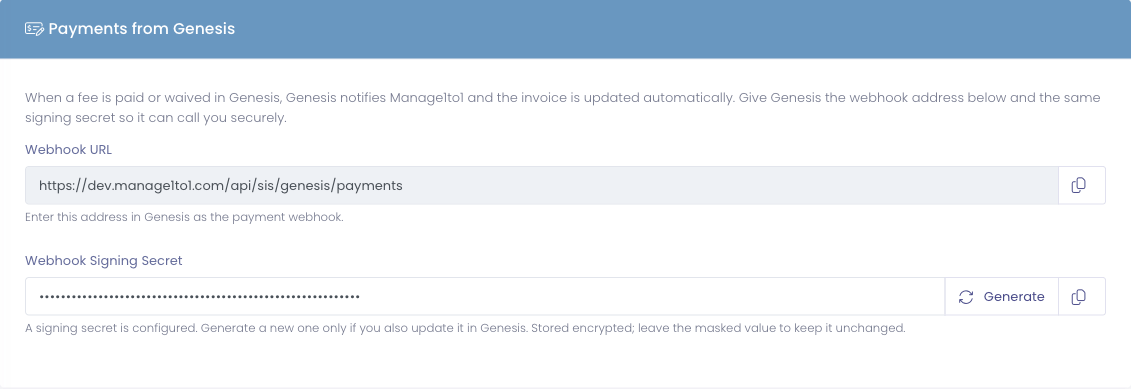
Enter the exact same signing secret on both sides. If you generate a new one later, update it in Genesis too, or notifications will be rejected.
Review Payments That Couldn't Be Matched
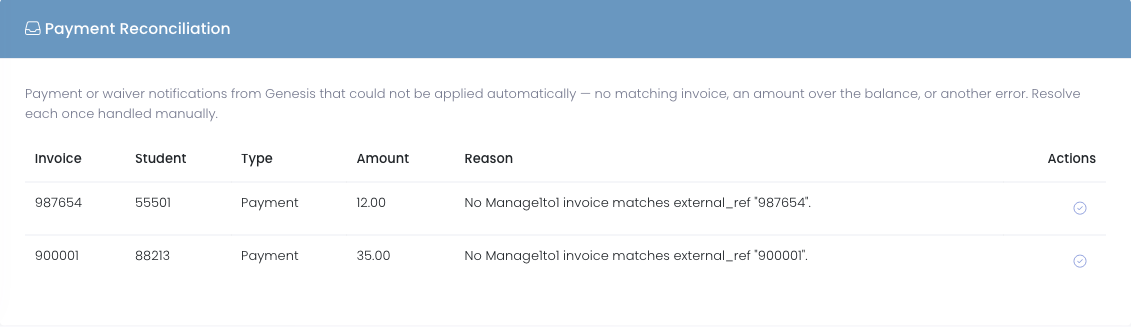
Almost every notification applies on its own. If one can't — for example a payment for an invoice this school doesn't have, or an amount larger than the balance — it lands in the Payment Reconciliation list on the Genesis settings page with the reason. Handle it in Manage1to1 as appropriate, then click Mark resolved to clear it from the list.
Daily Failure Summary
Once a day, administrators who receive system emails get a summary of any fees that failed to push, with a link to each invoice so they can retry or dismiss it. If nothing failed, no email is sent.
Troubleshooting
- A fee shows "Genesis push failed — student not found." Genesis doesn't recognize the ID Manage1to1 sent. Check that the student's Student Match Field value matches their Genesis ID, correct it, then use Retry Push.
- A fee never appears in Genesis. Confirm the fee's type is mapped in the Fee Category Mapping table and that Push fees to Genesis is on. Unmapped fee types are never sent.
- A student is charged in Genesis but you need to collect the payment. Payments and waivers for these fees are handled in Genesis, which is the system of record for what has been paid.