SchoolCash
The SchoolCash integration lets families pay their Manage1to1 device fees inside SchoolCash (by KEV Group), the online payment system your district may already use for other school fees. Manage1to1 sends your outstanding device fees to SchoolCash on a schedule, and the payments, waivers, and refunds collected in SchoolCash come back automatically and are applied to the matching Manage1to1 invoices.
Because it works through SchoolCash's own bulk fee file, there is nothing to install and no separate login for families: they see your device fees alongside everything else in SchoolCash.
What you will need
Before you start, ask your KEV Group contact for your district's SFTP connection details for the bulk fee importer:
- the SFTP host and port,
- a username and either a password or a private key,
- the folder names SchoolCash uses for incoming files, payment exports, and rejected records.
You will also need a fee type set up in SchoolCash for these device fees (for example, "Device Fees"). SchoolCash posts the imported fees under that category, so it has to exist on the SchoolCash side first.
Finding the integration
Go to Settings → Integrations and scroll to SIS Enhancements. SchoolCash appears as a card alongside the other providers. Select Manage to open its setup page.
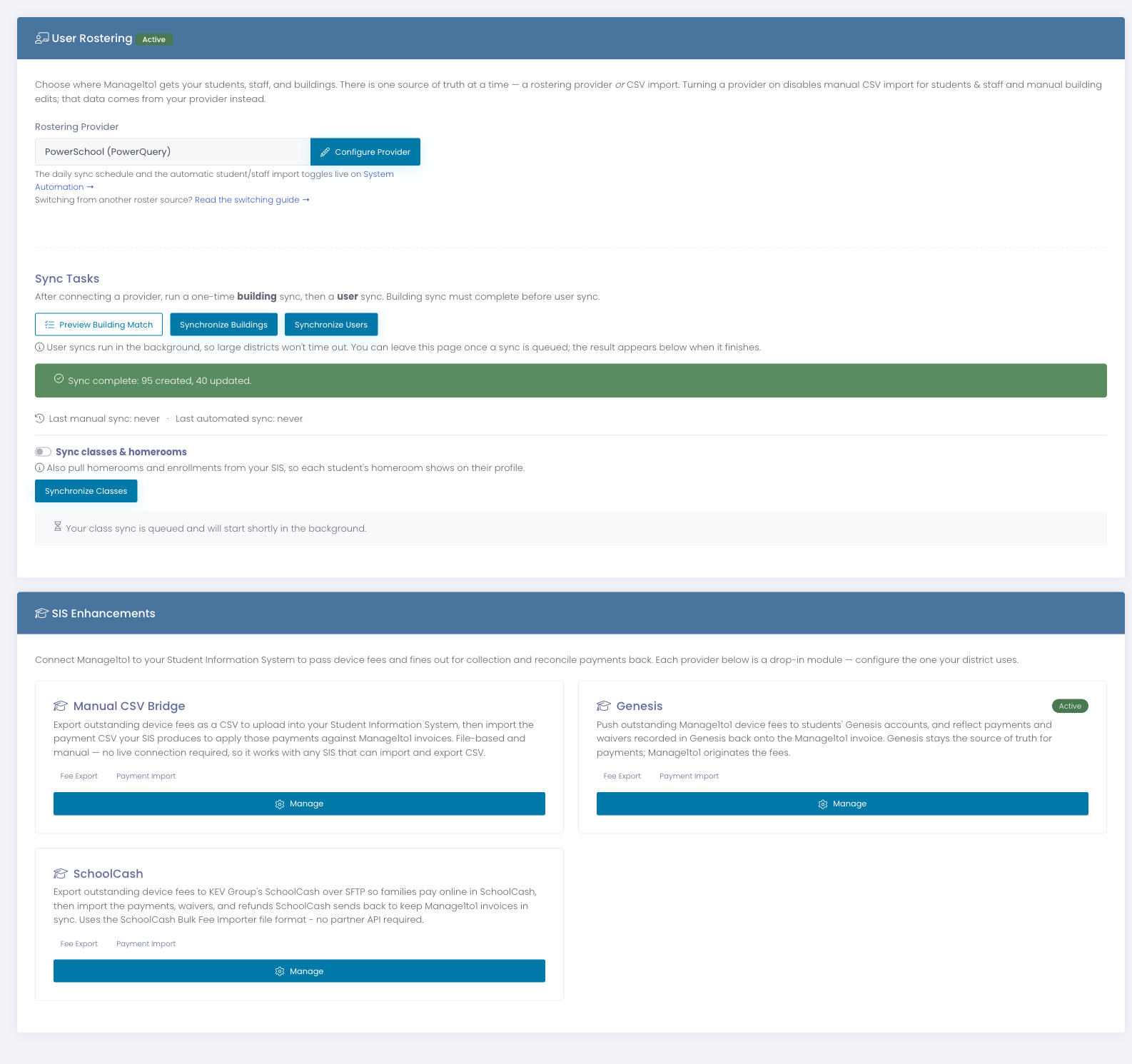
One fee provider is active at a time. When SchoolCash is collecting your device-fee payments, Manage1to1 turns off its own in-app and Parent Portal payment buttons for those invoices, so a family is never asked to pay the same fee twice.
Setting it up
The SchoolCash page has two sections: the connection to SchoolCash, and which fees to send.
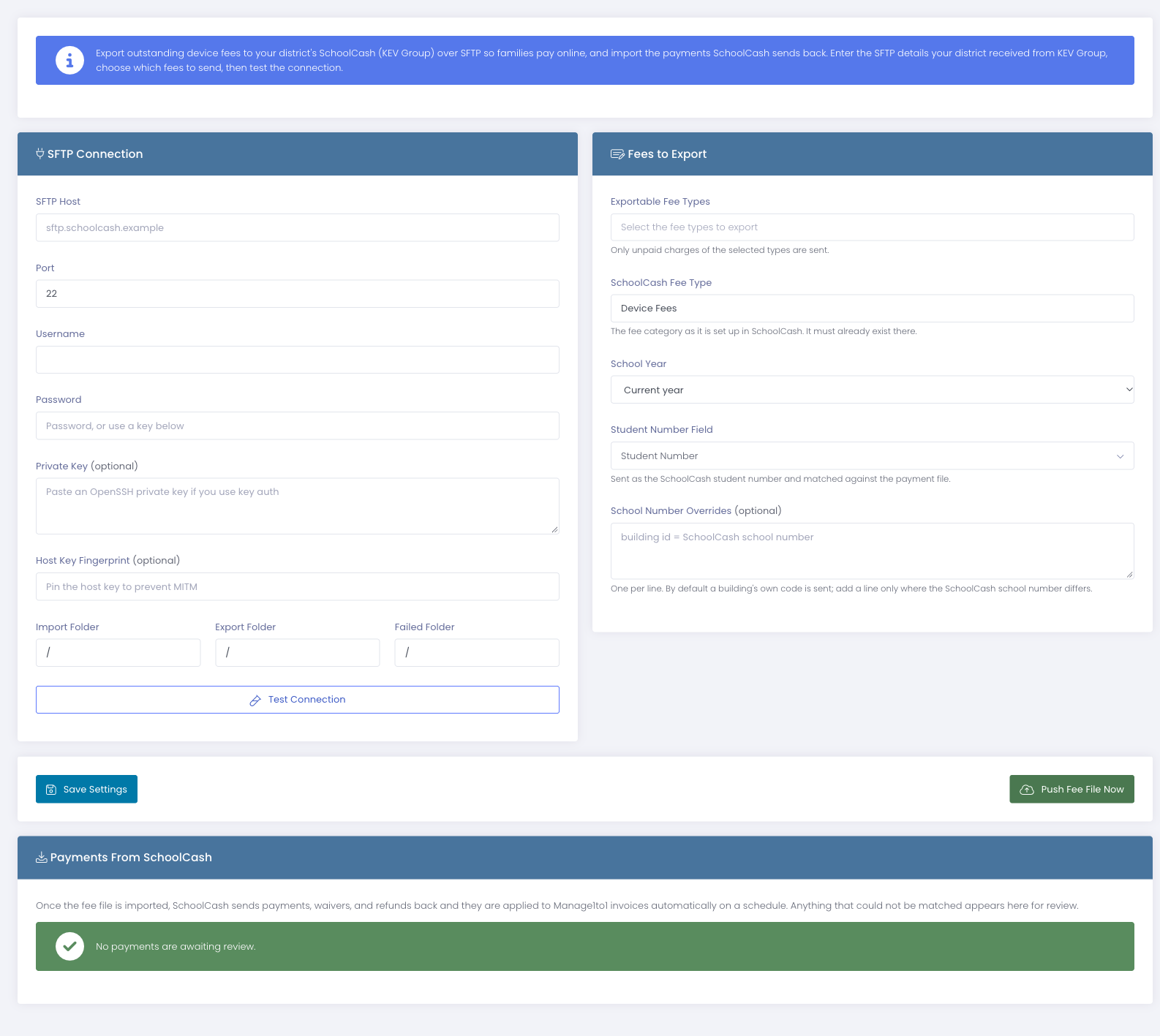
SFTP connection
Enter the details from KEV Group:
- SFTP Host and Port for the SchoolCash server.
- Username, and either a Password or a Private Key. Use one or the other, whichever your district was given.
- Host Key Fingerprint (optional) adds an extra layer of protection against a connection being intercepted. Leave it blank if you were not given one.
- Import Folder, Export Folder, and Failed Folder are the SchoolCash folders for the fee file you send, the payments SchoolCash sends back, and any records SchoolCash could not accept.
Select Test Connection to confirm the details are correct before saving. You will see a message telling you whether Manage1to1 could reach the folder.
Once you have saved a password or key, you can leave those fields blank the next time you edit the page. Your saved credentials are kept, so re-saving other settings never clears them.
Fees to export
Choose what Manage1to1 sends:
- Exportable Fee Types are the kinds of charges that go to SchoolCash. Only unpaid charges of the types you pick are sent.
- SchoolCash Fee Type is the category name you created in SchoolCash. This has to match exactly.
- School Year tells SchoolCash whether these fees belong to the current year or the next one.
- Student Number Field is the student identifier Manage1to1 sends. It is used to place each fee on the right student and to match the payments that come back.
- School Number Overrides (optional) is only needed when a building's SchoolCash school number is different from its code in Manage1to1. Add one line per building that differs; every other building uses its own code automatically.
Select Save Settings when you are done.
How it works day to day
Once it is set up, the integration runs on its own:
- Manage1to1 sends an up-to-date list of outstanding device fees to SchoolCash on a schedule. Each run is a fresh snapshot, so a fee that has been paid, waived, cancelled, or removed in Manage1to1 simply drops off and is no longer shown in SchoolCash.
- Families pay (or are waived or refunded) in SchoolCash.
- SchoolCash sends those payments, waivers, and refunds back, and Manage1to1 applies each one to the matching invoice. Re-processing the same file never double-posts a payment.
You do not need to run anything by hand, but you can if you want to.
Pushing the fee file now
Select Push Fee File Now at the bottom of the page to send the current list of outstanding fees to SchoolCash immediately, rather than waiting for the next scheduled run. This is handy right after you first set things up, or after a large billing change.
Payments from SchoolCash
The Payments From SchoolCash panel shows anything that needs a human eye. Most payments apply automatically and never appear here. A payment lands in this list only when Manage1to1 cannot match it to an open invoice, or when it is larger than the amount owed. Review these and handle them in the normal billing screens.
If SchoolCash rejects any records in a file you sent, Manage1to1 lets you know so you can check the fee data and try again.