Classes & Homerooms
Alongside students and staff, Manage1to1 can pull each student's homeroom from your rostering provider, so it appears right on the student's profile. This is an optional add-on to user rostering: it is off by default, and turning it on never changes how students and staff are synced.
To turn this on you need the Manage Settings permission on your role.
Turning it on
Go to Settings → Rostering & SIS. In the Sync Tasks area, switch on Sync classes & homerooms, then choose Synchronize Classes to pull them in right away.
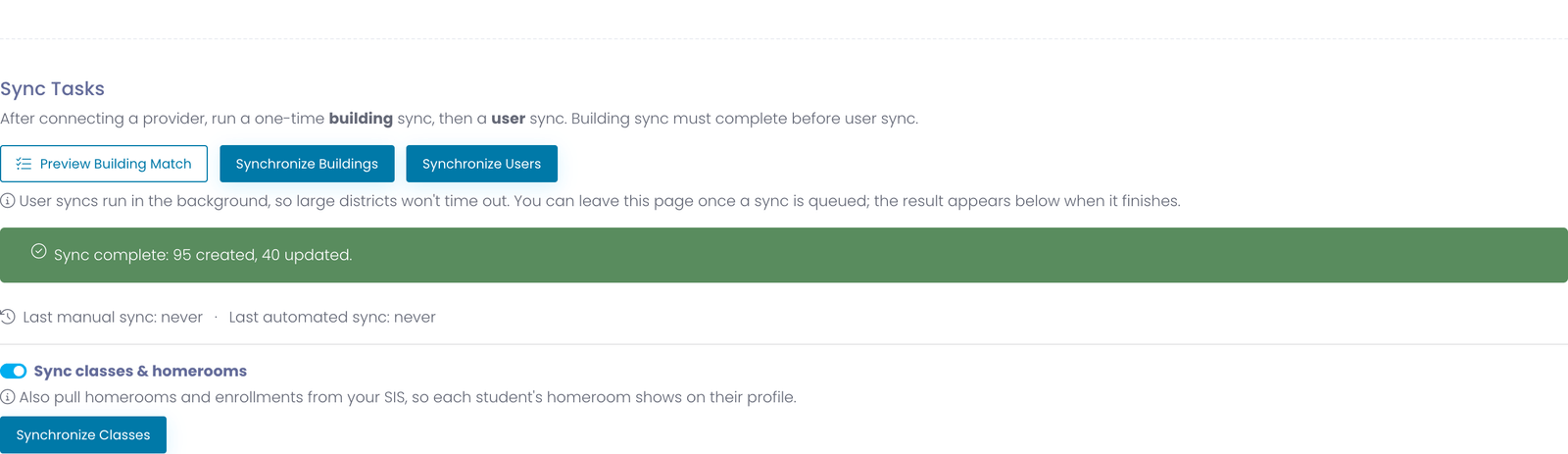
Like the user sync, the class sync runs in the background, so a large district won't time out. You can leave the page once it is queued. After the first run, it also refreshes automatically on the same daily schedule as your other roster syncs, so homerooms stay current as students move.
Manage1to1 reads homerooms directly from your provider's roster data. A student shows a homeroom only once your provider publishes one for them, so if a homeroom looks wrong or missing, the fix belongs in your Student Information System, then flows through on the next sync.
How Manage1to1 finds each student's homeroom
Your roster usually holds many kinds of classes — scheduled periods, labs, activities, and homerooms. When class sync runs, Manage1to1 looks through a student's classes and picks out their homeroom in one of two ways:
- By class type — when your provider marks a class as a homeroom, Manage1to1 uses it directly.
- By class name — when a class isn't specifically marked as a homeroom but its name includes the word "Homeroom" (for example, "Homeroom Grade 1"), Manage1to1 recognizes it as the student's homeroom.
Either match works, so most districts don't need to change anything. If a student's homeroom isn't appearing, check how it's set up in your Student Information System: the class should either be categorized as a homeroom or have "Homeroom" in its name. Adjust it there and it appears on the next sync.
A student normally has a single homeroom. If your roster lists more than one for a student, Manage1to1 shows the first active one, so keeping one active homeroom per student in your Student Information System keeps the profile accurate.
Where a student's homeroom appears
Open any student and look at the User Information panel at the top of their profile. Their homeroom is listed right below their grade.
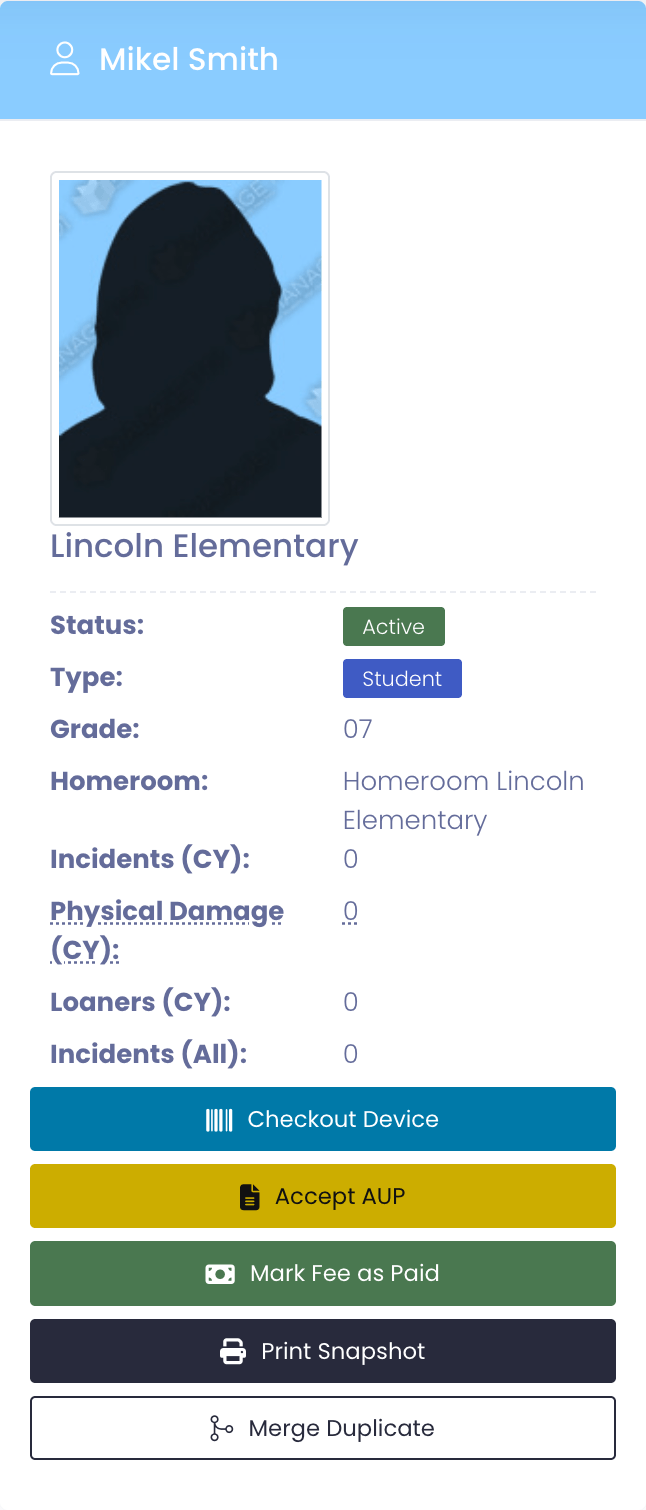
Only students carry a homeroom, so the line is hidden for staff and for students whose roster has no homeroom assigned.
Turning it off
Switch Sync classes & homerooms back off at any time to stop pulling homerooms. Your student and staff syncs keep running exactly as before.