FileWave
FileWave is a cross-platform MDM that manages macOS, Windows, iOS/iPadOS, Android, and ChromeOS devices. The Manage1to1 integration reads the results of a FileWave Inventory Query and syncs that device inventory into Manage1to1, so every device that exists in both systems picks up its FileWave details right on its device profile and in your MDM Statistics.
Connection, Device Import, and Removed-Device Handling behave the same across every MDM — Common Setup Options explains each, including how Device Import routes unknown devices into a review queue instead of adding them automatically. This page covers what's specific to FileWave.
This is a device inventory integration: it reads a FileWave Inventory Query and brings those device details into Manage1to1 for a single, unified view of your fleet. It reads from FileWave; it doesn't change anything in FileWave.
How It Works
Rather than guessing which fields to pull, the integration reads an Inventory Query you build in FileWave — so you decide exactly which columns come across. You build a query that lists your devices with a Serial Number column (Manage1to1 matches devices by serial) plus any detail columns you want to see, then give Manage1to1 three things: your FileWave server URL, an application token, and that query's ID.
Before You Start
To set it up, you'll need:
- Administrator access to your FileWave server (FileWave Central / Anywhere)
- Permission to generate an application token and to build an Inventory Query
- Your FileWave server URL (the same host you use for FileWave Anywhere)
Step 1: Build an Inventory Query
- In FileWave, create a new Inventory Query that returns your devices (Clients)
- Add a Serial Number column — this is required; Manage1to1 uses it to match FileWave devices to your Manage1to1 records
- Add any other columns you'd like surfaced in Manage1to1 — for example Device Name, Model, Operating System and Version, Last Check-in, and FileWave Client Version
- Save the query and note its ID (the number FileWave assigns it)
Manage1to1 shows whichever recognized columns your query returns. Serial Number is the only required one; the more device detail columns you include, the richer the Manage1to1 device profile will be.
Step 2: Generate an Application Token
- In FileWave, open Settings → Application Tokens (FileWave 12.9 and later supports multiple scoped tokens)
- Create a token with inventory read rights
- Copy the token value
The application token lets Manage1to1 read your FileWave inventory. Store it securely — Manage1to1 keeps it encrypted at rest, and you can rotate it any time by generating a new token in FileWave and pasting the new value into your settings.
Step 3: Configure the Integration in Manage1to1
- Navigate to Settings → MDM Settings
- Find FileWave in the available modules list and click Manage (or Activate)
- Fill in the Connection settings:
| Setting | What to enter |
|---|---|
| FileWave Server URL | Your FileWave server address, e.g. https://fwserver.yourdistrict.org. |
| Application Token | The token value you generated in Step 2. |
| Inventory Query ID | The numeric ID of the Inventory Query you built in Step 1. |
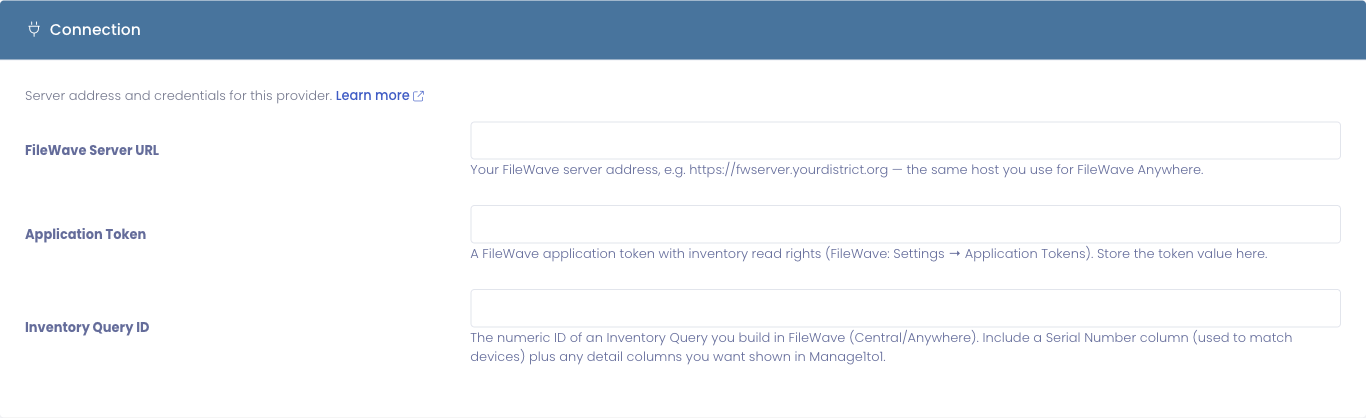
- Optionally set your Device Import and Removed-Device Handling options — both are off by default and route changes through a review queue. See Common Setup Options.
- Click Test Connection — Manage1to1 reads your Inventory Query and confirms the server, token, and query ID all work.
- Click Save Settings to enable the module.
Step 4: Initial Device Sync
Once the module is enabled, Manage1to1's MDM sync reads your Inventory Query on the next scheduled run. Devices are matched to Manage1to1 records by serial number, so any device that's both in Manage1to1 and in your FileWave query picks up the FileWave data automatically.
Manage1to1 stores whichever recognized columns your query returns — commonly:
- Device name and model
- Operating system and version
- FileWave client name and version
- Last check-in
You can re-run the sync on demand from any device's profile by clicking Refresh Now on the FileWave info pane.
What the Integration Does
Device Inventory Pane
Every device that exists in both FileWave and Manage1to1 gets a FileWave Info pane on its profile page, showing the synced columns. The pane includes a Refresh Now button that re-reads your Inventory Query and updates that device.
MDM Statistics
FileWave devices roll into your MDM Statistics dashboard with an OS distribution breakdown and a platform split across your FileWave fleet.
Importing and Removing Devices
The sync normally only enriches devices that already exist in Manage1to1. If you'd like FileWave to also pull in devices it knows about but Manage1to1 doesn't — or flag devices that disappear from your query — turn on the Device Import and Removed-Device Handling options in the FileWave settings. Both are optional, off by default, and route every change through a review step so nothing touches your inventory until you approve it. See MDM Device Review for how the review queue works.
Troubleshooting
Test Connection fails
- Token rejected (rights). Confirm the application token has inventory read rights and hasn't been revoked or regenerated in FileWave.
- Query not found. Confirm the Inventory Query ID matches a saved query in FileWave (re-open the query in FileWave and check its ID).
- Server unreachable. Confirm the Server URL is correct and reachable from the internet — Manage1to1 connects to the same host you use for FileWave Anywhere.
Fix whichever applies, then click Test Connection again — the message FileWave returns is shown to help you pinpoint the cause.
Sync runs but no devices appear
- Confirm your Inventory Query includes a Serial Number column and actually returns devices when you run it in FileWave.
- Devices are matched by serial number — verify your Manage1to1 records and the FileWave query agree on the full serial (no trailing whitespace, no abbreviations).
A column isn't showing on the device profile
Manage1to1 displays recognized device columns. If a field you added to the query isn't appearing, confirm the column is included in the query's output and that it has a value for that device.
Rotating the Application Token
- In FileWave, generate a new application token with inventory read rights
- Paste it into Settings → MDM Settings → FileWave → Application Token
- Click Test Connection to confirm the new token works, then Save
- Revoke the old token in FileWave
There's no downtime — the integration uses the saved token on the next request, so the moment you save the new value the integration is using it.