Pre-Issuance Review Settings
The Pre-Issuance Review panel sits in the left column of every user profile and gives technicians a fast read on a user's account health before they hand over hardware. This page configures which user-profile fields count toward the panel's Complete / Incomplete indicator.
When every enabled check passes, the panel on the user profile shows a green Complete. When even one is missing, it flips to a yellow Incomplete with the failing list available on hover:

Configuring Which Checks Count
Open Settings → Pre-Issuance Review.
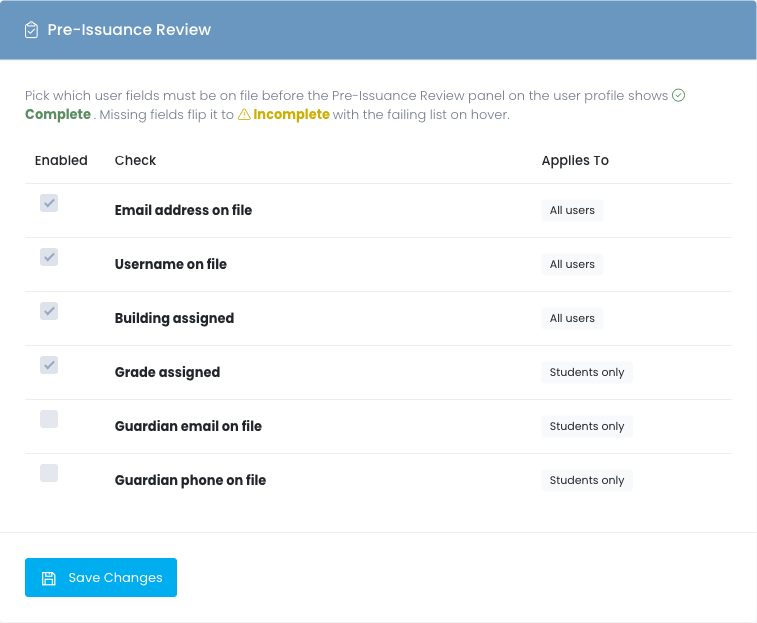
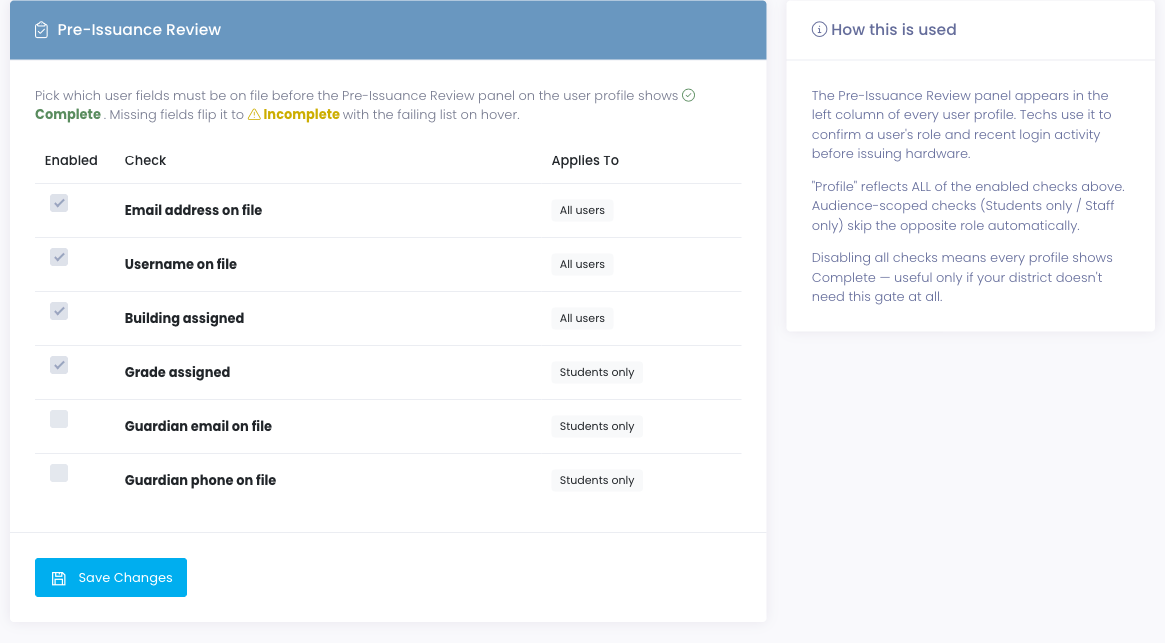
For each row, tick Enabled to include that check in the Profile indicator. The Applies To column tells you whether the check runs against everyone, students only, or staff only — audience-scoped checks automatically skip the opposite role.
| Check | Applies To | What "passes" means |
|---|---|---|
| Email address on file | All users | email is set and isn't the legacy placeholder NA |
| Username on file | All users | username is non-blank |
| Building assigned | All users | The user is mapped to at least one building |
| Grade assigned | Students only | grade is greater than 0 |
| Guardian email on file | Students only | guardian_email is non-blank |
| Guardian phone on file | Students only | At least one of guardian_home or guardian_cell is non-blank |
Click Save Changes. The new check set applies immediately on the next user profile load — no cron tick or rebuild required.
Common Configurations
District baseline (default on fresh install): Email address on file, Username on file, Building assigned. Matches the historic checks that ran before this page existed; safe starting point.
1:1 district with parent communication: Add Guardian email on file. Catches student records that won't receive billing or incident notifications.
Districts that bill late fees to families: Add Guardian email on file + Guardian phone on file. The billing module's chase emails and phone-call tasks rely on these fields being present.
Districts that don't gate on completeness: Untick every box. The Pre-Issuance Review panel will show Complete for every user, which effectively disables the gate without hiding the panel.
How "Applies To" Works
Each check is scoped to one of three audiences:
- All users — runs the predicate on both students and staff
- Students only — runs on student records (
staff = 0); skipped silently on staff records - Staff only — runs on staff records (
staff = 1); skipped silently on student records
This means a staff record will never show Incomplete because of a missing guardian email, and a student record will pick up the student-only checks you've enabled. There's nothing extra to configure — the audience filter is baked into each check.
What the Panel Surfaces Beyond Completeness
The Pre-Issuance Review panel shows two things together:
- Profile — the aggregate Complete / Incomplete indicator driven by the checks you've enabled here
- Recent Logins — the five most recent times the user signed in to the User Portal, with sign-in method (Password, Google SSO, Microsoft 365 SSO, ClassLink SSO, or Magic Link) and source IP
Recent Logins is not affected by this settings page — it's always shown. If a user is reporting they "can't log in," Recent Logins quickly answers whether they've ever successfully logged in at all.
Considerations
- Disabling all checks doesn't hide the panel — Profile just shows Complete for everyone. The Recent Logins half is still useful.
- Setting changes apply on the next page load. No browser cache to clear; just refresh the user profile.
- Audience-scoped checks auto-skip the wrong role, so it's safe to enable Guardian email + Grade assigned without worrying about staff records turning yellow.
- Activity log entries are written when you change the enabled-check set, including the friendly labels of which checks are on or off after the save. Useful when auditing why a particular district has its panel set up the way it does.
Permissions
Reading and changing the Pre-Issuance Review settings requires the settings permission — the same permission that controls access to every other Settings page.
The panel itself on user profiles is visible to anyone who can view a user profile (the view-users permission). Toggling checks here only changes the math behind the Profile indicator; it doesn't grant or restrict who can see the panel.