Repair Credits
Repair Credits let your district act as its own insurer for device repairs. Instead of buying a third‑party protection plan, you pre‑fund a repair credit balance for each user. When a device is repaired and a charge is created, the charge draws from that user's credit first — only what's left over is billed to the family.
Think of it as a "pot" of repair money you hand out and top up on your own schedule.
The feature is off by default. Nothing is seeded, drawn, or shown anywhere until you turn it on.
Two permissions control Repair Credits:
- Manage Repair Credits — turn the feature on, choose how it works, and grant, adjust, or reset balances. This is the financial‑control permission.
- Apply Repair Credits — apply a user's existing balance to a repair charge when you use Manual mode. Give this to technicians who process repairs without letting them change balances.
Turning it on
Go to Settings > Repair Credits.
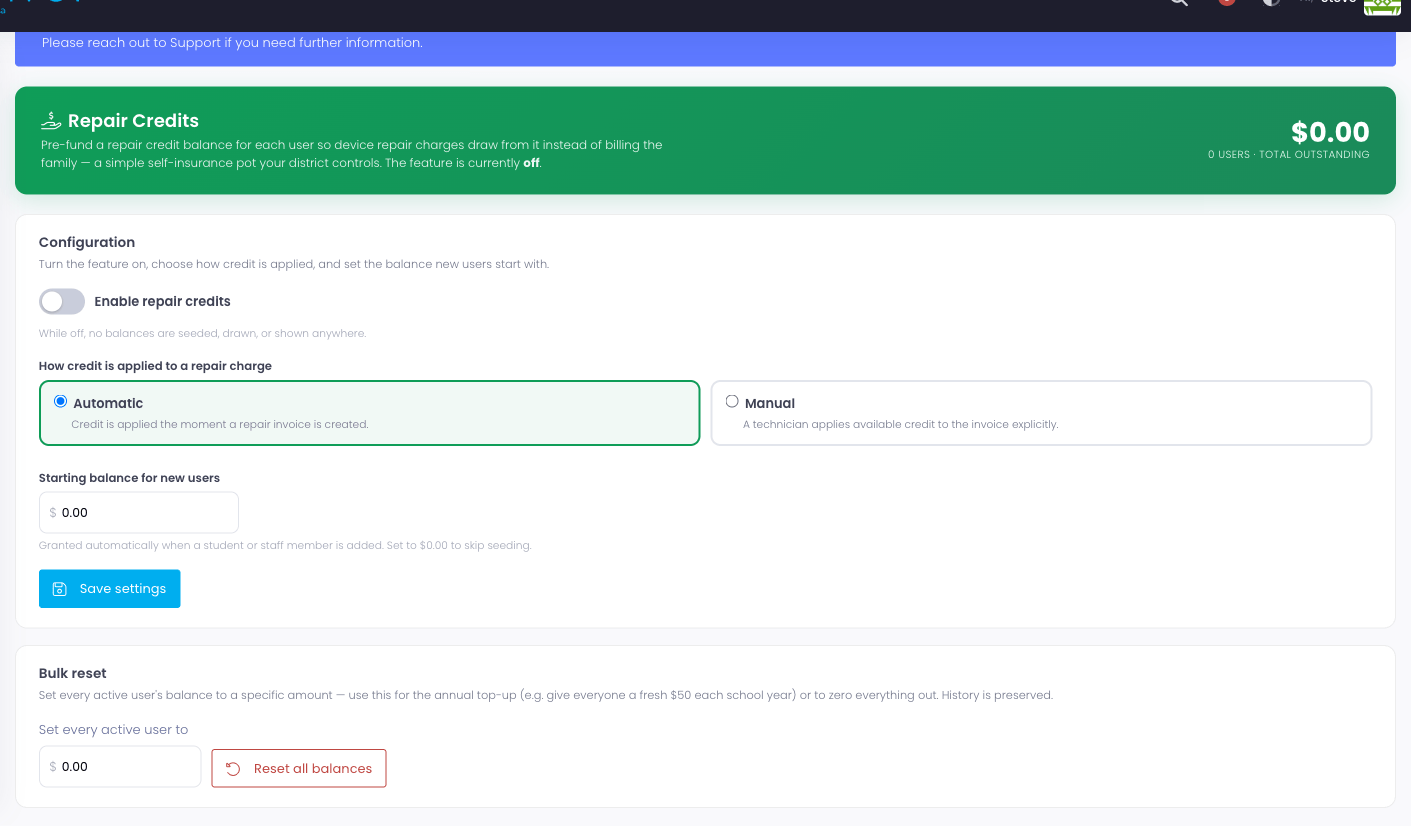
The page has three parts:
Configuration
- Enable repair credits — the master switch. While it's off, balances are never seeded, drawn, or displayed.
- How credit is applied to a repair charge:
- Automatic — credit is applied the moment a repair invoice is created. Best for a hands‑off "it just works" setup.
- Manual — the invoice is created at full price, and a technician applies available credit to it explicitly. Choose this if you want a person to decide on each repair.
- Starting balance for new users — the amount every newly added student or staff member is automatically granted. Set it to
$0.00if you'd rather grant credit yourself.
Click Save settings when you're done.
The district total
The green banner at the top always shows your total outstanding repair credit — the sum of every user's balance — and how many users currently hold a balance. This is your at‑a‑glance view of how much the district is on the hook for.
Bulk reset
Use Bulk reset for the yearly cycle: set every active user to a specific amount in one step — for example, give everyone a fresh $50 at the start of each school year, or set everyone to $0 to clear things out. You'll be asked to confirm before the reset runs, and each user's credit history is preserved.
How a repair draws down credit
When a repairable device generates a charge:
- The repair parts are totaled.
- If the user has an active insurance/protection policy, that reduces the charge first.
- Repair credit then absorbs whatever is left, up to the user's available balance.
- Anything still remaining is billed to the family as a normal invoice.
If credit fully covers the repair, the invoice is settled and nothing is owed. Only repairs draw from credit — regular fees, fines, and annual fees are unaffected.
If a repair is cancelled
If a repair invoice that used credit is later voided or cancelled, the credit it used is automatically returned to the user's balance. You never lose credit to a reversed charge.
Granting and adjusting an individual balance
Beyond the district‑wide default and bulk reset, you can add or remove credit for a single user from their profile. Open a user and select the Repair Credits tab — it shows their current balance, an Adjust balance panel to add or remove credit with a note, and the full activity history. Every entry is recorded so you can always see where a balance came from, and any repair a credit was applied to links straight to that invoice.
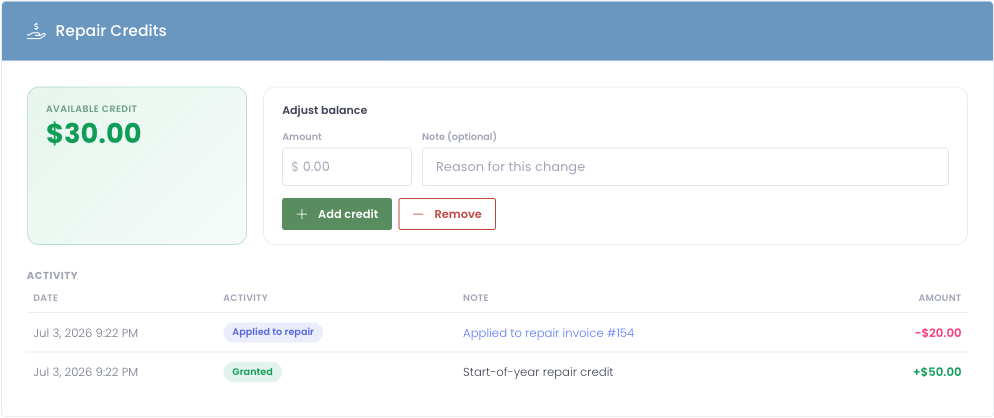
The Repair Credits tab only appears while the feature is enabled.
Common questions
Does staff get credit too? Yes. The starting balance and bulk reset apply to both students and staff.
What happens when a user's credit runs out? The repair charge simply falls back to billing the family for whatever the credit didn't cover.
Can families see their credit? Repair credits are an internal, admin‑side tool. Families only ever see the reduced amount they owe on an invoice.